How to Make Music Playlists on Linux With Rhythmbox or VLC

You can make a music playlist on Linux with a library-focused player such as Rhythmbox, or build one in VLC and save it as a playlist file. Rhythmbox is convenient when you want to keep several named lists inside one music library. VLC is useful for a quick queue that you can save and reopen. In either app, a playlist organizes links to audio files; it does not copy or contain the songs themselves.

These are interface illustrations; menus vary by distribution and app version.

Choose an app and prepare your music

AppBest fitWhere the playlist lives
RhythmboxOrganizing a library and keeping multiple named playlistsIn Rhythmbox; export is available in common playlist formats
VLCPutting together a short listening queue or sharing a playlist fileIn the current session, and optionally in a saved file such as XSPF

Install either player from your distribution’s software center or official package repositories if it is not already available. Rhythmbox is included with some Linux distributions, but it is not installed by default everywhere. Check the Rhythmbox project page or the official VLC site for project and installation information.

Before starting, confirm that your audio files play in the chosen app. If Rhythmbox’s library is empty, import or add your music folder using the library controls available in your version. Keep the tracks in a stable folder, such as Music; moving them later can leave saved playlists pointing to files that no longer exist.

Create a playlist in Rhythmbox

Rhythmbox is a good choice when you want to browse a collection by song, artist, or album and maintain playlists in the same application.

  1. Open Rhythmbox from your desktop’s applications menu. Select the music library or song list in the sidebar. If you do not see the songs you want, import them into the library first.
  2. Select the tracks for your first playlist. Click one song, then hold Ctrl while clicking other individual songs. For a continuous range, select the first track, hold Shift, and select the last one.
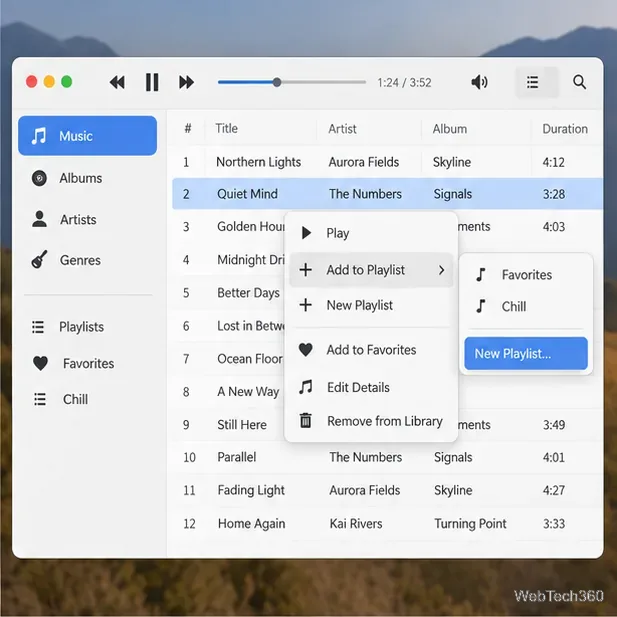
  3. Right-click the selection and choose Add to Playlist, then New Playlist. Some versions also provide a New Playlist command in an app menu or a plus button. If you do not see the context-menu option, create a blank playlist first and drag the chosen tracks onto it.
Illustrative Rhythmbox-style music library with a song list and Music selected in the sidebar
Browse your library and select the tracks you want to group together.
Illustrative track context menu with Add to Playlist and New Playlist options
The track menu provides a shortcut for starting a playlist from selected songs.
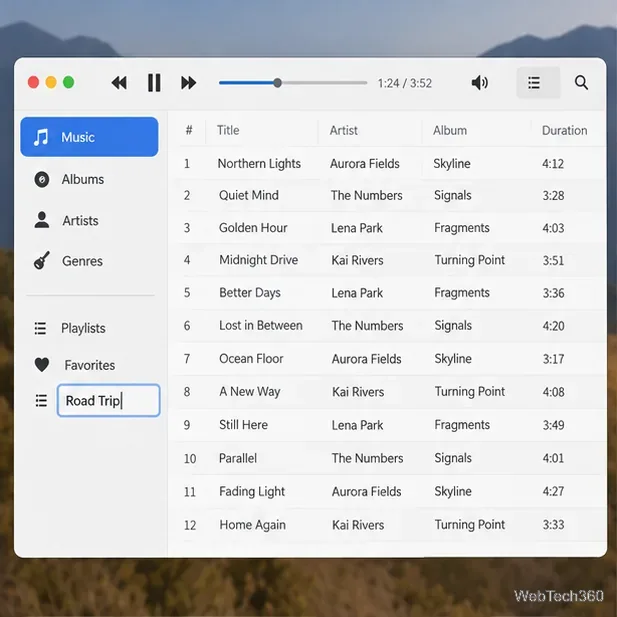
  1. When the new playlist appears in the sidebar, give it a descriptive name such as “Evening Jazz” or “Road Trip.” A clear name makes it easier to find later.
  2. To add more tracks, return to the library, select them, then use Add to Playlist and choose the playlist by name. Select the playlist in the sidebar to review its contents and start playback.
Illustrative playlist name field in the sidebar being changed to Road Trip
Name the new list in the sidebar so it is easy to recognize.
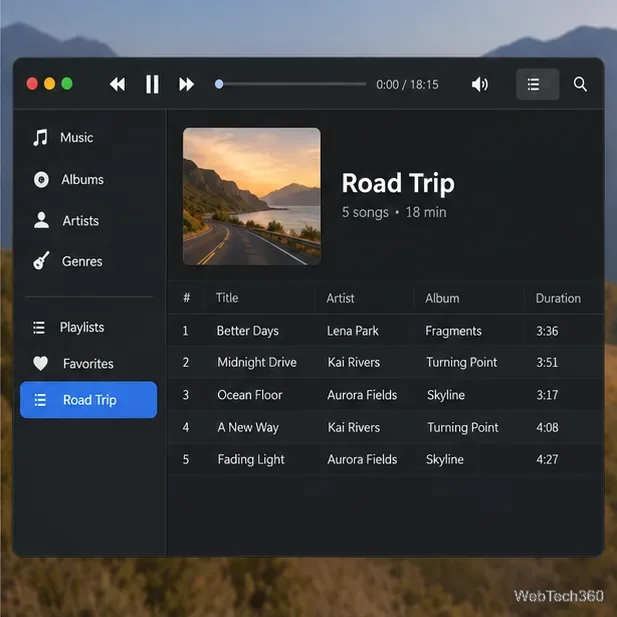
Illustrative named Road Trip playlist with five tracks listed in order
Open the playlist from the sidebar to see its track order and play it.

For a portable copy, use Rhythmbox’s playlist export command if your version provides it, then select a format such as M3U, PLS, or XSPF. The GNOME project’s Rhythmbox documentation and project information can help you identify the version and supported features you have.

Make and save a playlist in VLC

VLC can play audio without building a music library first. Its current playlist is a working queue; save it to a file if you want to open it again after closing VLC.

  1. Launch VLC and switch to its playlist view using the playlist control or the View menu. On many desktop builds, Ctrl+L also opens the playlist.
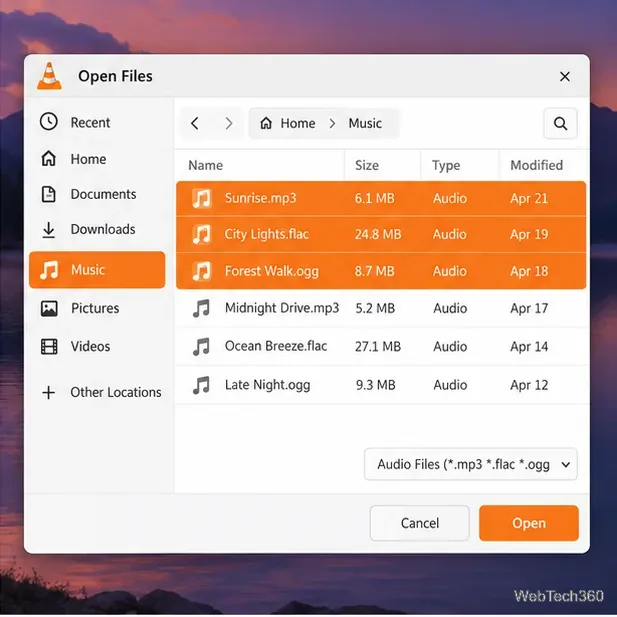
  2. Add music by dragging audio files or a folder from your file manager into the playlist pane. You can also use Media > Open File and select multiple tracks in the file chooser when your desktop supports multi-select. Add tracks in the order you want them to play.
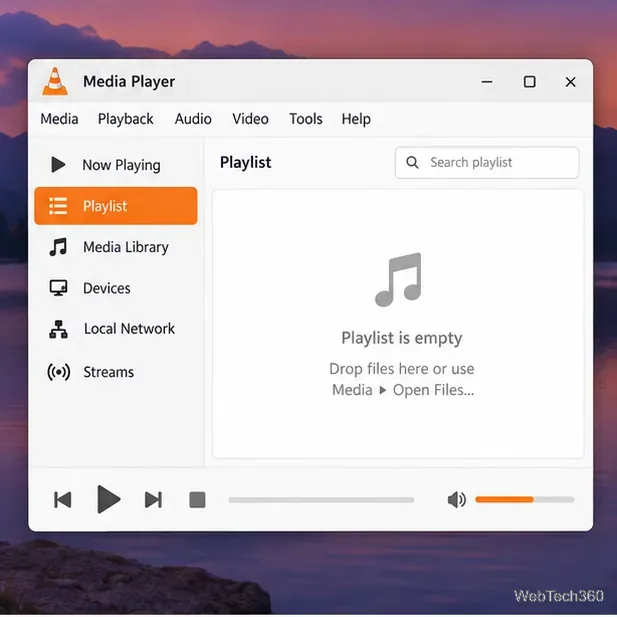
Illustrative VLC playlist view showing an empty playlist pane and the Media menu
Start in the playlist pane, where VLC displays the current queue.
Illustrative Linux file chooser in the Music folder with three audio files selected
Select several audio files together when the file chooser allows multiple selection.
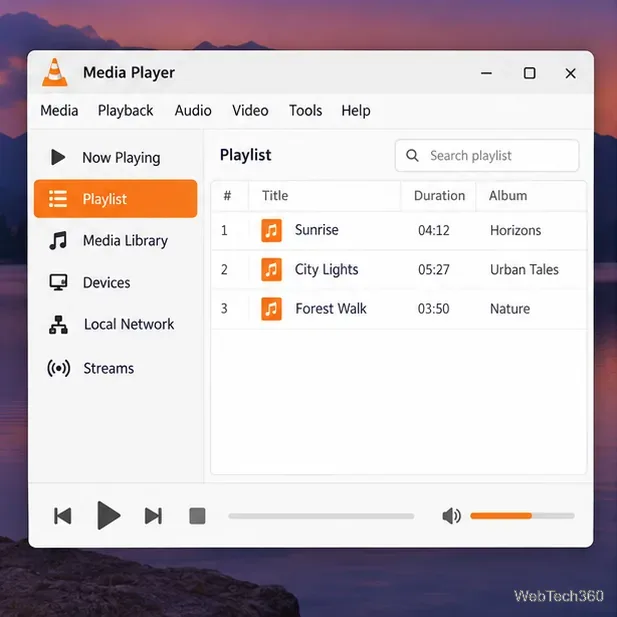
  1. Check the queue and reorder tracks if needed. When it is ready, choose Media > Save Playlist to File. If you do not see the command, right-click inside the playlist pane and look for a save option.
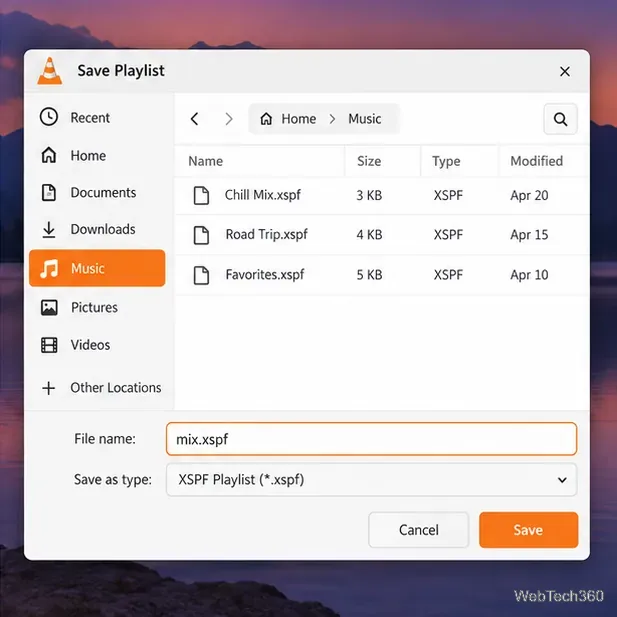
  2. Choose a location you can find again, enter a name such as weekend-mix.xspf, and save. XSPF is a playlist format; the file stores references to media rather than the audio itself.
  3. To reopen it later, use Media > Open File and select the saved .xspf file. VLC will rebuild the queue from the referenced tracks.
Illustrative VLC playlist pane with three music tracks listed in playback order
Review the queue before saving so the playlist contains the tracks you intended.
Illustrative Save Playlist dialog with an XSPF filename and format selected
Save with an XSPF extension to keep the queue as a reusable playlist file.

If a playlist opens without music

  • Check file locations. Moving or disconnecting the music folder can break playlist links. Restore the previous path or recreate the playlist after organizing the files.
  • Check playback first. Open a track directly. If it fails, check for an unsupported format or missing codec. Install codecs only through trusted distribution repositories.
  • Use a stable save location. Keep exported playlists somewhere predictable. Back them up with your music when moving computers; a playlist does not back up the audio.

For current VLC controls, consult the VideoLAN VLC user documentation.

Leave a Comment

How to Access a Windows BitLocker Partition in Linux

How to Access a Windows BitLocker Partition in Linux

Use Dislocker to unlock a BitLocker volume in Linux, mount its virtual NTFS file read-only, and safely unmount it without exposing your password in a command.

5 Safe Ways to Reduce RAM Usage on Linux

5 Safe Ways to Reduce RAM Usage on Linux

Learn how to reduce RAM usage on Linux by finding memory-hungry apps, trimming browser and startup load, and testing a lighter desktop safely.

4 WhatsApp Alternatives for Linux Users: Telegram, Signal, Wire, and Element

4 WhatsApp Alternatives for Linux Users: Telegram, Signal, Wire, and Element

Compare four WhatsApp alternatives for Linux by privacy defaults, desktop support, setup requirements, and the people each app suits.

How to Fix a VirtualBox VM Launch Error on Linux

How to Fix a VirtualBox VM Launch Error on Linux

Troubleshoot a VirtualBox VM that will not start on Linux by checking vboxdrv, kernel headers, Secure Boot, Extension Pack versions, and VM logs.

How to Transfer an Ubuntu User to a New Computer

How to Transfer an Ubuntu User to a New Computer

Transfer your Ubuntu user data with a tar archive and external drive, then restore personal files and selected settings without overwriting the new setup.

How to Get Started with gThumb on GNOME

How to Get Started with gThumb on GNOME

Install gThumb on Linux, browse and make simple photo edits, then set it as the default app for the image types you choose in GNOME.

How to Make Music Playlists on Linux With Rhythmbox or VLC

How to Make Music Playlists on Linux With Rhythmbox or VLC

Create an organized playlist in Rhythmbox or save a reusable XSPF playlist in VLC. Learn how to add tracks, name a list, and reopen it on Linux.

How to Install the Dino XMPP Client on Linux

How to Install the Dino XMPP Client on Linux

Install Dino on Linux with Flatpak or your distribution’s package manager. Get current Ubuntu, Debian, Fedora, and Arch commands, plus first-launch tips.

How to Switch to the LTS Kernel in Arch Linux

How to Switch to the LTS Kernel in Arch Linux

Install Arch Linux’s linux-lts kernel, add it to GRUB or systemd-boot, select it at startup, and verify it while keeping a fallback kernel.

How to Install LibreELEC on a Raspberry Pi 4

How to Install LibreELEC on a Raspberry Pi 4

Download the right Pi 4 image, write it to a microSD card, and complete LibreELEC’s first-run setup with Raspberry Pi Imager.