How to Access a Windows BitLocker Partition in Linux

Use Dislocker to unlock a BitLocker volume in Linux, mount its virtual NTFS file read-only, and safely unmount it without exposing your password in a command.
gThumb is a GNOME image browser, viewer, organizer, and basic editor. Install it from your distribution’s software source, browse a photo folder, and set it as the default for the image types you choose. Keep GNOME Photos, Loupe, or Shotwell installed if you still use them; removal is unnecessary.
Menu wording and window layouts differ by GNOME and gThumb release, so use the equivalent control if your screen looks different.
Search your distribution’s software catalog for gthumb and install the package. The GNOME gThumb project page directs users to their distribution’s package manager.

If you prefer a terminal, use the command for your distribution. Review the package manager’s confirmation before allowing it to install the app and its dependencies.
| Distribution | Install command |
|---|---|
| Ubuntu | sudo apt install gthumb — Ubuntu package details |
| Debian | sudo apt install gthumb — Debian package details |
| Fedora | sudo dnf install gthumb — Fedora package details |
| Arch Linux | sudo pacman -S gthumb — Arch package details |
Availability varies by release and enabled repositories. If gThumb is not found, refresh package information and check the official repository configuration. Ubuntu packages it in Universe, which may need to be enabled on a minimal installation. Avoid downloading a package built for a different Linux release.
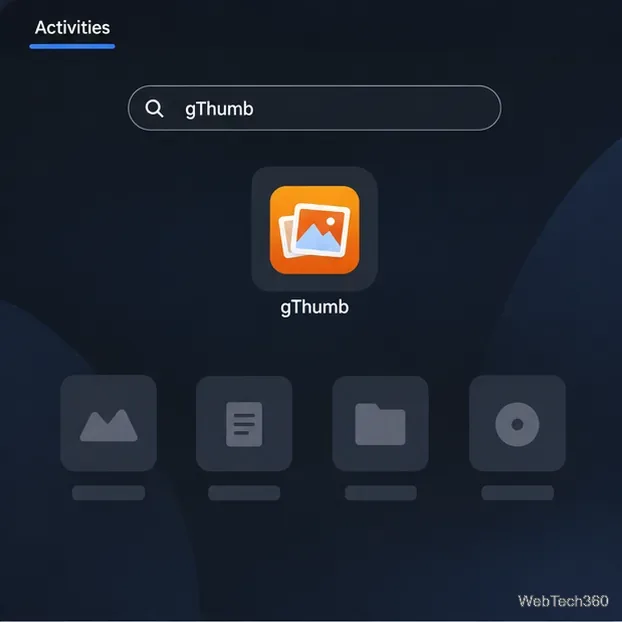
Open Activities, type gThumb, and select the result. You can also find its icon in the app grid. The Super key usually opens Activities, though the layout varies by GNOME version.
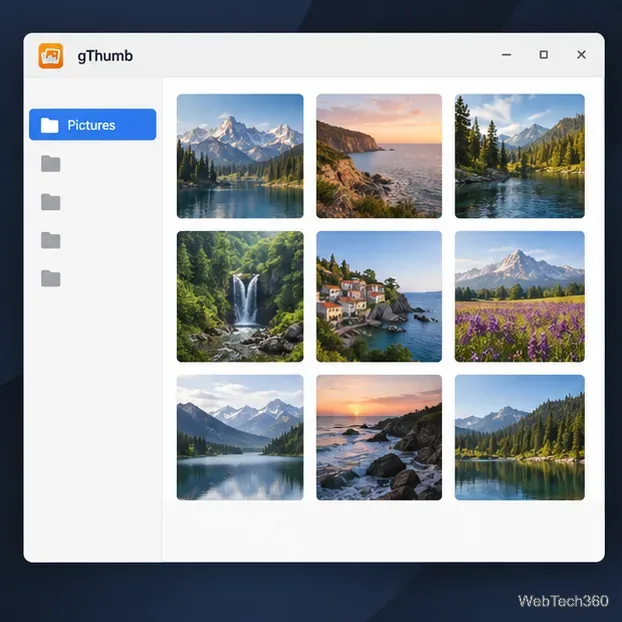
Navigate to a folder such as Pictures or one on an attached drive. gThumb displays thumbnails so you can scan the collection without opening each file. If it starts in another location, use the folder navigation or location control to choose a directory. The sidebar can vary by release.
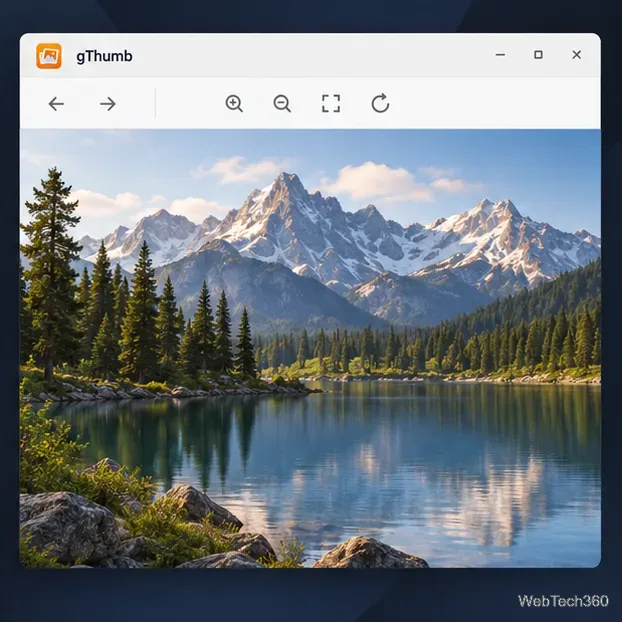
Select a thumbnail to open it in the viewer. Use the controls to move between photos, zoom, or switch to full screen. gThumb also offers common file-management tasks in its browser. RAW and newer codec support can vary with the libraries included in your distribution’s build.
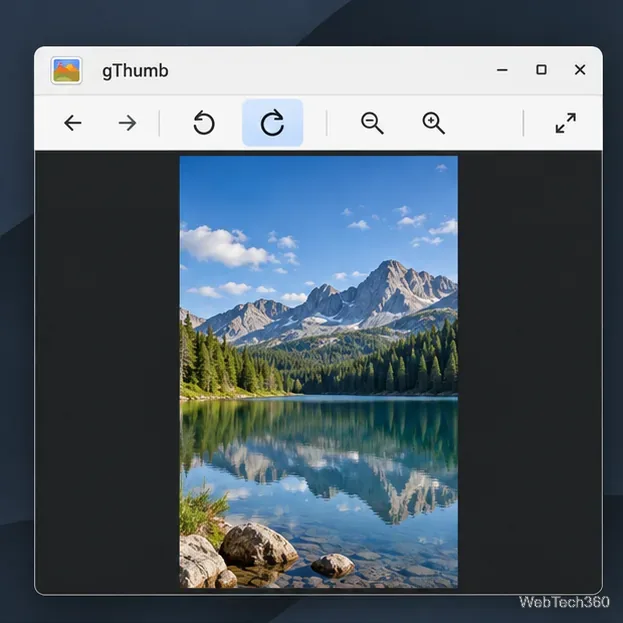
With a photo open, choose rotate left or right from the viewer controls or menus. Review the result before saving. To preserve the original, use Save As to create a copy when available. Toolbar placement and save prompts vary by version.
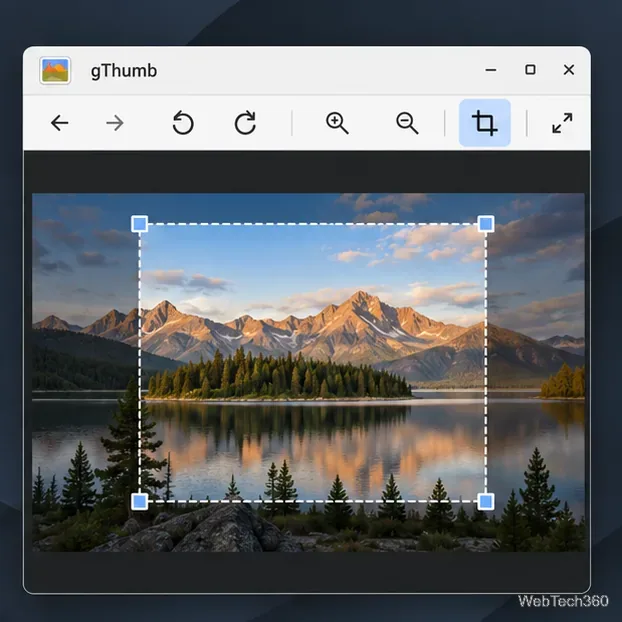
Choose the crop tool and drag its edges to frame the subject. Reposition and apply the crop, then inspect the result. Because cropping changes the image, use Save As to preserve the source. gThumb also offers basic resizing and color adjustments; use a full photo editor for layered work or advanced retouching. Check the upstream gThumb project for features in your release.
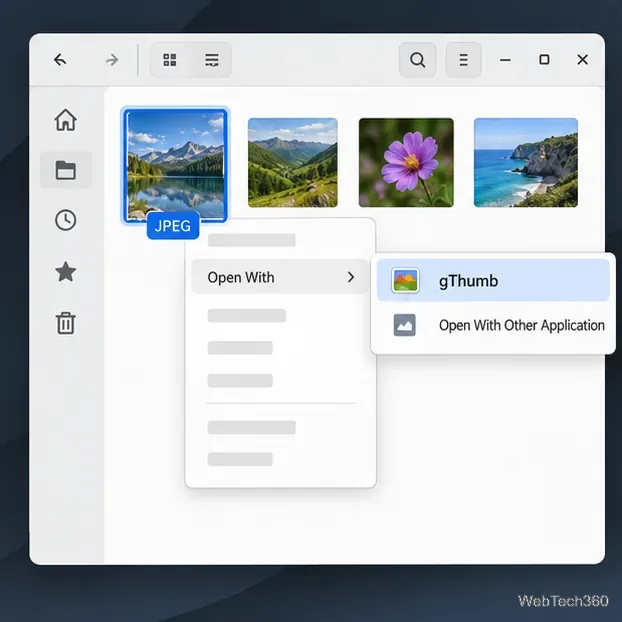
In GNOME Files, right-click an image, choose Open With, and select gThumb. If it is missing, show all applications or choose another application. This opens the file once without changing defaults.
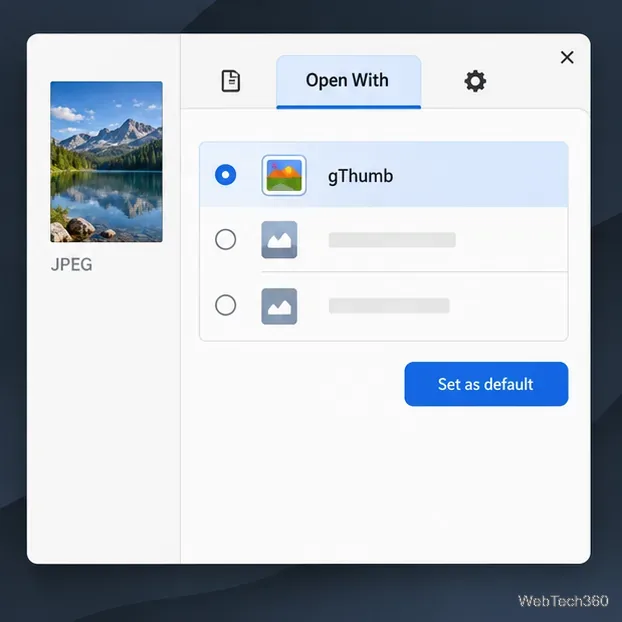
To make it stick, right-click a file and choose Properties. Open Open With, select gThumb, and click Set as default. GNOME applies this to files of the same type, not every image format. Repeat with a PNG or another format as needed. See GNOME’s file association help for this method.
Keep other photo apps installed if you use them. A default association controls double-click behavior for that file type; you can still open a file in another app from its context menu.
Confirm installation, then reopen GNOME Files to refresh its app list. If gThumb works when launched directly but not on double-click, check the default for that exact format; JPEG and PNG can have different associations. For an image error, test a common format and check whether your build supports the file’s codec.
Use Dislocker to unlock a BitLocker volume in Linux, mount its virtual NTFS file read-only, and safely unmount it without exposing your password in a command.
Learn how to reduce RAM usage on Linux by finding memory-hungry apps, trimming browser and startup load, and testing a lighter desktop safely.
Compare four WhatsApp alternatives for Linux by privacy defaults, desktop support, setup requirements, and the people each app suits.
Troubleshoot a VirtualBox VM that will not start on Linux by checking vboxdrv, kernel headers, Secure Boot, Extension Pack versions, and VM logs.
Transfer your Ubuntu user data with a tar archive and external drive, then restore personal files and selected settings without overwriting the new setup.
Install gThumb on Linux, browse and make simple photo edits, then set it as the default app for the image types you choose in GNOME.
Create an organized playlist in Rhythmbox or save a reusable XSPF playlist in VLC. Learn how to add tracks, name a list, and reopen it on Linux.
Install Dino on Linux with Flatpak or your distribution’s package manager. Get current Ubuntu, Debian, Fedora, and Arch commands, plus first-launch tips.
Install Arch Linux’s linux-lts kernel, add it to GRUB or systemd-boot, select it at startup, and verify it while keeping a fallback kernel.
Download the right Pi 4 image, write it to a microSD card, and complete LibreELEC’s first-run setup with Raspberry Pi Imager.







