How to Access a Windows BitLocker Partition in Linux

Use Dislocker to unlock a BitLocker volume in Linux, mount its virtual NTFS file read-only, and safely unmount it without exposing your password in a command.
Short answer: use Dislocker to unlock the BitLocker volume, then mount the virtual NTFS file it exposes. Linux’s ordinary NTFS support does not decrypt BitLocker on its own. The commands below use read-only mode at both layers so you can copy files without writing to the Windows volume.
You need administrator access on Linux, the correct BitLocker partition, and a protector credential for that volume. A Windows sign-in password or PIN is not necessarily the BitLocker password. If the volume uses a 48-digit recovery password, Dislocker can prompt for it instead. Microsoft explains where recovery keys may be backed up in its recovery-key guide; for a work or school device, contact its administrator.
Dislocker’s upstream documentation describes support for BitLocker formats from Windows Vista through Windows 10 and BitLocker To Go. That documentation does not promise compatibility with every newer Windows configuration or protector, so results can depend on the volume and Dislocker build. Review the project notes if your setup differs.
Use your distribution’s trusted package source. On Ubuntu or Debian, the package is available in the distribution archives; package availability can depend on release and enabled repositories:
sudo apt update
sudo apt install dislocker
Fedora’s upstream installation notes list these packages:
sudo dnf install dislocker fuse-dislockerOn Arch, openSUSE, or another distribution, check the current package index first. If no trusted package is available, follow the dependencies and source-build instructions in Dislocker’s installation guide. See the Ubuntu package record, Debian package record, and Fedora package page for current package details.
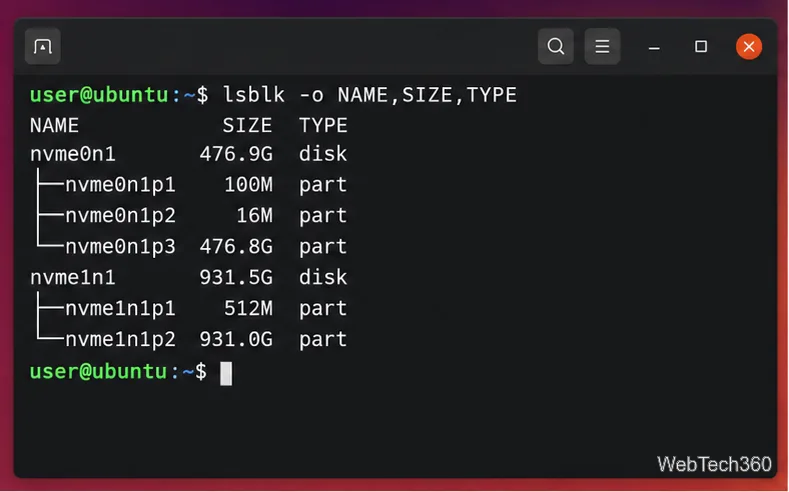
List the available block devices and compare their sizes with the Windows partition. Replace the example device below with the partition you identify; it may look like /dev/nvme0n1p3 or /dev/sdc1.
lsblk -o NAME,SIZE,TYPElsblk may not label a BitLocker volume clearly. Check the parent disk and partition size carefully. Do not choose a small EFI, recovery, or Linux partition based only on its position in the list.
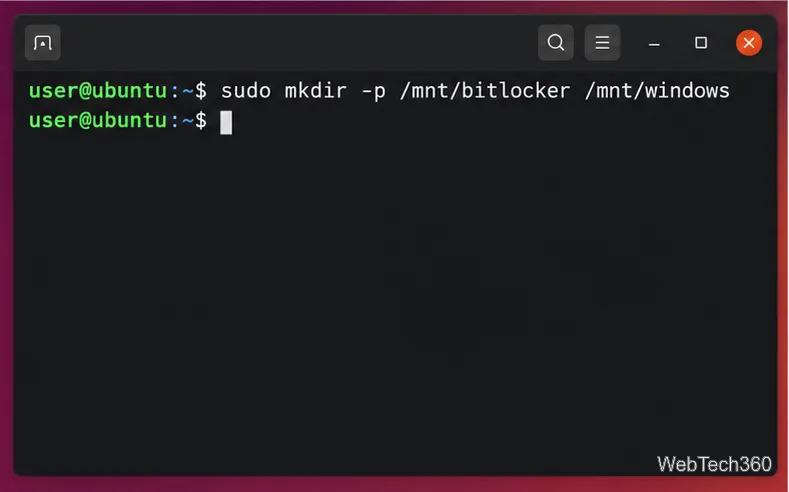
Dislocker needs one directory for its FUSE mount, and Linux needs another directory for the NTFS view:
sudo mkdir -p /mnt/bitlocker /mnt/windowsThe first path will contain Dislocker’s virtual file, dislocker-file. The second path will show the decrypted filesystem after you mount that file.
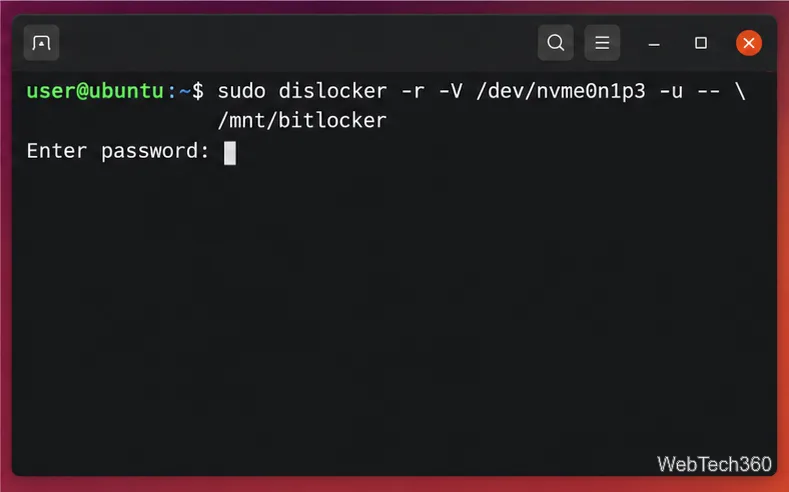
Run Dislocker against the partition, adding -r to prevent writes to the underlying BitLocker volume. The -u option asks for a BitLocker user-password protector; it is not automatically your Windows account password.
sudo dislocker -r -V /dev/nvme0n1p3 -u -- /mnt/bitlockerEnter the requested password at the prompt. Do not append it to the command, where it could be saved in shell history or exposed in process details. For a 48-digit recovery password, use -p in place of -u; Dislocker will prompt for the recovery password:
sudo dislocker -r -V /dev/nvme0n1p3 -p -- /mnt/bitlockerIn both commands, replace /dev/nvme0n1p3 with your actual partition. After a successful unlock, Dislocker exposes /mnt/bitlocker/dislocker-file. It is a virtual NTFS volume linked to the encrypted partition, not a separate copy.
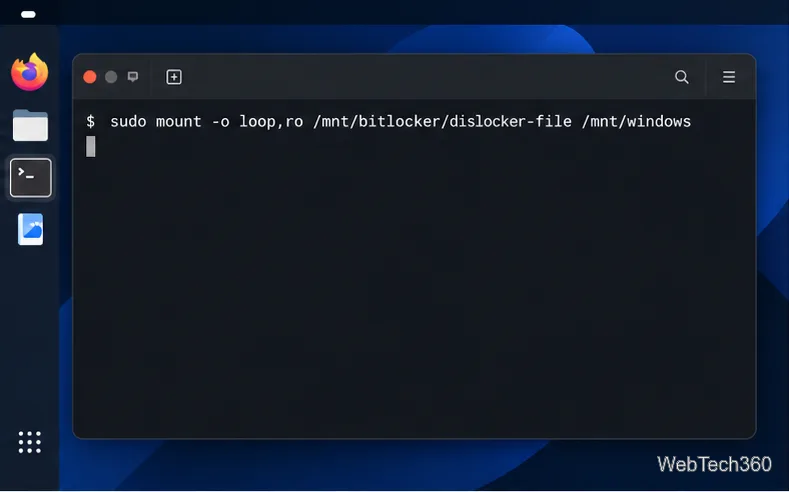
Mount Dislocker’s virtual file with loopback and read-only options:
sudo mount -o loop,ro /mnt/bitlocker/dislocker-file /mnt/windowsThe additional ro option keeps this filesystem view read-only. Keep the Dislocker mount active while you use /mnt/windows.
Open /mnt/windows in your file manager or use it from the terminal. Copy anything you need to a different writable disk or partition. The read-only setup is intentional: Dislocker can pass writes through to the original encrypted volume when not run read-only.
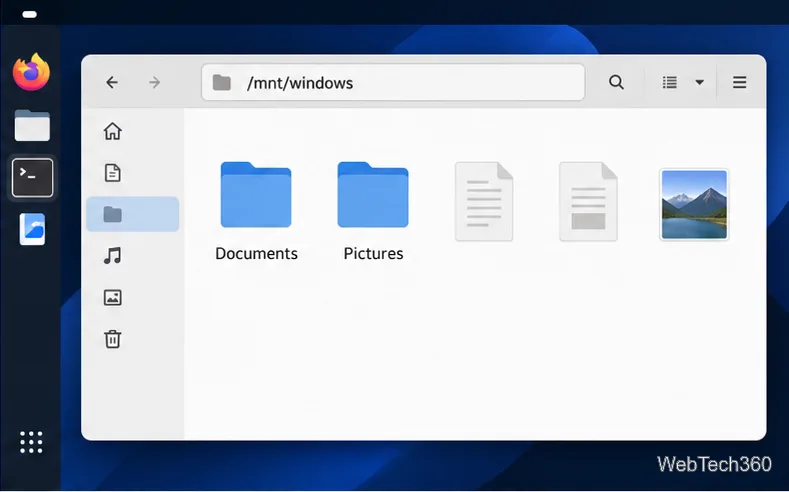
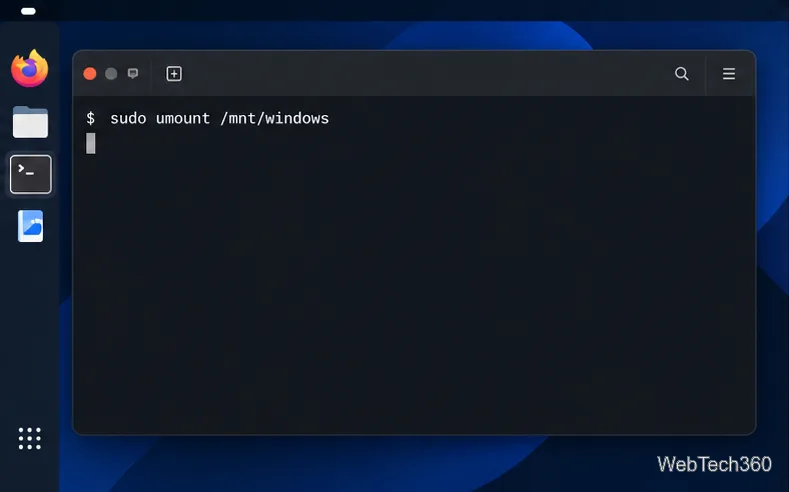
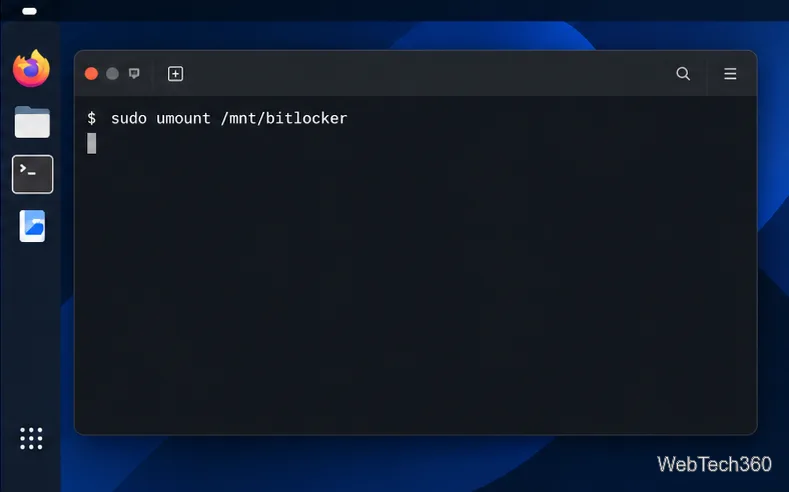
Close files and applications using the mounted volume, then unmount the NTFS view first and Dislocker second:
sudo umount /mnt/windows
sudo umount /mnt/bitlocker
Do not shut down Linux while either mount is active. If an unmount reports “target is busy,” close the file-manager window and any terminal or application using the volume, then retry. Avoid a force unmount while files are open.
lsblk and check that the Dislocker command completed. The NTFS mount command needs the resulting dislocker-file.Use Dislocker to unlock a BitLocker volume in Linux, mount its virtual NTFS file read-only, and safely unmount it without exposing your password in a command.
Learn how to reduce RAM usage on Linux by finding memory-hungry apps, trimming browser and startup load, and testing a lighter desktop safely.
Compare four WhatsApp alternatives for Linux by privacy defaults, desktop support, setup requirements, and the people each app suits.
Troubleshoot a VirtualBox VM that will not start on Linux by checking vboxdrv, kernel headers, Secure Boot, Extension Pack versions, and VM logs.
Transfer your Ubuntu user data with a tar archive and external drive, then restore personal files and selected settings without overwriting the new setup.
Install gThumb on Linux, browse and make simple photo edits, then set it as the default app for the image types you choose in GNOME.
Create an organized playlist in Rhythmbox or save a reusable XSPF playlist in VLC. Learn how to add tracks, name a list, and reopen it on Linux.
Install Dino on Linux with Flatpak or your distribution’s package manager. Get current Ubuntu, Debian, Fedora, and Arch commands, plus first-launch tips.
Install Arch Linux’s linux-lts kernel, add it to GRUB or systemd-boot, select it at startup, and verify it while keeping a fallback kernel.
Download the right Pi 4 image, write it to a microSD card, and complete LibreELEC’s first-run setup with Raspberry Pi Imager.








