How to Access a Windows BitLocker Partition in Linux

Use Dislocker to unlock a BitLocker volume in Linux, mount its virtual NTFS file read-only, and safely unmount it without exposing your password in a command.
To transfer an Ubuntu user, archive the old Home folder on an external drive, create an account on the new PC, and extract the archive into a staging folder. Copy personal files and selected settings from there. This transfers Home contents, not the Linux account, password, installed programs, or system settings. Keep the old PC and archive until you verify the new setup.
Ubuntu keeps user files in /home/your-username; many application preferences are in hidden .config and .local folders. See its backup guide for details.
On the old PC, open Files and press Ctrl+H to reveal hidden items. Check Documents, Pictures, and custom folders. Hidden folders may contain app settings or credentials, so protect the archive. Close apps with open data, such as email clients, before copying.

Mount the drive and confirm it appears in Files. Replace USB_DRIVE with its folder name under /media/your-username. Leave it connected while archiving. Since Home is stored in one archive file, the drive itself need not preserve Linux permissions.
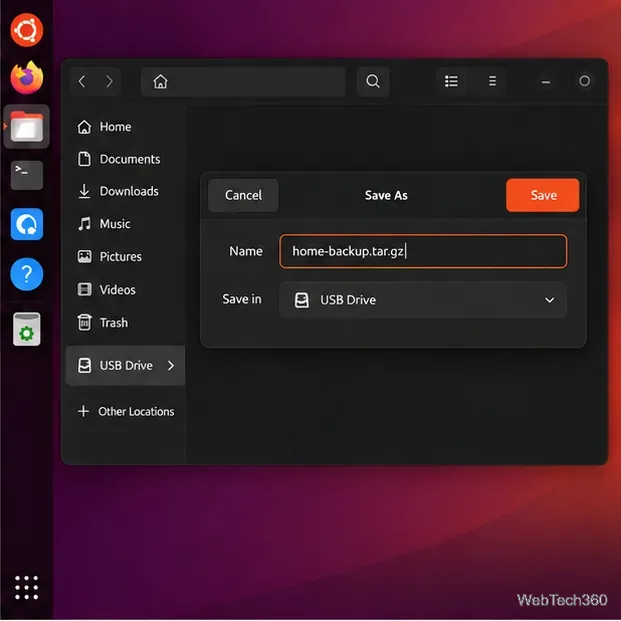
Run this in Terminal as your normal user. It compresses the current Home folder, including hidden files:
tar -czf "/media/$USER/USB_DRIVE/ubuntu-home-backup.tar.gz" -C "$HOME" .Replace USB_DRIVE with the mounted folder name. Do not add sudo, which can make restored files belong to root. Large folders take longer. See the GNU tar manual for archive options.
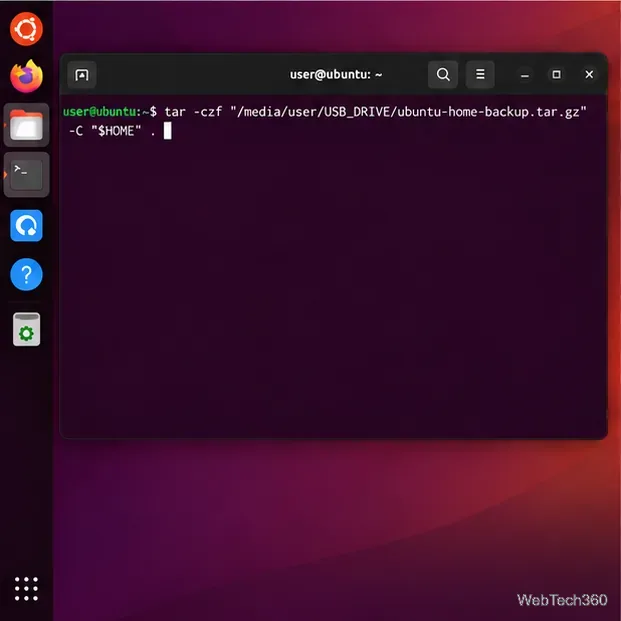
Confirm the archive appears on the drive and has a plausible size. Read through its contents with:
tar -tzf "/media/$USER/USB_DRIVE/ubuntu-home-backup.tar.gz" >/dev/null && echo "Archive readable"If it reports an error, recreate the archive. If it succeeds, eject the drive in Files before unplugging it.
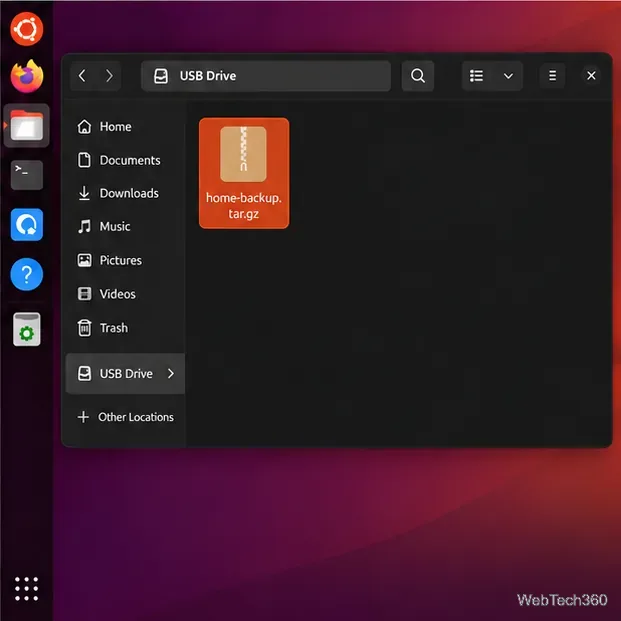
On the new PC, confirm the archive is present. Create an empty folder in Home and extract the archive there:
mkdir -p "$HOME/old-home-import"
tar -xzf "/media/$USER/USB_DRIVE/ubuntu-home-backup.tar.gz" -C "$HOME/old-home-import"
Use the same drive-path rule as before. The staging folder lets you inspect files without replacing the new account’s contents.
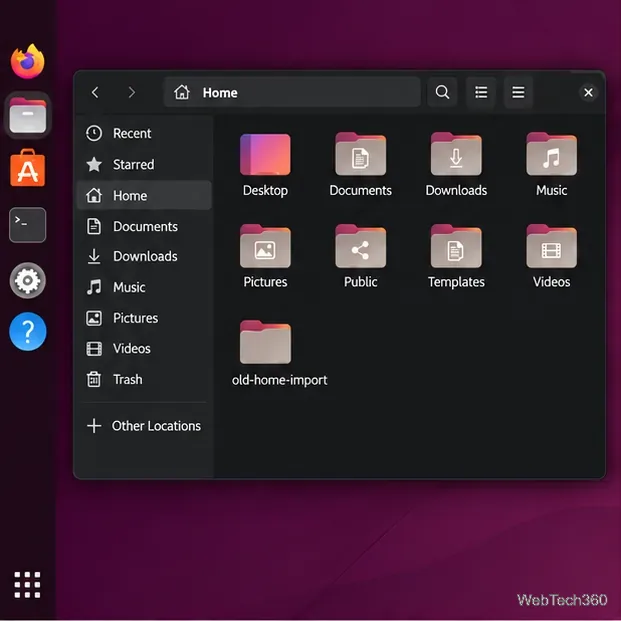
Open old-home-import in Files. Press Ctrl+H to inspect hidden items. Confirm expected files are present; skip unknown folders and do not run old scripts or installers.
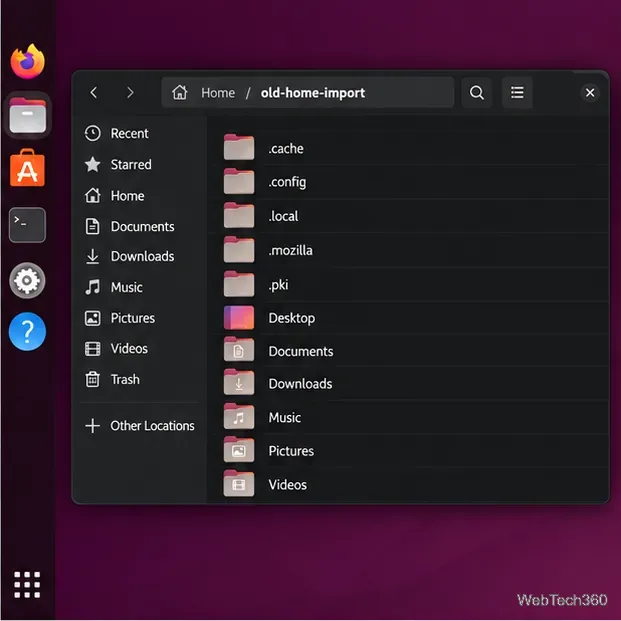
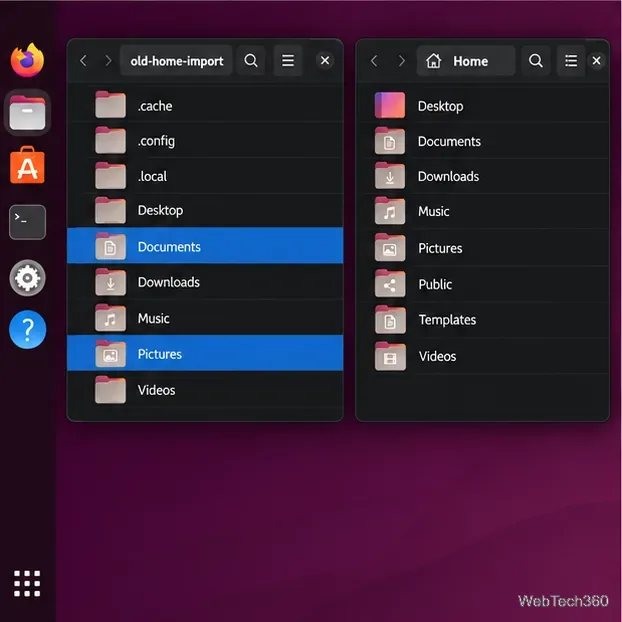
Copy the folders you need—such as Documents, Downloads, Pictures, Music, Videos, Desktop, and custom folders—from staging to the matching locations in the new Home folder. In two Files windows, select items, press Ctrl+C, then Ctrl+V in the destination. If asked to replace a file, compare versions first to protect newer work.
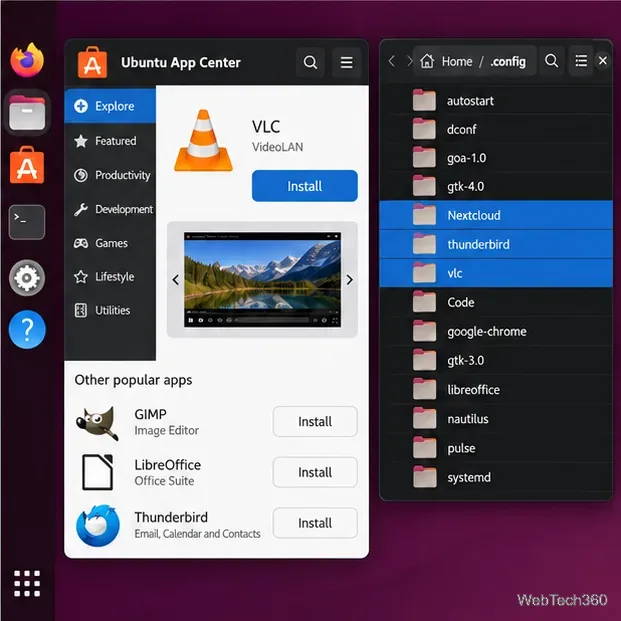
Reinstall the apps you use, then copy only the needed per-app settings from old-home-import/.config or old-home-import/.local. Do not replace either whole folder; old preferences can conflict with newer apps or the new desktop. Use each app’s sync or export/import option when available. Treat .ssh and browser profiles as credentials. Installed programs and system settings in /etc are not included; set them up separately.
Open key files and apps, and confirm you can sign in. Keep the old PC and archive until these checks pass; then remove the staging folder and archive if no longer needed.
Use Dislocker to unlock a BitLocker volume in Linux, mount its virtual NTFS file read-only, and safely unmount it without exposing your password in a command.
Learn how to reduce RAM usage on Linux by finding memory-hungry apps, trimming browser and startup load, and testing a lighter desktop safely.
Compare four WhatsApp alternatives for Linux by privacy defaults, desktop support, setup requirements, and the people each app suits.
Troubleshoot a VirtualBox VM that will not start on Linux by checking vboxdrv, kernel headers, Secure Boot, Extension Pack versions, and VM logs.
Transfer your Ubuntu user data with a tar archive and external drive, then restore personal files and selected settings without overwriting the new setup.
Install gThumb on Linux, browse and make simple photo edits, then set it as the default app for the image types you choose in GNOME.
Create an organized playlist in Rhythmbox or save a reusable XSPF playlist in VLC. Learn how to add tracks, name a list, and reopen it on Linux.
Install Dino on Linux with Flatpak or your distribution’s package manager. Get current Ubuntu, Debian, Fedora, and Arch commands, plus first-launch tips.
Install Arch Linux’s linux-lts kernel, add it to GRUB or systemd-boot, select it at startup, and verify it while keeping a fallback kernel.
Download the right Pi 4 image, write it to a microSD card, and complete LibreELEC’s first-run setup with Raspberry Pi Imager.







