How to Access a Windows BitLocker Partition in Linux

Use Dislocker to unlock a BitLocker volume in Linux, mount its virtual NTFS file read-only, and safely unmount it without exposing your password in a command.
If a VirtualBox VM will not start on Linux, read the exact error before reinstalling anything. A common host-side cause is that the required vboxdrv kernel module is missing, was built for a different kernel, or was blocked by Secure Boot. Other messages point to a VM setting, a version mismatch, or a feature that needs the Extension Pack.
Write down the full dialog text and error code, then check which VirtualBox build and Linux kernel are running:
VBoxManage --version
uname -r
Use the error itself to choose the next check. If VirtualBox opens but one VM fails, focus on that VM's log and settings. If every VM fails with a host-driver message, start with vboxdrv.

Linux uses the vboxdrv host kernel module to run virtual machines. Check for VirtualBox modules, then try loading the main driver:
lsmod | grep '^vbox'
sudo modprobe vboxdrv
If modprobe returns an error, keep its exact wording. If it succeeds, retry the VM. Oracle's Linux host installation guide explains that VirtualBox needs host kernel modules and appropriate kernel headers.
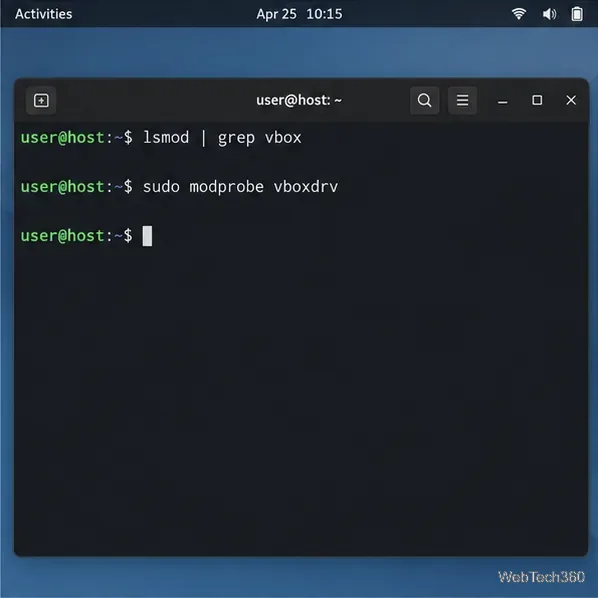
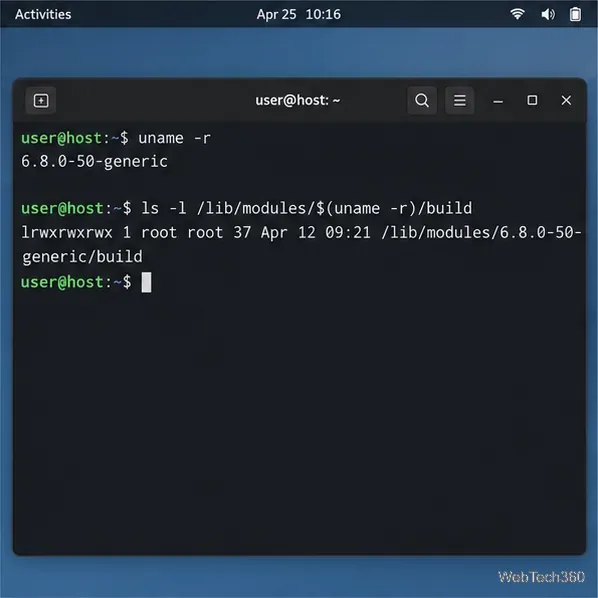
modprobe may return no text; the important clue is an error message.After a Linux kernel update, VirtualBox's module may not yet match the kernel currently running. Confirm that the development files for that exact kernel are available:
uname -r
ls -ld "/lib/modules/$(uname -r)/build"
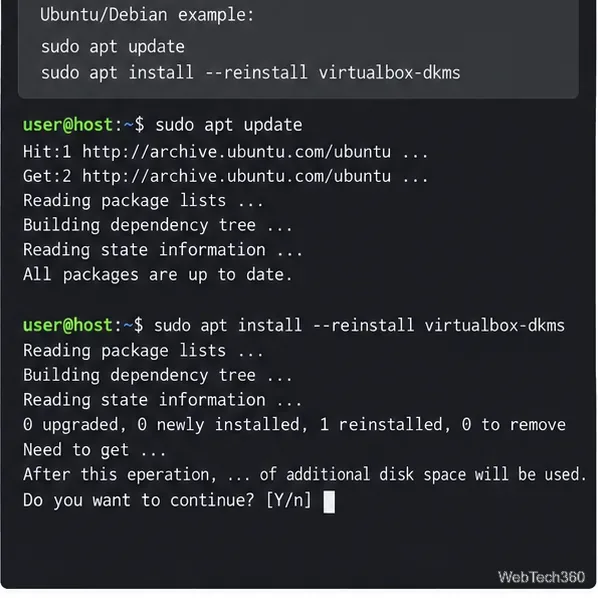
If the build link is missing, install the matching kernel headers or development package using your distribution's package manager. On Ubuntu or Debian when VirtualBox came from the distribution repository, a typical repair is:
sudo apt update
sudo apt install linux-headers-$(uname -r) dkms
sudo apt install --reinstall virtualbox-dkms
sudo modprobe vboxdrv
Package names differ on Fedora, Arch Linux, openSUSE, and other systems. Install the headers for the running kernel and the host-module package that matches how you installed VirtualBox. Do not mix Oracle's installer with a distribution's VirtualBox packages; use one package source and its rebuild instructions. Ubuntu's package index shows which releases currently provide virtualbox-dkms.
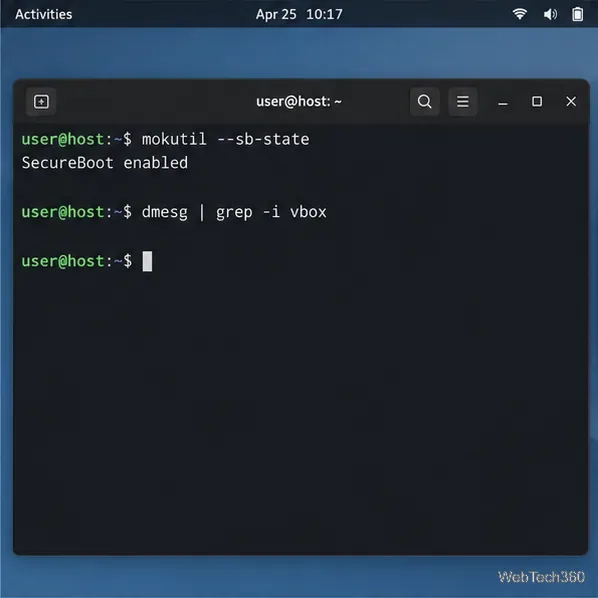
Secure Boot can prevent an unsigned third-party kernel module from loading. Check its state and look for related kernel messages:
mokutil --sb-state
sudo journalctl -k -b | grep -iE 'vbox|verification|key rejected'
If the output says the key was rejected or the module is unsigned, follow your distribution's module-signing process. On Ubuntu, DKMS modules can be signed with a Machine Owner Key (MOK); if installation asks you to enroll a key, complete the enrollment screen at the next reboot. Canonical documents the Secure Boot and MOK process. Disabling Secure Boot is not the first repair to try.
The Extension Pack is not a general requirement for starting an ordinary VM. It adds specific features, including USB 2.0 and 3.0 support and remote-display capabilities. If the error names an extension or one of those features, inspect the installed pack:
VBoxManage list extpacksIf it is installed, its version must match the VirtualBox host version. Update or remove an outdated pack through VirtualBox's extension management, or download the matching release from the official VirtualBox downloads page. Do not install an old Extension Pack merely because a VM will not start.
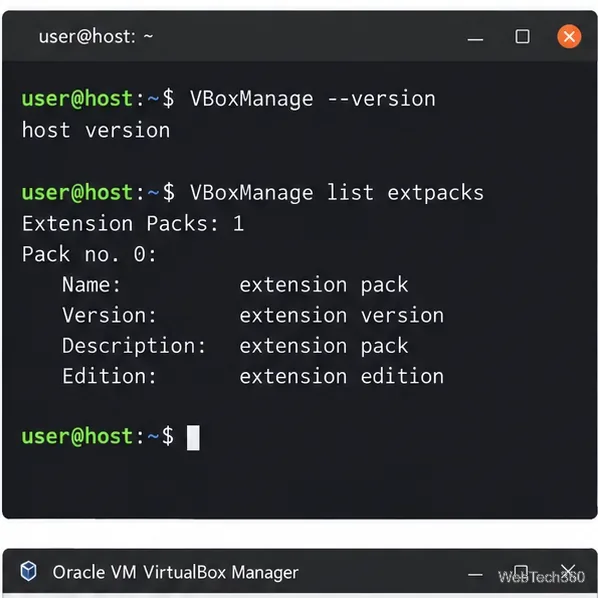
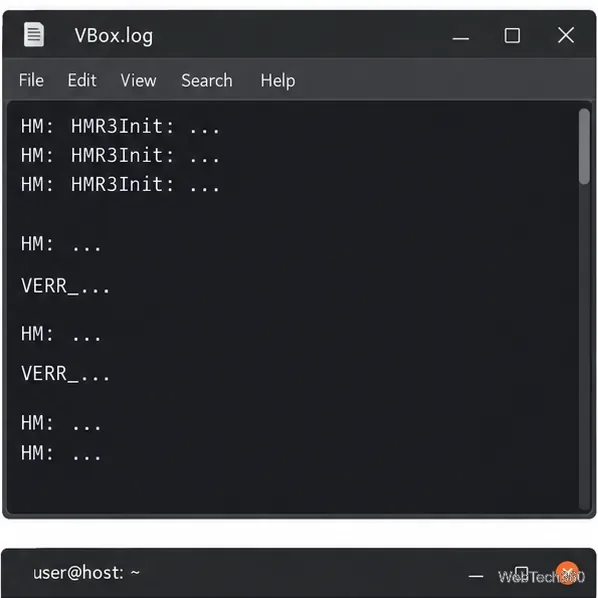
VBoxManage --version.When only one VM fails, open its VBox.log in the VM's Logs folder. The default location is ~/VirtualBox VMs/VM-name/Logs, though a VM can use a different folder. Check the last lines around the failed start for the first fatal error; Oracle's troubleshooting chapter describes the log and common diagnostic clues.
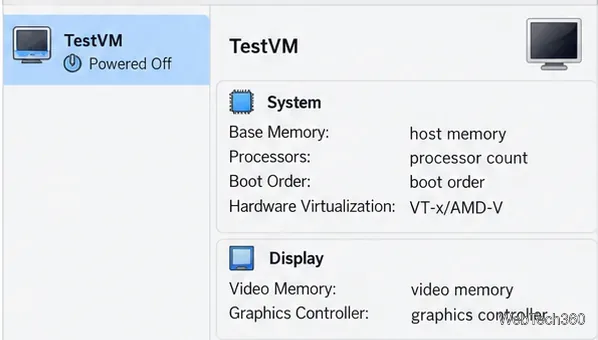
If the message says hardware virtualization is unavailable, enable Intel VT-x or AMD-V (sometimes labeled SVM) in the host firmware. If Linux itself is running inside another VM, the outer hypervisor must expose nested virtualization. Avoid changing unrelated VM settings unless the error points to them.
Do not run chown on /usr to fix VirtualBox. The system directory is normally owned by root, and changing ownership broadly can damage package-managed files without repairing the kernel module. After installing the correct headers or rebuilding the driver, reboot into the intended kernel and try the VM again.
If it still fails, keep the exact dialog text, Linux distribution and kernel version, VirtualBox version, dkms status output, and the relevant end of VBox.log. Those details identify whether the next step belongs to the host driver, Secure Boot, a VM configuration, or a version mismatch.
Use Dislocker to unlock a BitLocker volume in Linux, mount its virtual NTFS file read-only, and safely unmount it without exposing your password in a command.
Learn how to reduce RAM usage on Linux by finding memory-hungry apps, trimming browser and startup load, and testing a lighter desktop safely.
Compare four WhatsApp alternatives for Linux by privacy defaults, desktop support, setup requirements, and the people each app suits.
Troubleshoot a VirtualBox VM that will not start on Linux by checking vboxdrv, kernel headers, Secure Boot, Extension Pack versions, and VM logs.
Transfer your Ubuntu user data with a tar archive and external drive, then restore personal files and selected settings without overwriting the new setup.
Install gThumb on Linux, browse and make simple photo edits, then set it as the default app for the image types you choose in GNOME.
Create an organized playlist in Rhythmbox or save a reusable XSPF playlist in VLC. Learn how to add tracks, name a list, and reopen it on Linux.
Install Dino on Linux with Flatpak or your distribution’s package manager. Get current Ubuntu, Debian, Fedora, and Arch commands, plus first-launch tips.
Install Arch Linux’s linux-lts kernel, add it to GRUB or systemd-boot, select it at startup, and verify it while keeping a fallback kernel.
Download the right Pi 4 image, write it to a microSD card, and complete LibreELEC’s first-run setup with Raspberry Pi Imager.







