Home
» LINUX
»
5 Ways to Convert Audio Files on Linux
5 Ways to Convert Audio Files on Linux
Need to turn a WAV into an MP3, shrink a music library, or make an audio file compatible with another device? Linux gives you several good options, from simple desktop apps to a one-line terminal command. These five methods cover the most useful current workflows without relying on older tools that are difficult to install on modern distributions.
Quick pick: use SoundConverter for an easy GNOME-style GUI, fre:ac for large music collections, Audacity when you also need to edit the audio, VLC when it is already installed, or FFmpeg for scripts and repeatable command-line conversions.
1. Convert audio with SoundConverter
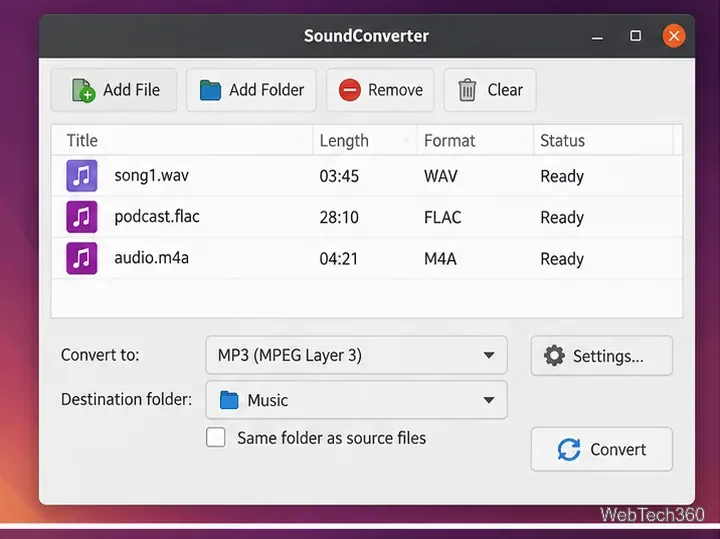
SoundConverter is a focused Linux audio transcoder built around GStreamer. It can read many formats that your installed GStreamer plugins support and export common formats such as MP3, FLAC, WAV, Ogg, Opus, AAC, and related formats depending on the available plugins.
Install SoundConverter from your distribution's software center or package manager, then open it.
Choose Add File or Add Folder and select the audio you want to convert.
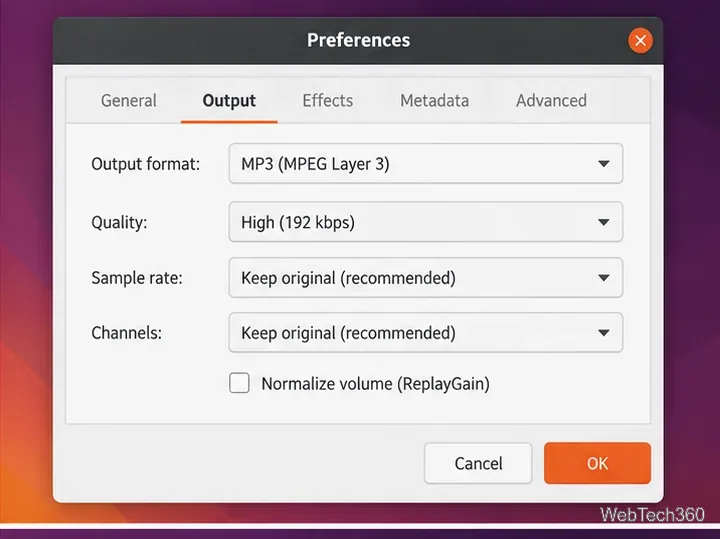
Open the preferences or output settings, choose the destination format and quality, then select the output folder.
Click Convert. SoundConverter is especially convenient when you need to process many files in one batch.
SoundConverter is a straightforward choice for batch audio conversion.
2. Use fre:ac for a music library
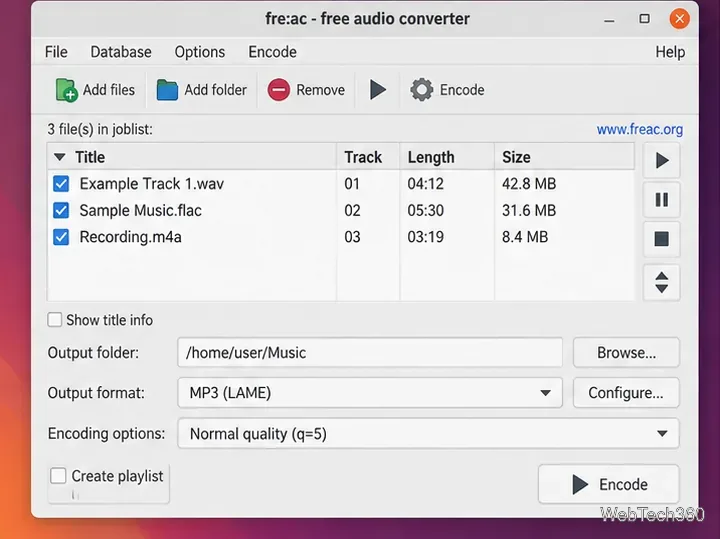
fre:ac is a cross-platform audio converter and CD ripper. Its Linux downloads include AppImage, Flatpak, and Snap options, and it supports formats such as MP3, M4A/AAC, FLAC, Opus, Ogg Vorbis, WavPack, and WAV.
Add individual tracks or an entire folder to the job list.
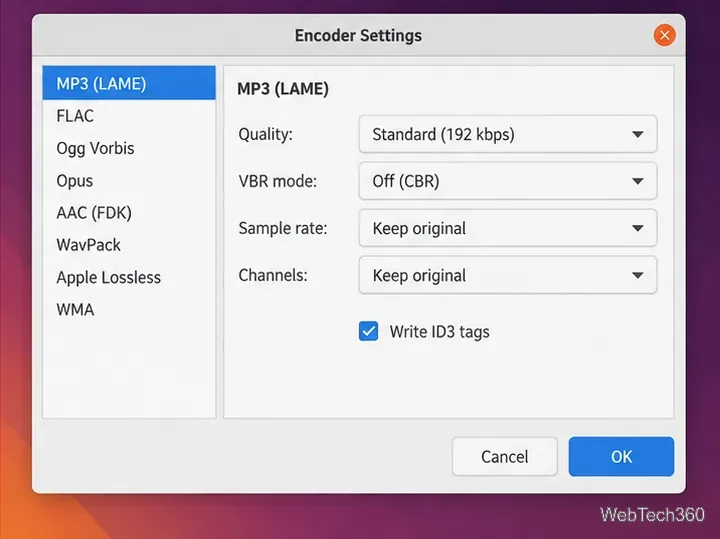
Choose the encoder and output folder. Open the encoder settings if you want to change bitrate, VBR mode, sample rate, or channels.
Select the files to process and start encoding.
fre:ac is a strong fit when you are converting a collection rather than one file because it can preserve useful naming and tag information while processing a queue.
fre:ac works well for queued conversions and organized music libraries.
3. Export to another format with Audacity
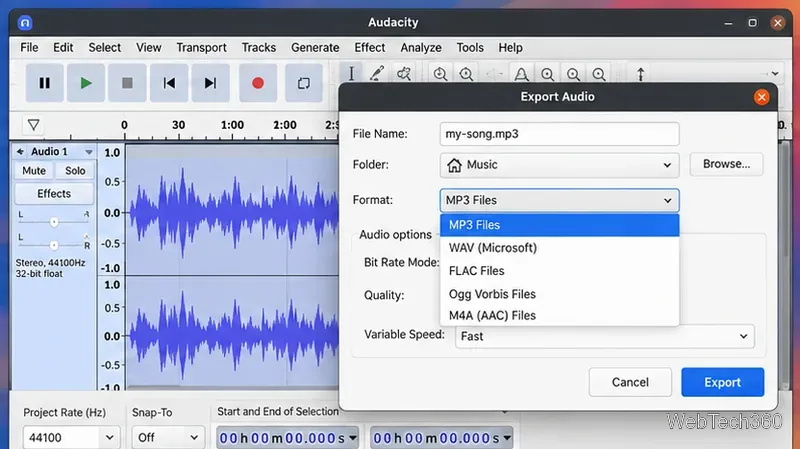
If you need to trim, normalize, clean up, or otherwise edit a recording before converting it, Audacity's Export Audio workflow is more useful than a dedicated converter.
Open or import the source audio in Audacity.
Choose File > Export Audio.
Select the file name, destination, format, channels, sample rate, and format-specific quality options.
Export the file.
Audacity can export common formats directly. Some additional formats, including M4A in certain builds, require FFmpeg support to be installed.
4. Convert audio with VLC
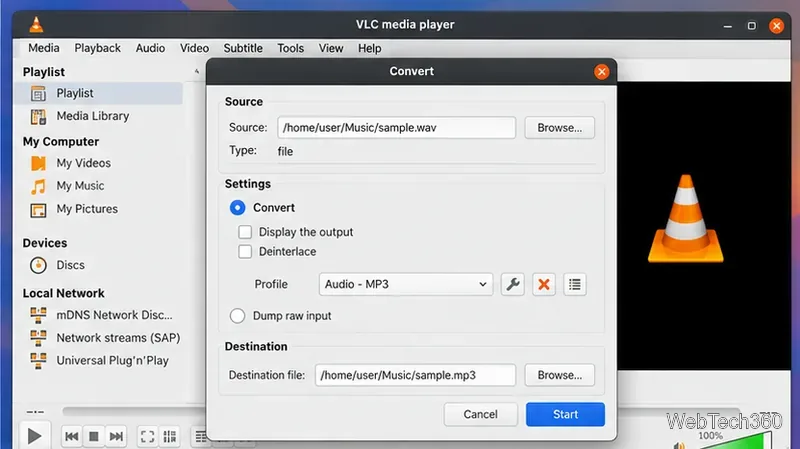
VLC is primarily a media player, but its Convert/Save feature can handle quick audio conversions. This is handy if VLC is already on your Linux system and you do not want another utility.
Open VLC and choose Media > Convert/Save.
Click Add and select the source file, then continue to the conversion screen.
Choose an audio profile, set the destination file and extension, and click Start.
VLC is convenient for occasional conversions, although dedicated converters usually provide clearer batch controls and more audio-specific options.
5. Convert audio in the terminal with FFmpeg
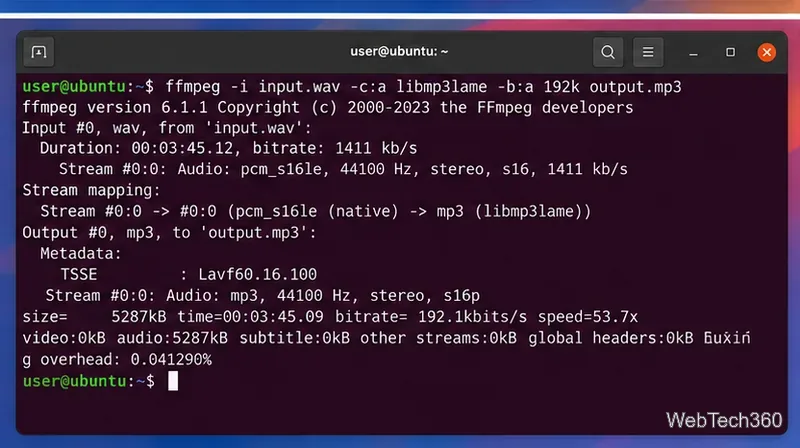
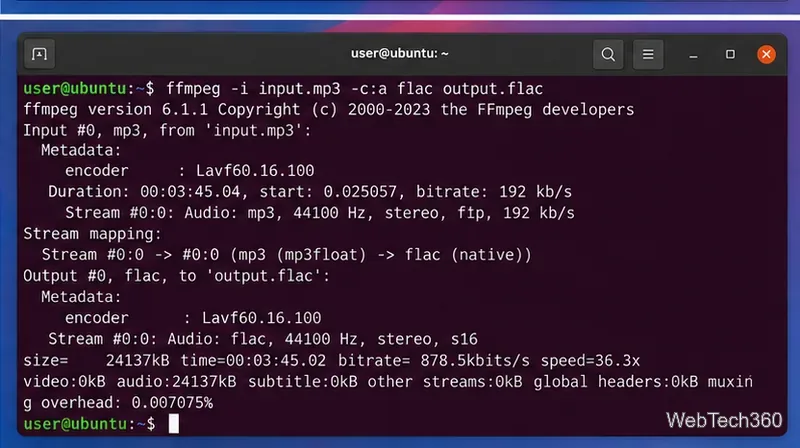
FFmpeg is the most flexible option here. Install the ffmpeg package supplied for your distribution, then use an input file followed by the codec and output file you want.
That command is valid for compatibility or workflow reasons, but converting a lossy MP3 to lossless FLAC does not restore audio quality that was already discarded; it only creates a larger lossless container for the decoded audio.
Which output format should you choose?
MP3: best when broad device and app compatibility matters.
FLAC: a good lossless choice for archiving music or keeping a high-quality master.
Opus: efficient for speech, streaming, and modern apps that support it.
WAV: simple uncompressed audio that is useful for editing, at the cost of larger files.
For most people, SoundConverter or fre:ac is the easiest everyday solution. Audacity makes sense when conversion is part of an editing job, VLC is convenient for an occasional file, and FFmpeg is the best choice when you need exact settings, automation, or repeatable batch commands.