Home
» LINUX
»
5 Ways to Convert Video Files on Linux
5 Ways to Convert Video Files on Linux
If you need to convert video files on Linux, you have several reliable choices. HandBrake is the easiest option for most desktop users, FFmpeg is the most flexible for command-line work, VLC is convenient when it is already installed, Avidemux combines simple editing with transcoding, and Shutter Encoder is useful for batch jobs and a wide range of codecs.
Before you convert: container and codec are not the same thing
A file extension such as MP4, MKV, or WebM describes the container. Inside that container are video and audio streams encoded with codecs such as H.264, H.265/HEVC, AV1, AAC, or Opus. Renaming .mkv to .mp4 does not convert the video. For broad compatibility, H.264 video plus AAC audio in an MP4 container is still a practical target.
1. HandBrake: the easiest GUI for everyday conversions
HandBrake is a dedicated open-source transcoder. Its Linux team recommends the official Flatpak build; after Flathub is configured, you can install it with flatpak install fr.handbrake.ghb. See the official Linux installation guide.
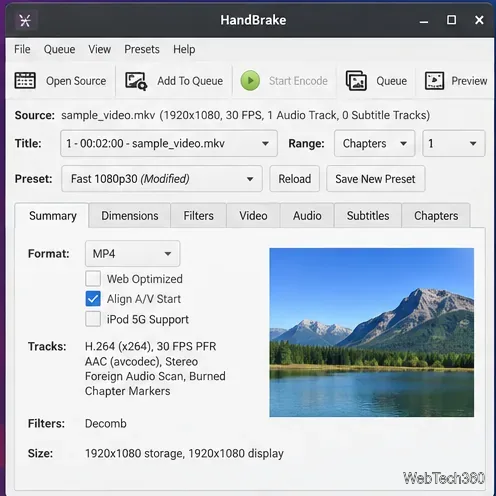
Open HandBrake and choose Open Source, then select the video.
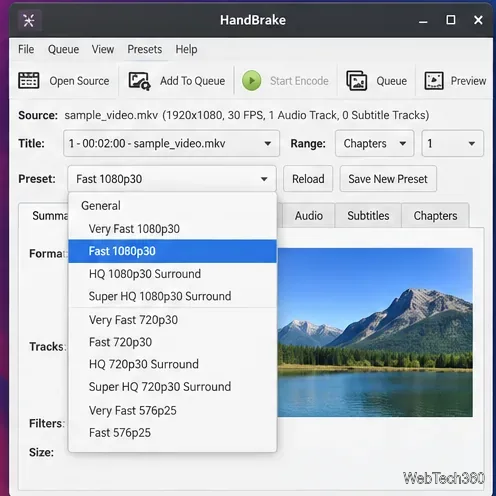
Choose a preset. For a general-purpose file, HandBrake documents Fast 1080p30 as a broadly compatible starting point when it suits the source; see Selecting a preset.
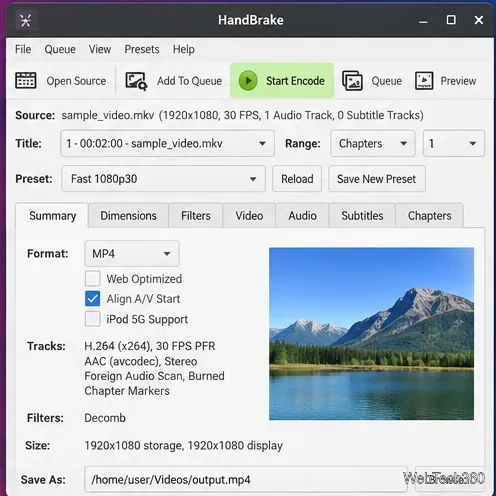
Check the output format and destination filename.
Click Start Encode.
Load the source video and review the output format before encoding.HandBrake presets provide a quick starting point for resolution, codec, and quality settings.Choose the destination file, then start the encode.
2. FFmpeg: best for the terminal and automation
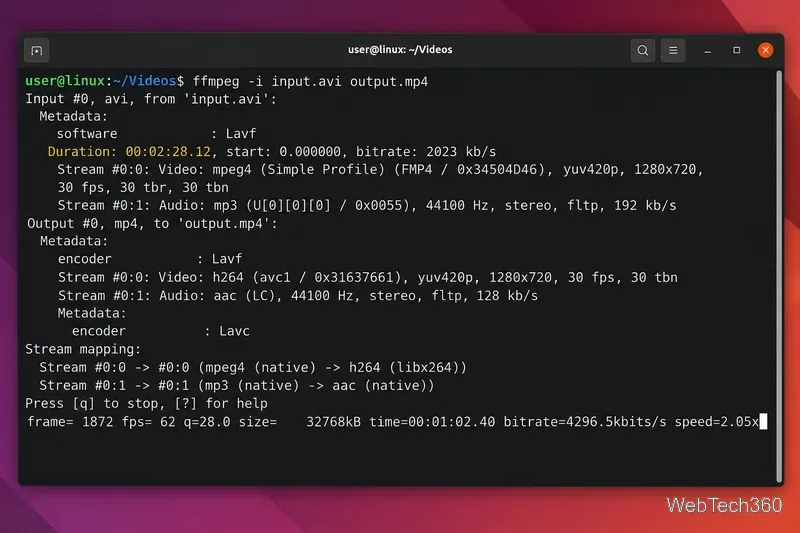
FFmpeg is the most flexible option in this list. FFmpeg itself publishes source code and links to Linux distribution packages on its download page. After installing the package supplied for your distribution, a basic conversion can be as simple as:
ffmpeg -i input.avi output.mp4
This is also the basic re-encoding example in the official FFmpeg documentation. FFmpeg chooses suitable output encoders according to the build and output format. If you need exact codecs, bitrates, filters, subtitles, or batch scripts, specify those options explicitly instead of relying on defaults.
FFmpeg is especially useful for repeatable terminal commands and scripts.
3. VLC: convenient for an occasional conversion
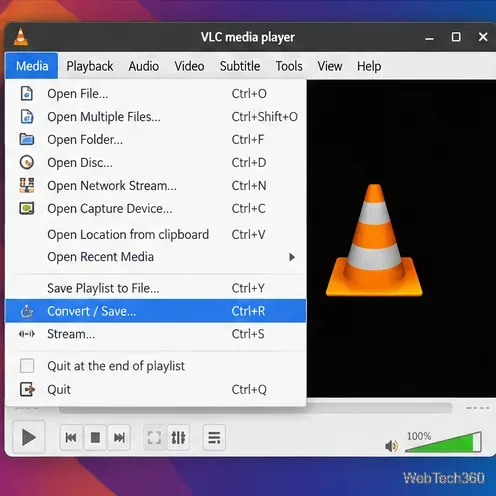
If VLC is already on your desktop, you may not need another app. VideoLAN's documentation confirms that VLC can convert media through the Media > Convert/Save workflow.
Open VLC and choose Media > Convert/Save.
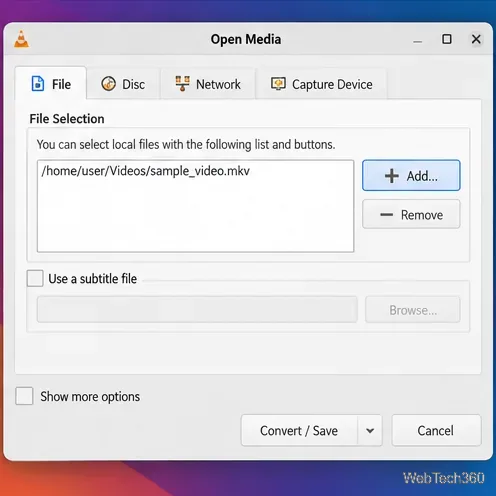
Click Add, select the source video, and continue with Convert/Save.
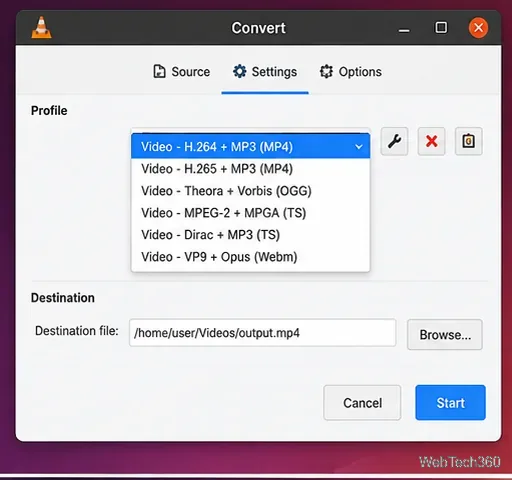
Choose a conversion profile, set the destination file and extension, then click Start.
Start from Media > Convert/Save in VLC.Add the source file in VLC's Open Media dialog.Select a profile that matches the container and codecs you want.
4. Avidemux: useful when you also need simple edits
Avidemux is a lightweight video editor for Linux, Windows, and macOS. The project provides Linux downloads and source code through its official site and project repository.
Open your video.
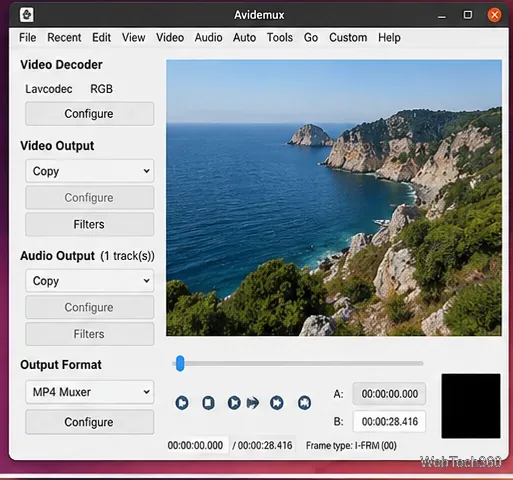
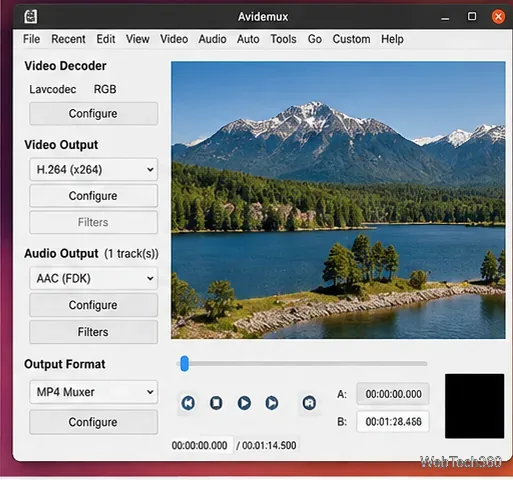
Under Video Output, choose an encoder when you want to re-encode. Leaving it on Copy keeps the existing video stream instead.
Choose the audio setting and an appropriate Output Format, such as an MP4 muxer for compatible streams.
Save the new file.
The Copy setting remuxes compatible streams without re-encoding them.Choose actual encoders when the video or audio must be converted.
5. Shutter Encoder: strong for batch and advanced formats
Shutter Encoder offers Linux DEB and AppImage downloads and supports output codecs including H.264, H.265, VP9, AV1, ProRes, DNxHR, and FFV1. Its official documentation also covers queues, bitrate controls, scaling, audio mapping, subtitles, and hardware acceleration.
Add one or more source files.
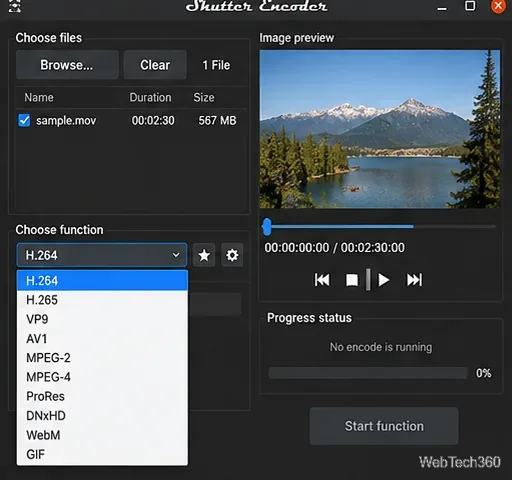
Choose a function such as H.264, H.265, VP9, or AV1.
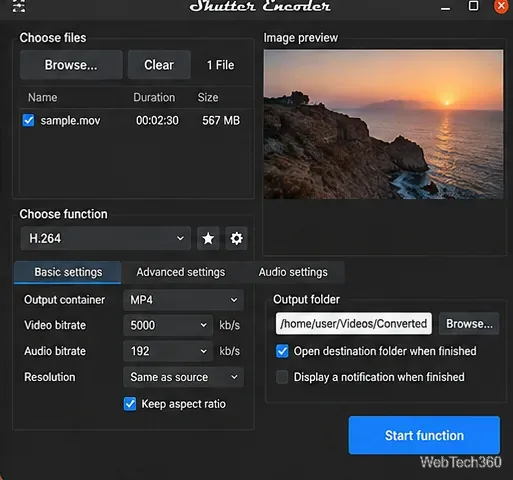
Set the container, quality or bitrate, resolution, and output folder as needed.
Click Start function.
Choose the conversion function after adding your source files.Review output settings and the destination folder before starting.
Which Linux video converter should you use?
Tool
Best fit
HandBrake
Simple, high-quality desktop transcoding
FFmpeg
Automation, scripting, filters, and precise control
VLC
Quick conversion without installing another dedicated converter
Avidemux
Basic edits plus remuxing or re-encoding
Shutter Encoder
Batch work and a broad selection of delivery or editing codecs
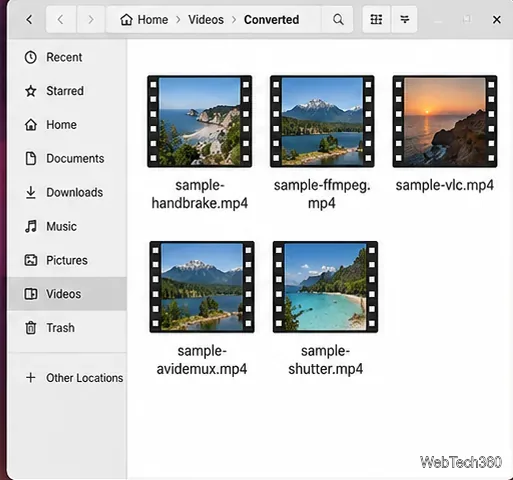
Whatever tool you choose, keep the original file until you have checked the converted result.
After conversion, play the entire output or at least check the beginning, middle, and end, plus audio and subtitles. If a file will not play on the target device, the usual problem is not the filename extension but an unsupported codec, profile, audio format, or container combination.