Home
» LINUX
»
5 Ways to Play SNES Games on Linux with Current Emulators
5 Ways to Play SNES Games on Linux with Current Emulators
Linux users have several good ways to play Super Nintendo games. For the simplest setup, try standalone Snes9x; choose RetroArch if you want one library for multiple systems; use bsnes for a dedicated SNES emulator; or pick Mednafen if you prefer launching games from a terminal. Mesen Community Edition is another graphical option that also supports other classic consoles. All five need a game ROM supplied by you.
Before you start
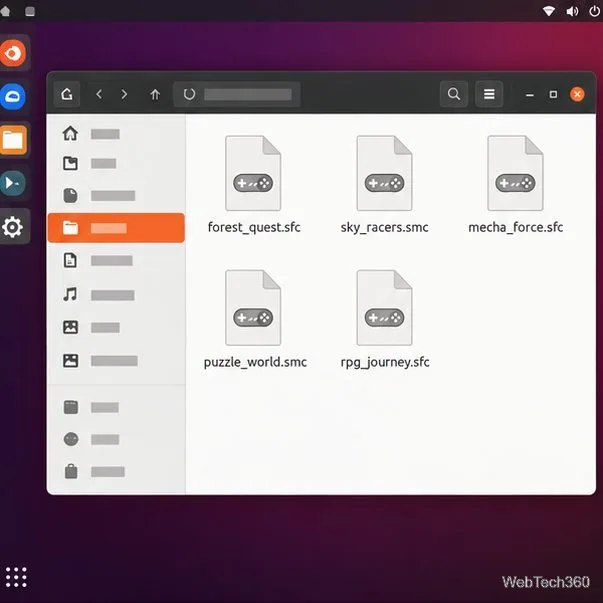
Use game files that you are authorized to use; copyright and personal-backup rules vary by country. Common SNES file extensions include .sfc and .smc. Put your files in a folder you can find, such as ~/ROMs, and note that not every emulator build opens compressed archives.
Keeping your game files together makes them easier to find from an emulator.
1. Use Snes9x for a straightforward setup
Snes9x is a dedicated Super Nintendo emulator and a good first choice if you want a separate desktop app. The project lists Linux GTK and X11 builds in its official source repository. You can also install the community-packaged Flatpak from Flathub if Flatpak is set up on your system:
flatpak install flathub com.snes9x.Snes9x
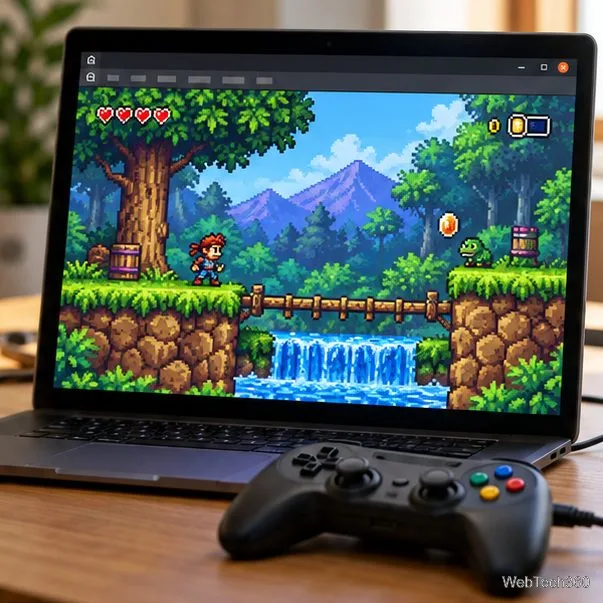
Launch Snes9x, use its open or load-game command, and select your .sfc or .smc file. Connect a controller before opening the game, then check Snes9x’s input settings if the buttons are not mapped as expected. See the official Snes9x project or the Flathub app listing for current Linux options.
A standalone emulator keeps game loading and input settings in one app.
2. Run the Snes9x core through RetroArch
RetroArch is a frontend: it runs emulator components called cores. Install it using the official Linux instructions for your distribution, then install the Snes9x core. If the Core Downloader is available, open Online Updater, choose the core downloader, and select Snes9x. The Libretro Snes9x core guide describes the core and its supported content.
RetroArch needs a compatible SNES core before it can run a game.
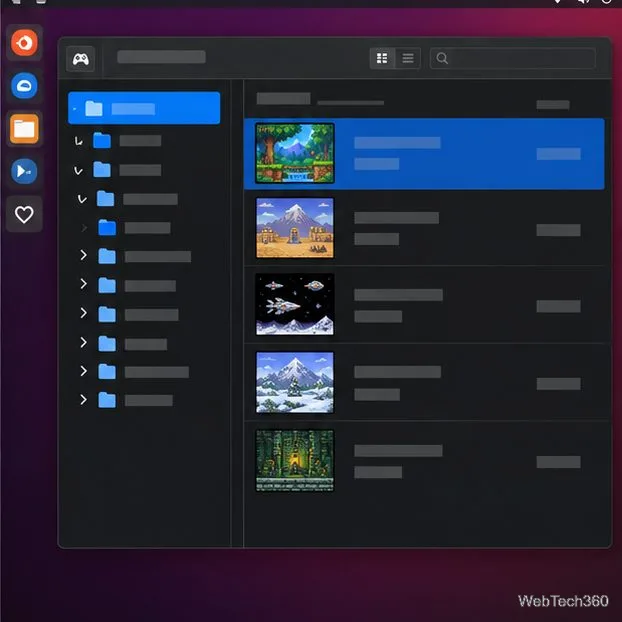
If you cannot see the downloader, Libretro’s current guide says to enable Show Core Downloader under Settings > User Interface > Menu Item Visibility. There is a packaging exception: RetroArch installed from the Ubuntu PPA disables core downloads in the app, so install the matching core through the package manager instead. After installing a core, choose Load Content and browse to your ROM. See Libretro’s core installation guide if your menus differ.
Once a core is installed, browse to your ROM or scan its folder into the library.
3. Install bsnes as a dedicated SNES emulator
bsnes focuses specifically on SNES emulation and includes options such as video filters and save states. One Linux route is its Flathub package:
flatpak install flathub dev.bsnes.bsnes
Open bsnes and load your game file from the app. If you do not use Flatpak, check the project’s Linux download page for its current standalone option and installation notes; package availability differs by distribution. Start with the default settings, then adjust filters or controller bindings only if you need to.
A dedicated SNES app offers its own game and video settings.
4. Launch a game with Mednafen from the terminal
Mednafen is a multi-system emulator controlled from the command line. Install the mednafen package through your distribution’s software center or package manager; the exact command varies across Linux distributions. Then pass the path to a game file:
mednafen ~/ROMs/my-game.sfc
The unquoted tilde expands to your home folder in a shell; if a folder name contains spaces, quote the expanded path, such as "$HOME/ROMs/My Game.sfc". Mednafen opens its game window after launch. Its SNES module documentation covers SNES-specific settings, and the general manual explains command-line options.
Mednafen starts from a terminal command that includes the ROM’s path.
5. Try Mesen Community Edition
Mesen Community Edition is a community-maintained continuation of Mesen and supports SNES alongside several other systems. Open the project’s GitHub releases and choose a Linux build that matches your computer. The project notes that Linux x64 and ARM64 builds require SDL2; install the runtime through your distribution if the app reports that SDL2 is missing. Start Mesen and open your game file from the app. Its project page lists supported systems and build information.
Mesen Community Edition supports SNES as part of a multi-system app.
Set up controls and protect your saves
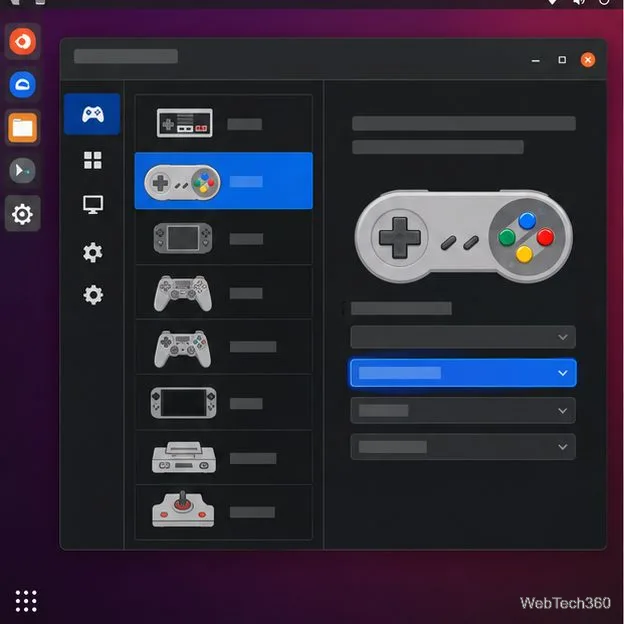
If a controller does not work, first confirm that Linux recognizes it. Then open the emulator’s input settings and map the D-pad, Start, Select, and face buttons. Menu names differ between apps, and some controllers are detected automatically.
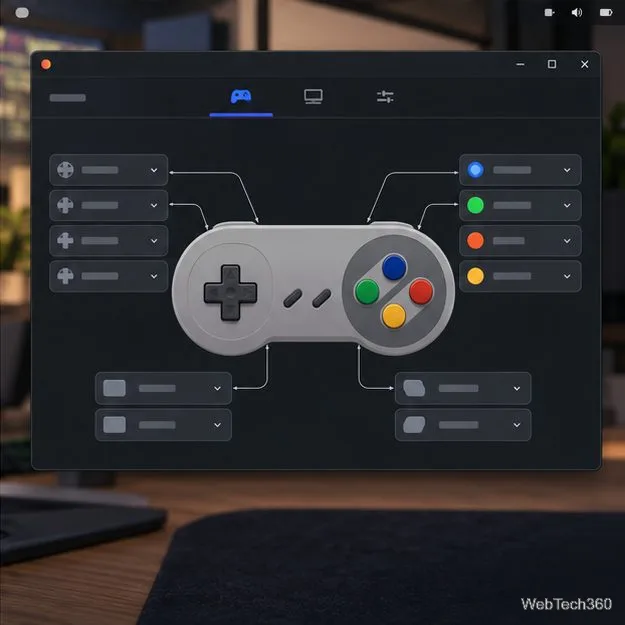
Map the D-pad and face buttons if the emulator does not detect your controller automatically.
Use the game’s own save feature for a normal in-game save. Save states are a separate emulator feature for resuming at an exact moment. Back up both kinds of save files, and do not assume a save state made in one emulator will work in another. For most people, Snes9x is the quickest place to begin; move to RetroArch for a combined library, or choose bsnes, Mednafen, or Mesen CE for the workflow that best fits your setup.