Home
» LINUX
»
5 Ways to Watch Videos on Linux: Choose the Right Player
5 Ways to Watch Videos on Linux: Choose the Right Player
To play a local video on Linux, VLC is the easiest first choice: install it from your distro’s software app, launch it, and choose Media > Open File. Try SMPlayer for extra controls, mpv for minimal or terminal playback, Parole on Xfce, or Celluloid for mpv in a GTK interface.
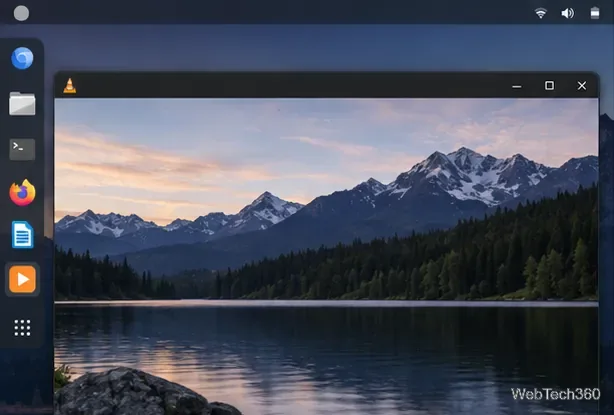
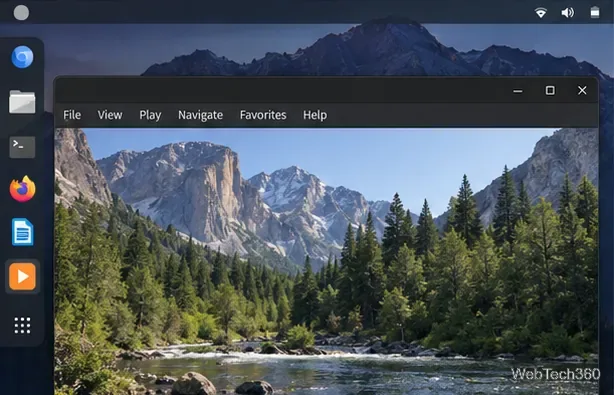
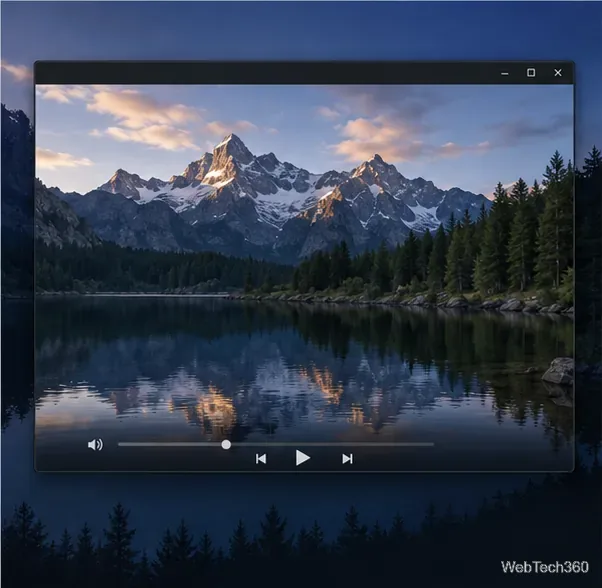
This guide covers files stored locally; use a browser for streaming sites. The screen illustrations show common Linux patterns, so exact labels and themes vary by app and desktop.
Pick a player at a glance
Player
Good fit if you want
How you open a video
VLC
A familiar all-purpose player
Media > Open File
SMPlayer
A graphical player with playback memory and subtitle controls
Toolbar button or Open menu
mpv
A minimal player and direct file playback
Run mpv with a file path
Parole
An Xfce-friendly interface with a playlist pane
Media > Open
Celluloid
An mpv-based player with a GTK interface
Open menu or drag and drop
Install a player safely
In your distro’s Software or package-manager app, search for the player and install the package offered for your release. Package and codec support vary. If it is missing, use the project’s official download page; Flatpak and Snap options require their system support to be set up.
1. VLC: the straightforward choice
VLC is a good first pick when you want one app for common video files, subtitles, playlists, and other media. VideoLAN describes support for a wide range of multimedia formats, but no player can guarantee every file: the encoding, installed build, and distribution package matter.
Launch VLC and choose Media > Open File.
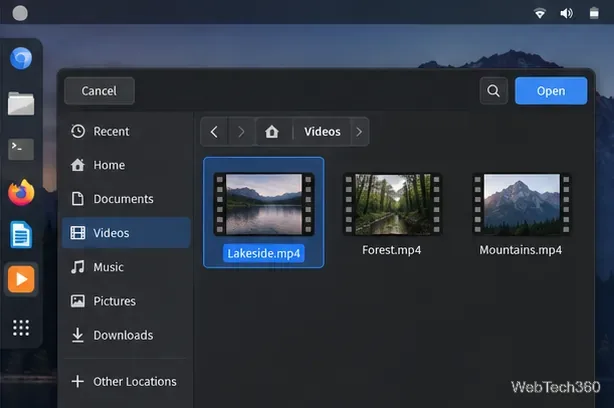
Select a video and click Open. To queue several, choose Media > Open Multiple Files or add them through the playlist controls.
2. SMPlayer: a graphical player with extra controls
SMPlayer offers visible controls for subtitles, audio tracks, and playback speed. It can remember a file’s playback position and settings, which helps when you return to a longer video.
Open SMPlayer and click its first toolbar button, or select Open > File.
Choose a video. Use the menus to select an audio or subtitle track if the file contains multiple tracks.
The project’s first-steps guide documents these controls and the file-opening options.
3. mpv: play a file directly
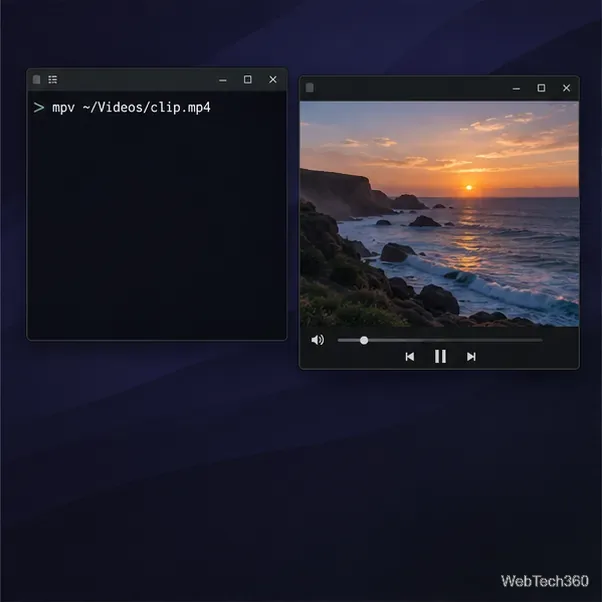
mpv is designed around minimalism. It has a small on-screen controller, but it does not provide a full file-browsing interface like VLC or SMPlayer. That makes it a good fit if you are comfortable opening a terminal or launching a file directly from your desktop.
Open a terminal and run mpv ~/Videos/clip.mp4, replacing the example path with your file’s location.
For a path with spaces, quote it: mpv "$HOME/Videos/My Clip.mp4".
You can also use your file manager’s Open With menu if it lists mpv. For more options and supported formats, consult the mpv manual.
4. Parole: a natural fit for Xfce
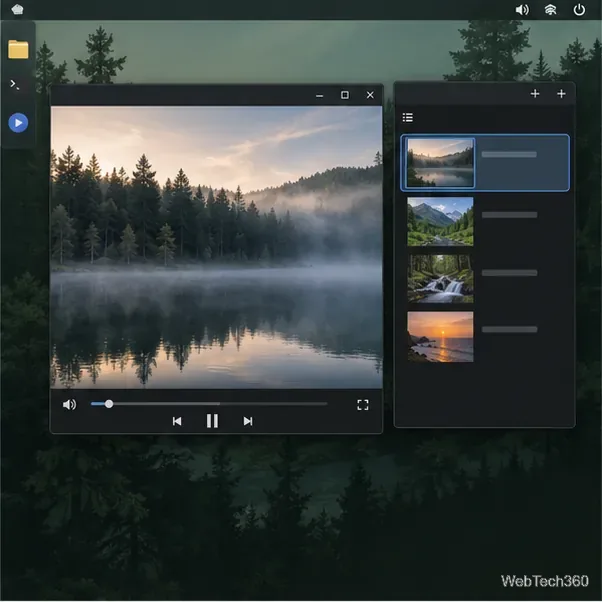
Parole is the Xfce project’s media player. It uses GStreamer and supports local media; the Xfce documentation also describes DVD/CD and live-stream playback, with additional features available through plugins. Choose it if you like Xfce’s straightforward desktop tools or want a simple playlist for several clips.
Launch Parole and choose Media > Open, or press Ctrl+O.
Select a file. Press F9 to show or hide the playlist pane and move among queued videos.
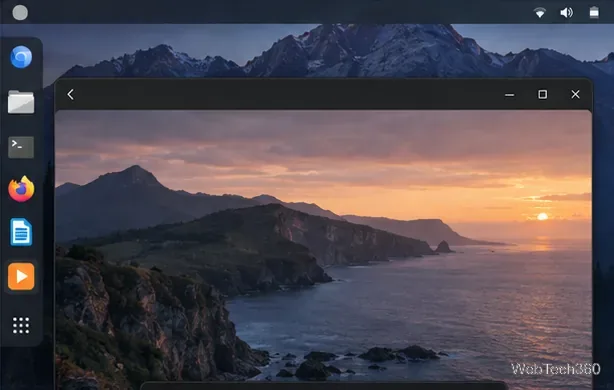
Celluloid is a GTK front end for mpv, adding a conventional desktop interface to mpv’s playback engine. It suits GNOME and other GTK desktops and supports the Open menu, drag and drop, and opening a location.
Open Celluloid and choose Open, or drag a video from the file manager onto the player.
Show the playlist from its menu or press F9 to manage several videos.
Use the project’s installation page for package, Flatpak, or Snap options.
Celluloid is especially useful if you want mpv’s backend but would rather browse files and playlists in a graphical app.
If a video will not play
Test another player. If several apps fail on the same file, it may be damaged or encoded in a format your installed packages do not support.
Use your distro’s codec packages. Parole depends on GStreamer, and optional components differ across Linux distributions. Avoid codec bundles from unfamiliar sites.
Check audio and subtitles. Confirm the player is not muted, choose the intended track, and check your desktop’s sound output. If a large file stutters, test a smaller one before changing advanced settings.
Start with VLC, then switch if you prefer another interface or it does not open a particular file.