Home
» LINUX
»
6 Awesome XFCE Desktop Themes to Install (and How to Apply Them)
6 Awesome XFCE Desktop Themes to Install (and How to Apply Them)
XFCE can look modern without replacing its lightweight desktop environment. The quickest change is a new GTK style for application controls; window borders and icons may use separate themes. These six picks range from dark blue and green palettes to Catalina-inspired and Windows-style looks. Because several are older community themes, check the project page for its current archive and GTK compatibility before installing.
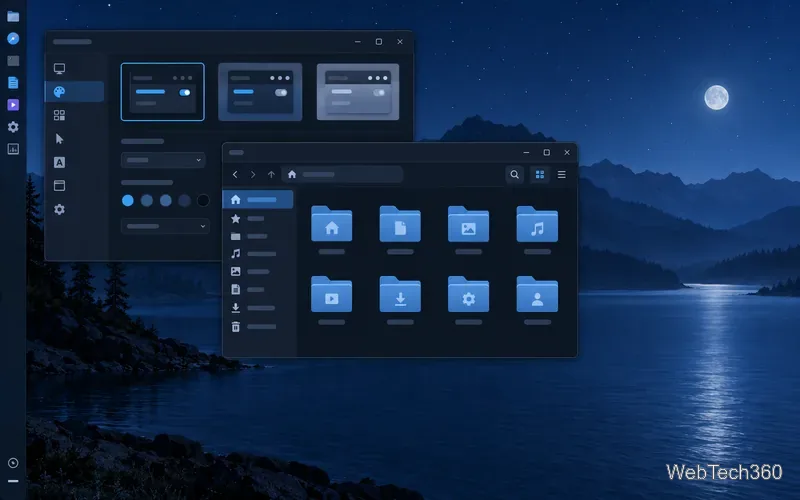
A conceptual dark-blue desktop preview with GTK-style windows and controls.
Six XFCE themes to try
1. Midnight: a deep blue Arc-style look
Midnight GTK Themes is a dark, blue-toned option based on Arc. The project page has offered color variants such as blue, gray, and red, so check the Files area and choose the archive that matches your preference. This is a good starting point if you want darker application windows without changing your panel layout or wallpaper.
2. OS Catalina GTK: a macOS-inspired finish
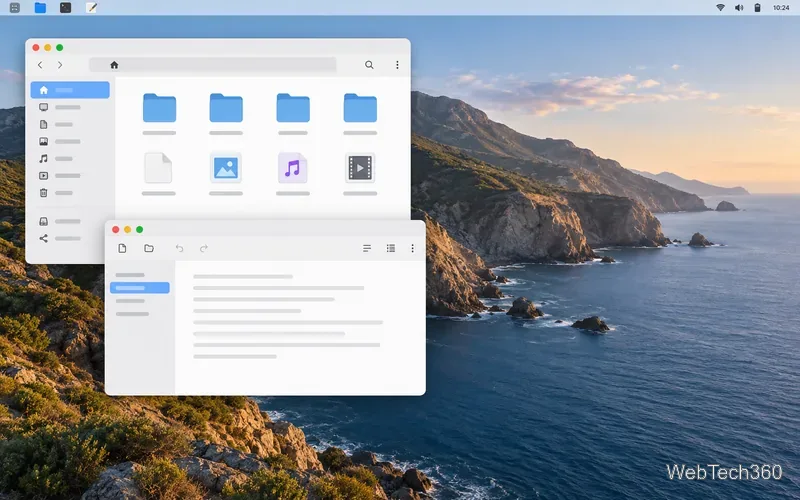
OS Catalina GTK borrows the bright, restrained appearance of macOS Catalina. Its repository includes GTK and XFWM-related theme components, but a GTK theme alone will not add a Mac-style dock, icons, or wallpaper. Those are separate customizations. If you want a closer visual match, pair the application style with a compatible window-border theme and icon set.
A conceptual light desktop preview showing restrained gray controls and rounded window buttons.
3. Forest: Arc colors shifted toward green
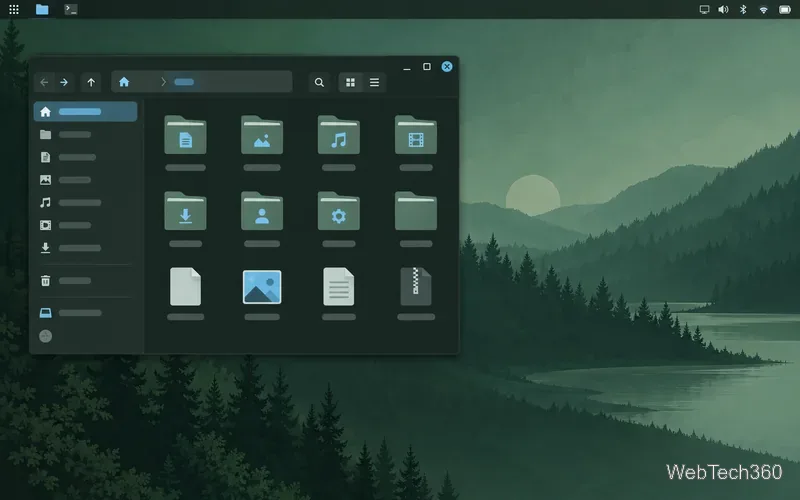
Forest keeps the flat GTK feel associated with Arc while shifting the palette toward forest green and teal. It suits a desktop built around muted green wallpapers or natural colors. Check the archive contents before downloading: if it does not include an xfwm4 directory, XFCE may keep your current title bars and borders while changing GTK buttons and menus.
A conceptual green desktop preview with a blue selection accent and dark application controls.
4. Snowblind: blue-green Material styling
Snowblind is a blue-and-green take on Material-inspired GTK styling. It is an older community theme, so treat it as a visual option to test rather than assume it will match every current application. If a newer GTK app ignores it or shows mismatched controls, keep the theme for compatible apps or switch back from Appearance.
5. Juno: colors inspired by code-editor themes
Juno draws on Visual Studio Code color schemes and comes in multiple variations. Its upstream repository includes GTK, XFWM, and other desktop theme components, making it a flexible choice if you want application controls and window decorations to coordinate. Pick the variant from the project files and follow the repository’s current installation notes.
6. Windows 10: a familiar desktop style
The older article called this pick Redstone. For a current upstream reference, use the B00merang Windows 10 GTK theme, whose project documentation lists Xfce support and provides releases. It can restyle GTK applications, but a full Windows-like desktop also requires separate choices for the panel, icons, fonts, and wallpaper.
Install a theme for your XFCE user
Download the archive from the theme author’s project page or a linked project-hosting page. Check the release notes and supported GTK version first; avoid third-party repackages when an upstream download is available.
Open Settings Manager > Appearance > Style. The official Xfce guide says a theme tarball can be installed by dragging it from the file manager into the styles list. If that does not work with your distribution’s build, extract the archive and place the actual theme directory in ~/.themes. Create that folder if needed, and check that the theme directory contains files such as gtk-3.0 or gtk-2.0.
Select the new style in Appearance. Close and reopen an application if it does not redraw immediately.
For title bars and borders, open Settings Manager > Window Manager > Style and select a matching XFWM theme if the download includes one. Choose icons separately under Appearance > Icons.
Installing in your home directory keeps the change scoped to your account and avoids copying files into system theme folders with administrator privileges. To remove a theme later, delete its folder from ~/.themes and select another style.
What to expect from a GTK theme
XFCE’s Appearance settings control GTK widgets such as menus and buttons; the Window Manager settings handle decorations, and the Icons tab controls application and folder icons. A theme may include all three parts or only one. Some apps also use a different toolkit or their own styling, so one theme will not necessarily change every window. If anything becomes hard to read, use Appearance to restore the previous style, then try a different variant.