Home
» LINUX
»
AnyDesk Linux Install Instructions: Ubuntu, Debian, Fedora, and openSUSE
AnyDesk Linux Install Instructions: Ubuntu, Debian, Fedora, and openSUSE
AnyDesk on Linux is best installed from AnyDesk's official DEB or RPM repository so your package manager can handle future updates. The old practice of downloading a hard-coded AnyDesk 6.0.1 package is outdated; the official Linux download page currently lists version 8.1.0. This guide covers Ubuntu and Debian, Fedora/RHEL-style systems, openSUSE, and the portable archive option.
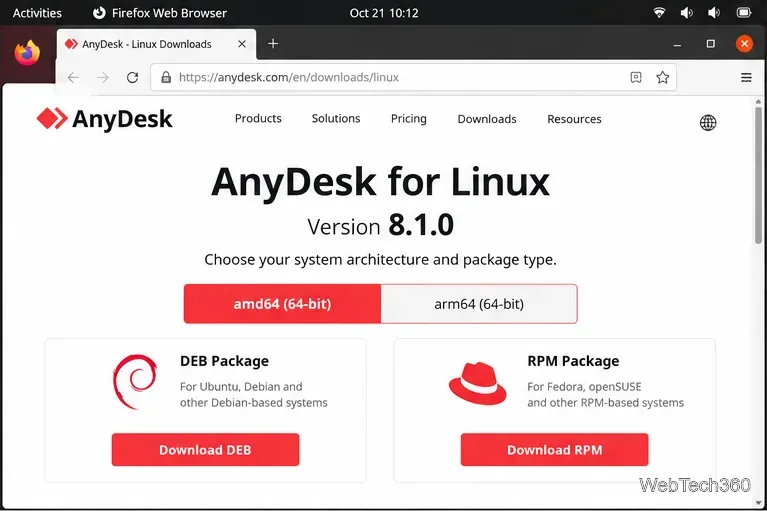
Start with the official AnyDesk Linux download page. AnyDesk publishes DEB and RPM packages for amd64 and arm64 systems, and its documentation recommends repository installation when you want normal package updates.
The AnyDesk Linux download page provides current DEB and RPM builds for supported architectures.
Before you install AnyDesk on Linux
AnyDesk's current support matrix lists Ubuntu, Debian, RHEL, openSUSE, and Linux Mint among its supported Linux families. Other distributions may work, but AnyDesk does not guarantee support for them. Check the latest list on the supported operating systems page.
There is also an important display-server limitation. AnyDesk requires an Xorg/X11 desktop session for incoming remote-control sessions. A Wayland session can be used to start outgoing connections, but not to receive an incoming session. Check your current session with:
echo $XDG_SESSION_TYPE
If the command returns x11, incoming sessions are supported. If it returns wayland, log out and choose an Xorg/X11 session when your desktop environment offers one. AnyDesk's Linux documentation also says the application should not be run as the root user.
Install AnyDesk on Ubuntu or Debian
The recommended method is the official AnyDesk DEB repository. AnyDesk notes that systems using a repository key installed before February 2, 2025 should repeat the current key setup. Run these commands in a terminal:
These commands come from the official AnyDesk DEB repository instructions. Using the repository avoids tying the guide to a specific package filename that will become obsolete.
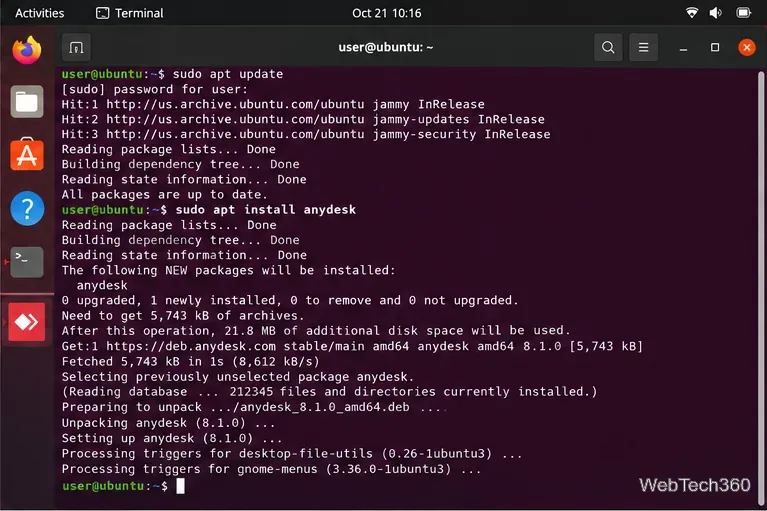
After the official DEB repository is configured, Ubuntu and Debian can install AnyDesk with apt.
Install AnyDesk on Fedora, RHEL, or openSUSE
AnyDesk also maintains an RPM repository. The official instructions create a repository file under /etc/yum.repos.d/, then install the anydesk package with the distribution's package manager. Open a root shell with sudo -i, then add the repository:
Then install AnyDesk with the command that matches your system:
dnf install anydesk
# or
yum install anydesk
# or
zypper install anydesk
See the official AnyDesk RPM repository instructions for the current repository definition. Fedora can use the RPM package and repository, although AnyDesk's formal support matrix specifically names RHEL and openSUSE rather than Fedora.
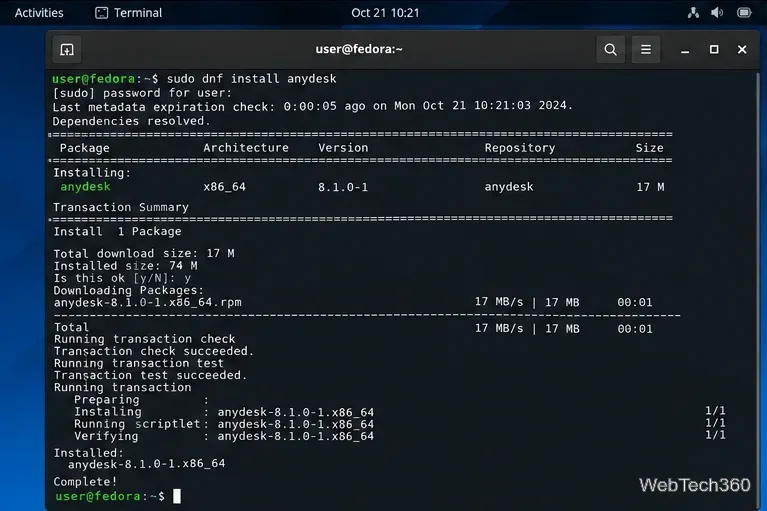
On an RPM-based desktop, dnf install anydesk installs the client after the AnyDesk repository is available.
Install from a downloaded DEB or RPM file instead
If you do not want to add a repository, download the current package from AnyDesk and install it with your package manager. From the folder containing the downloaded file, use sudo apt install ./filename.deb on Ubuntu or Debian, sudo dnf install ./filename.rpm on Fedora/RHEL-style systems, or sudo zypper install ./filename.rpm on openSUSE. Installing a DEB or RPM also installs the AnyDesk service, which enables the full installed-client feature set described in the AnyDesk installation documentation.
Portable TAR.GZ, Arch Linux, and Flatpak
AnyDesk also offers a compressed .tar.gz build that can run without administrative installation. It is useful when you only need a portable outgoing client, but it does not install the AnyDesk service. As a result, AnyDesk says it cannot provide Unattended Access, login-screen access, or reconnect-after-reboot functionality in this mode.
The older version of this guide recommended an Arch AUR helper and presented Flatpak as an official AnyDesk installation method. That is no longer a good default. Arch Linux is not on AnyDesk's current official support list, and the Flathub AnyDesk listing explicitly identifies itself as a community-provided, unverified package that is not supported by AnyDesk Software GmbH. If you use Arch or another unsupported distribution, understand that third-party packaging may behave differently from AnyDesk's official DEB, RPM, or portable builds.
Launch AnyDesk and confirm incoming access
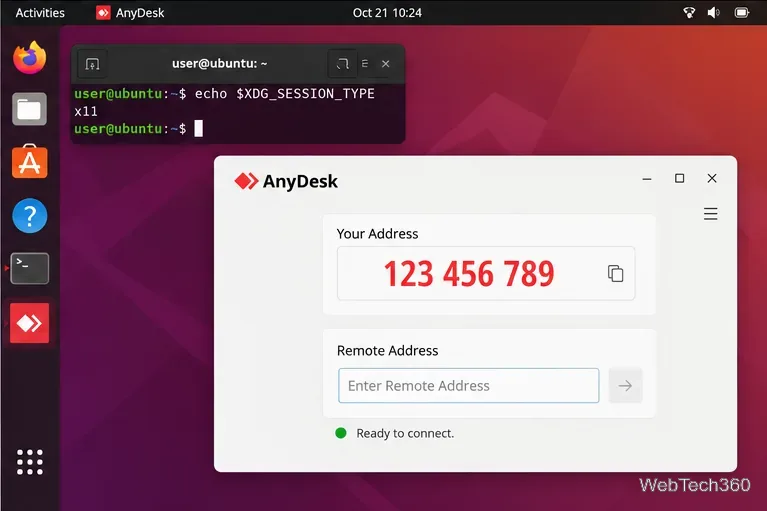
After installation, open AnyDesk from your application menu or run anydesk as your normal user. Your AnyDesk address appears in the main window; enter another device's address in the remote-address field to start an outgoing connection.
If you can connect out but another computer cannot control this Linux machine, check the display session again with echo $XDG_SESSION_TYPE. An X11/Xorg session is the key requirement for incoming Linux sessions according to AnyDesk's current documentation.
An X11 session allows the installed AnyDesk client to accept incoming remote-control sessions on Linux.