Home
» LINUX
»
Debian: How to Add a User to Sudoers Safely
Debian: How to Add a User to Sudoers Safely
On Debian, the simplest and safest way to give an existing user full administrative access is usually to add that account to the sudo group. Debian's default sudo configuration allows members of that group to run commands through sudo. You normally do not need to edit /etc/sudoers directly.
If you left the root password blank during Debian installation, the installer normally disables direct root login and gives the first regular user administrative rights through sudo. If you set a root password instead, sudo may not be installed or your user may not belong to the sudo group. Debian documents both setups in its sudo guidance.
Check whether your user already has sudo access
Open a terminal and check the groups assigned to your account:
groups
If sudo appears in the output, test the configuration:
sudo whoami
After you enter your own password, a working setup should print root. If the shell says sudo: command not found, install the package as root. If it says your user is not allowed to run sudo, add the account to the sudo group.
1. Become root and install sudo if needed
If you know the root password, start a root login shell:
su --login
Use su --login when you need root access to install or configure sudo.
Then install sudo with APT:
apt update
apt install sudo
The Debian Reference describes sudo as the standard tool for delegating administrative privileges without working in a root shell all the time.
2. Add the user to Debian's sudo group
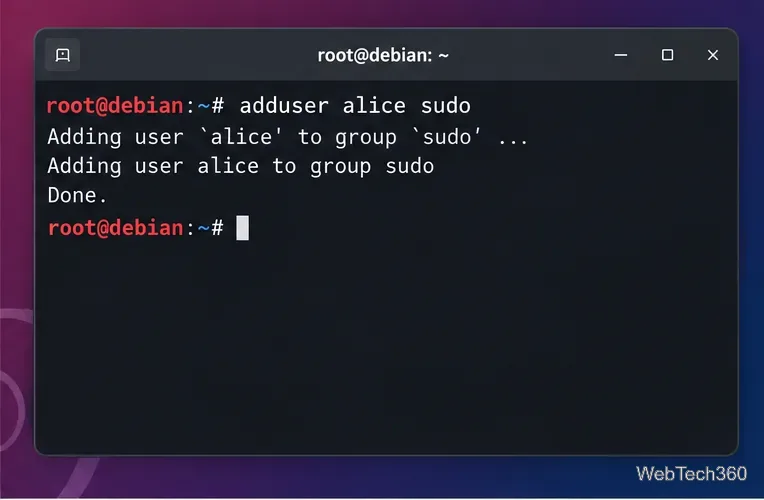
Still as root, replace alice with the account that should receive sudo access:
adduser alice sudo
Adding an existing account to the sudo group grants the permissions defined for that group.
You can also use usermod -aG sudo alice, but the Debian-specific adduser USER GROUP form is straightforward and avoids accidentally replacing a user's other supplementary groups.
3. Log out, log back in, and verify access
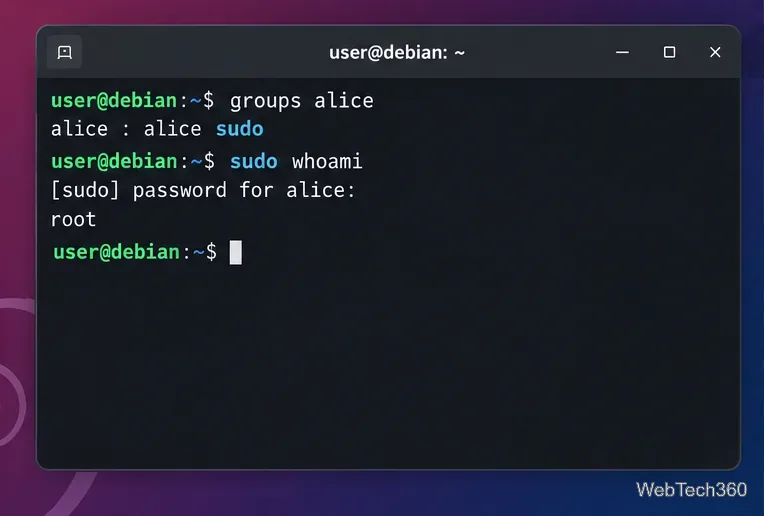
New group membership does not normally apply to an already-open login session. Completely log out of the desktop or SSH session and sign in again. Then check the account and test sudo:
groups alice
sudo whoami
After a fresh login, verify that the user is in the sudo group and that sudo whoami returns root.
If the user was just added but sudo still reports that the account is not allowed to run a command, an old login session is a common cause. Debian's sudo documentation specifically notes that group membership becomes active on login.
Optional: create a per-user sudoers rule
For most Debian systems, the group method above is all you need. A per-user rule is useful when you deliberately want a separate sudo policy. Do not open /etc/sudoers in an ordinary editor. The visudo manual explains that visudo locks the file and checks its syntax before installing changes.
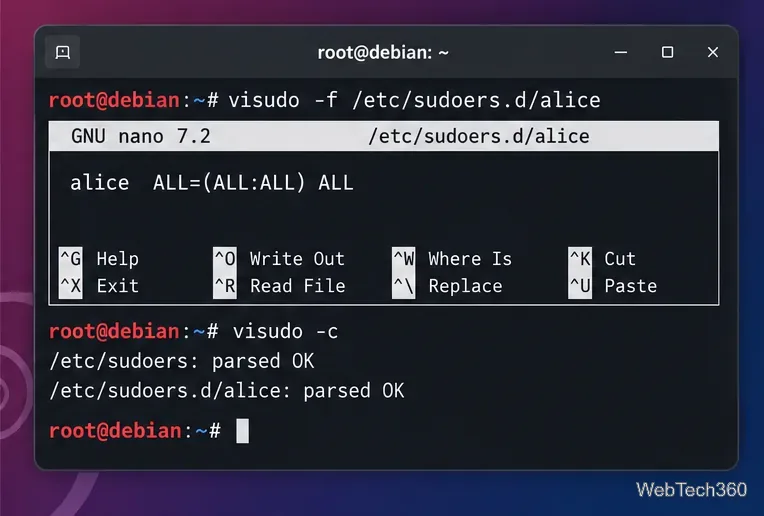
As root, create a dedicated file with a simple name that contains no period:
visudo -f /etc/sudoers.d/alice
To give alice the same full administrative capability as a typical sudo user, add:
alice ALL=(ALL:ALL) ALL
Save and exit the editor, then validate the complete sudoers configuration:
visudo -c
Use visudo for sudoers changes so syntax problems can be caught before they break administrative access.
Debian recommends keeping local custom rules in /etc/sudoers.d rather than modifying the main file. The sudoers manual also notes that files in this directory whose names contain a period or end in ~ are skipped, so a name such as alice is safer than alice.conf.
How to remove sudo access
To revoke access that was granted through the sudo group, run this as root:
deluser alice sudo
Debian's deluser manual confirms that the two-argument form removes a user from a specific group. Have the user log out and back in so the new group list takes effect.
If you also created /etc/sudoers.d/alice, removing the account from the group is not enough because that separate rule still grants privileges. Remove or edit that rule as root, then run visudo -c again.
Common mistakes to avoid
Do not edit /etc/sudoers with a normal text editor. A syntax error can block sudo access.
Do not use usermod -G sudo USER without -a. That form can replace the user's supplementary group list instead of simply adding sudo.
Do not enable NOPASSWD casually. Full passwordless sudo increases the impact of a compromised user account.
Remember the fresh-login requirement. Adding or removing a group does not retroactively change the credentials of an existing session.
For a standard Debian workstation or server, the recommended path is therefore simple: install sudo if necessary, add the account to the sudo group, start a fresh login session, and verify the result before closing your root shell.