Home
» LINUX
»
Debian: How to Install a .deb File [Guide]
Debian: How to Install a .deb File [Guide]
To install a downloaded .deb file on Debian, the best command for most users is sudo apt install ./package-name.deb. APT installs the local package and can also pull required dependencies from your configured Debian repositories. Debian's own reference documentation recommends APT for interactive package management and documents local .deb installation with a file path.
A Debian package is an archive that contains application files, package metadata, dependency information, and sometimes maintainer scripts. Because installing one can make system-level changes, download packages only from a publisher you trust.
1. Find the downloaded .deb file
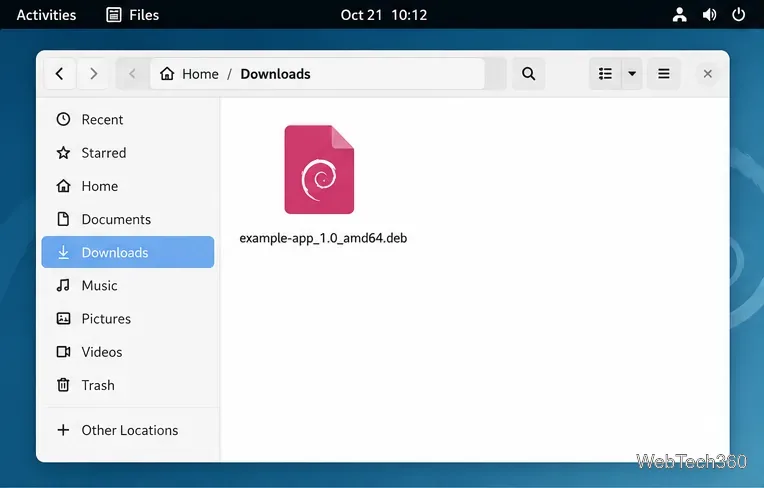
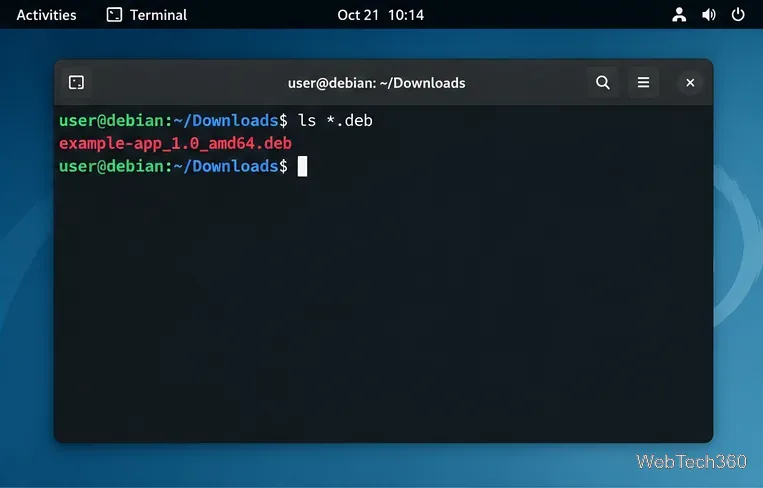
Most browsers save downloads in ~/Downloads. Open your file manager and confirm the package is there before starting. In this guide, the example filename is example-app_1.0_amd64.deb; replace it with the real name of your package.
A downloaded Debian package in the Downloads folder.
If the publisher provides a checksum or signature, verify it before installation. You can also inspect basic package metadata without installing anything:
For example, a normal 64-bit Intel or AMD Debian installation usually reports amd64, while many 64-bit ARM systems use arm64. Debian 13 also supports other architectures, so do not assume a package built for one CPU type will work on another.
3. Install the .deb with APT
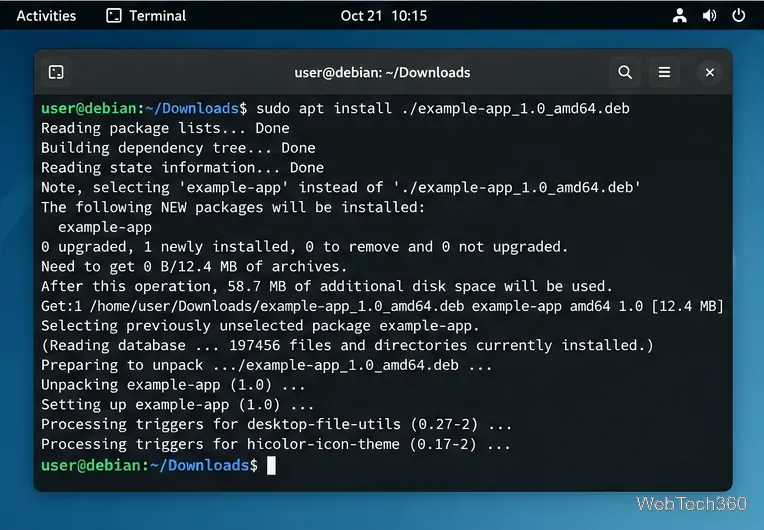
For most cases, use APT:
sudo apt install ./example-app_1.0_amd64.deb
The leading ./ matters because it tells APT that you are giving it a local file path. An absolute path such as /home/user/Downloads/package.deb also works. Review the packages APT plans to install, then confirm when prompted.
APT can install a local .deb and resolve dependencies from configured repositories.
You can also install a local package directly with dpkg:
sudo dpkg -i ./example-app_1.0_amd64.deb
dpkg installs the package itself but does not fetch missing dependencies. If the package is left unconfigured because dependencies are missing, run:
sudo apt --fix-broken install
APT will attempt to install the missing dependencies and finish configuring packages. For that reason, starting with apt install ./file.deb is usually more convenient.
Install a .deb with GDebi
If you prefer a graphical installer, GDebi is still available in Debian's repositories. Install it first:
sudo apt update sudo apt install gdebi
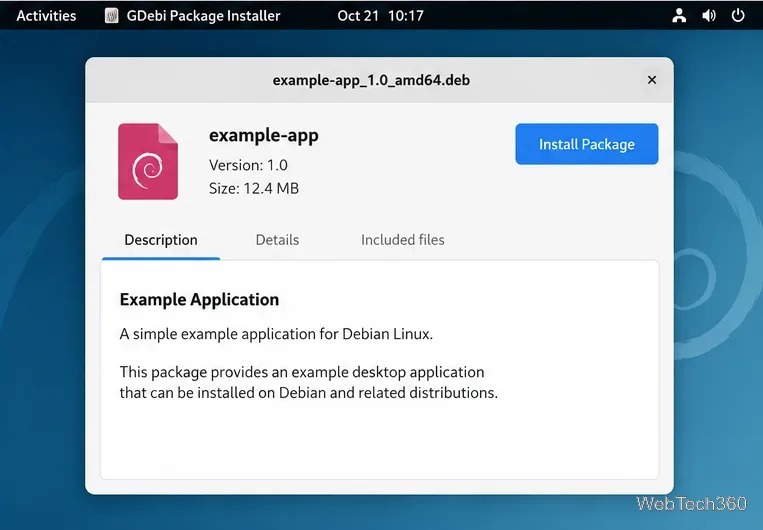
Then open the downloaded .deb with GDebi and choose Install Package. GDebi displays package details and resolves dependencies through APT. Debian describes GDebi as a tool for viewing and installing local Debian packages; the current package can be found on the official Debian Packages site.
GDebi provides a graphical way to inspect and install a local Debian package.
Useful troubleshooting
APT says the file is unsupported or cannot be found: confirm the filename and include ./ before a file in the current directory.
Wrong architecture: download a build that matches the output of dpkg --print-architecture.
Dependencies are unavailable: run sudo apt update, check that the appropriate Debian repositories are enabled, and retry. A third-party package may also require libraries that are not available for your Debian release.
You downloaded several related packages: from their directory, sudo apt install ./*.deb can install them together while letting APT resolve dependencies.
How to remove the package later
To find the package name stored inside the file, run dpkg-deb -f ./example-app_1.0_amd64.deb Package. Then remove it with sudo apt remove package-name. Installing a standalone .deb does not automatically guarantee future updates; that depends on whether the publisher also configures a software repository or provides newer packages for you to install.