Home
» LINUX
»
Debian: How to Uninstall a Package with APT or Synaptic
Debian: How to Uninstall a Package with APT or Synaptic
Short answer: to uninstall a Debian package, open a terminal and run sudo apt remove package_name. Use sudo apt purge package_name instead if you also want APT to remove the package's system-level configuration files. Afterward, sudo apt autoremove can remove dependencies that are no longer needed.
For interactive package management, Debian's APT documentation describes apt as the high-level command-line interface intended for end users. The older apt-get command is still supported and remains useful in scripts, but most desktop users can use apt for the steps below.
Find the exact package name first
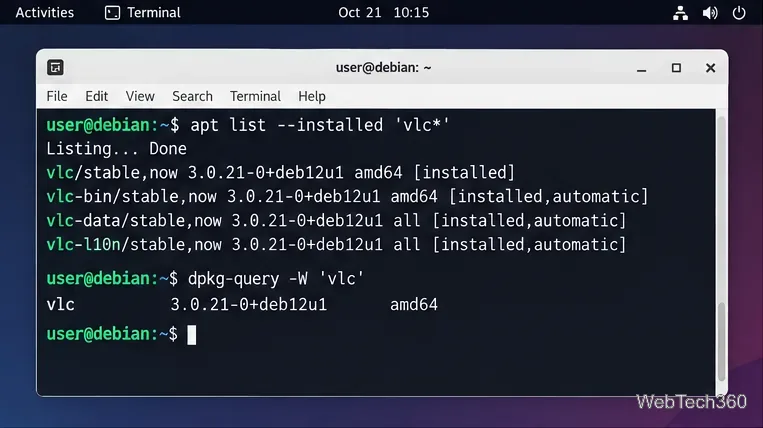
The application name shown in your desktop menu is not always identical to its Debian package name. Before removing anything, check the installed package list. For example, to look for VLC-related packages:
apt list --installed 'vlc*'
You can also query Debian's package database directly with dpkg-query. The dpkg-query manual documents both package listing and customizable output. If you already know the likely package name, this is a quick check:
dpkg-query -W vlc
If the command returns the installed package and version, you have the correct name. If it reports no matching package, check the spelling or consider whether the application was installed outside APT.
Check the installed package name before removing software so you do not target the wrong package.
Uninstall a package with apt remove
To remove a package while keeping its package-managed configuration files available for a possible reinstall, use:
sudo apt remove package_name
Replace package_name with the actual package name, for example:
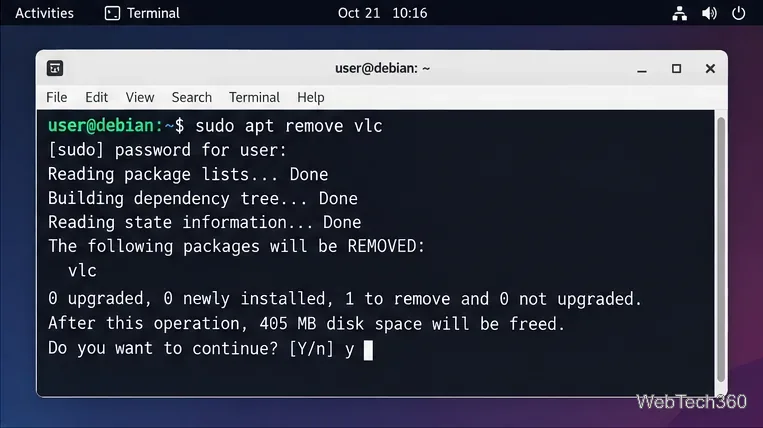
sudo apt remove vlc
APT shows a transaction summary before making changes. Read that list carefully, especially when removing a desktop component, driver, server stack, or meta-package. If the proposed removals look broader than expected, answer n and investigate before continuing.
According to Debian's APT manual, remove deletes packaged program data but normally leaves small modified configuration files behind. This makes reinstalling the package later more likely to restore its previous system configuration.
APT displays what will be removed and how much disk space will be freed before you confirm.
Use apt purge for a cleaner package removal
If you do not want to keep the package's system configuration, run:
sudo apt purge package_name
For example:
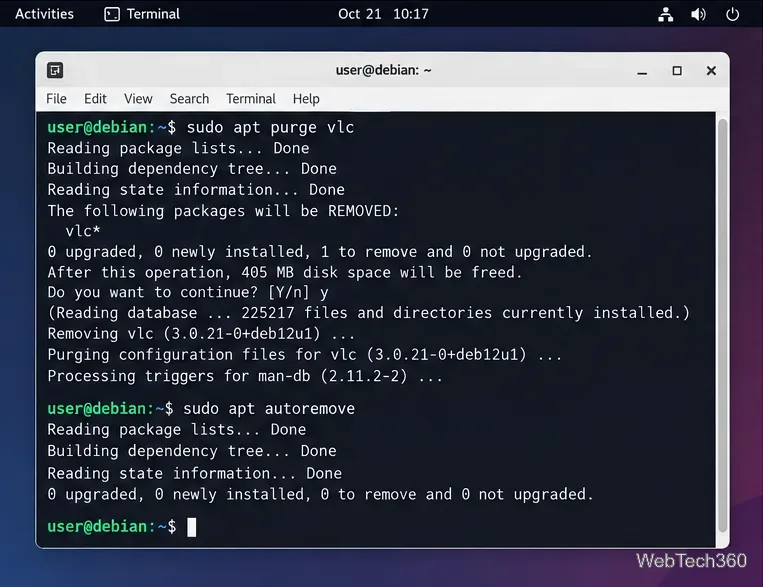
sudo apt purge vlc
Purge is more thorough than remove, but it is not a wipe of your home folder. Debian's documentation specifically notes that purge does not remove data or configuration stored in a user's home directory. Application profiles, documents, caches, or other user-created files may therefore remain and should only be deleted manually if you are sure you no longer need them.
Remove unused dependencies afterward
Some libraries or helper packages may have been installed automatically only because the removed application needed them. To ask APT to remove dependencies that are no longer required, run:
sudo apt autoremove
Review the proposed list before confirming. Debian warns that an automatically installed package can still be something you now use directly. If you want to keep one, cancel the operation and mark that package as manually installed instead of blindly accepting a large autoremove list.
Use purge when you also want package-managed configuration removed, then review autoremove for unused dependencies.
Use apt-get if you need the traditional command
The traditional APT command remains valid. The Debian apt-get manual defines remove, purge, and autoremove with the same core purposes:
For an interactive terminal session, apt is usually simpler. For scripts and automation, Debian recommends the dedicated APT tools such as apt-get because their behavior is designed for stronger backward compatibility.
Uninstall a package with Synaptic
If you prefer a graphical package manager, Synaptic is still available in Debian stable. Debian's official package page for Synaptic describes it as a GTK interface to APT that can install, upgrade, and remove packages.
If Synaptic is not already installed, install it with:
sudo apt install synaptic
Open Synaptic Package Manager and authenticate when prompted.
Use Search or the Installed status filter to find the package.
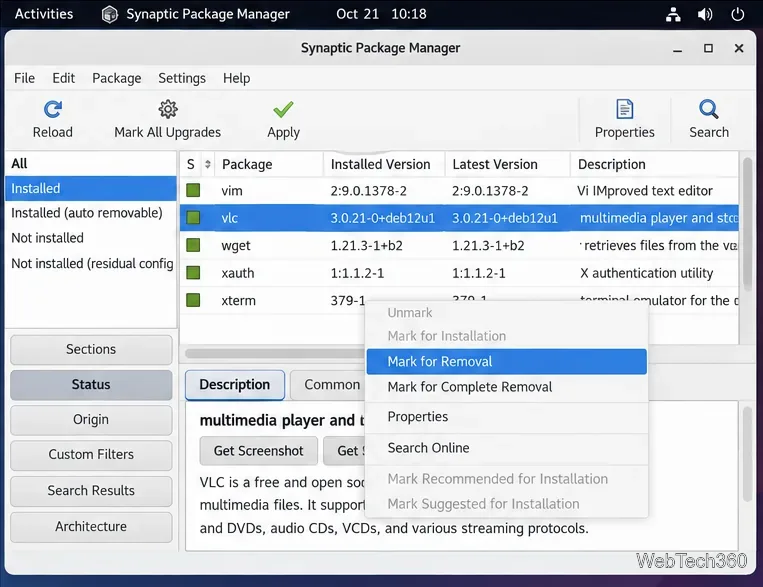
Right-click the package and choose Mark for Removal. Choose Mark for Complete Removal when you want the equivalent of purging package-managed configuration.
Click Apply, review the summary, and confirm only if the listed changes are what you expect.
Synaptic provides a graphical way to mark an installed Debian package for removal or complete removal.
Which removal command should you use?
Keep configuration for an easy reinstall:sudo apt remove package_name
Remove the package and its package-managed system configuration:sudo apt purge package_name
Clean up dependencies no longer needed:sudo apt autoremove
Prefer a graphical interface: use Synaptic and review the marked changes before applying them.
If APT says the package is not installed even though the application still appears on your system, it may have been installed by another method, such as Flatpak, a manually downloaded archive, or locally compiled software. In that case, use the removal method that matches how the application was originally installed rather than forcing an APT command.