If a SUSE Linux server appears to hang during reboot at a systemd shutdown message, the most useful first assumption is not that the reboot command itself is broken. In most cases, systemd is waiting for a unit, mount, process, or shutdown hook to finish. The safest fix is therefore to identify the exact job that is still running, inspect why it does not stop, and correct that component rather than globally shortening shutdown timeouts.
This guide uses a hypothetical example throughout: a server named lab-sles01 runs SUSE Linux Enterprise Server and pauses during reboot with a message similar to A stop job is running for backup.service. The example is only an illustration of the diagnostic method; it is not a report of a real test or a claim that a particular SUSE release has a defect in a service named backup.service.
The four-step fix in brief
| Step | What to do | What you are trying to learn |
|---|
| 1 | Record the exact shutdown message | Which unit or stage is blocking progress |
| 2 | Review the previous boot journal | Whether the stop timed out, an unmount failed, or shutdown reached a later stage |
| 3 | Inspect the blocking unit and live jobs | Whether a service, mount, inhibitor, or dependency is responsible |
| 4 | Fix the root cause and retest | Whether a normal systemctl reboot now completes without delay |
Step 1: Record exactly where shutdown stops
Watch the local console, virtual machine console, BMC/IPMI console, or hypervisor console during a planned reboot. A line naming a unit is far more useful than a general description such as “systemd froze.” For the hypothetical lab-sles01, suppose the console shows that backup.service is still stopping while other units have already shut down.
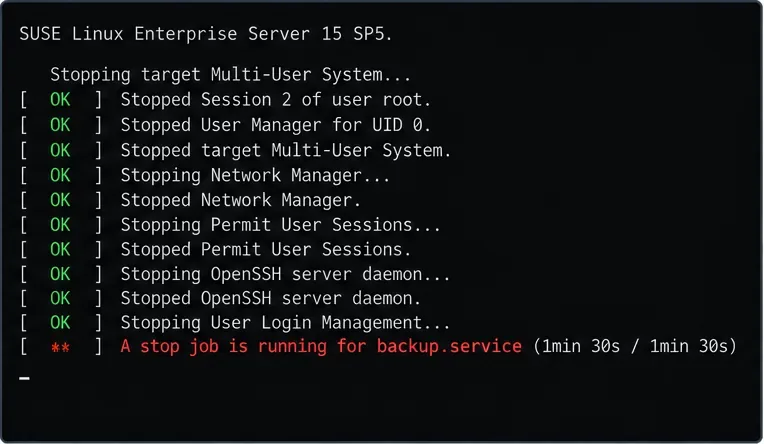
Illustrative example: the shutdown console identifies backup.service as the unit systemd is still waiting for.
If the console instead names a .mount unit, a network file system, a device, or another service, follow that name rather than applying a generic service timeout. The unit shown at the bottom of the console is a clue, not automatically the root cause: it may itself be waiting on a child process, storage, network I/O, or another dependency.
SUSE's current systemd guidance notes that a long reboot or poweroff can be caused by a service that is not exiting and recommends checking systemd jobs. See SUSE Linux Enterprise Server 16.0: Introduction to systemd Basics.
Step 2: Use the previous boot journal after the server returns
After the machine boots again, inspect the shutdown that just happened. SUSE documents boot offsets in the journal: boot 0 is the current boot, -1 is the previous boot, and so on. Start with:
sudo journalctl --list-boots
sudo journalctl -b -1
For a large journal, reverse order can surface the last messages more quickly:
sudo journalctl -b -1 -r
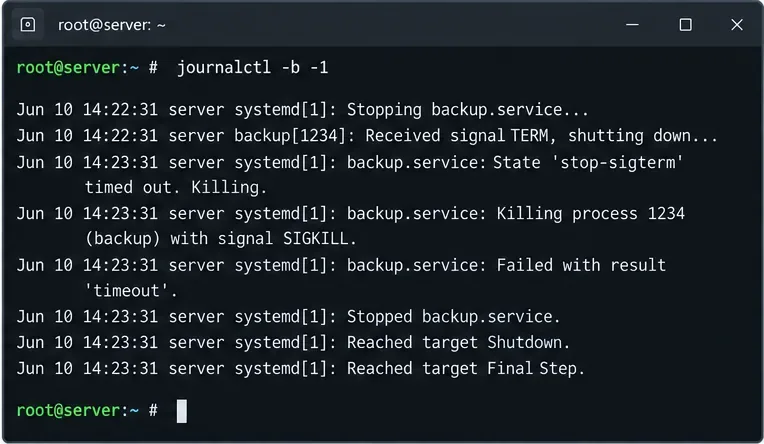
Illustrative example: the previous-boot journal shows the hypothetical backup service receiving SIGTERM and later timing out.
Look for phrases such as Stopping, stop job, timed out, Failed with result, Unmounting, Dependency failed, or messages from the suspected service itself. You can narrow the view once you know the unit name:
sudo journalctl -b -1 -u backup.service
SUSE documents journalctl -b -1 for previous-boot analysis in its SLES 15 SP7 journal documentation. If journalctl --list-boots does not contain the earlier boot, do not invent conclusions from missing history; check how journald storage is configured and use console or remote logging for the next reproduction.
Step 3: Identify whether the blocker is a service, mount, inhibitor, or late shutdown hook
If you can reproduce the problem in a maintenance window, keep a second administrative console available. Before connectivity disappears, run:
sudo systemctl list-jobs
sudo systemctl status backup.service
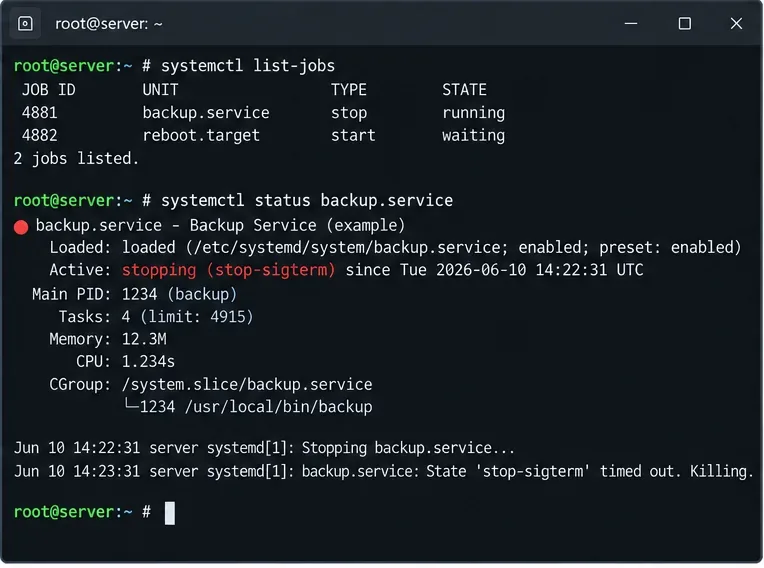
Illustrative example: backup.service has a running stop job while the reboot target waits behind it.
The upstream systemd debugging guidance explains that jobs shown as running must finish before dependent jobs shown as waiting can proceed. SUSE also recommends systemctl list-jobs when shutdown or reboot takes too long. That makes this command particularly useful when the server is not fully frozen and PID 1 is still responsive.
If a service is stopping too slowly
Inspect the unit definition and its shutdown behavior:
sudo systemctl cat backup.service
sudo systemctl status backup.service
sudo journalctl -u backup.service -b
Check whether the service has an ExecStop= action, whether its process handles SIGTERM, and whether it is waiting on storage or network resources. A database, backup agent, or middleware service may legitimately need time to flush data, so killing it sooner is not automatically a fix.
If a mount or network file system is involved
Look for failing unmount operations and identify the mount source:
findmnt
systemctl list-units --type=mount
sudo journalctl -b -1 | grep -Ei 'unmount|umount|mount|nfs|cifs'
For NFS or CIFS, investigate server reachability, stale sessions, and whether the mount options fit the server's shutdown requirements. If the blocked unit is generated from /etc/fstab, fix the mount configuration instead of applying a service-specific timeout to an unrelated unit.
If the reboot request is being inhibited
Before shutdown begins, you can list active systemd inhibitors:
systemd-inhibit --list
Inhibitor locks can block or delay shutdown requests while an application is doing work that should not be interrupted. They are most relevant when the reboot request itself is delayed before the system has entered the final shutdown sequence. See the upstream systemd-inhibit manual.
If the hang occurs after services are already down
A later-stage hang deserves a different investigation. systemd runs executables under /usr/lib/systemd/system-shutdown/ shortly before the final reboot or poweroff and waits for them to finish. If the journal and console show that ordinary services are already stopped and the stall happens at the final shutdown stage, review that directory and any vendor-installed hooks. The upstream systemd shutdown service documentation describes this behavior.
Step 4: Fix the component, then test a normal reboot
Return to the hypothetical lab-sles01. Suppose the logs show that backup.service ignores normal termination after its backup process has already completed. The first choice is to fix the service or its stop command. If the service is known to be safe to terminate after a bounded period, a per-unit systemd override can limit how long systemd waits.
Create an override instead of editing a vendor unit under /usr/lib/systemd/system:
sudo systemctl edit backup.service
For example:
[Service]
TimeoutStopSec=30s
Then reload systemd's unit configuration:
sudo systemctl daemon-reload
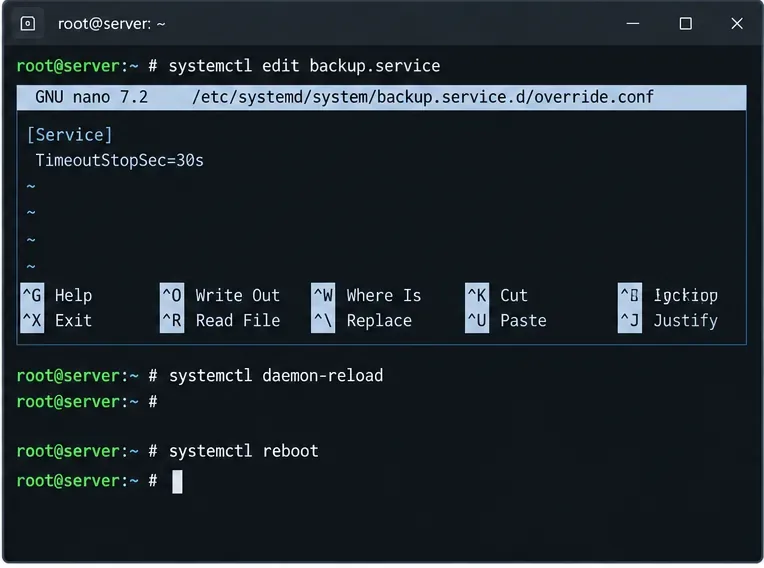
Illustrative example: a per-service timeout is applied only after the hypothetical service has been identified as the blocker.
Do not copy the 30-second value blindly. The right timeout depends on what the real service must safely finish. Reducing it for a database, storage daemon, clustered service, or backup process can interrupt legitimate cleanup. A timeout is a guardrail, not a substitute for fixing a broken ExecStop= action or an application that does not terminate correctly.
When you are satisfied with the change, test a normal reboot:
sudo systemctl reboot
After the machine returns, review the previous boot again and confirm that the unit stopped cleanly rather than merely disappearing from the console.
When should you use a forced reboot?
A forced reboot is a recovery option, not a troubleshooting strategy. Upstream systemd documentation states that one --force with systemctl reboot skips normal service shutdown but still kills processes and attempts to unmount or remount file systems read-only. Supplying --force twice is more dangerous because it can reboot without terminating processes or unmounting file systems, with a risk of data loss.
If the server is already stuck and there is no safer way to regain service, one forced reboot may be justified under your operational procedures:
sudo systemctl reboot --force
Avoid treating systemctl reboot --force --force, a virtual power-cycle, or a physical reset as a normal fix. Those actions can remove the evidence you need and can endanger in-flight writes. The upstream systemctl documentation explicitly distinguishes the single- and double-force behaviors.
What if every reboot hangs and you cannot troubleshoot in normal mode?
Use a maintenance console and boot into rescue mode. SUSE documents adding systemd.unit=rescue.target to the kernel command line from the GRUB editor. Rescue mode provides a root session with local file systems and core services while leaving networking inactive, which can help you disable or repair the offending service or mount configuration.
See the SLES 15 SP7 Administration Guide for the official rescue-mode procedure. On systems where the problem appears only after a particular package, kernel, driver, or storage change, also review the relevant SUSE maintenance history before making permanent timeout changes.
Quick decision table
| What you see | Likely area to inspect | Best next action |
|---|
A stop job is running for xyz.service | Service shutdown path | Check systemctl status, unit file, and service journal |
| Repeated unmount or remote-file-system messages | Mount, NFS, CIFS, storage | Check findmnt, mount units, /etc/fstab, and server reachability |
| Reboot request is refused or delayed before shutdown | Inhibitor or another systemd job | Run systemd-inhibit --list and systemctl list-jobs |
| Services are stopped, but final shutdown never completes | Late shutdown hook, kernel, driver, storage | Review previous-boot journal and /usr/lib/systemd/system-shutdown/ |
| Normal boot makes repair impossible | Persistent configuration or unit failure | Boot with systemd.unit=rescue.target |
Bottom line
For a SUSE Linux server hanging at systemd shutdown, the durable fix is to identify the job that systemd is waiting for and correct that unit or its dependency. Record the shutdown message, inspect journalctl -b -1, use systemctl list-jobs and systemctl status to isolate the blocker, and only then change a per-service timeout or mount configuration. Keep forced reboot methods for recovery situations, not routine operations.









