4 Best Adobe Acrobat Alternatives for Linux: PDF Reading and Markup
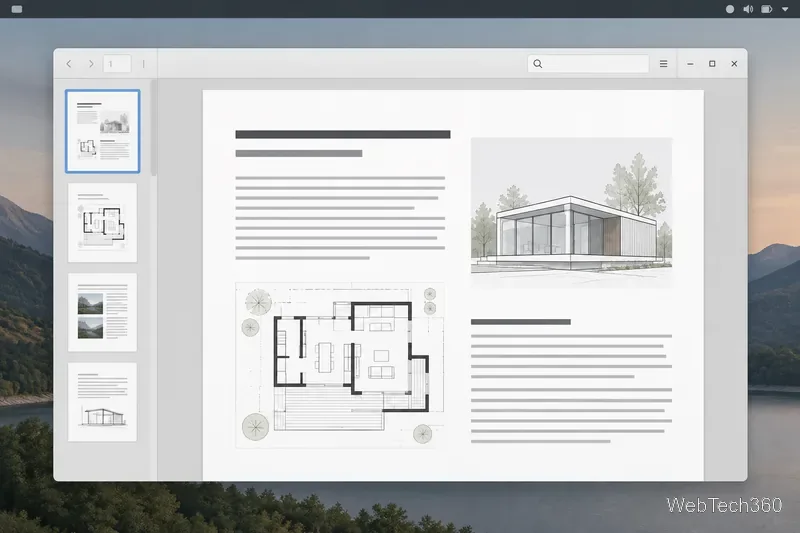
Compare four Adobe Acrobat alternatives for Linux, from Okular’s signatures and markup to GNOME Papers, Atril, and MuPDF.
The message E: Could not get lock /var/lib/dpkg/lock-frontend means another package-management process has the lock APT needs. The lock protects package changes from overlapping operations. It commonly appears when Software Updater, another terminal, or an automatic update is already installing or configuring packages. The safest fix is to identify that work and let it finish; deleting the lock file is not the first step.
The commands below apply to Ubuntu systems using APT and dpkg. Desktop labels and automatic-update timing vary by Ubuntu release and configuration, so treat process output on your own machine as the deciding evidence. The Ubuntu 24.04 LTS manuals linked below document the commands; consult the matching manual for your release if its behavior differs.
Verified: dpkg installs and manages packages, while APT is its higher-level command-line front end. The lock-frontend path is used to coordinate package-management work. The error therefore indicates a lock conflict at the time of the command, not necessarily a damaged package database. Ubuntu’s dpkg manual describes dpkg’s role and package states.
Depends on your system: the lock holder may be a graphical updater, a second apt or apt-get command, a software installer, or an automatic maintenance job. Do not assume the process name from the error alone. First close any other package manager window you started and check the machine’s active processes.
Not established by the message: it does not prove that the lock file is stale, that Ubuntu is frozen, or that the package database is corrupt. A lock file can remain on disk after a process exits; its presence alone does not show that a process still owns the lock. Check for a process before changing anything.
Look for Software Updater, Ubuntu Software, or another terminal currently installing, updating, or removing software. If an update is visibly progressing, leave it open and wait until it completes. Then retry your original command once.
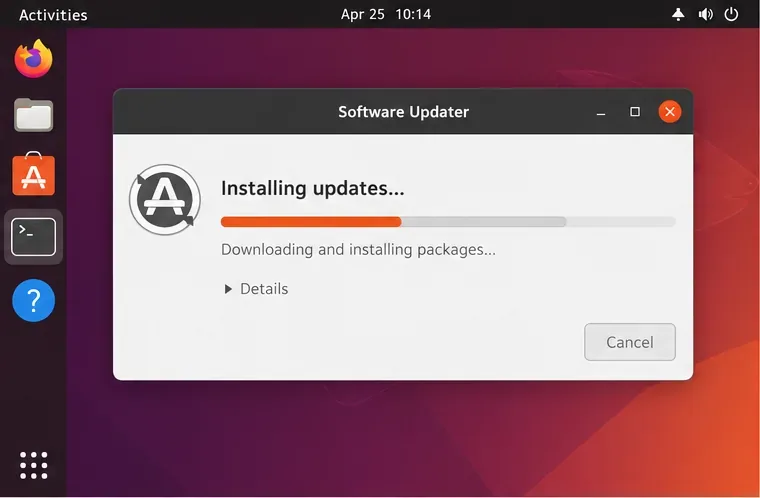
If no graphical update is visible, inspect the process list:
ps -eo pid,ppid,stat,etime,cmd | grep -E '[a]pt|[d]pkg|unattended'Look for commands such as apt, apt-get, dpkg, or unattended-upgrade. A match is a clue, not proof that it is the lock holder: a search can also show unrelated commands or the check itself. Note the PID and command, then inspect the process in the next step.
Use fuser to see whether a process is accessing the frontend lock. Run it with administrator privileges so it can report processes owned by other users:
sudo fuser -v /var/lib/dpkg/lock-frontendYou can check the other common package-manager lock paths as well:
sudo fuser -v /var/lib/dpkg/lock /var/cache/apt/archives/lock /var/lib/apt/lists/lockfuser reports process IDs that use the specified file; its verbose mode includes process details. If it prints a PID, compare it with the process list and inspect it with ps -fp PID, replacing PID with the number shown. The tool can return no result when no accessible process is using the path; that finding is useful, but it is not a diagnosis of why the earlier command failed. See the Ubuntu fuser manual for its output and limitations.
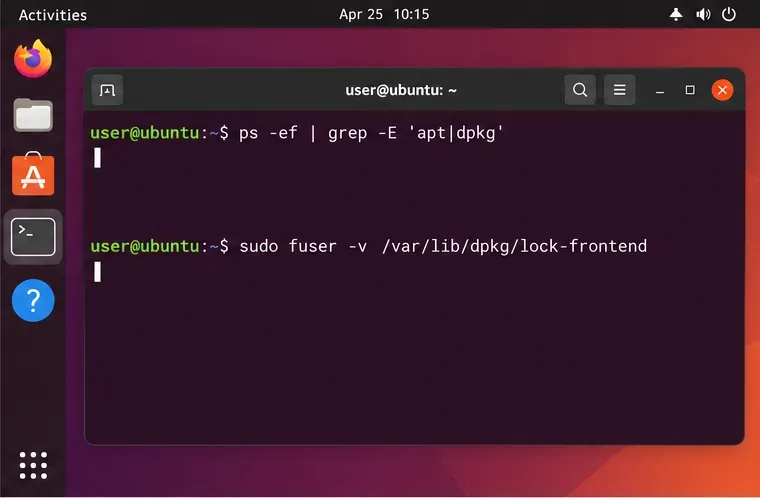
If the process is downloading packages, unpacking files, configuring packages, or showing progress in a graphical updater, let it finish. Large updates and slow disks can take longer than expected. When the operation exits, retry your original apt-get command. Starting another APT command while the first one runs will not make the first finish sooner.
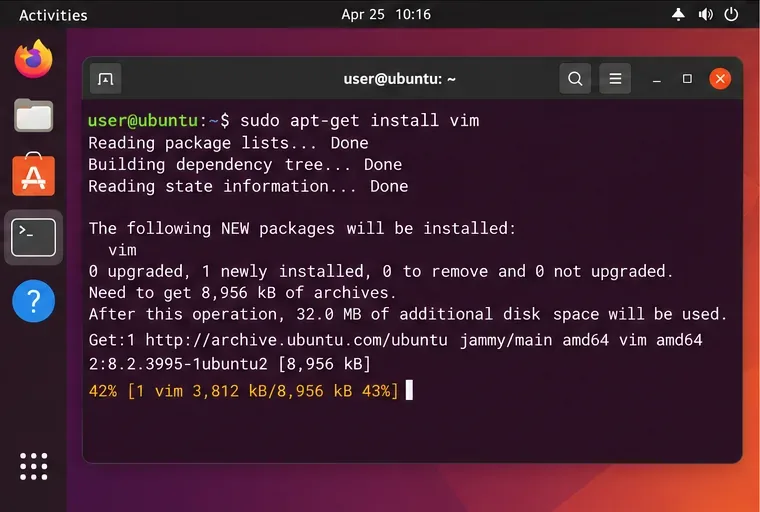
If an operation appears frozen, check whether its output, CPU or disk activity, or elapsed time is changing. There is no single timeout that proves every package task is stuck. If the process is clearly your own foreground command and you can safely interrupt it, use Ctrl+C in that terminal and allow it to exit cleanly. Do not kill a process just because it holds the lock.
As a last resort, if you have verified that the process is genuinely unresponsive, identified its exact PID, and understand that interrupting package configuration may leave packages unfinished, send a normal termination signal:
sudo kill -TERM PIDReplace PID with the confirmed process ID. Avoid kill -9, killall dpkg, or fuser -k as routine fixes; forceful termination can interrupt package scripts or leave work to recover. If the task is an automatic service rather than one you started, investigate its status or wait rather than killing an unfamiliar process.
If no APT or dpkg process remains and the previous install or upgrade was interrupted, ask dpkg to finish configuring unpacked packages, then check APT’s package state:
sudo dpkg --configure -a
sudo apt-get check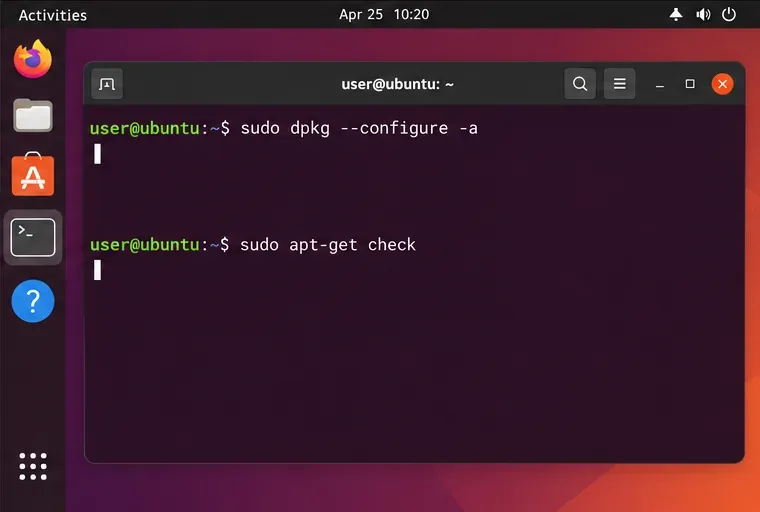
Read any prompts and errors. The first command can run package configuration scripts; it may take time or ask questions. apt-get check checks for broken dependencies. If it reports dependency problems, review the proposed changes before using sudo apt-get -f install; that option attempts to repair dependencies and may install or remove packages to do so. Do not approve removals you do not understand. The Ubuntu apt-get manual explains check and --fix-broken.
fuser and the process list instead.dpkg --configure -a.” That command addresses pending configuration work; it does not resolve a lock still held by an active process. Wait for or safely resolve the holder first, then use the repair command only when needed.Retry the original command after the lock holder exits. A successful run should get past the lock message and complete its requested package operation. If dpkg --configure -a finishes and apt-get check reports no dependency problems, package configuration and dependency checks are in a better state; that does not guarantee that every unrelated repository or network issue is fixed.
If the lock error returns immediately, record the exact lock path, the output of sudo fuser -v for that path, the matching process command and PID, and whether the task is still progressing. Those details distinguish a normal competing update from a process that needs further troubleshooting. Do not remove files from /var/lib/dpkg or erase lock files as a substitute for identifying the process.
Compare four Adobe Acrobat alternatives for Linux, from Okular’s signatures and markup to GNOME Papers, Atril, and MuPDF.
Compare Linux audio converters for batch jobs, CD ripping, editing, and command-line workflows, with practical format and codec notes.
Set up The Witcher 3 on Linux with Steam Proton or a GOG copy in Heroic, with current guidance for Remastered compatibility issues.
Install Peppermint OS from the Debian Trixie 64-bit ISO: verify the download, create a bootable USB, choose a disk layout, and complete setup safely.
Compare four Linux wallpaper apps for searching, filtering, saving, and rotating desktop backgrounds, with current install links and compatibility notes.
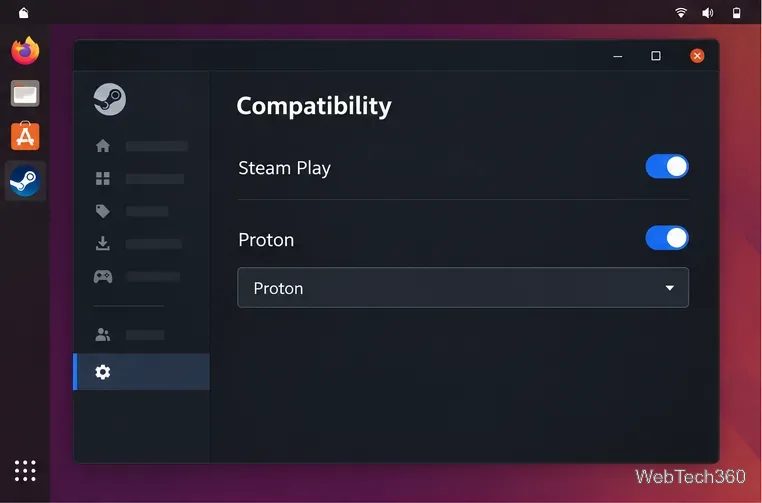
Install Fallout 4 from Steam on Linux, enable Proton for Windows games, and troubleshoot common launch problems with practical compatibility steps.
Use Steam Play and Proton to install The Sims 3 on Linux, or try a PC DVD copy with Wine. Follow current setup steps and compatibility tips.
Prepare a model-matched microSD card, install OSMC with the official desktop installer, and complete first-run setup on your Raspberry Pi.
Install the Steam version of No Man’s Sky on Linux with Proton, then troubleshoot launch failures, graphics issues, and compatibility settings.
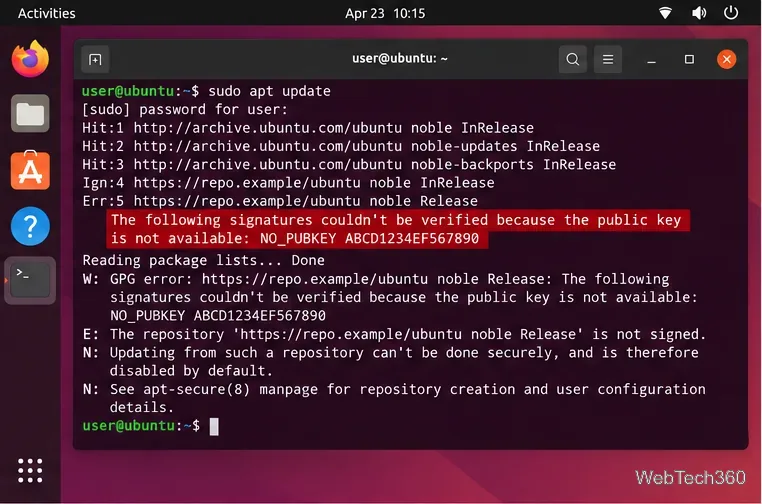
Find the repository that raised NO_PUBKEY, verify its publisher’s signing key, scope it with Signed-By, and refresh APT safely without weakening signature checks.