How to Access a Windows BitLocker Partition in Linux

Use Dislocker to unlock a BitLocker volume in Linux, mount its virtual NTFS file read-only, and safely unmount it without exposing your password in a command.
If Pardus 23 says that no Bluetooth adapter is available, the fastest way to solve the problem is to find out where detection is failing. A Bluetooth device has to pass through several layers before the desktop can use it: the computer firmware must expose the hardware, the Linux kernel must recognize it, the radio must not be blocked, the BlueZ Bluetooth service must be running, and the desktop must be able to talk to that service.
This guide follows that order. It is written for newcomers, but it avoids the common mistake of installing random drivers before checking what the system can already see. Pardus 23 is based on the Debian 12 generation and uses the Linux 6.1 series in its 23.x releases. The Pardus project lists both XFCE and GNOME editions for the Pardus 23 line, so the graphical menus can look different while the terminal checks below remain applicable. As of October 2026, Pardus 23.5 remains within the support window published by Pardus. See the official Pardus version schedule and the Pardus 23 release notes.
“Bluetooth adapter not found” is different from “my headphones are not found.” An adapter, also called a Bluetooth controller, is the radio inside the computer or USB dongle that provides Bluetooth. A headset, mouse, phone, or keyboard is a separate Bluetooth device.
bluetoothctl list shows a controller, Linux can already see a Bluetooth adapter. Your problem is more likely power, scanning, pairing, or device compatibility.bluetoothctl list shows no controller, continue with the hardware, rfkill, service, and firmware checks below.You will need an administrator password for commands beginning with sudo. Save any open work before restarting services or rebooting.
Open a terminal and start with:
lsusbMany built-in Bluetooth radios are internally connected through USB even when Wi-Fi is on the same laptop card. Look for a line mentioning Bluetooth or a vendor such as Intel, Realtek, Broadcom, Qualcomm, Cambridge Silicon Radio, or another radio manufacturer. You can also inspect PCI devices for the combined wireless controller:
lspci -nnk | grep -iA3 -E 'network|wireless|bluetooth'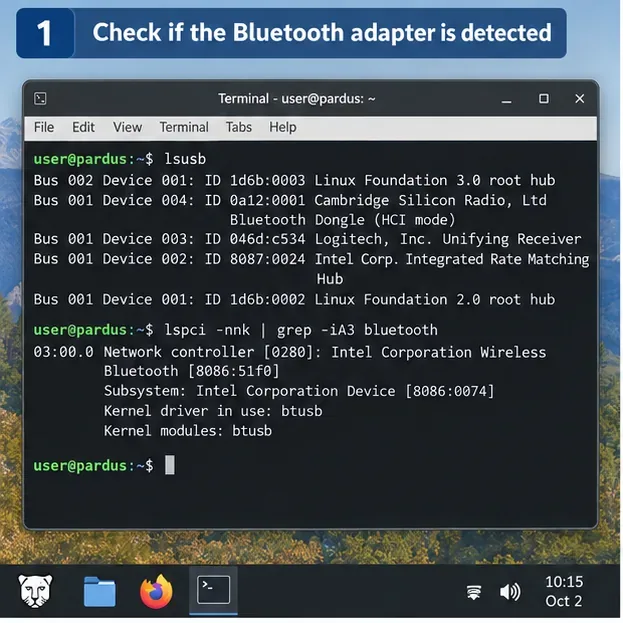
What the result means: if the adapter appears in lsusb, the hardware is at least being enumerated by the kernel. That is useful progress; do not jump straight to buying another adapter. If neither command shows relevant hardware, shut down the computer fully, check any wireless key or physical radio switch, and inspect BIOS/UEFI settings for wireless or Bluetooth controls. A USB dongle should also be tested in another USB port.
If you are using a virtual machine, remember that the host computer must pass the Bluetooth USB device through to the guest. Pardus cannot detect hardware that the virtualization layer does not expose.
rfkill is the Linux mechanism used to disable or enable radio transmitters such as Wi-Fi and Bluetooth. Run:
rfkill listFind the Bluetooth entry. The important fields are Soft blocked and Hard blocked.
sudo rfkill unblock bluetooth.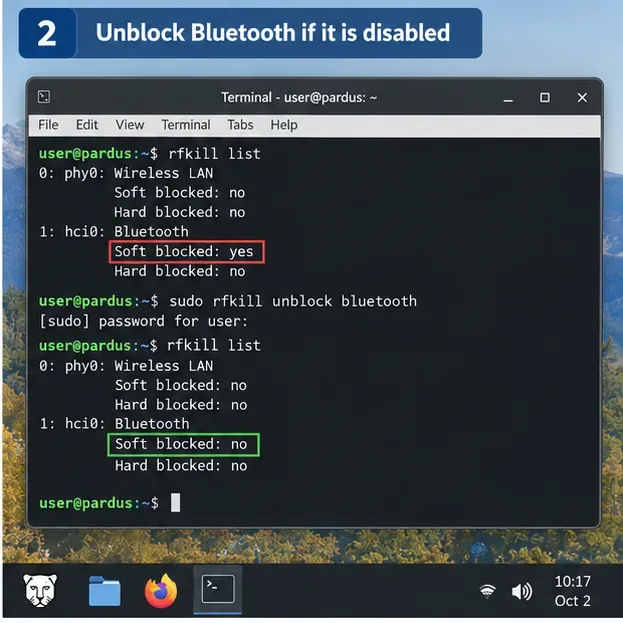
The behavior of rfkill unblock and hard blocks is documented in the Debian rfkill manual and the Linux wireless rfkill documentation.
BlueZ is the standard Linux Bluetooth protocol stack. Its background service, bluetoothd, manages Bluetooth controllers and devices. Check it with:
systemctl status bluetoothIf the service is installed but inactive, start it and enable it for future boots:
sudo systemctl enable --now bluetooth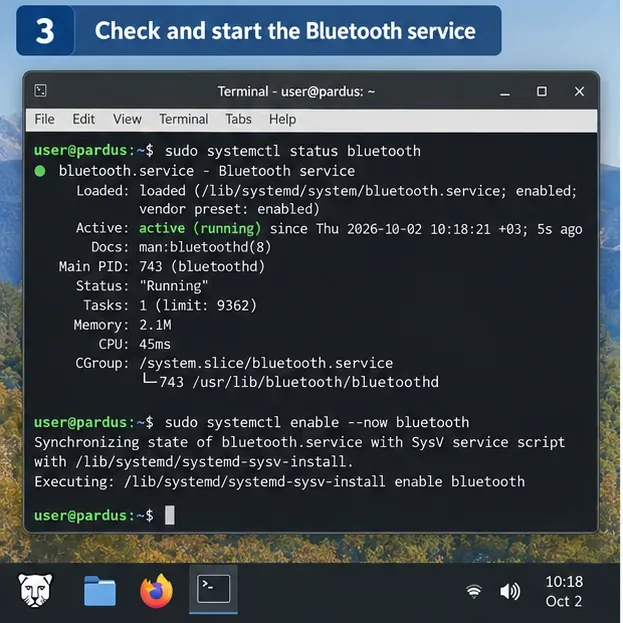
If the command reports that bluetooth.service does not exist, skip ahead to the package check. If the service starts but immediately fails again, do not repeatedly restart it. Check the logs in Step 6 because they can reveal a missing firmware file or driver error.
Now run:
bluetoothctl list
bluetoothctl show
The list command lists available Bluetooth controllers; show displays properties for the selected controller. These commands are documented in the Debian bluetoothctl manual.
If a controller appears but is powered off, enter the interactive tool:
bluetoothctl
power on
show
quit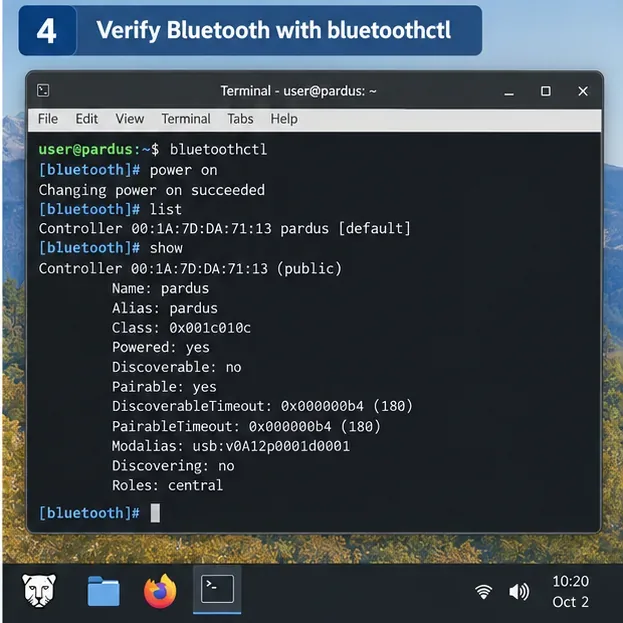
At this point, an “adapter not found” message in one desktop app may be a desktop-session or GUI issue rather than a missing kernel device. Log out and back in, or reboot once after completing the update and service checks below. If bluetoothctl list is empty, keep going.
Pardus 23 receives package updates through the Pardus repositories, and the project recommends keeping an existing Pardus 23 installation current. Pardus' update notes also show that BlueZ has been updated during the 23.x lifecycle. You can use the Pardus Updater application, or use APT from a terminal:
sudo apt update
sudo apt upgrade
Then check the core packages:
dpkg -l bluez bluetoothIf either package is missing, install it:
sudo apt install bluez bluetooth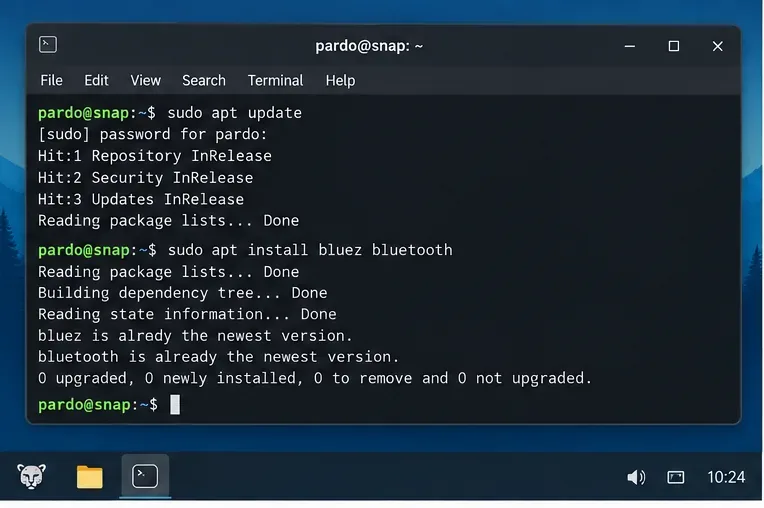
Do not treat package reinstallation as a universal fix. If the kernel cannot see the adapter, reinstalling BlueZ alone will not make hardware appear. The official Pardus 23 update notice is a useful reference for the maintained 23.x package base.
Firmware in this context is a small binary file loaded into some wireless chips by the operating system. It is different from your motherboard BIOS/UEFI firmware. A Bluetooth adapter can appear in lsusb yet still fail to initialize if its required firmware file is missing.
Check recent kernel messages:
sudo dmesg | grep -iE 'bluetooth|btusb|firmware'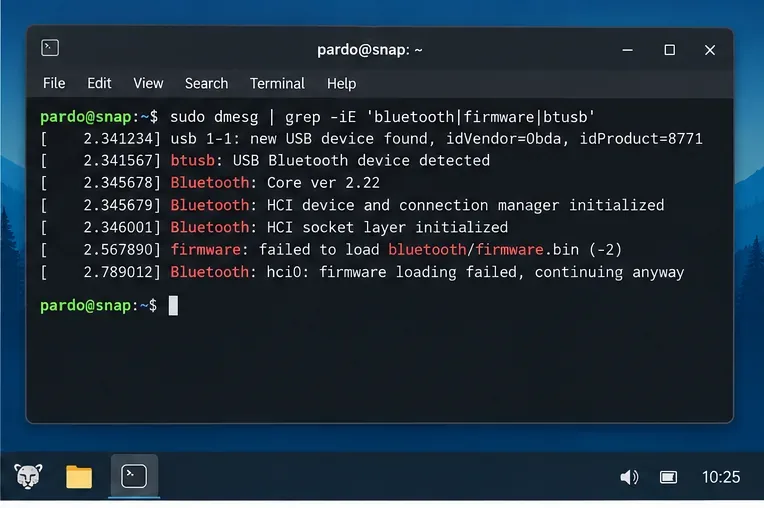
Pay attention to phrases such as firmware: failed to load, Direct firmware load failed, Bluetooth: hci0, or btusb. The exact filename and vendor matter. Do not install every firmware package you can find.
For Debian 12-generation systems, firmware packages are provided through the non-free-firmware component. Pardus 23's official repository configuration includes that component. Examples from Debian's official package catalog include:
Use the vendor/device identifiers from Step 1 and the exact missing filename from dmesg to decide which package is appropriate. If you cannot map the hardware confidently, it is safer to collect the identifiers and ask Pardus support than to add third-party repositories or download random firmware blobs.
After installing the correct package, restart the service:
sudo systemctl restart bluetooth
systemctl is-active bluetooth
bluetoothctl list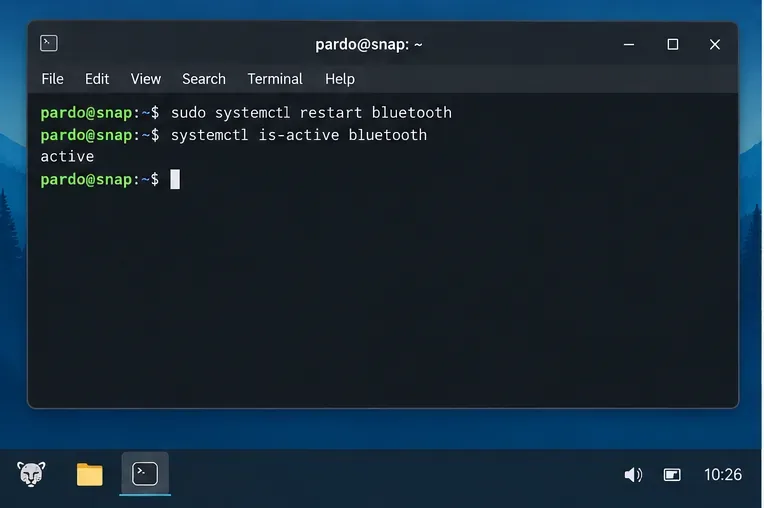
If you installed new firmware, a full reboot is often the cleanest next step because it forces the kernel to initialize the Bluetooth hardware again from boot. After restarting, repeat rfkill list and bluetoothctl list. You should not need to keep repeating package installation.
Once bluetoothctl list shows a controller and bluetoothctl show reports it as powered, open the Bluetooth settings for your desktop environment. Turn Bluetooth on and wait a few seconds for devices to appear.
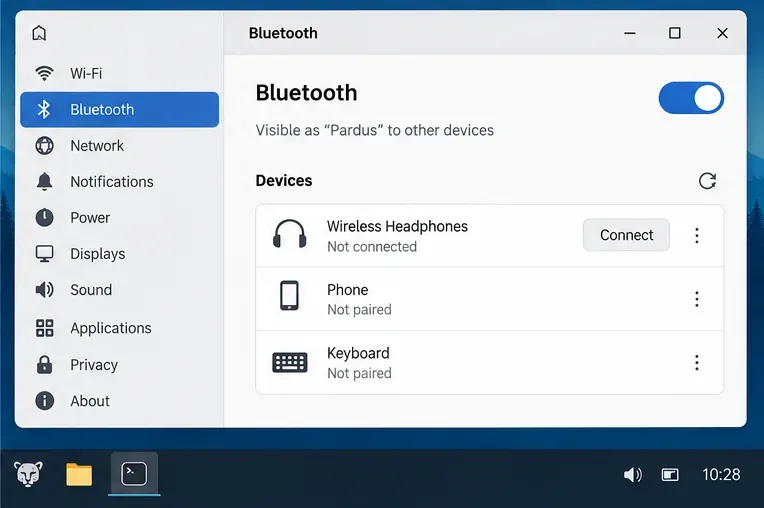
XFCE and GNOME do not present exactly the same controls, so do not worry if your panel does not look identical. Pardus officially supports both desktop environments in the Pardus 23 family.
| What you see | Most useful next action |
|---|---|
No Bluetooth hardware in lsusb, no relevant wireless controller, and no Bluetooth rfkill entry | Check BIOS/UEFI, a physical wireless control, USB connection, or hardware failure. Software package changes are unlikely to help until the hardware is visible. |
Bluetooth is listed by rfkill and soft-blocked | Run sudo rfkill unblock bluetooth, then recheck the service and controller. |
| Bluetooth is hard-blocked | Use the laptop radio switch/function key or BIOS/UEFI setting. A software unblock cannot override a hard block. |
systemctl status bluetooth says the service is missing | Install the BlueZ/Bluetooth packages from the Pardus repositories. |
Hardware appears in lsusb but dmesg reports a missing firmware file | Identify the adapter vendor/device ID and install the matching firmware package rather than guessing. |
bluetoothctl list shows a controller | The adapter is detected. Move on to power, scanning, pairing, or desktop-session troubleshooting instead of driver hunting. |
bluetoothctl list shows a controller, the adapter exists even if your headphones are not yet visible.systemctl status, the journal, or dmesg.If the adapter never appears in lsusb or relevant hardware listings after a cold shutdown, BIOS/UEFI check, and USB-port check, the problem may be below the operating-system level. Likewise, if the same USB Bluetooth dongle is not detected on another computer, suspect the dongle itself.
If the hardware is detected but a specific firmware file repeatedly fails to load even after installing the correct Pardus/Debian firmware package, record the output of these commands before asking for help:
uname -a
lsusb
rfkill list
systemctl status bluetooth --no-pager
bluetoothctl list
sudo dmesg | grep -iE 'bluetooth|btusb|firmware'
Include the exact Pardus 23 point release and whether you use XFCE or GNOME. That evidence makes it much easier to distinguish a hardware, firmware, kernel, BlueZ, or desktop-layer problem without guessing.
The most reliable fix for “Bluetooth adapter not found” on Pardus 23 is not one command. It is a short diagnosis path: confirm that Linux sees the hardware, clear any rfkill block, verify that BlueZ is installed and running, check whether bluetoothctl can see a controller, and only then investigate firmware. If the controller appears in bluetoothctl, stop treating the issue as a missing adapter and move on to normal pairing or device-discovery troubleshooting.
Use Dislocker to unlock a BitLocker volume in Linux, mount its virtual NTFS file read-only, and safely unmount it without exposing your password in a command.
Learn how to reduce RAM usage on Linux by finding memory-hungry apps, trimming browser and startup load, and testing a lighter desktop safely.
Compare four WhatsApp alternatives for Linux by privacy defaults, desktop support, setup requirements, and the people each app suits.
Troubleshoot a VirtualBox VM that will not start on Linux by checking vboxdrv, kernel headers, Secure Boot, Extension Pack versions, and VM logs.
Transfer your Ubuntu user data with a tar archive and external drive, then restore personal files and selected settings without overwriting the new setup.
Install gThumb on Linux, browse and make simple photo edits, then set it as the default app for the image types you choose in GNOME.
Create an organized playlist in Rhythmbox or save a reusable XSPF playlist in VLC. Learn how to add tracks, name a list, and reopen it on Linux.
Install Dino on Linux with Flatpak or your distribution’s package manager. Get current Ubuntu, Debian, Fedora, and Arch commands, plus first-launch tips.
Install Arch Linux’s linux-lts kernel, add it to GRUB or systemd-boot, select it at startup, and verify it while keeping a fallback kernel.
Download the right Pi 4 image, write it to a microSD card, and complete LibreELEC’s first-run setup with Raspberry Pi Imager.








