Home
» LINUX
»
Fix Display Resolution Stuck at 1024x768 on a Pardus KVM Guest
Fix Display Resolution Stuck at 1024x768 on a Pardus KVM Guest
Why a Pardus KVM guest can get stuck at 1024x768
A Pardus virtual machine that never offers anything above 1024x768 is usually not suffering from a simple desktop setting problem. The important question is whether the guest actually receives a larger virtual display mode from KVM/QEMU and whether the desktop session can react to resize events.
The desired result is straightforward: after resizing the viewer window or selecting a larger mode, Pardus should expose resolutions such as 1366x768, 1600x900, or 1920x1080 instead of reporting 1024x768 as its hard maximum. Clipboard integration and smooth pointer behavior are useful secondary signs when SPICE is involved, but resolution is the primary test.
This guide applies most directly to Pardus desktop guests running under KVM/QEMU with libvirt and a SPICE or graphical console. Pardus 25.0 was released in November 2025, and the official Pardus download repository also lists Pardus 25.1 images from March 2026. The exact desktop menus can differ between the XFCE and GNOME editions, so the checks below use commands and virtualization settings that do not depend heavily on one desktop shell. See the official Pardus 25 download repository for current installation images.
1. Confirm that 1024x768 is really the guest's maximum mode
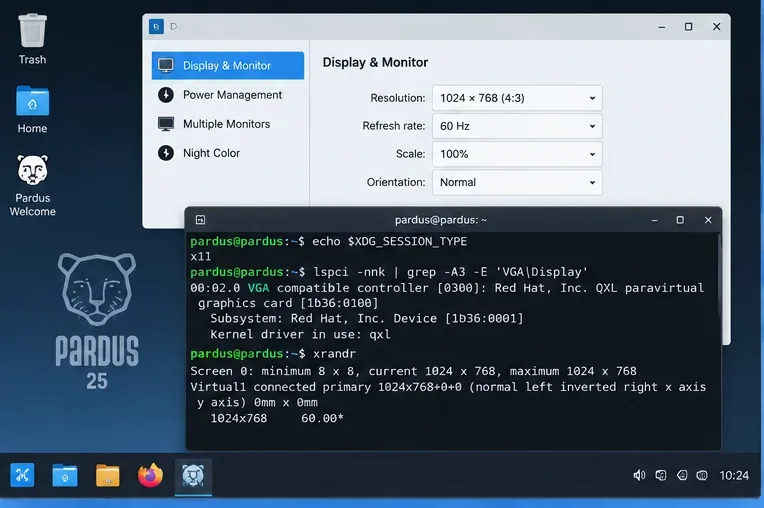
Start inside Pardus. Open a terminal and identify the session type and virtual display hardware:
Pay attention to two things. First, note whether the virtual GPU is QXL, Virtio GPU, a generic VGA adapter, or something else. Second, check the mode list. If 1920x1080 is already listed, the virtualization stack is probably capable of the larger resolution and the issue is more likely a desktop configuration or resize event problem. If xrandr says the maximum itself is 1024x768, changing the desktop resolution dialog alone is unlikely to help.
On a Wayland session, xrandr is not an authoritative configuration tool for the compositor, so use it only as supplemental information. The session type matters because QXL has historically been associated with X.Org/SPICE workflows, while Virtio GPU is the more modern paravirtualized graphics device in QEMU.
Check whether Pardus is merely set to 1024x768 or whether the guest reports 1024x768 as the maximum virtual display size.
2. Check the VM's video and display devices on the KVM host
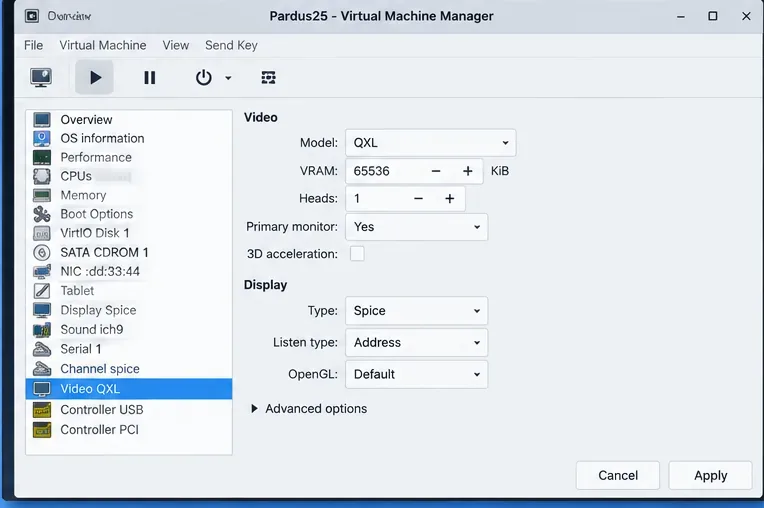
Shut down the guest completely before changing its virtual video hardware. In Virtual Machine Manager, open the VM hardware details and inspect both the display device and the video device. A common SPICE configuration uses a SPICE display together with QXL or Virtio video.
Libvirt documents several supported video model types, including qxl and virtio. QEMU describes Virtio GPU as a paravirtualized GPU/display controller for Linux guests and recommends VirtIO devices generally when there is no requirement to emulate particular physical hardware. You can review the libvirt video device documentation and the QEMU VirtIO GPU documentation.
If the VM already uses QXL and SPICE, do not change everything at once. Leave that configuration in place and install the SPICE guest agent first. This gives you a clean test: if dynamic resolution starts working, there is no reason to change the virtual GPU.
If the VM is using an old generic VGA or Cirrus model, moving to QXL or Virtio is usually more appropriate for a modern Linux desktop. If you later choose Virtio, begin without forcing 3D acceleration. QEMU's documentation notes that accelerated Virtio GPU modes have additional host, kernel, Mesa, and renderer requirements. A basic 2D Virtio GPU setup is therefore the safer troubleshooting baseline.
Verify the VM's display and video devices on the host before changing packages inside Pardus.
3. Install the SPICE guest agent in Pardus
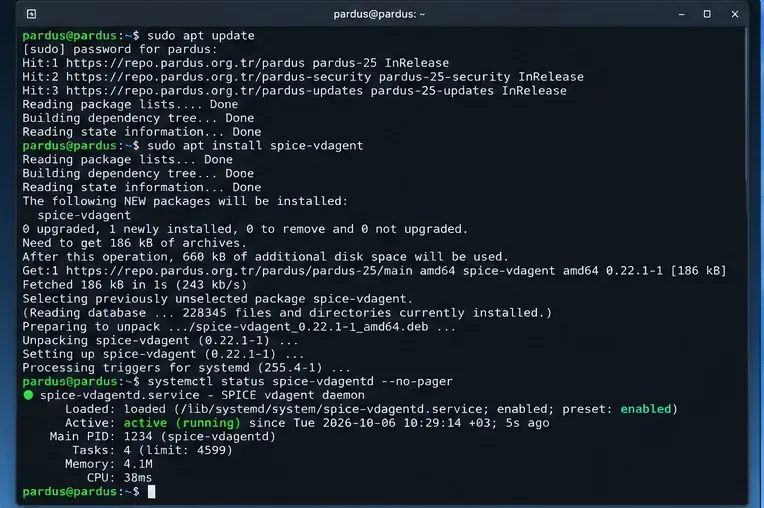
When the VM uses a SPICE display, the most useful low-risk fix is to make sure spice-vdagent is installed in the guest:
sudo apt update
sudo apt install spice-vdagent
Then log out and back in, or reboot the guest. The Debian package description for spice-vdagent specifically lists automatic adjustment of the X session resolution to the client resolution as one of its functions. Pardus is Debian-based, so this package is available in the Debian-derived package ecosystem used by current Pardus releases. Debian stable currently carries spice-vdagent 0.22.1-4.1. See the Debian spice-vdagent package page.
After installation, check the daemon and user-side process:
systemctl status spice-vdagentd.service --no-pager
pgrep -a spice-vdagent
A running system daemon is useful, but the user session component also matters. Debian's package documentation notes that automatic resolution handling depends on an active graphical session running the agent process.
If the VM uses QXL under X.Org and the graphics driver appears missing, check whether the QXL X.Org driver package is installed:
Do this only when the guest actually uses QXL. The package exists specifically for QXL devices in SPICE-compatible KVM/QEMU environments; it is not needed merely because the VM happens to run under KVM. Debian stable currently packages xserver-xorg-video-qxl 0.1.6-1.1, documented on the Debian QXL driver page.
Install the SPICE guest agent first when the VM uses a SPICE console; it is responsible for guest-side integration including display resize handling.
4. Retest dynamic resizing before changing the virtual GPU
After logging back in, open the graphical console and resize its window. If your viewer provides a scale-to-window or auto-resize option, enable the option that resizes the guest rather than merely stretching the rendered image.
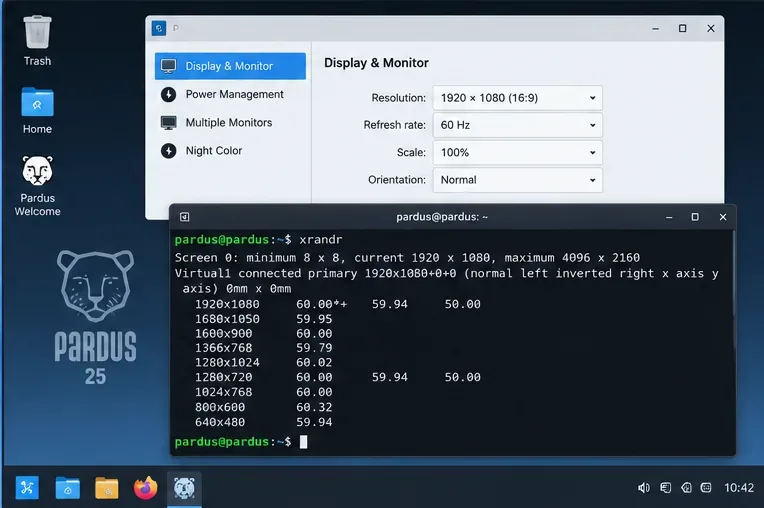
For X11, run xrandr --current again. A successful result should show a larger maximum and additional modes, or the current mode should change automatically when the viewer window changes size. You can also open Pardus Display settings and verify that larger native-looking resolutions are selectable.
Do not judge success solely by whether the console window looks bigger. A viewer can scale a 1024x768 framebuffer to fill a large window, which produces a larger picture without increasing the guest resolution. The reliable signs are the mode reported by the guest and the amount of desktop workspace actually available.
A good end state is a real larger guest mode, such as 1920x1080, with multiple resolutions exposed instead of a fixed 1024x768 ceiling.
If QXL still stops at 1024x768, switch to Virtio video
If the SPICE agent is installed and active but the guest still exposes only 1024x768, change one layer at a time. Power off the VM, open the video hardware settings, and switch the video model from QXL or legacy VGA to Virtio. Keep the SPICE display unless you have a specific reason to change the remote display protocol as well.
Boot Pardus and repeat the hardware and mode checks:
On an X11 session, also run xrandr --current. QEMU states that Virtio GPU requires Linux guest kernel support for CONFIG_DRM_VIRTIO_GPU; mainstream distribution kernels normally provide this, but custom kernels may not. If the guest boots to a black screen after the change, power it off from the host and revert the video model rather than continuing to modify the guest blindly.
When xrandr can help—and when it is the wrong fix
If xrandr already lists the resolution you want, selecting it can be a useful diagnostic step:
xrandr --output Virtual-1 --mode 1920x1080
Replace Virtual-1 with the actual output name shown by xrandr. This command applies only to X11 and only when that mode is already available for the output.
If the desired mode is absent and the maximum framebuffer size is still 1024x768, manually injecting a modeline is usually treating the symptom rather than the cause. In a KVM guest, the virtual GPU and display integration should normally advertise usable modes. Fix that path first. The X.Org RandR documentation is the primary reference for X11 dynamic display configuration.
How to decide whether the fix is complete
Check
Good result
If it still fails
Guest mode list
Modes above 1024x768 appear
Recheck video model and guest graphics driver
Window resize
Guest resolution follows the SPICE viewer size
Verify spice-vdagent and its session process
Display settings
Higher resolutions are selectable without custom modelines
Try Virtio video after powering off the VM
Reboot
Higher modes remain available after restart
Check that the correct virtual GPU is still attached and agent starts normally
Image quality
Text is sharp at the selected guest resolution
Disable viewer-side stretching and use guest resize instead
Useful troubleshooting commands
If the result is still inconsistent, collect these commands before making another change:
These checks separate four different failure classes: the host exposes the wrong virtual video device, Pardus lacks the relevant guest integration, the agent is installed but not running in the graphical session, or the desktop session is using a display stack that does not respond to the expected resize mechanism.
Limits of this fix
No single QXL-or-Virtio choice is best for every KVM installation. Host QEMU/libvirt versions, the console client, desktop session, kernel, and whether 3D acceleration is enabled all affect the result. The steps above intentionally begin with the least disruptive change and use guest-reported resolution as the success criterion.
If the VM is accessed through a different display path—such as plain VNC, GPU passthrough, RDP into the guest, or a cloud console—the SPICE-specific steps may not apply. Likewise, a custom kernel without the relevant DRM driver can require kernel configuration rather than a desktop package.
The practical stopping point is when Pardus exposes the desired higher modes, the viewer can resize without merely scaling a 1024x768 framebuffer, and the result survives a reboot. If those conditions are met, additional modelines, X.Org configuration files, or 3D acceleration changes are unnecessary.