How to Access a Windows BitLocker Partition in Linux

Use Dislocker to unlock a BitLocker volume in Linux, mount its virtual NTFS file read-only, and safely unmount it without exposing your password in a command.
The SLES boot message “Failed to Start Load Kernel Modules” usually means systemd-modules-load.service tried to load at least one kernel module and one request failed. The useful goal is not merely to hide the red boot line. A good repair leaves the service healthy, removes stale module requests, preserves any driver the machine actually needs, and survives the next reboot.
This guide is written for SUSE Linux Enterprise Server 15 and is aligned with the current SLES 15 SP7 Administration Guide. SUSE documents that systemd-modules-load.service loads modules named in /etc/modules-load.d/*.conf, while most modern hardware modules are normally loaded automatically when devices are detected. That distinction matters: if a stale static entry points to a module that no longer exists, deleting or correcting that entry is often safer than forcing an obsolete driver back into the system. See SUSE's Managing kernel modules documentation for SLES 15 SP7.
Before changing anything, define the result you want. After the repair:
systemctl status systemd-modules-load.service should no longer report a failed result.modprobe MODULE_NAME should succeed and the related hardware or feature should work.If those checks do not all apply to your situation, use the ones that match the failing component. For example, a server can boot successfully even while an optional module fails. That is still worth cleaning up, but it is different from a missing storage driver that prevents the root file system from appearing.
Start with the service itself instead of guessing from the splash-screen message:
sudo systemctl status systemd-modules-load.service --no-pager
Look for a module name and an error such as Module ... not found, No such device, Operation not permitted, or a message that an unsupported module was refused. The exact wording determines the next action.
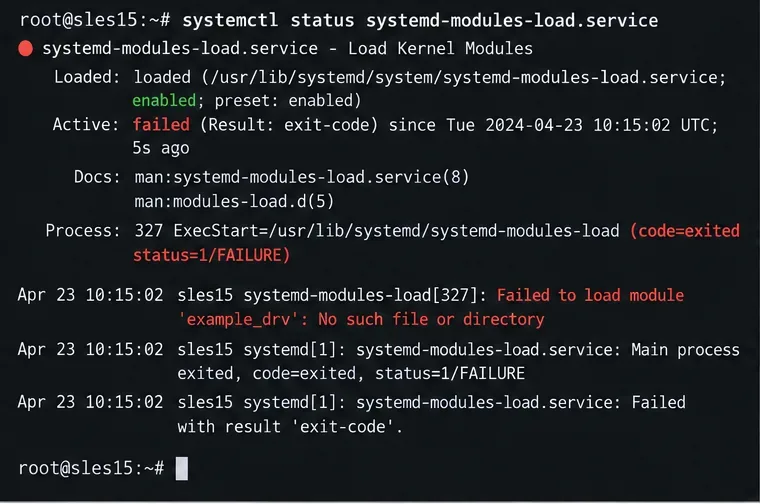
If the status output is truncated, do not edit configuration yet. Get the complete boot log first.
Query only this service for the current boot:
sudo journalctl -b -u systemd-modules-load.service --no-pager
You can also inspect kernel messages around module loading:
sudo journalctl -b -k --no-pager | grep -iE 'module|modprobe|firmware|taint'
The first command answers which static load request failed. The kernel log can add context such as a driver refusing the detected device, a firmware dependency, signature problems, or another lower-level error.
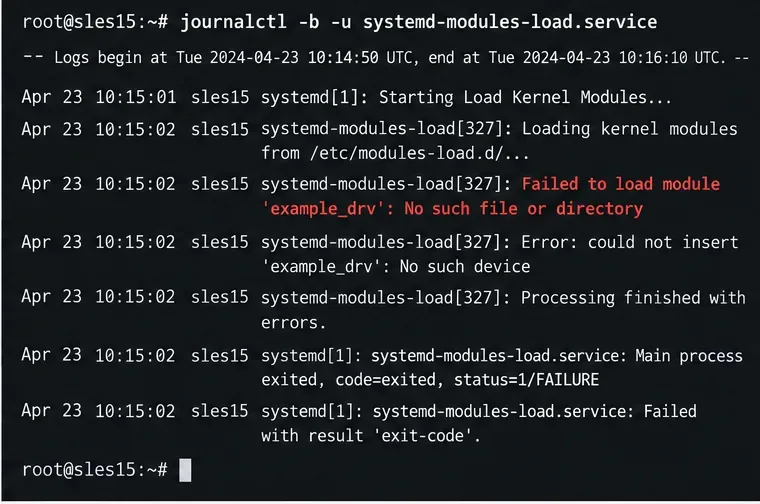
A result such as Module foo not found in directory /lib/modules/... usually points to a stale configuration, a kernel/package mismatch, or a third-party driver that was not rebuilt for the active kernel. No such device is different: the module file may exist, but the current hardware or virtual device may not match what the driver expects.
Search the normal static-load locations and modprobe configuration:
grep -Rns --color=auto 'MODULE_NAME' /etc/modules-load.d /run/modules-load.d /usr/lib/modules-load.d /etc/modprobe.d /usr/lib/modprobe.d 2>/dev/null
Replace MODULE_NAME with the name from the journal. On SLES 15 SP7, local entries in /etc/modules-load.d/ are the standard administrator-managed place for modules that must be loaded at boot, while packaged entries can exist under /usr/lib/modules-load.d/. SUSE notes that most modules do not need a manual modules-load.d entry at all.
Then check whether the active kernel actually has the module:
uname -r
sudo modinfo MODULE_NAME
sudo modprobe MODULE_NAME
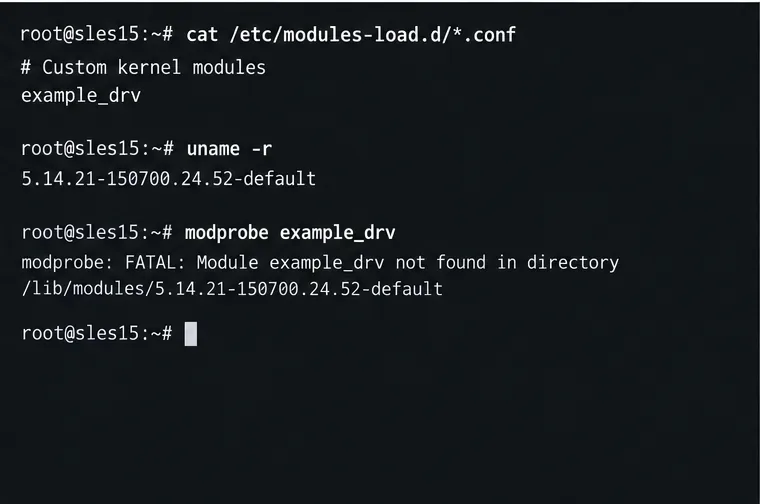
Remove or disable the local file that requests it. Do not delete a vendor file under /usr/lib simply to silence the error, because package updates can restore it. If you determine that a local /etc/modules-load.d/*.conf file was created for retired hardware or old software, remove that local entry and retest.
Check whether the running kernel matches the installed module tree:
uname -r
ls -ld /lib/modules/$(uname -r)
rpm -q kernel-default
A common quality check is simple: /lib/modules/$(uname -r) must exist and contain the modules for the kernel that is actually running. If a third-party driver was compiled for an older kernel, reinstall or rebuild that driver against the current SLES kernel using the vendor's supported procedure. Avoid copying a .ko file from another kernel version just to make modprobe find something; kernel ABI or signature differences can make that unsafe or ineffective.
Search for a blacklist or install override:
grep -Rns --color=auto -E '^[[:space:]]*(blacklist|install)[[:space:]]+MODULE_NAME' /etc/modprobe.d /usr/lib/modprobe.d 2>/dev/null
Only remove a blacklist after confirming why it was added. A blacklist may protect the system from a conflicting driver. SUSE's module guide documents both persistent blacklisting and temporary GRUB-time blacklisting, so the right outcome may be to remove the static load request instead of removing the blacklist.
Do not automatically enable unsupported-module loading. SLES marks kernel modules for support status, and forcing an unsupported module can affect supportability. SUSE documents the exception mechanism for testing or vendor hotfix scenarios in its Administration Guide. Use it only when you understand the support consequence and have a legitimate driver requirement. The same current SUSE guide is available at SLES 15 SP7 Administration Guide.
If the failed module is needed inside the initramfs, or you changed boot-critical driver or blacklist configuration that must be reflected there, regenerate the image:
sudo dracut -f
SUSE specifically documents rebuilding the initramfs after driver changes that affect boot. Its current boot-process guide explains when drivers need to be added to initramfs and how dracut is used to regenerate it: Introduction to the boot process in SLES 15 SP7.
Do not run dracut -f as a ritual for every optional-module error. If an ordinary post-boot module was merely listed in /etc/modules-load.d, correcting that file may be enough. Rebuilding initramfs is most relevant when the bad configuration is embedded in the boot image or the required driver must be available before the real root file system is fully mounted.
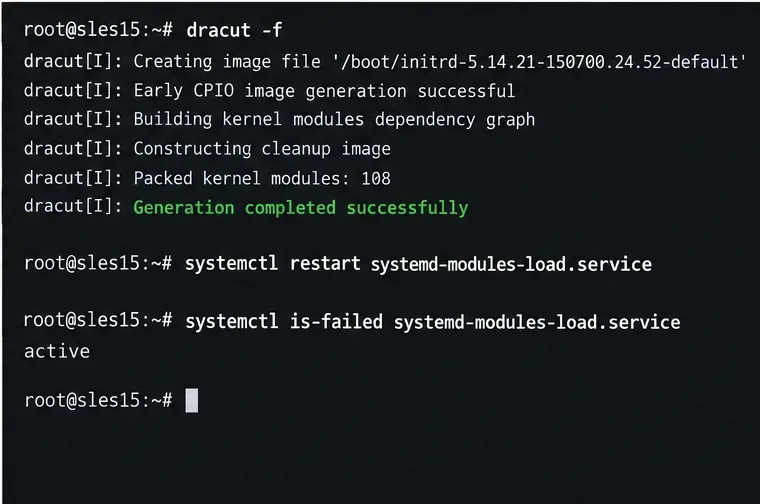
First test without rebooting when it is safe to do so:
sudo systemctl restart systemd-modules-load.service
systemctl status systemd-modules-load.service --no-pager
systemctl is-failed systemd-modules-load.service
If the required module should now be loaded, confirm it:
lsmod | grep -w MODULE_NAME
Then reboot during an appropriate maintenance window and check the new boot:
sudo reboot
After login:
systemctl --failed
journalctl -b -u systemd-modules-load.service --no-pager
The strongest success signal is not that the console message disappeared once. It is that a fresh boot has no repeat of the same module error and the hardware or subsystem that depends on the module still works.
| What you find | Best next move |
|---|---|
| Module is absent and no longer needed | Remove the stale local boot-load request. |
| Module is absent but required | Restore the correct SLES or vendor driver package for the running kernel; do not copy a random module binary. |
| Module exists but says “No such device” | Check the hardware, VM device model, PCI/USB IDs, and whether the driver is still appropriate. |
| Module is blacklisted intentionally | Keep the blacklist and remove the contradictory forced-load entry unless requirements have changed. |
| Third-party module stopped after a kernel update | Use the third-party vendor's supported rebuild/reinstall process for the new kernel, or boot a known-good supported kernel while repairing it. |
| Boot-critical storage, filesystem, or multipath driver is involved | Treat it as an initramfs/boot recovery issue and validate from console or rescue access before rebooting again. |
The “Failed to Start Load Kernel Modules” line is a symptom, not a single defect. This procedure addresses failures caused by static module requests, missing or mismatched modules, blacklists, and initramfs synchronization. It does not replace hardware diagnostics, third-party driver support, Secure Boot signing work, or storage recovery when the root device itself is unavailable.
For production SLES systems, preserve supportability: prefer the module delivered for your SLES kernel, keep third-party drivers aligned with their vendor's support matrix, and use SUSE's documented mechanisms rather than bypassing checks simply to clear a service failure. The repair is complete when the service state, the boot journal, and the dependent hardware all agree that the problem is gone.
Use Dislocker to unlock a BitLocker volume in Linux, mount its virtual NTFS file read-only, and safely unmount it without exposing your password in a command.
Learn how to reduce RAM usage on Linux by finding memory-hungry apps, trimming browser and startup load, and testing a lighter desktop safely.
Compare four WhatsApp alternatives for Linux by privacy defaults, desktop support, setup requirements, and the people each app suits.
Troubleshoot a VirtualBox VM that will not start on Linux by checking vboxdrv, kernel headers, Secure Boot, Extension Pack versions, and VM logs.
Transfer your Ubuntu user data with a tar archive and external drive, then restore personal files and selected settings without overwriting the new setup.
Install gThumb on Linux, browse and make simple photo edits, then set it as the default app for the image types you choose in GNOME.
Create an organized playlist in Rhythmbox or save a reusable XSPF playlist in VLC. Learn how to add tracks, name a list, and reopen it on Linux.
Install Dino on Linux with Flatpak or your distribution’s package manager. Get current Ubuntu, Debian, Fedora, and Arch commands, plus first-launch tips.
Install Arch Linux’s linux-lts kernel, add it to GRUB or systemd-boot, select it at startup, and verify it while keeping a fallback kernel.
Download the right Pi 4 image, write it to a microSD card, and complete LibreELEC’s first-run setup with Raspberry Pi Imager.








