How to Access a Windows BitLocker Partition in Linux

Use Dislocker to unlock a BitLocker volume in Linux, mount its virtual NTFS file read-only, and safely unmount it without exposing your password in a command.
Quick fix: If tracker-miner-fs-3 is using sustained CPU after you add or change many files, let indexing finish and confirm its status before intervening. If the process remains busy when your files are unchanged, narrow the locations GNOME searches, update Ubuntu, and only then rebuild the Tracker index. Rebuilding the index does not delete your documents, but it causes a fresh scan and can temporarily increase CPU and disk activity.
This guide applies to Ubuntu GNOME systems that actually run Tracker 3. Ubuntu 24.04 LTS ships Tracker 3 tools in its archive; newer GNOME-based releases may use the related LocalSearch service and different command names. First verify which process and command are present on your machine. Instructions and package names can vary by release.
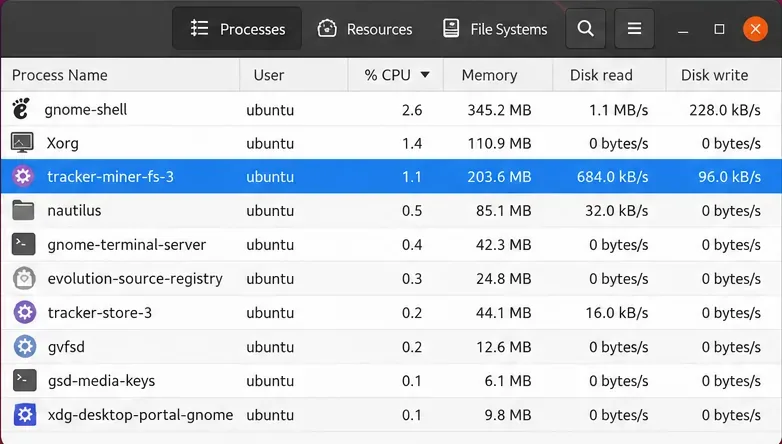
Open System Monitor, choose Processes, and click the CPU column to sort. Look for tracker-miner-fs-3 or a related process such as tracker-extract-3. The miner discovers file changes and builds the searchable index; the extractor reads supported file metadata. A short CPU spike after copying a photo archive, syncing a cloud folder, or installing an upgrade can be normal.
For a terminal view, run:
ps -eo pid,pcpu,comm,args --sort=-pcpu | headOn Ubuntu 24.04, query Tracker’s status with:
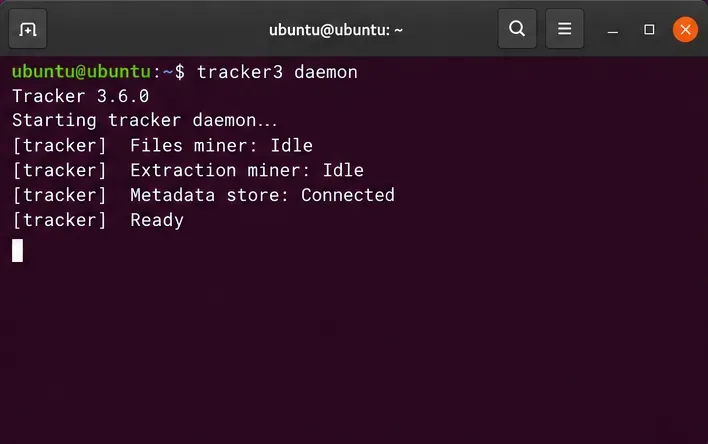
tracker3 daemon
tracker3 status
The daemon command reports miner state, while status can show indexing progress and recorded indexing failures. The exact output differs by package version. If these commands are missing, check the active generation instead of installing random packages:
command -v tracker3
command -v localsearch
GNOME’s current LocalSearch documentation describes localsearch commands and the localsearch-3 service. Use the command names installed by your release; do not run both tool families or manually launch a second miner. Ubuntu’s Tracker daemon manual and Tracker status manual document the Ubuntu 24.04 commands. The GNOME LocalSearch overview explains the newer service family.
Indexing often follows a burst of filesystem activity. Give it time after a large first login, restoring a backup, downloading many files, or reconnecting an external drive. Keep the laptop plugged in if practical, and avoid repeatedly killing the process: the miner may start again and repeat work. Check whether the status changes and whether CPU use drops once the file activity settles.
Persistent high CPU is more suspicious when the same process stays busy for a long period while the machine is idle and no files are changing. Check for a directory repeatedly receiving new files, a cloud-sync loop, a mounted drive that disconnects and reconnects, or media files with problematic metadata. A recurring issue after each login can also point to an outdated package or a damaged index.
Before changing index settings, install updates for your Ubuntu release. Updates can include fixes in Tracker, GNOME, and their libraries. In Terminal, run:
sudo apt update
sudo apt upgrade
Review the package list before accepting it, then restart the computer or sign out and back in. Recheck CPU use after the desktop has settled. Avoid copying commands that purge Tracker packages: GNOME search components may depend on them, and removing the indexer can disable desktop search rather than fix the underlying loop.
If you do not need Activities search to cover every standard folder, exclude locations containing large, frequently changing collections. Examples include a Downloads directory full of temporary archives or a folder used for build output. In GNOME, open Activities, type Search, open Settings ▸ Search, and select Search Locations. Turn off only the locations you do not need in search. The exact panel may differ slightly by GNOME version.
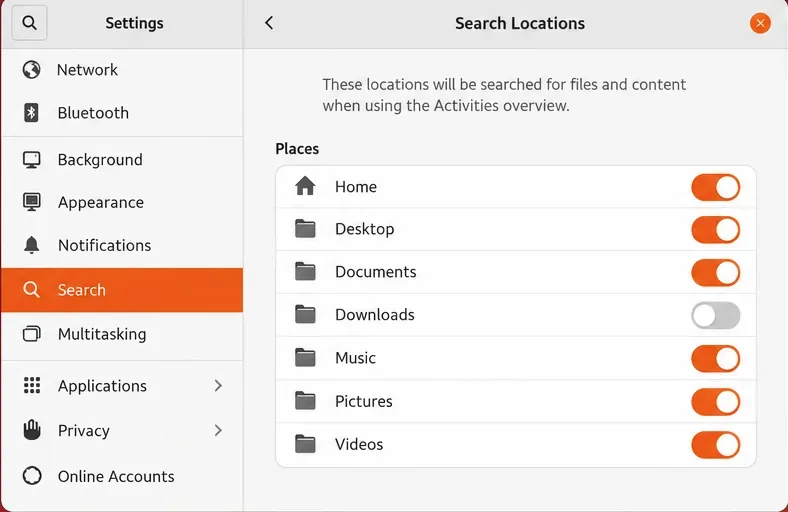
GNOME documents these controls as choosing which filesystem locations are searchable from the Activities overview. They are useful when search scope is the problem, but they are not a universal switch for every application’s indexing request. If the miner remains busy, confirm the active indexer’s status and installed version. Avoid adding a whole mounted drive or enormous project directory unless you need its contents searchable. GNOME Help: Configure filesystem locations search describes the supported Settings route.
If CPU use remains high while the system is otherwise idle, the index may be stuck or inconsistent. On Ubuntu 24.04 with Tracker 3, reset only its filesystem index:
tracker3 reset --filesystemRead any confirmation prompt before proceeding. The command removes Tracker’s stored filesystem index, not your original documents; Tracker recreates its cache when it restarts. Because it must scan eligible files again, CPU and disk activity can rise temporarily. Search may return incomplete results until the rebuild finishes. Avoid deleting cache directories by hand or using a broad reset option copied from instructions for Tracker 2, which uses different command syntax.
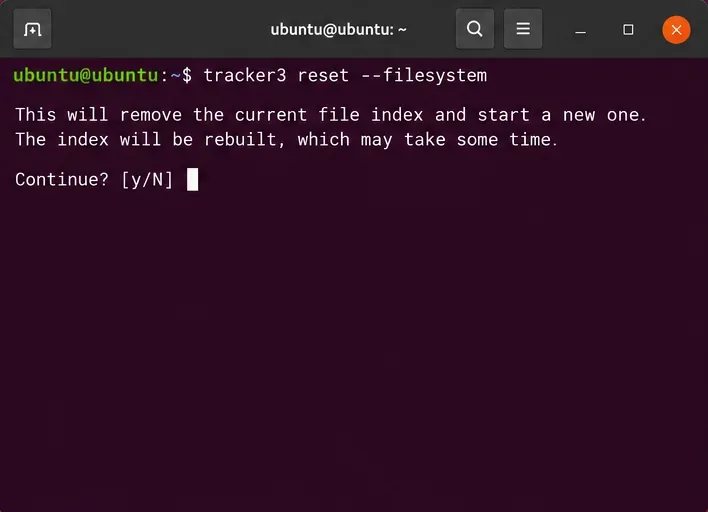
Ubuntu’s Tracker 3 reset manual says the filesystem data is removed and the miner recreates its cache when restarted. The operation changes the index and should be used carefully. If your release uses LocalSearch, consult its installed manual or the GNOME LocalSearch command reference for the corresponding command syntax.
After indexing settles, sort System Monitor by CPU again and check the miner’s status. A healthy result is not necessarily zero CPU at every moment: the indexer may briefly wake when files change. The useful signs are that sustained usage drops when the machine is idle, the status no longer repeats the same unresolved work, and GNOME search can still find files in locations you chose to keep searchable.
If high CPU returns, record your Ubuntu release (Settings ▸ About), the process name, how long the spike lasts, and whether a specific folder or sync application was active. Check the status output for failures and report a reproducible issue through Ubuntu’s bug-reporting route or the relevant GNOME project. Do not assume every process containing “tracker” is the culprit: a different Tracker or LocalSearch component may be doing a one-time extraction pass.
| What you observe | Best next step |
|---|---|
| CPU rises after a large file copy, then trends down | Wait for indexing to finish and recheck status |
| High use returns during repeated downloads or builds | Reduce searchable locations you do not need |
| Miner stays busy while idle, despite current updates | Check status and failures, then consider a filesystem-index reset |
| The command shown here is not installed | Identify the Ubuntu release and check for Tracker 3 versus LocalSearch |
In most cases, the safest fix is to let a normal indexing pass complete or reduce unnecessary search scope. Reserve a reset for a persistent problem, and expect temporary disk and CPU activity while the index is rebuilt.
Use Dislocker to unlock a BitLocker volume in Linux, mount its virtual NTFS file read-only, and safely unmount it without exposing your password in a command.
Learn how to reduce RAM usage on Linux by finding memory-hungry apps, trimming browser and startup load, and testing a lighter desktop safely.
Compare four WhatsApp alternatives for Linux by privacy defaults, desktop support, setup requirements, and the people each app suits.
Troubleshoot a VirtualBox VM that will not start on Linux by checking vboxdrv, kernel headers, Secure Boot, Extension Pack versions, and VM logs.
Transfer your Ubuntu user data with a tar archive and external drive, then restore personal files and selected settings without overwriting the new setup.
Install gThumb on Linux, browse and make simple photo edits, then set it as the default app for the image types you choose in GNOME.
Create an organized playlist in Rhythmbox or save a reusable XSPF playlist in VLC. Learn how to add tracks, name a list, and reopen it on Linux.
Install Dino on Linux with Flatpak or your distribution’s package manager. Get current Ubuntu, Debian, Fedora, and Arch commands, plus first-launch tips.
Install Arch Linux’s linux-lts kernel, add it to GRUB or systemd-boot, select it at startup, and verify it while keeping a fallback kernel.
Download the right Pi 4 image, write it to a microSD card, and complete LibreELEC’s first-run setup with Raspberry Pi Imager.








