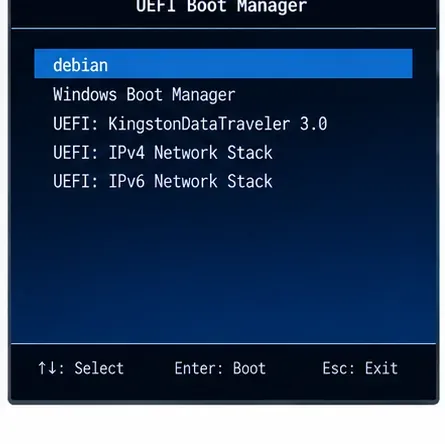
What does “No Bootable Device Found” actually mean on a UEFI system?
On a UEFI machine, this message usually means the firmware did not find an EFI boot path it was willing or able to start. It does not automatically prove that Debian itself is damaged. The installed root filesystem may be intact while the firmware entry, EFI System Partition (ESP), or bootloader files are missing or not being recognized.
Debian 13 “Trixie” is the current stable release as of October 2026. On amd64 systems, Debian normally uses GRUB for UEFI booting, with signed shim and GRUB components available for Secure Boot. Debian's UEFI documentation explains that firmware normally loads a vendor-specific EFI executable from the ESP, such as files under EFI/debian/. See the Debian UEFI documentation and the Debian 13 amd64 Installation Guide.
The most useful first action is to determine which layer failed: installer boot mode, ESP layout, EFI files, NVRAM boot entry, Secure Boot compatibility, or firmware behavior.
1. Was the Debian installer booted in UEFI mode?
A common misunderstanding is that selecting “UEFI” in firmware settings guarantees the installer itself booted in UEFI mode. Many systems expose the same USB stick twice: once as a UEFI entry and once as a legacy or CSM entry. If the installer was started in legacy mode, it may install a BIOS-style bootloader instead of the UEFI path the firmware expects.
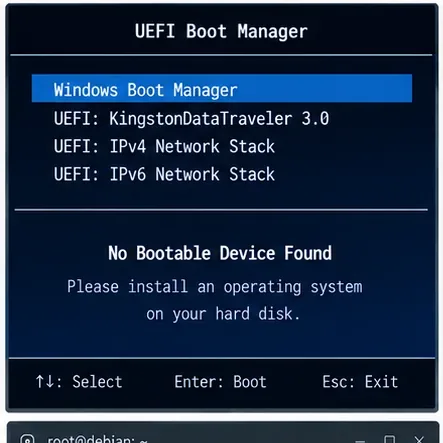
Caption: Firmware can list UEFI-capable devices yet still fail to find the Debian boot entry on the internal disk.
What is verified: Debian's installer supports UEFI and creates an EFI System Partition when installing in UEFI mode. Debian's installer documentation also distinguishes UEFI from BIOS compatibility mode.
What depends on your machine: the boot-menu wording. It may say “UEFI: USB,” “EFI USB Device,” or use the USB model name without explicitly saying UEFI.
Action: boot the Debian installer or live environment again and deliberately choose its UEFI entry. Avoid CSM or Legacy Boot for the repair session.
2. Is the rescue environment itself running under UEFI?
Before repairing NVRAM entries, verify that the live or rescue system has UEFI runtime access. If it was booted in legacy mode, efibootmgr may fail even though the installed Debian system is otherwise correct.
test -d /sys/firmware/efi && echo "UEFI mode" || echo "Legacy mode"
efibootmgr
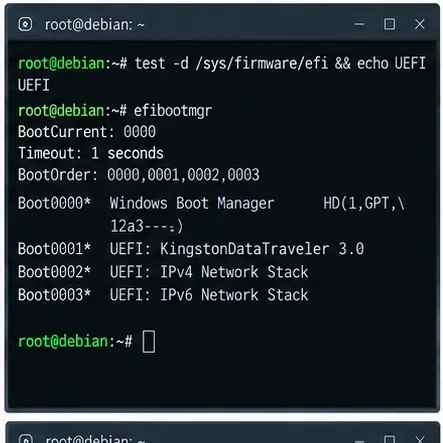
Caption: The presence of /sys/firmware/efi confirms that the current rescue session was booted through UEFI.
Verified: Debian's GRUB EFI recovery documentation recommends booting the rescue media in UEFI mode and checking /sys/firmware/efi or running efibootmgr.
Action: if the directory is absent, reboot the USB in its UEFI mode before continuing. Do not try to repair UEFI NVRAM from a legacy-booted rescue session unless you intentionally plan a fallback-only installation.
3. Does an EFI System Partition exist and mount correctly?
UEFI firmware does not boot from your Linux root filesystem directly in the normal GRUB setup. It reads an EFI executable from the ESP, which is normally a FAT filesystem marked for EFI use.
lsblk -f
blkid
findmnt /boot/efi
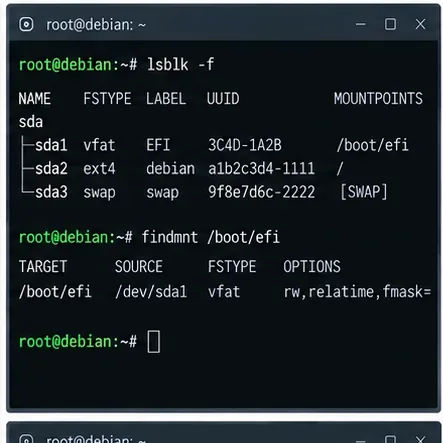
Caption: A typical Debian UEFI installation has a FAT ESP mounted at /boot/efi alongside the Linux root filesystem.
Verified: Debian's installer documentation identifies the EFI System Partition as the partition used for UEFI boot files. Debian 13 guidance recommends a generously sized ESP for current boot workflows; the Debian UEFI wiki currently recommends 768 MB with at least 300 MB free, though an existing smaller ESP may still work if it has enough free space.
Do not assume: that the ESP must be the first partition or must use a specific device name such as /dev/sda1. NVMe systems typically use names such as /dev/nvme0n1p1.
Action: identify the ESP by filesystem type and partition metadata, not by copying a device name from an example. If no ESP exists, creating one can involve repartitioning and carries data-loss risk; back up data before changing the partition table.
4. Are the Debian EFI boot files actually present?
If the ESP mounts normally, inspect its Debian directory. On an amd64 Debian system using GRUB, you commonly expect files under /boot/efi/EFI/debian/. With Secure Boot support installed, shim is normally involved before signed GRUB is loaded.
ls -la /boot/efi/EFI/debian/
find /boot/efi/EFI -maxdepth 2 -type f
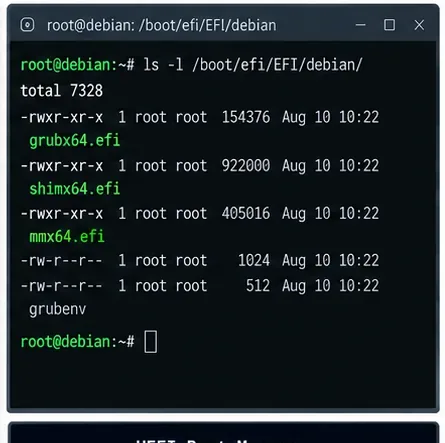
Caption: Debian EFI loader files under EFI/debian indicate that the bootloader files exist even if firmware does not currently select them.
Verified: Debian's UEFI documentation lists the normal vendor path as EFI/debian/ and describes GRUB EFI as Debian's default UEFI bootloader. Debian's Secure Boot documentation states that signed Debian kernels and shim integration are available.
Action: if EFI/debian is populated, move next to NVRAM inspection before reinstalling anything. If it is missing, a GRUB EFI reinstall is more justified.
5. Is there a Debian entry in UEFI NVRAM?
The firmware normally stores boot entries in NVRAM. An ESP can contain perfectly valid Debian files while the firmware has no entry pointing to them.
efibootmgr -v
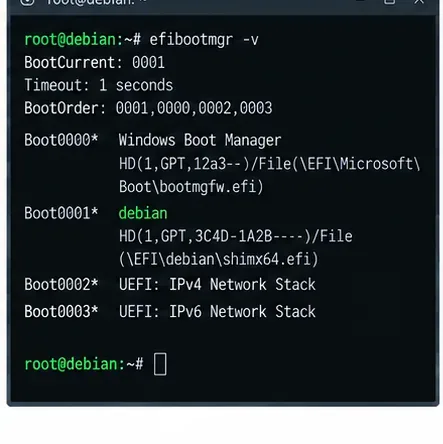
Caption: A Debian Boot#### entry pointing into EFI/debian confirms that firmware has a recorded path to the Debian loader.
Verified: Debian's UEFI documentation describes the normal UEFI model as a boot variable pointing to a vendor-specific EFI loader on the ESP.
What depends on firmware: some machines reorder, filter, lose, or ignore NVRAM entries. Debian's UEFI documentation specifically notes that firmware implementations vary and some behave incorrectly around boot order or vendor entries.
Action: if a Debian entry exists but is behind another entry, you can use the firmware setup menu to move Debian higher in the boot order. You can also change order with efibootmgr -o, but use the actual Boot#### values from your system rather than copying numbers from an example.
6. How do you reinstall GRUB EFI from Debian rescue media?
Use this path when the Debian EFI files are missing, the NVRAM entry is absent, or the installer clearly failed to finish GRUB installation. Mount the installed root filesystem and its ESP, bind the required pseudo-filesystems, then chroot into the installed system.
The device names below are examples only. Substitute the partitions you identified with lsblk.
mount /dev/ROOT_PARTITION /mnt
mount /dev/ESP_PARTITION /mnt/boot/efi

mount --bind /dev /mnt/dev
mount --bind /dev/pts /mnt/dev/pts
mount --bind /proc /mnt/proc
mount --bind /sys /mnt/sys
mount --bind /run /mnt/run

chroot /mnt
On amd64 systems using GRUB EFI, make sure the correct packages are installed, then reinstall the loader and rebuild its menu:
apt update
apt install --reinstall grub-efi-amd64 grub-efi-amd64-bin
apt install --reinstall shim-signed

grub-install --target=x86_64-efi   --efi-directory=/boot/efi   --bootloader-id=debian   --recheck

update-grub
efibootmgr -v
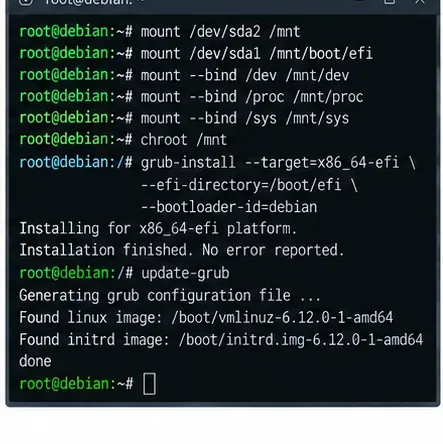
Caption: Reinstalling GRUB EFI from a UEFI-booted rescue environment restores loader files and normally recreates the Debian firmware entry.
Verified: Debian documents GRUB EFI reinstall from live or rescue media, and the current grub-install manual supports --target, --efi-directory, and --bootloader-id. See the Debian GRUB EFI reinstall guide and Debian's grub-install manual.
Action: do not use --no-nvram for a normal repair when you want GRUB to create a firmware entry. That option explicitly suppresses NVRAM updates.
7. What if the firmware ignores a valid Debian NVRAM entry?
This is where another common misconception appears: if efibootmgr -v shows a valid Debian entry, reinstalling GRUB repeatedly may not help. The firmware itself may be ignoring or deleting the entry.
UEFI defines a fallback path for removable media. On x86-64 systems this is typically EFI/BOOT/BOOTX64.EFI. GRUB's --removable option installs to that fallback path.
grub-install --target=x86_64-efi   --efi-directory=/boot/efi   --removable

ls -la /boot/efi/EFI/BOOT/
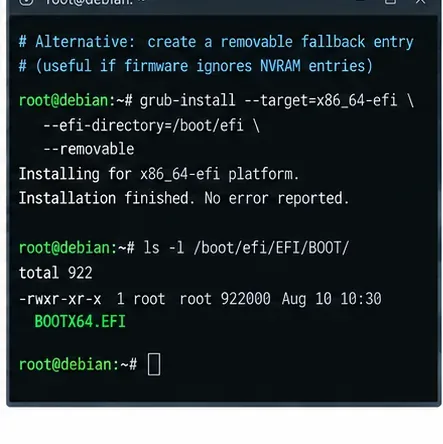
Caption: The UEFI fallback loader path can help on firmware that refuses to honor normal Debian NVRAM entries.
Verified: Debian's current grub-install manual documents the --removable option for EFI. Debian's UEFI documentation also discusses fallback paths as a workaround for problematic firmware.
Trade-off: the fallback path is less descriptive than a normal vendor-specific NVRAM entry and can conflict with other operating systems or tools that also expect to own EFI/BOOT/BOOTX64.EFI. Use it as a compatibility workaround, not automatically as the first choice.
Action: prefer a normal Debian NVRAM entry first. Use the fallback path when the firmware demonstrably ignores that entry.
8. Could Secure Boot be the real cause?
Secure Boot is often blamed for any UEFI boot failure, but “No Bootable Device Found” does not by itself prove a Secure Boot signature problem. When Secure Boot rejects a loader, many systems show a security-related error rather than claiming there is no bootable device.
Debian supports Secure Boot on supported architectures using signed shim and GRUB components. Debian 13 also continues to provide signed kernel packages by default.
mokutil --sb-state
dpkg -l | grep -E 'shim-signed|grub-efi.*signed'
Verified: Debian's Secure Boot documentation describes the signed shim/GRUB chain.
What depends on circumstances: custom kernels, locally built GRUB binaries, unsigned third-party modules, or modified Secure Boot keys can change the outcome.
Action: if you installed standard Debian packages, do not disable Secure Boot reflexively. First verify that shim-signed and the appropriate signed boot components are installed. Temporarily disabling Secure Boot can be a diagnostic test, but if that is the only way the system starts, identify why the signed path is failing before considering the issue resolved.
9. Did Debian install to one disk while the ESP is on another?
Multi-disk systems create another failure mode: the root filesystem may be on one drive while the ESP used during installation is on another. If that second disk is removed, disabled, or later moved behind a different controller, the firmware can report no bootable device even though Debian's root partition is healthy.
lsblk -o NAME,SIZE,FSTYPE,PARTTYPE,PARTUUID,MOUNTPOINTS
findmnt /
findmnt /boot/efi
Action: confirm that the ESP you are repairing belongs to a disk that will remain present and is visible to firmware. On RAID or mirrored systems, decide whether you need a bootable ESP on more than one physical drive. Debian's GRUB documentation notes that UEFI RAID setups require ESP contents on the drives from which you expect the machine to boot.
10. How do you verify the repair before removing the USB stick?
Do not rely only on a successful grub-install message. Verify the files, firmware entry, and boot order while the rescue environment is still available.
efibootmgr -v
ls -la /boot/efi/EFI/debian/
ls -la /boot/efi/EFI/BOOT/ 2>/dev/null || true
update-grub
Caption: The strongest final check is a visible Debian boot entry that firmware can select, followed by a successful boot with the rescue USB removed.
Then exit the chroot, unmount cleanly, shut down, remove the USB, and boot the internal disk. If Debian appears in the firmware menu but still does not start, the failure has moved beyond “No Bootable Device” into GRUB, kernel, initramfs, storage, or filesystem troubleshooting.
Which repair path should you choose?
| What you observe | Most appropriate action | Why |
|---|
| Rescue environment is in Legacy mode | Reboot the USB explicitly in UEFI mode | NVRAM repair requires UEFI runtime access |
| No ESP exists | Back up first, then create/configure an ESP using a supported partitioning plan | UEFI needs an EFI-readable system partition |
ESP exists but EFI/debian is missing | Chroot and reinstall GRUB EFI | The normal Debian loader files are absent |
| EFI files exist but no Debian Boot#### entry exists | Reinstall GRUB or recreate the firmware entry | The firmware has no recorded Debian path |
| Valid Debian entry exists but firmware ignores it | Adjust firmware boot order; if necessary, consider the fallback EFI/BOOT path | Repeated GRUB reinstall alone may not fix firmware behavior |
| Boot works only with Secure Boot disabled | Verify shim/signed GRUB packages and Secure Boot state | The issue is likely in the signed boot chain, not ordinary boot order |
| Root filesystem and ESP are on different disks | Ensure the ESP disk is always present or install a suitable ESP on the intended boot disk | Firmware cannot load an ESP from a missing disk |
What should you avoid?
- Do not reinstall Debian immediately if the root filesystem is intact and only the UEFI boot path is broken.
- Do not format an existing EFI System Partition without checking whether Windows or another operating system also uses it.
- Do not create a new partition table just because a tutorial uses GPT; inspect the current layout first.
- Do not copy another machine's Boot#### numbers into
efibootmgr commands.
- Do not use BIOS-target GRUB commands such as
--target=i386-pc when repairing an amd64 UEFI installation.
- Do not disable Secure Boot permanently unless you have evidence that the signed Debian boot chain cannot satisfy your environment.
- Do not assume a successful GRUB reinstall guarantees your firmware will honor the resulting NVRAM entry.
Current Debian context
Debian 13 “Trixie” remains the stable release in October 2026; Debian 13.7 was released on September 12, 2026. The official installation guide build currently published for Trixie is the Debian Installer team's 2025 guide for Debian 13. If you are repairing an older Debian release, package names and Secure Boot details may differ, so use the documentation matching that release. See Debian stable release information.
Official references









