Home
» LINUX
»
Fix Realtek RTL8821CE Wi-Fi Driver Issues on Pardus Linux
Fix Realtek RTL8821CE Wi-Fi Driver Issues on Pardus Linux
If you are troubleshooting a Realtek RTL8821CE Wi-Fi card on a current Pardus system, the most important update is that you usually do not need to compile a third-party driver first. Pardus 25 ships with Linux 6.12, and the upstream Linux wireless documentation lists RTL8821CE among the PCIe devices supported by the in-kernel rtw88 driver family. Pardus 25.2 is the current downloadable point release as of October 2026.
That changes the troubleshooting order. Older tutorials often start by cloning an RTL8821CE driver repository and installing a DKMS module. On a modern Pardus installation, that can create a second driver for hardware the kernel already supports, making future kernel updates and Secure Boot behavior more complicated. Start by checking the driver that is already present, then verify firmware, radio state, and NetworkManager.
Quick diagnosis: what kind of RTL8821CE problem do you have?
Symptom
Check first
Likely direction
No Wi-Fi interface appears
lspci -nnk, modinfo, kernel logs
Driver not bound, firmware missing, or module failed
Wi-Fi exists but is disabled
rfkill list, nmcli radio wifi
Soft/hardware radio block
Networks do not appear
nmcli device wifi list, kernel logs
Driver/firmware issue, radio state, or NetworkManager state
Wi-Fi works but drops or disappears after an update
Current kernel, loaded module, journal
Regression, stale external module, or firmware mismatch
1. Confirm that the card really is RTL8821CE
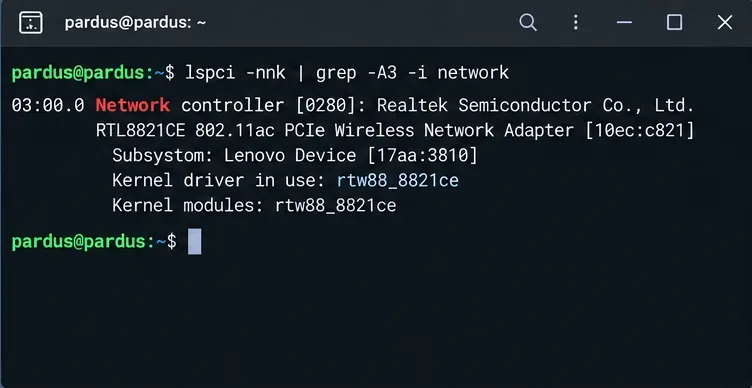
Do not install anything until the PCI device and the active kernel driver are identified. Run:
lspci -nnk | grep -A3 -i network
For an RTL8821CE system, you should see a Realtek wireless controller and, on a healthy current Pardus installation, a line similar to Kernel driver in use: rtw88_8821ce. The numeric PCI ID is also useful when a laptop vendor uses a custom subsystem ID.
The PCI check confirms an RTL8821CE adapter and shows whether the in-kernel rtw88_8821ce module is already bound to it.
If the driver is already in use, installing another RTL8821CE module is unlikely to be the right first fix. Continue with the radio and firmware checks below.
2. Check whether Wi-Fi is blocked
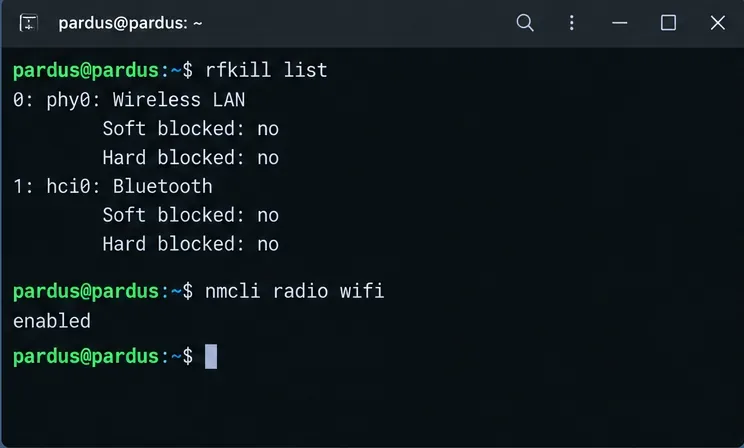
A correctly loaded driver can still appear unusable when the wireless radio is disabled. Check both rfkill and NetworkManager:
rfkill list
nmcli radio wifi
If Wi-Fi is soft-blocked, clear it with:
sudo rfkill unblock wifi
nmcli radio wifi on
A hard block is different. It normally points to a laptop hardware switch, function-key radio toggle, firmware/BIOS setting, or platform-specific control. Software cannot reliably override a genuine hard block.
Use rfkill and nmcli together to distinguish a driver problem from a disabled wireless radio.
3. Check the Pardus kernel and the built-in module
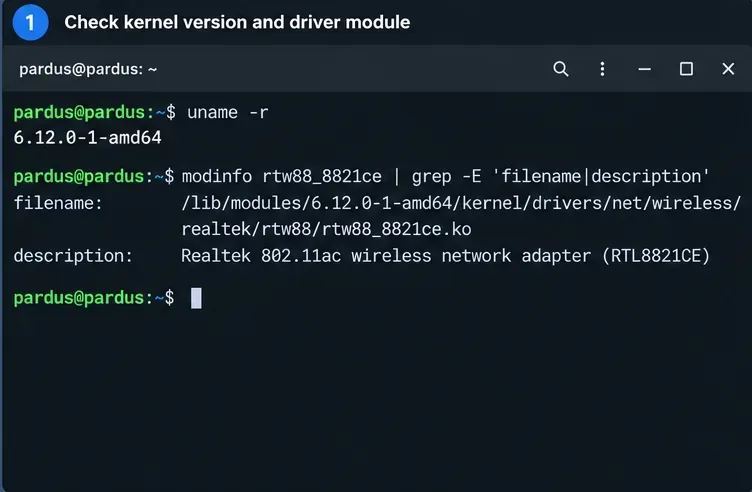
On Pardus 25, the normal path is the upstream rtw88_8821ce module. Check the running kernel and confirm the module exists:
Pardus 25 release documentation identifies Linux 6.12 as its kernel generation. The exact patch-level string changes with updates, so do not treat a specific uname -r value from a screenshot as a required version. What matters is that modinfo can find the RTL8821CE module for the kernel you are actually running.
Confirm the running kernel has the rtw88_8821ce module before considering any external driver.
If modinfo reports that the module cannot be found, fully update Pardus and reboot into the newest installed kernel before doing anything more invasive:
sudo apt update
sudo apt full-upgrade
sudo reboot
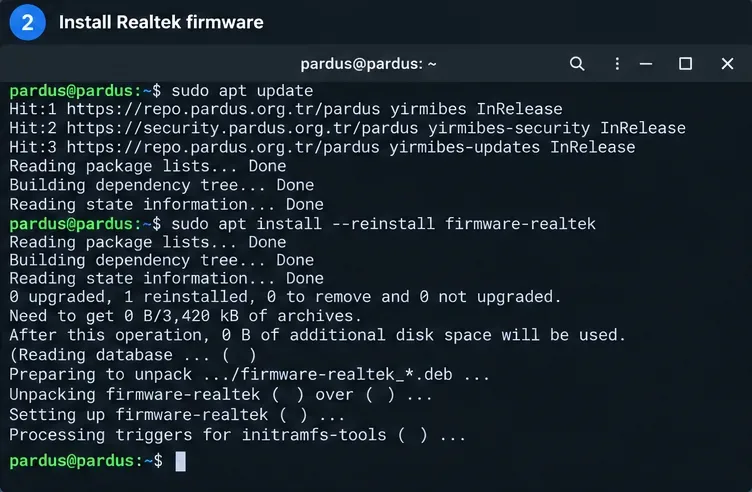
4. Reinstall the Realtek firmware package
The kernel module is only part of the Wi-Fi stack. Realtek adapters also require firmware loaded by the kernel. Debian's firmware-realtek package contains rtw88/rtw8821c_fw.bin, and Pardus 25 repositories include the non-free-firmware component used for this class of firmware.
5. Verify that the RTL8821C firmware file is present
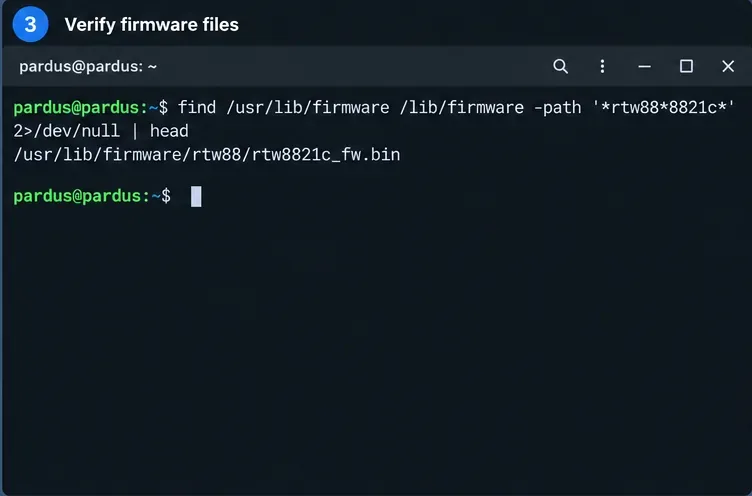
After reinstalling the package, confirm the firmware file exists. Paths can differ across distribution generations, so checking both common roots is more robust than assuming one location:
You are looking for rtw8821c_fw.bin under an rtw88 directory.
The RTL8821CE driver expects Realtek rtw88 firmware; locating rtw8821c_fw.bin confirms the file is installed.
6. Reload rtw88_8821ce after fixing firmware
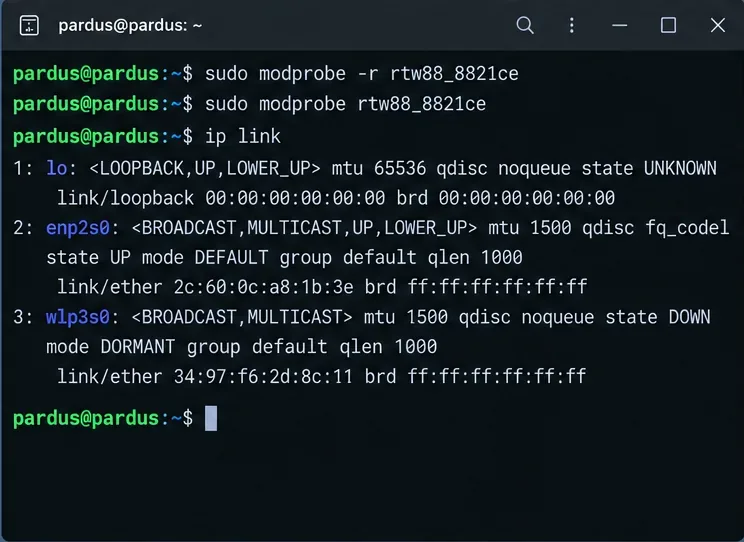
If the driver is present and the firmware package has been repaired, reload the device module. Save active network work first because this temporarily removes the wireless interface.
sudo modprobe -r rtw88_8821ce
sudo modprobe rtw88_8821ce
ip link
Reloading rtw88_8821ce forces the kernel to initialize the RTL8821CE again with the currently installed firmware.
If modprobe -r says the module is in use, disconnect Wi-Fi first or reboot after the firmware update instead. A reboot is also the cleaner option on a remote machine where losing the active wireless connection would lock you out.
7. Read the kernel log instead of guessing
If Wi-Fi still does not appear, inspect messages from the current boot:
Look for firmware-loading failures, PCI errors, probe failures, or messages indicating that another module claimed the device. The log is more useful than repeatedly reinstalling packages because it tells you whether the failure happened during firmware loading, driver probe, or later interface setup.
Also check whether an older third-party module is still installed:
dkms status
lsmod | grep -E '8821|rtw88'
If you previously followed an old RTL8821CE DKMS guide, remove that external module using the same packaging or DKMS method that installed it before relying on the kernel driver. Do not delete files from /lib/modules manually unless you know exactly which package owns them.
8. Verify NetworkManager and scan for access points
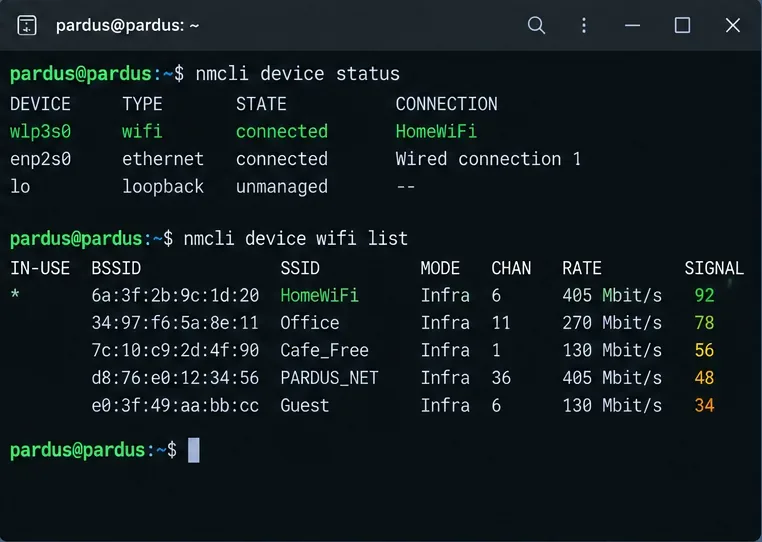
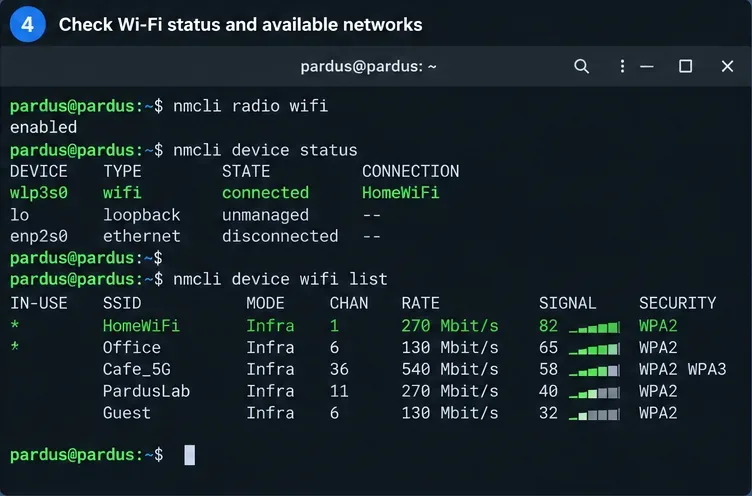
Once the interface exists, verify that NetworkManager recognizes it:
nmcli device status
nmcli radio wifi
nmcli device wifi list
NetworkManager should list the Wi-Fi interface and nearby access points once the RTL8821CE driver is working normally.A successful final check shows Wi-Fi enabled, the wireless interface managed by NetworkManager, and access points visible in the scan.
When should you consider a third-party RTL8821CE driver?
On Pardus 25, an external DKMS driver should be a fallback, not the default installation method. Consider it only when you have confirmed all of the following:
The PCI device is genuinely RTL8821CE.
The current Pardus kernel and firmware-realtek package are installed.
rtw88_8821ce loads but a reproducible hardware-specific problem remains.
The external driver explicitly supports your current kernel.
You understand how it interacts with Secure Boot and how to remove it before switching back to the in-kernel driver.
The trade-off is maintenance. DKMS can rebuild a module for new kernels, but an out-of-tree module can also stop building when kernel APIs change, conflict with the upstream module, or require local signing on Secure Boot systems. The kernel-supported rtw88 path avoids those extra moving parts.
What if the adapter disappears after suspend?
First establish whether the interface is missing or simply disconnected:
nmcli device status
ip link
sudo journalctl -k -b | grep -Ei 'rtw88|8821|pci|firmware'
If the device still exists, toggling Wi-Fi through NetworkManager may be enough:
nmcli radio wifi off
nmcli radio wifi on
If the PCI device remains visible but the wireless interface disappears, a module reload can be a useful diagnostic. If the problem is consistently triggered by suspend on a fully updated Pardus 25 system, preserve the kernel log and report it as a reproducible driver/platform issue rather than permanently replacing the in-kernel driver without evidence.
Final checklist
lspci -nnk identifies RTL8821CE and preferably shows rtw88_8821ce in use.
rfkill list shows Wireless LAN is not hard blocked.
modinfo rtw88_8821ce finds the module for the running kernel.
firmware-realtek is installed and rtw8821c_fw.bin is present.
The kernel log contains no unresolved firmware or probe failure.
nmcli radio wifi reports Wi-Fi enabled.
nmcli device wifi list can see nearby access points.
For current Pardus 25 systems, this sequence keeps troubleshooting aligned with the driver stack already shipped by the distribution. It also avoids the most common mistake in older RTL8821CE guides: replacing a supported upstream driver before checking whether the real problem is firmware, radio state, an old DKMS module, or NetworkManager.