Home
» LINUX
»
Fix Screen Tearing on Intel Graphics in Pardus Linux: A Result-Focused Guide
Fix Screen Tearing on Intel Graphics in Pardus Linux: A Result-Focused Guide
What a good fix should look like
A useful screen-tearing fix is not simply a configuration change that makes one video look better. The result should be repeatable: horizontal splits should disappear during window dragging, page scrolling, and full-screen video; the desktop should remain responsive; the correct refresh rate should stay selected after login; and the change should not introduce black screens, stutter, or higher-than-expected latency.
On current Pardus releases, start by identifying the display session and the Xorg driver actually in use. Pardus 25 ships with Xfce 4.20.2 as its lightweight desktop option and GNOME 48.4 as its other main desktop, while Pardus 25.1 includes Debian 13.4 maintenance updates and Linux kernel 6.12.74. That matters because an X11-specific Intel configuration should not be applied blindly to a Wayland session. See the Pardus 25 release notes and Pardus 25.1 release notes.
The practical order is: identify the session and driver, update the graphics stack, confirm compositor and monitor settings, then use the Intel Xorg TearFree option only when the legacy intel DDX is actually active. Debian currently recommends the built-in Xorg modesetting driver for Intel hardware from roughly 2007 onward rather than installing xserver-xorg-video-intel by default. The Debian GraphicsCard documentation is useful context for this distinction.
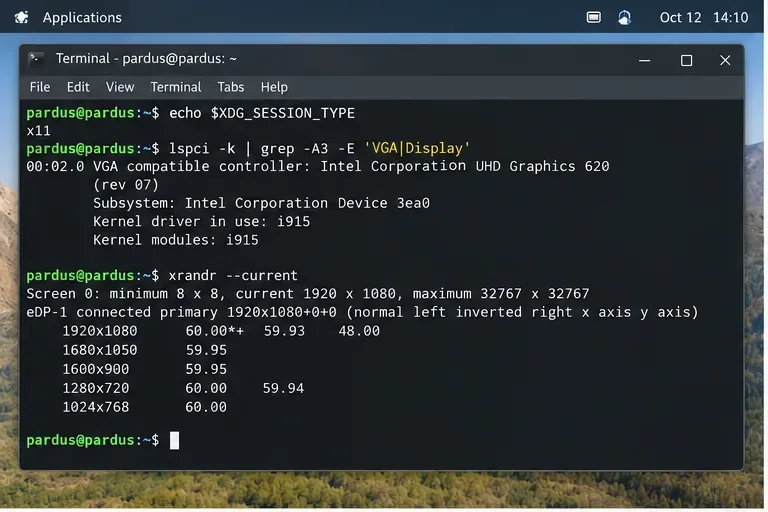
If the first command returns x11, the Xorg-specific checks in this guide apply. If it returns wayland, do not create an Xorg device file just to solve tearing; update the system and troubleshoot the compositor/session instead. The second command should show an Intel display controller and typically a kernel driver such as i915 on many Intel systems.
Check the session type, Intel kernel driver, output name, current resolution, and refresh rate before changing anything.
Quality check: write down the output name, such as eDP-1, and the mode marked with an asterisk by xrandr. You will use those values to verify that later changes did not alter the display unexpectedly.
2. Update Pardus before adding driver overrides
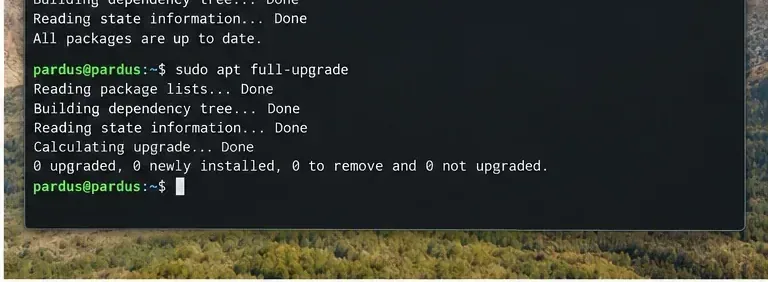
Graphics tearing can come from the window manager, Mesa, Xorg, or the kernel display driver. Before adding a permanent override, install the updates already provided for your Pardus release:
sudo apt update
sudo apt full-upgrade
Reboot if the update installs a new kernel, Mesa stack, or X server components. This is especially important on Pardus 25 because the current point releases have continued to receive kernel and Debian-base updates.
Apply current Pardus package updates first. Repository branch names and exact package output vary by installed Pardus release.
Quality check: test the same scrolling or full-screen video that exposed the tear before. If the problem is gone after the update and reboot, stop here rather than adding another graphics-layer workaround.
3. On Pardus Xfce, confirm that display compositing is enabled
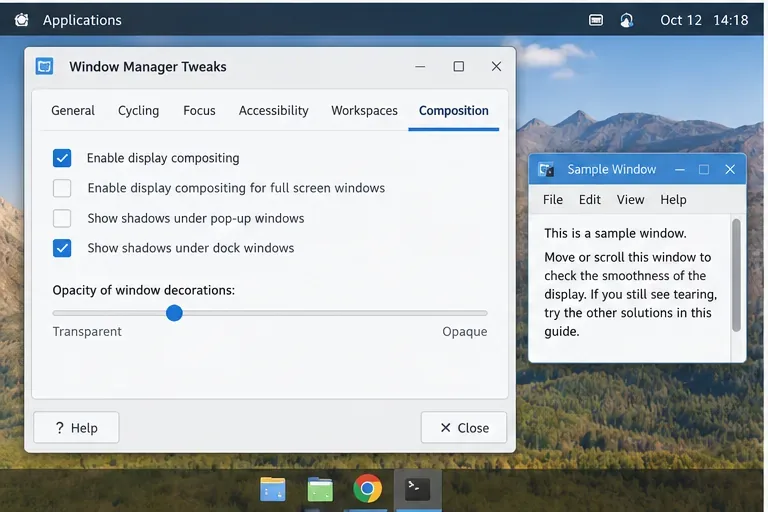
For an Xfce desktop, open Settings > Window Manager Tweaks > Compositor and verify that display compositing is enabled. A compositor is responsible for assembling window contents into the final desktop image; disabling it can make tearing more visible during window movement or video playback.
This is a low-risk first change because it does not force a different Xorg DDX driver. Test before changing other compositor details. Do not assume that every checkbox shown by a particular Xfce build will be identical across Pardus versions.
Enable Xfce display compositing and test motion again before introducing a driver-specific configuration.
Quality check: drag a large window horizontally across a detailed background and scroll a long web page. The improvement should be visible in more than one application. If only one media player tears, investigate that application's video output or synchronization settings rather than changing the whole desktop.
4. Verify the monitor is using the intended refresh rate
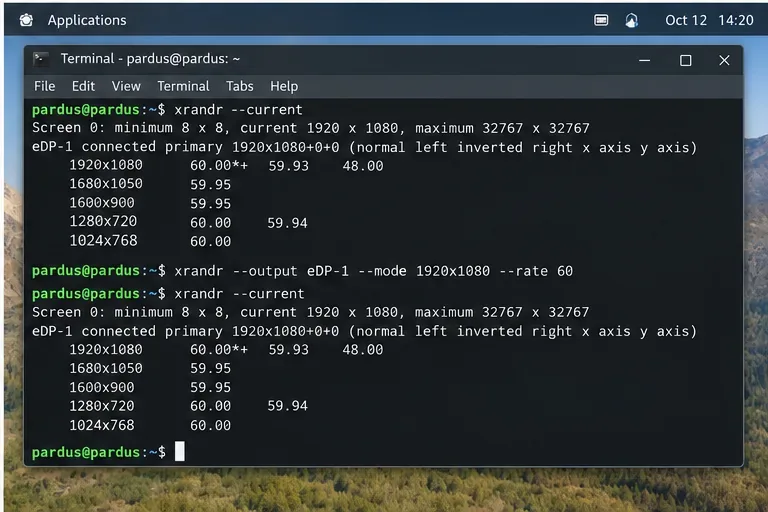
Under X11, xrandr reports the available modes and marks the current one with an asterisk. Its manual documents --output, --mode, and --rate for selecting an output, resolution, and the nearest available refresh rate. See the Debian xrandr manual.
xrandr --current
If your display supports the desired mode but another rate is selected, test the correct value temporarily. Replace the example output and rate with values actually listed on your machine:
xrandr --output eDP-1 --mode 1920x1080 --rate 60
Use only modes and refresh rates that xrandr reports for your connected display; output names differ by hardware.
Quality check: confirm xrandr --current now marks the intended mode and rate. If tearing changes when an external monitor is attached, test each output separately because mixed-refresh multi-monitor layouts can expose compositor timing problems that do not appear on a single display.
5. Check which Xorg driver is actually active
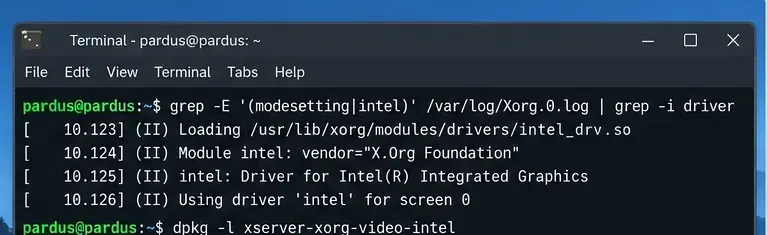
The next step determines whether the classic Intel TearFree option is relevant. On X11, inspect the current Xorg log:
If your distribution stores the Xorg log in the journal instead, use:
journalctl -b | grep -Ei 'Xorg|modesetting|intel'
If the active driver is modesetting, do not install the legacy Intel DDX solely to gain its TearFree switch. Debian explicitly discourages the older Intel Xorg driver on newer hardware and recommends the built-in modesetting driver instead. If the log already says Using driver 'intel', the Intel-driver option below is a valid targeted test.
Confirm that Xorg is already using the legacy intel DDX before applying its driver-specific TearFree option.
6. If the legacy Intel Xorg driver is active, test TearFree
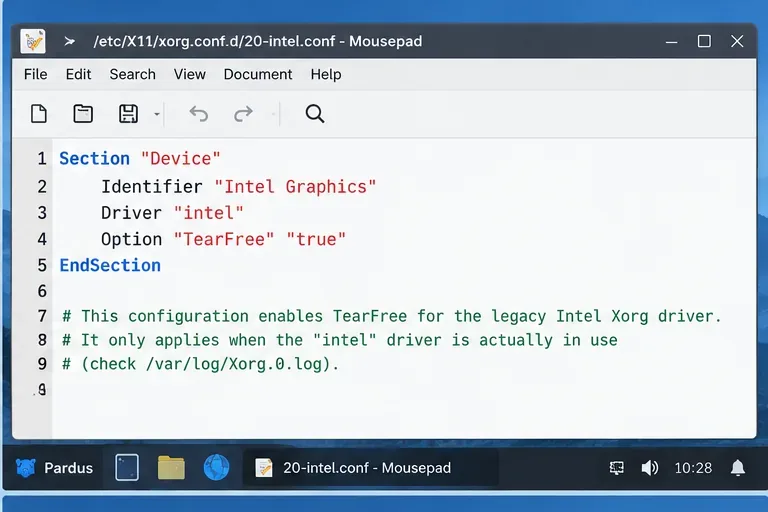
The Debian intel(4) manual documents Option "TearFree" "boolean". It explains that TearFree renders through a back buffer and updates the display in sync with vertical refresh. The tradeoff is additional framebuffer memory, some extra copying, reduced throughput in some cases, and a small amount of output latency. See the Debian intel(4) manual.
Only when your Xorg log confirms the intel driver is active, create a small configuration file such as /etc/X11/xorg.conf.d/20-intel.conf:
Log out and back in, or reboot, so Xorg reloads the configuration.
Use this Xorg snippet only when the active Xorg driver is already intel; it is not a general Wayland or modesetting fix.
Quality check: the desktop should start normally, the intended resolution should remain selected, and tearing should be absent in the same repeatable test used earlier. If input feels noticeably less immediate or rendering throughput drops in your workload, weigh that tradeoff against the visual improvement.
7. Verify the result instead of assuming the option loaded
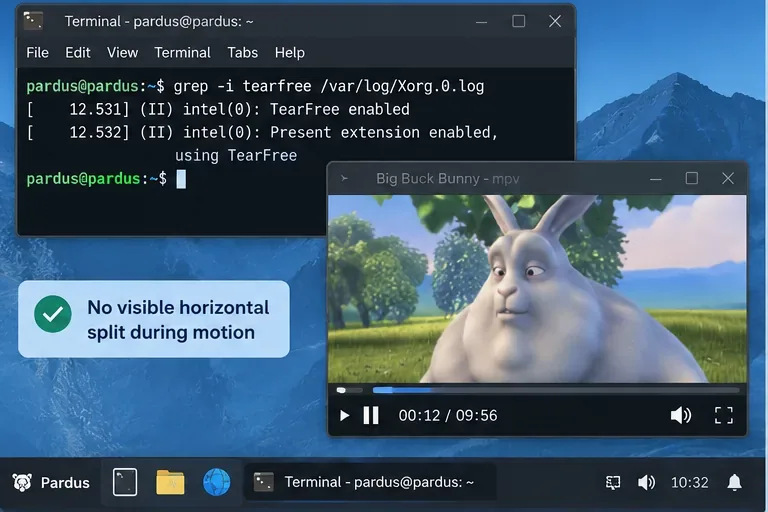
After returning to the desktop, check the Xorg log for the option and then run the original visual tests again:
grep -i tearfree /var/log/Xorg.0.log
A log entry indicating TearFree is enabled is evidence that Xorg accepted the setting; it is not by itself proof that every application will be tear-free. Test rapid scrolling, window dragging, and at least one full-screen video with visible horizontal motion.
Verify both configuration loading and the visible result; a clean Xorg log alone does not prove the user-visible problem is solved.
Pass criteria: no persistent horizontal split across several motion-heavy tests, no new black screen or flicker, no unwanted refresh-rate change, and no unacceptable stutter. If the tear remains in only one application, change approach and investigate that application's rendering path.
8. Roll back quickly if the Xorg override makes things worse
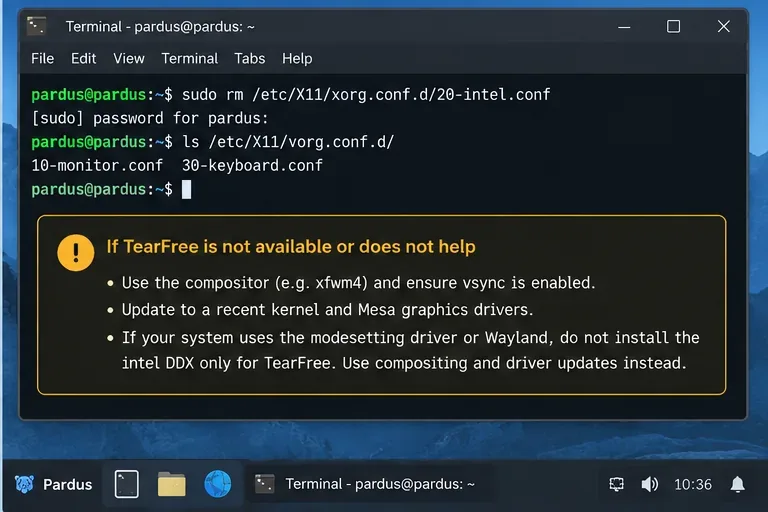
If Xorg fails to start correctly, performance regresses, or the option makes no meaningful difference, remove the file you added and return to the previous driver behavior:
sudo rm /etc/X11/xorg.conf.d/20-intel.conf
Then log out and back in or reboot. Do not remove unrelated files in /etc/X11/xorg.conf.d/.
Rollback should remove only the custom file you created. If the active stack is modesetting or Wayland, return to compositor and graphics-stack troubleshooting instead.
When to change approach
Switch away from the Intel DDX TearFree method when any of the following is true:
You are on Wayland. Xorg device snippets do not control a Wayland compositor's presentation path.
Xorg is using the built-in modesetting driver. The current Debian modesetting manual documents the KMS-based driver and its supported options, but it does not list the legacy Intel DDX TearFree option. See the Debian modesetting(4) manual.
The issue appears only on one external display. Recheck refresh rates, cable/adapter behavior, and whether the tear follows a particular output.
The issue began immediately after a system update. Confirm the current kernel, Mesa, and Xorg packages and look for a regression before adding permanent local overrides.
The problem occurs in only one player, browser, or game. Application-level video synchronization or rendering settings are a better target than a global Xorg change.
Limits of the fix
No single Intel graphics setting can guarantee a tear-free result across every Pardus release, desktop environment, GPU generation, display topology, and application. The legacy Intel DDX TearFree option is real and documented, but it is intentionally a conditional solution: it applies to X11 systems that are actually running that driver, and the driver itself is no longer the preferred default for newer Intel hardware in Debian-derived systems.
The most reliable outcome comes from keeping the intervention proportional to the cause. If compositor synchronization and the correct refresh rate solve the problem, stop there. If the legacy Intel driver is already active, TearFree is a reasonable measured test. If you are on modesetting or Wayland, stay with the modern stack and diagnose its compositor, refresh, kernel, Mesa, and application behavior rather than forcing an older driver into the system.
Quick verification checklist
Confirm echo $XDG_SESSION_TYPE before applying Xorg-only steps.
Record the Intel kernel driver and active Xorg driver separately.
Update Pardus and reboot when graphics-stack components change.
Keep Xfce compositing enabled unless testing proves it is the source of the problem.
Verify the monitor's actual mode and refresh rate with xrandr on X11.
Use Option "TearFree" "true" only when Xorg is using the intel driver.
Judge success with several motion-heavy tests, not one screenshot or one log line.
Remove the custom Xorg file if it does not clearly improve the result.