How to Access a Windows BitLocker Partition in Linux

Use Dislocker to unlock a BitLocker volume in Linux, mount its virtual NTFS file read-only, and safely unmount it without exposing your password in a command.
Sound distortion on Ubuntu 24.04 can come from several layers: the application, PipeWire, WirePlumber, ALSA, the kernel driver, or the audio hardware itself. The practical approach is to identify the affected device first, then change one buffer or device setting at a time. On a standard Ubuntu 24.04 desktop, PipeWire sits above ALSA and WirePlumber manages ALSA devices, so most users should tune the ALSA properties exposed through WirePlumber before replacing the system's default ALSA configuration.
Ubuntu 24.04 originally shipped PipeWire 1.0.4, and Ubuntu's current Noble packages continue to use WirePlumber 0.4.17 rather than the newer 0.5 configuration format. That version detail matters because WirePlumber 0.4 uses Lua fragments under ~/.config/wireplumber/main.lua.d/. The newer wireplumber.conf.d syntax you may see in current upstream documentation applies to WirePlumber 0.5 and later. Check the installed version before copying any configuration.
Official references: Ubuntu 24.04 LTS release notes, Ubuntu's WirePlumber package for Noble updates, WirePlumber 0.4 ALSA configuration reference, and the ALSA PCM plugin reference.
| Symptom | First practical check | Potential tweak |
|---|---|---|
| Crackling under CPU load | Confirm the correct sink and watch for dropouts | Test a larger ALSA period size, such as 1024 or 2048 frames |
| Distortion only on one USB DAC | Identify the exact ALSA/PipeWire node | Apply the rule only to that node; avoid a global rule |
| Noise when a device wakes from idle | Reproduce after several seconds of silence | Increase or disable the suspend timeout for that specific node |
| Problems in an ALSA-only legacy app | Test the app with aplay or an explicit PCM | Use a per-user ~/.asoundrc with plug/dmix |
| Distortion at one sample rate | Test 44.1 kHz and 48 kHz material | Prefer a supported hardware rate and let PipeWire resample when needed |
Start by listing playback devices and checking which audio server is active. Do not assume that hw:0,0 is your speakers; HDMI, USB headsets, webcams, and docking stations can change card numbering between boots.
aplay -l
wpctl status
pactl info
wireplumber --version
pipewire --version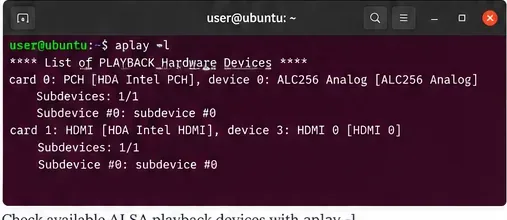
Caption: The aplay -l listing separates the onboard analog playback device from HDMI, which helps avoid applying an ALSA tweak to the wrong card.
If pactl info reports “PulseAudio (on PipeWire),” that is normal on Ubuntu 24.04. The PulseAudio-compatible interface is being provided by PipeWire. For stock Ubuntu 24.04/Noble, wireplumber --version should normally show the 0.4.x series unless you installed a different build.
Use a repeatable test rather than judging changes from random web videos. A short WAV file, speaker-test, or a known music track makes before/after comparisons more meaningful. Also check whether the problem occurs on analog output, HDMI, Bluetooth, and USB equally. If only one path is affected, narrow the fix to that path.
speaker-test -c 2 -t wav
aplay /usr/share/sounds/alsa/Front_Center.wav
For USB devices, the kernel exposes stream information under /proc/asound/. The exact path varies by card, so inspect /proc/asound/cards first instead of copying a card number blindly.
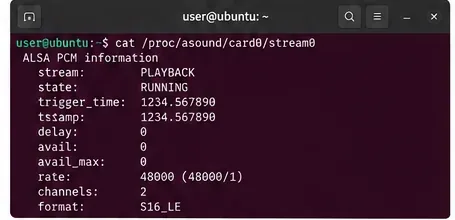
Caption: ALSA stream information can reveal the active sample rate, channel count, and sample format for a playback stream; the card number is hardware-dependent.
Before editing anything, preserve any existing ALSA or WirePlumber overrides. User-level changes are safer than editing files under /usr/share, because package upgrades can replace system files.
cp -a ~/.asoundrc ~/.asoundrc.backup 2>/dev/null || true
mkdir -p ~/.config/wireplumber/main.lua.d
cp -a ~/.config/wireplumber/main.lua.d ~/.config/wireplumber/main.lua.d.backup 2>/dev/null || true
If you previously copied a configuration from a guide written for WirePlumber 0.5, remove or move it out of the way before testing on stock Ubuntu 24.04. WirePlumber 0.4 and 0.5 use different configuration formats.
On Ubuntu 24.04, this is usually the most relevant ALSA-level tweak because WirePlumber creates and configures the ALSA-backed PipeWire nodes. Upstream WirePlumber documentation describes api.alsa.period-size as the period size in samples and api.alsa.headroom as extra buffering between hardware and software pointers. Most USB devices are treated as batch devices, and period size affects both interrupt frequency and buffering behavior.
Create a user rule:
nano ~/.config/wireplumber/main.lua.d/51-alsa-tuning.luaUse a rule that targets only the problematic output node. First get the node name with wpctl status or pw-cli list-objects Node. Then adapt this example:
local rule = {
  matches = {
    {
      { "node.name", "matches", "alsa_output.*" },
    },
  },
  apply_properties = {
    ["api.alsa.period-size"] = 1024,
    ["api.alsa.headroom"] = 0,
  },
}

table.insert(alsa_monitor.rules, rule)
Do not treat 1024 as a universal magic value. It is a conservative test point. If distortion persists, compare 512, 1024, and 2048 one at a time. Larger periods can improve tolerance for scheduling delays on some systems but add latency; smaller periods can reduce latency but increase interrupt frequency and may expose underruns on a stressed machine. Keep the smallest value that remains stable for your workload.
If the device has broken memory-mapped I/O, WirePlumber also exposes api.alsa.disable-mmap. Upstream documentation explicitly describes this as a compatibility fallback and notes that read/write access is slower, so do not enable it unless the distortion clearly correlates with mmap behavior.
["api.alsa.disable-mmap"] = true,Another device-specific option is session.suspend-timeout-seconds. If a DAC pops or distorts every time it wakes, testing a longer timeout—or 0 to disable suspend for that node—can help isolate the cause. Disabling suspend keeps the ALSA device busy, so it is a trade-off rather than a default recommendation.
A per-user ~/.asoundrc can be useful for older applications that bypass PipeWire and open ALSA PCMs directly. It can also be useful for testing fixed sample-rate or software-mixing behavior. However, overriding the ALSA default globally can interfere with the PipeWire ALSA plugin, so use a named PCM when possible rather than replacing pcm.!default.
For example, ALSA's dmix plugin supports explicit rate, period_size, and buffer_size values. A named test PCM can look like this:
pcm.stable_test {
    type plug
    slave.pcm "stable_dmix"
}

pcm.stable_dmix {
    type dmix
    ipc_key 2048
    ipc_key_add_uid true
    slave {
        pcm "hw:0,0"
        rate 48000
        period_time 0
        period_size 1024
        buffer_size 4096
    }
}
Replace hw:0,0 with the actual card and device from aplay -l. Then test without changing the system default:
aplay -D stable_test /usr/share/sounds/alsa/Front_Center.wav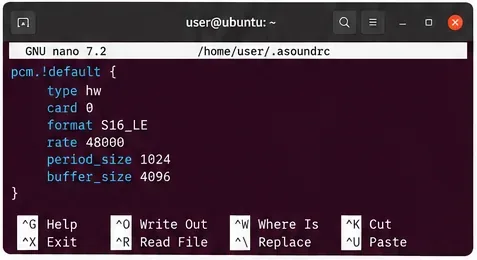
Caption: A per-user .asoundrc can define fixed ALSA parameters for controlled testing; a direct hw target should be used carefully because it bypasses automatic format conversion.
The ALSA project notes that dmix has a fixed base configuration unless you specify values in its slave definition, while the plug plugin can perform format and rate conversion. That is why combining a named plug PCM with a separately tuned dmix PCM is safer for experiments than forcing every program to open raw hardware directly.
After changing the WirePlumber rule, restart the user audio stack. Close applications that are actively using audio first.
systemctl --user restart wireplumber pipewire pipewire-pulseThen repeat the same test material used before the change. Open Settings > Sound and make sure the expected output device and profile are still selected.
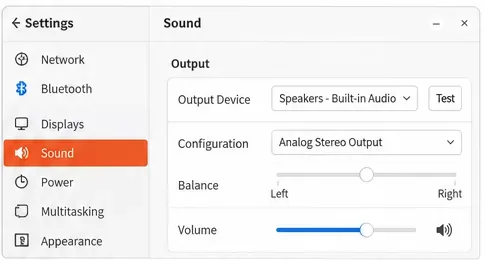
Caption: After restarting the audio services, verify that Ubuntu still selects the intended output device and profile before judging whether the distortion is fixed.
Do not keep increasing buffers if the symptom is clearly hardware clipping, a loose cable, an overdriven analog input, a failing USB hub, or a bad speaker. Also check mixer levels with alsamixer; distortion that occurs only near 100% volume can be gain-related rather than a scheduling problem.
If the issue started after a kernel or firmware update, test another supported kernel from the GRUB menu before building increasingly complex audio rules. If only Bluetooth is affected, focus on the Bluetooth codec/profile rather than ALSA period settings. If only HDMI is affected, verify the HDMI profile and receiver/monitor first.
~/.config/wireplumber/main.lua.d/51-alsa-tuning.lua.~/.asoundrc from the backup, or remove the test-only file.wireplumber, pipewire, and pipewire-pulse.wpctl status and speaker-test to confirm the default behavior has returned.For Ubuntu 24.04, start with targeted WirePlumber 0.4 ALSA rules rather than a broad system-wide .asoundrc replacement. Identify the exact output node, change one property at a time, and compare the same test audio after every change. A period size such as 1024 is a reasonable diagnostic starting point, but the correct value depends on the device and workload. Reserve disable-mmap, suspend changes, and custom dmix PCMs for cases where your tests point specifically to those behaviors.
Use Dislocker to unlock a BitLocker volume in Linux, mount its virtual NTFS file read-only, and safely unmount it without exposing your password in a command.
Learn how to reduce RAM usage on Linux by finding memory-hungry apps, trimming browser and startup load, and testing a lighter desktop safely.
Compare four WhatsApp alternatives for Linux by privacy defaults, desktop support, setup requirements, and the people each app suits.
Troubleshoot a VirtualBox VM that will not start on Linux by checking vboxdrv, kernel headers, Secure Boot, Extension Pack versions, and VM logs.
Transfer your Ubuntu user data with a tar archive and external drive, then restore personal files and selected settings without overwriting the new setup.
Install gThumb on Linux, browse and make simple photo edits, then set it as the default app for the image types you choose in GNOME.
Create an organized playlist in Rhythmbox or save a reusable XSPF playlist in VLC. Learn how to add tracks, name a list, and reopen it on Linux.
Install Dino on Linux with Flatpak or your distribution’s package manager. Get current Ubuntu, Debian, Fedora, and Arch commands, plus first-launch tips.
Install Arch Linux’s linux-lts kernel, add it to GRUB or systemd-boot, select it at startup, and verify it while keeping a fallback kernel.
Download the right Pi 4 image, write it to a microSD card, and complete LibreELEC’s first-run setup with Raspberry Pi Imager.








