Home
» LINUX
»
Fix Temporary Failure Resolving DNS in Debian 12 with systemd-resolved
Fix Temporary Failure Resolving DNS in Debian 12 with systemd-resolved
The error Temporary failure in name resolution means an application could not turn a hostname such as deb.debian.org into an IP address. On Debian 12 (Bookworm), that does not automatically mean systemd-resolved is broken. Debian 12 does not install systemd-resolved by default, and DNS may instead be managed directly by NetworkManager, ifupdown, DHCP tooling, or another resolver. If you have deliberately enabled systemd-resolved, the fastest fix is to identify which layer is failing before changing configuration.
This practical reference focuses on systems that use, or are intended to use, systemd-resolved. Debian's Bookworm package documentation says installing systemd-resolved switches /etc/resolv.conf to systemd-resolved management. The service itself provides a local DNS stub on 127.0.0.53 and accepts upstream DNS information from global configuration, per-link network configuration, DHCP, resolvectl, and network-management services. See the Debian systemd-resolved package page and Debian systemd-resolved manual.
Quick diagnosis checklist
Check
Command
What the result tells you
Basic network path
ping -c 3 1.1.1.1
If an IP works but a hostname does not, investigate DNS. ICMP can be blocked, so do not treat a failed ping as proof that the network is down.
Resolver service
systemctl is-active systemd-resolved
active confirms the daemon is running; it does not prove upstream DNS is usable.
Effective DNS
resolvectl status
Shows global and per-link DNS servers, scopes, routing domains, and the active resolver mode.
glibc lookup path
getent ahosts debian.org
Tests hostname resolution through the system's Name Service Switch path rather than only a DNS-specific tool.
Resolver logs
journalctl -u systemd-resolved -b
Useful for unavailable DNS servers, fallback behavior, and protocol problems.
1. Confirm that the problem is DNS, not general connectivity
Start by testing a hostname and then an IP address:
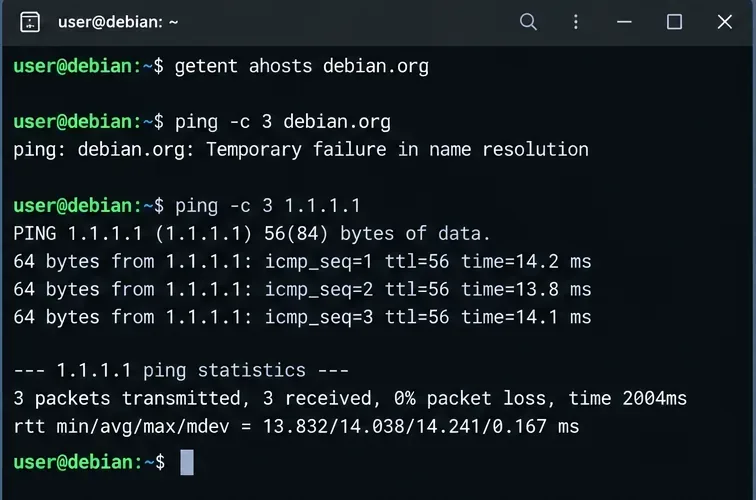
If the hostname lookup fails while the direct IP test succeeds, DNS is the likely fault domain. If both fail, first inspect the interface, route, gateway, VLAN, Wi-Fi association, firewall, or upstream network. A DNS change cannot repair a missing default route.
A direct IP ping succeeds while resolving debian.org fails, a useful sign that connectivity exists but DNS resolution is broken.
For a more deterministic routing check, also run:
ip address
ip route
You should normally have an address on the expected interface and a default route. The exact interface name may be enp1s0, ens160, eth0, or something else.
2. Check whether systemd-resolved is actually in use
Do not assume it is present just because the machine uses systemd. Check both the package and service:
dpkg -s systemd-resolved 2>/dev/null | grep '^Status'
systemctl status systemd-resolved --no-pager
resolvectl status
If the package is absent and your machine has another working DNS-management design, installing systemd-resolved is not automatically the correct fix. If the system is supposed to use it and the service is installed but stopped, enable and start it:
sudo systemctl enable --now systemd-resolved
If that command fails, inspect the logs before repeatedly restarting the service:
journalctl -u systemd-resolved -b --no-pager
3. Inspect /etc/resolv.conf before replacing it
The most common configuration mistake is treating /etc/resolv.conf as an isolated file. With systemd-resolved, it can operate in several supported modes. The upstream-recommended stub mode links /etc/resolv.conf to /run/systemd/resolve/stub-resolv.conf, which points traditional DNS clients at 127.0.0.53. Another valid mode links to /run/systemd/resolve/resolv.conf, which exposes known upstream servers directly but loses systemd-resolved's per-link DNS routing for applications that read that file directly.
ls -l /etc/resolv.conf
cat /etc/resolv.conf
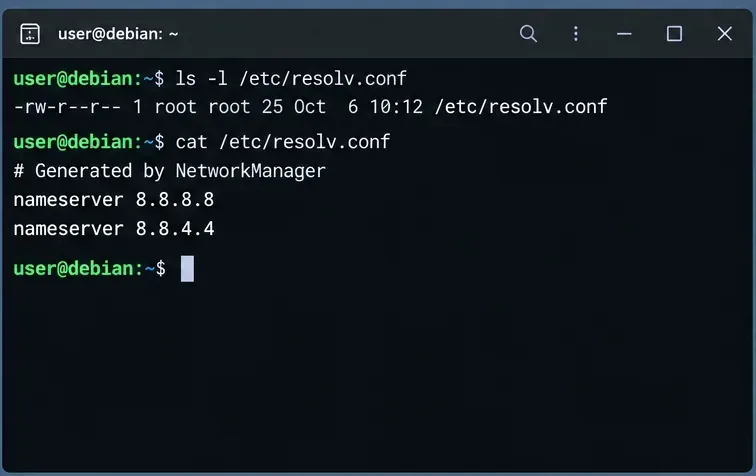
Inspect whether /etc/resolv.conf is a regular file or a symlink before changing it; different network managers use different ownership models.
A regular file is not automatically wrong. NetworkManager or another resolver manager may intentionally own it. However, if this host is designed to use systemd-resolved stub mode, a stale regular file, dangling symlink, or file pointing at unreachable nameservers can cause lookup failures.
Restore the recommended stub link when stub mode is intended
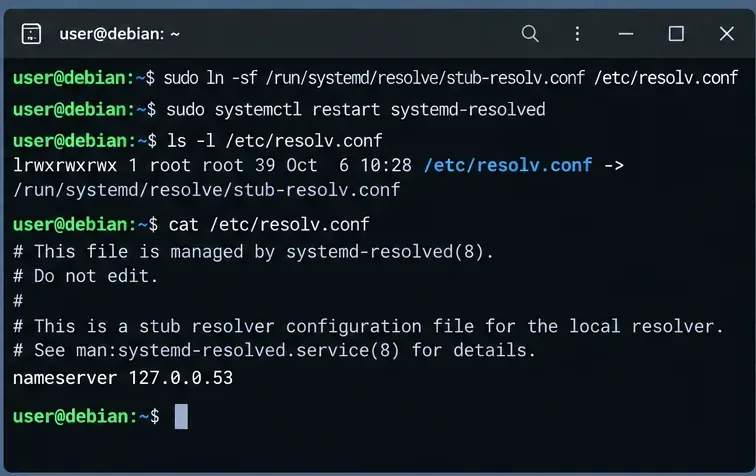
When this host is intentionally using systemd-resolved in stub mode, /etc/resolv.conf can point to the maintained stub file at /run/systemd/resolve/stub-resolv.conf.
Seeing nameserver 127.0.0.53 in the stub file is expected. It is the local listener, not the upstream DNS server. Use resolvectl status to see which upstream servers systemd-resolved will actually contact. This distinction is documented in the systemd-resolved Bookworm manual.
4. Check whether systemd-resolved has a usable upstream DNS server
Run:
resolvectl status
Focus on the link that carries the default route. A healthy configuration should normally show one or more DNS servers for that link or suitable global DNS servers. If no usable DNS server is present, fixing the symlink alone will not help: the local stub has nowhere useful to send queries.
You can test the resolver directly:
resolvectl query debian.org
The Debian resolvectl manual documents status, query, flush-caches, and the per-link DNS commands used for inspection and troubleshooting.
5. If NetworkManager owns the interface, fix DNS in the connection profile
On desktop installations and many general-purpose Debian systems, NetworkManager may provide per-link DNS information to systemd-resolved. First identify the active profile and current DNS values:
nmcli connection show --active
nmcli device show
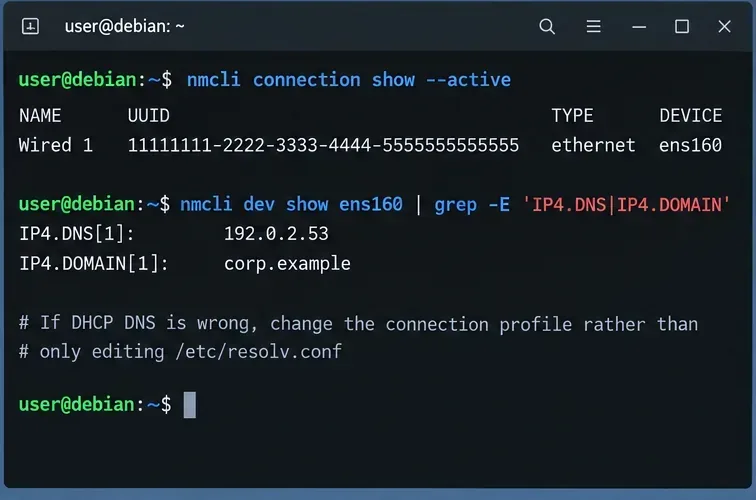
On NetworkManager systems, inspect and change DNS on the connection profile instead of repeatedly hand-editing /etc/resolv.conf.
If DHCP is supplying a bad DNS server, change the NetworkManager profile rather than editing /etc/resolv.conf after every reboot. For example, if your network policy permits public resolvers:
Replace the profile name and DNS servers with values appropriate for your network. Corporate networks, VPNs, Active Directory environments, and split-DNS setups often require internal resolvers; public DNS may break private hostnames. NetworkManager's official configuration reference documents its integration with systemd-resolved.
6. If systemd-networkd owns the interface, configure DNS per link
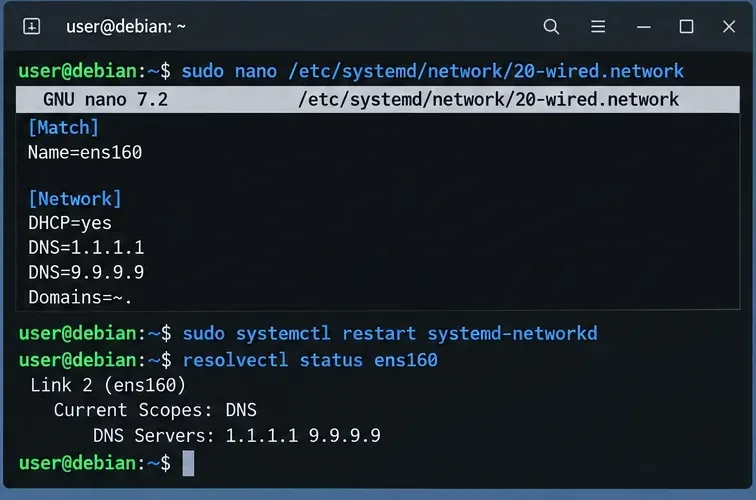
For servers using systemd-networkd, place DNS settings in the matching .network file under /etc/systemd/network/. A simple DHCP-based example is:
UseDNS=no matters when you specifically want to ignore DNS servers supplied by DHCP. Without it, DHCP DNS is used by default. Domains=~. is a routing-only domain for the DNS root, making that link suitable for queries that do not match a more specific routing domain. Do not add it blindly on multi-homed or VPN systems where split DNS is intentional.
sudo systemctl restart systemd-networkd
resolvectl status ens160
With systemd-networkd, DNS can be defined per link in a .network file and then verified with resolvectl.
7. Use global resolved.conf only when you really want system-wide DNS
/etc/systemd/resolved.conf or a drop-in under /etc/systemd/resolved.conf.d/ can define system DNS servers. This is useful for a host-wide policy, but it is less precise than per-link configuration on machines with VPNs, multiple interfaces, or private DNS zones.
A local drop-in is usually cleaner than editing the vendor-style main file:
sudo systemctl restart systemd-resolved
resolvectl status
The Debian resolved.conf manual explains that DNS= supplies system DNS servers and that administrator drop-ins under /etc/systemd/resolved.conf.d/ take precedence over lower-priority configuration.
8. Flush caches only after fixing the underlying configuration
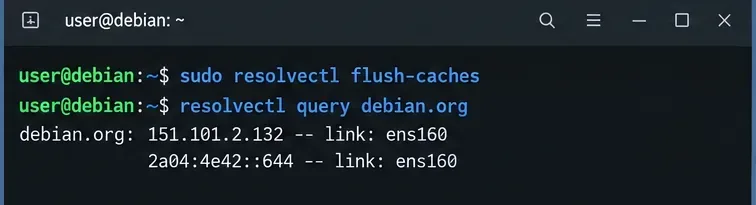
A stale cache can confuse troubleshooting, but cache flushing is not a substitute for repairing an unreachable upstream server or broken link configuration. After making a real configuration change, you can run:
After correcting DNS configuration, flush the cache only when useful for troubleshooting and query a hostname directly through systemd-resolved.
Systemd's own documentation notes that caches are normally flushed automatically when network configuration changes, so repeated manual flushing should not be your primary fix.
9. Read the resolver journal when the failure persists
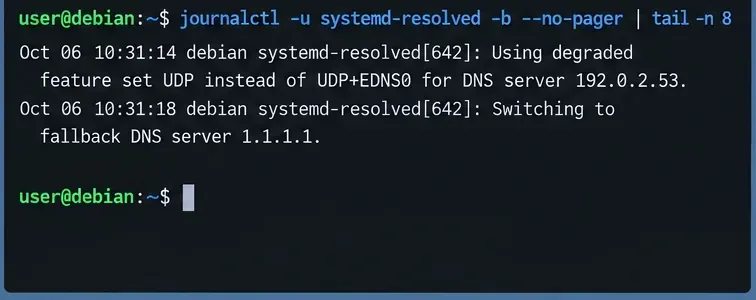
If resolvectl status appears reasonable but queries still time out, inspect the boot-local resolver log:
The systemd-resolved journal can reveal upstream server failures, degraded protocol handling, and fallback behavior.
Look for repeated server timeouts, fallback-server changes, DNSSEC validation failures, or messages indicating reduced protocol features. A resolver can be running normally while its configured upstream server is unreachable through a firewall, VPN, routing policy, or network ACL.
10. Verify the complete lookup path
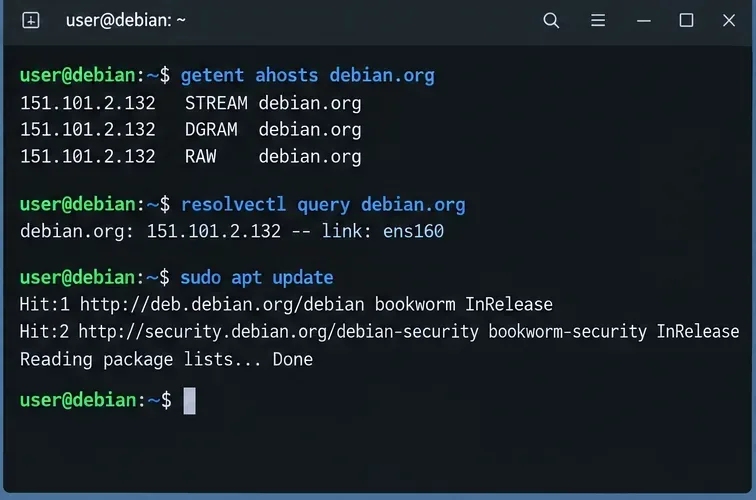
Do not stop after one successful resolvectl query. Verify the path used by normal applications:
Finish by testing both the system resolver path and the application that originally failed, such as apt.
getent is useful because glibc hostname lookups follow the hosts: line in /etc/nsswitch.conf. If resolvectl query succeeds but getent fails, inspect that NSS configuration. Debian's nss-resolve manual describes the optional libnss-resolve module and a recommended ordering that can route glibc hostname lookups through systemd-resolved while retaining fallbacks.
Common symptoms and the most likely place to look
Symptom
Likely area
Next check
IP connectivity works; all hostnames fail
DNS server, resolver service, or resolv.conf
resolvectl status and ls -l /etc/resolv.conf
resolvectl query works; normal applications fail
NSS or application-specific resolver path
getent ahosts and /etc/nsswitch.conf
DNS breaks after reboot or reconnect
Network-manager-owned configuration
NetworkManager or systemd-networkd profile
Public names work; internal names fail
Split DNS, VPN, routing domains
Per-link DNS servers and Domains= in resolvectl status
Only one application fails
Application, container, proxy, or custom resolver
Compare that app with getent and resolvectl query
Recommended repair order
Confirm that basic network connectivity and the default route exist.
Confirm whether systemd-resolved is actually intended to manage DNS on this host.
Check systemd-resolved service state and resolvectl status.
Inspect /etc/resolv.conf ownership and symlink mode before changing it.
If stub mode is intended, restore the stub-resolv.conf link.
Fix upstream DNS at the actual owner: NetworkManager, systemd-networkd, DHCP, VPN, or global resolved configuration.
Flush the cache only after the configuration is corrected.
Verify with resolvectl, getent, and the application that originally failed.
The key principle is ownership: /etc/resolv.conf, systemd-resolved, and the network manager are parts of one resolver chain. A durable fix changes DNS at the layer that owns it, instead of repeatedly replacing the final generated file.