How to Access a Windows BitLocker Partition in Linux

Use Dislocker to unlock a BitLocker volume in Linux, mount its virtual NTFS file read-only, and safely unmount it without exposing your password in a command.
You move the pointer normally, two-finger scrolling may still work, but the familiar three-finger swipe no longer opens Activities or switches workspaces. On Ubuntu 24.04, that symptom is often misdiagnosed as “Wayland gestures being disabled.” In the standard GNOME desktop, there is no separate master switch for the built-in three-finger system gestures. The useful question is where the gesture stops: at the session, the touchpad settings, libinput, GNOME Shell, or the hardware itself.
This guide starts with checks that are fast and reversible, then moves toward input diagnostics. Ubuntu 24.04 LTS uses GNOME on Wayland by default on supported systems, and GNOME documents three-finger swipes for opening the Activities overview and switching workspaces. The underlying libinput stack can report swipe and pinch events on supported touchpads. Those two facts give us a clean troubleshooting path: confirm Wayland, confirm the touchpad is active, test the stock GNOME gesture, then verify whether libinput receives multi-finger events.
Open Terminal and run:
echo $XDG_SESSION_TYPEThe expected result is wayland. If the command prints x11, you are troubleshooting a different input path. Ubuntu can still offer an Xorg session, and gesture behavior there is not identical to the native GNOME Wayland experience.
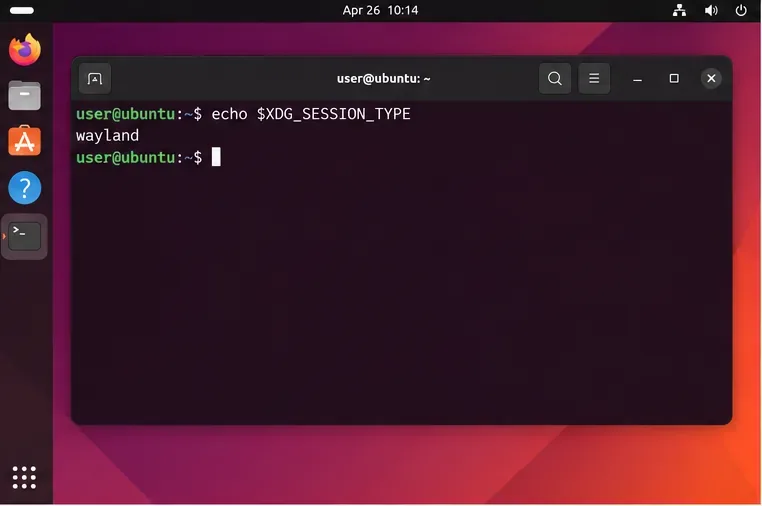
If you are on Xorg and want the default Wayland session, log out. On the sign-in screen, select your account, open the session chooser, and choose Ubuntu rather than Ubuntu on Xorg when those options are available. Hardware, graphics drivers, remote desktop sessions, or administrator policy can affect which sessions are offered, so do not force a missing option without checking why it is unavailable.
GNOME’s official gesture behavior is documented in GNOME Help: Use gestures on touchpads and touchscreens.
Open Settings > Mouse & Touchpad. Confirm that the touchpad is enabled. Also test two-finger scrolling and basic tapping. GNOME’s settings panel exposes touchpad controls only when the desktop recognizes a touchpad, so a missing Touchpad section is a meaningful clue rather than a cosmetic problem.
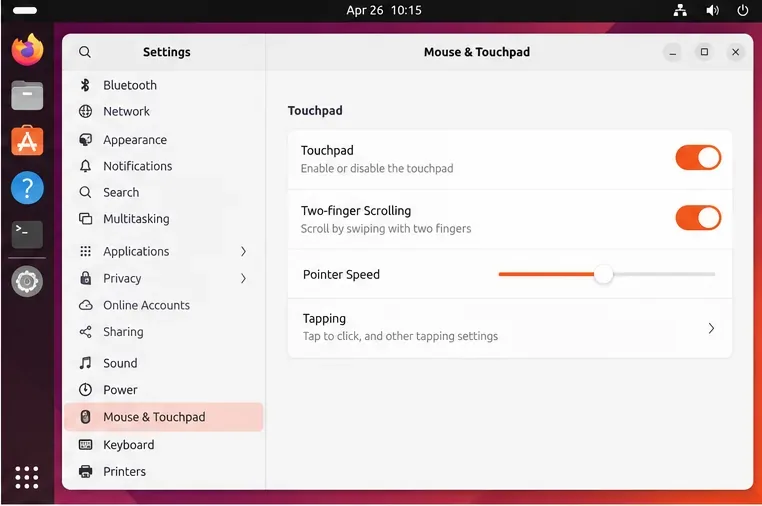
Do not spend time looking for a “three-finger gestures” toggle in the stock Ubuntu 24.04 Settings panel. The built-in GNOME Shell system gestures are not normally controlled by a dedicated on/off switch there. If pointer movement and two-finger scrolling work but three-finger gestures do not, continue to the next test.
For the documented touchpad controls, see GNOME Help: Click, drag, or scroll with the touchpad.
Use three fingers and swipe upward on the touchpad. GNOME should open the Activities overview. A further upward swipe can open the applications view. A three-finger swipe left or right should switch workspaces. These are the best baseline tests because they are GNOME Shell gestures, not features supplied by Firefox, a browser extension, a desktop add-on, or a third-party gesture daemon.
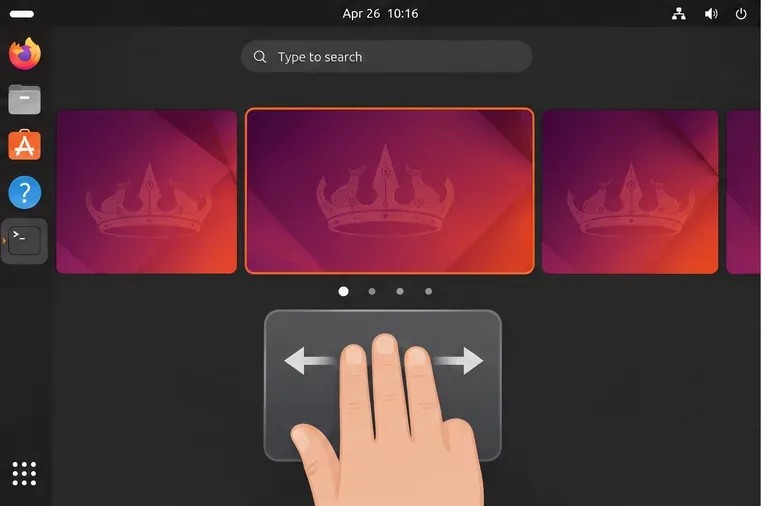
Pinch-to-zoom is different. libinput can recognize pinch gestures, but whether a pinch zooms content depends on the application and toolkit. A working three-finger workspace swipe alongside a non-working pinch in one application usually points to the application, not to Wayland as a whole.
Ubuntu provides the libinput-tools package for input diagnostics. If the libinput command is not installed, add it with:
sudo apt update
sudo apt install libinput-tools
Then list devices:
sudo libinput list-devicesFind the block for your touchpad. The exact model name, event node, dimensions, and configuration differ by laptop. What matters is that libinput lists the device as a touchpad and exposes the expected capabilities. The Ubuntu 24.04 package is documented in the Ubuntu Noble package catalog, and the command itself is covered by the Ubuntu libinput man page.
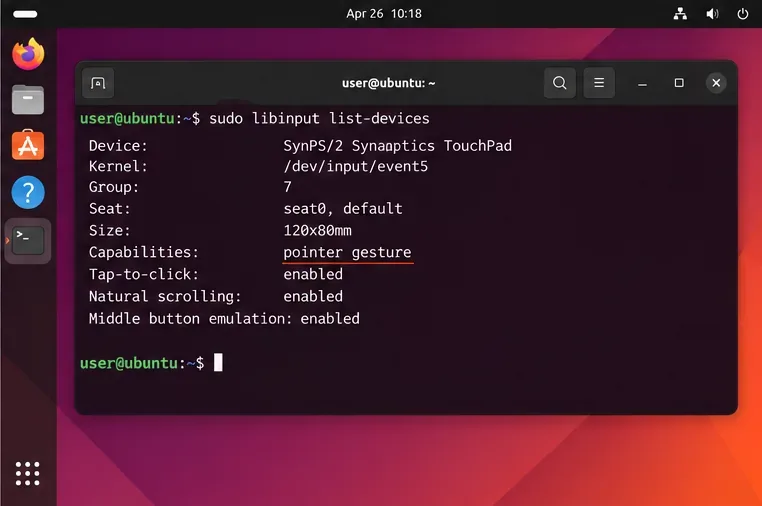
If the touchpad is absent from libinput list-devices, this is no longer mainly a GNOME gesture problem. Check whether the device appears in firmware/BIOS settings, whether a hardware touchpad toggle is active, and whether the kernel sees the device after a reboot. Laptop-specific kernel, I2C-HID, or firmware issues need to be resolved before GNOME can receive gestures.
The most informative test is to see whether libinput emits gesture events while you move three fingers. Run:
sudo libinput debug-eventsThen perform a three-finger swipe. On supported hardware you should see gesture event lines such as a swipe begin, updates, and an end. The exact event node, timing, deltas, and formatting can vary. The command usually needs root access because it reads /dev/input/event* devices directly.
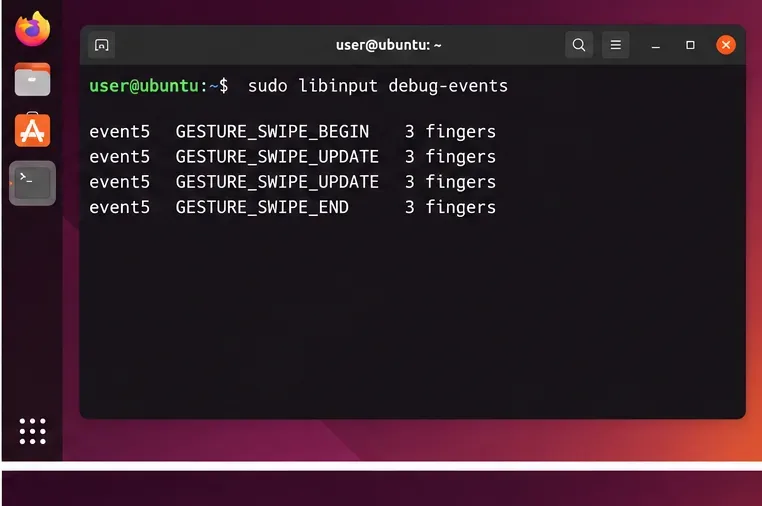
The official Ubuntu libinput-debug-events man page describes this tool as a debugging helper and warns that its output format can change. libinput’s own gesture documentation explains how swipe and pinch gestures are generated.
If gesture events appear: the hardware and libinput path are working. Focus next on GNOME Shell, extensions, session state, and updates. If no multi-finger gesture events appear: test again with fingers clearly separated. If basic pointer events appear but three-finger gestures never do, the touchpad may lack the required multitouch capability, or a kernel/firmware issue may be preventing it from reporting enough contacts.
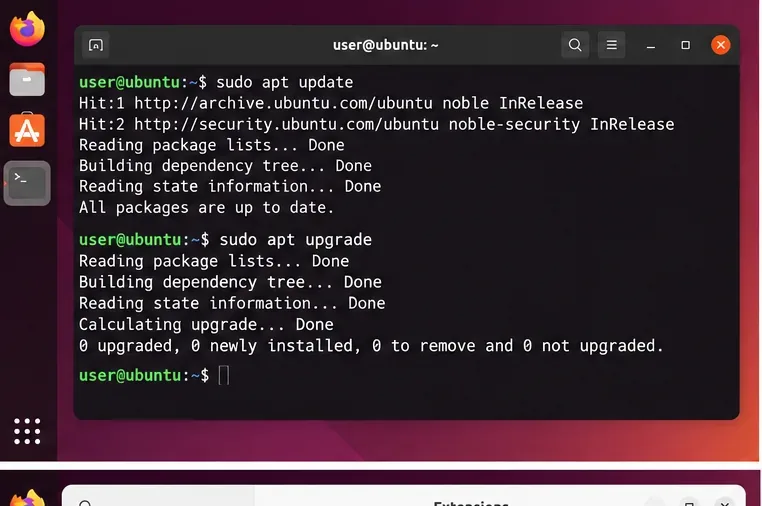
Before replacing drivers or editing low-level configuration files, bring the installed 24.04 packages up to date:
sudo apt update
sudo apt upgrade
Reboot if the update installs a new kernel, graphics stack, or other components that require a restart. Gesture handling crosses several layers—kernel input drivers, libinput, Mutter/GNOME Shell, and applications—so an already-fixed bug can remain visible on a machine that has not been updated.
Avoid downloading random Synaptics packages or copying old Xorg configuration snippets from tutorials written for earlier Ubuntu releases. Under the standard Wayland GNOME session, libinput is the relevant input library, and Xorg-only configuration files are not a reliable way to repair GNOME Shell gestures.
If libinput debug-events clearly shows three-finger swipes but GNOME does nothing, temporarily disable third-party GNOME Shell extensions and test again. Extensions can alter workspace behavior, window management, overview behavior, or gesture handling. Use the Extensions app if you have it installed, or list enabled extensions with:
gnome-extensions list --enabledDisable suspicious extensions one at a time with:
gnome-extensions disable EXTENSION_UUIDReplace EXTENSION_UUID with an identifier returned by the list command. Logging out and back in after changing Shell extensions can help ensure you are testing a clean session.
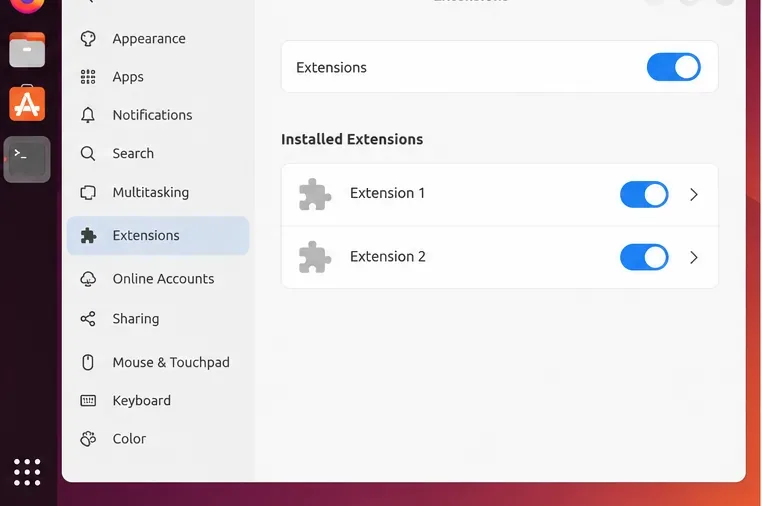
This step is diagnostic, not a recommendation to run permanently without extensions. Once you identify the conflicting extension, update it, adjust its settings, or leave only that extension disabled.
Log out, choose the normal Ubuntu Wayland session at sign-in, and repeat the stock gesture tests before reopening many applications. This clears transient GNOME Shell state and makes it easier to tell whether an extension or session-specific process was involved.
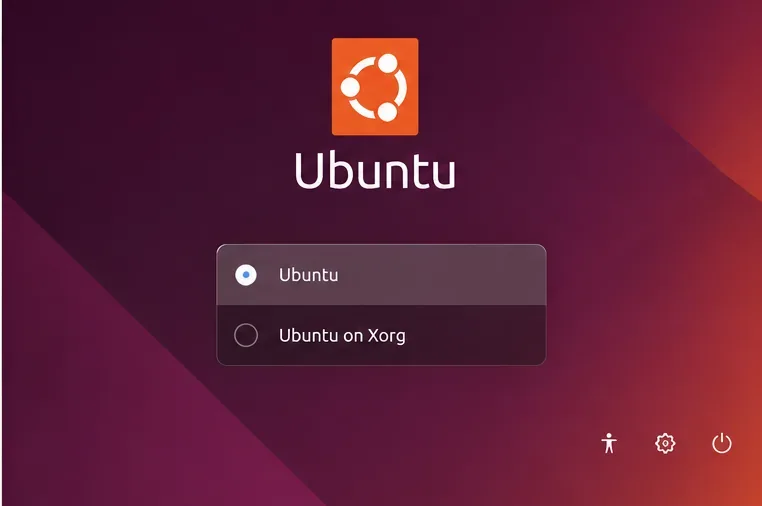
If the system always returns to Xorg even when you select Ubuntu, investigate the reason instead of assuming the touchpad is at fault. Graphics-driver compatibility, remote-access configuration, or local policy can change the session that is available.
A common suggestion is to install a gesture daemon immediately. That can be useful for custom actions in some environments, but it is not the right first response when the built-in GNOME gestures fail in a Wayland session. GNOME Shell already implements its own three-finger system gestures. Adding another gesture layer before confirming what libinput sees can make diagnosis harder and can create conflicts with system-reserved gestures.
GNOME’s Human Interface Guidelines note that three- and four-finger gestures are reserved for system use. That is why application-level gesture behavior is not interchangeable with the desktop’s workspace gestures. See the GNOME pointer and touch guidelines.
Do not stop at “the cursor moves.” A successful repair should pass several independent checks:
echo $XDG_SESSION_TYPE returns wayland.sudo libinput debug-events shows corresponding multi-finger gesture events.If the libinput test succeeds but GNOME gestures still fail after updates, extension testing, and a fresh Wayland login, you have narrowed the problem to a desktop-session or compositor-level issue. At that point, collect the Ubuntu version, kernel version from uname -r, GNOME Shell version from gnome-shell --version, touchpad model from libinput list-devices, and a short description of which stock gesture fails. That evidence is far more useful for a bug report than reinstalling drivers blindly.
If libinput never reports three-finger gestures, concentrate on hardware capability, firmware, and kernel support. If only one application’s pinch or navigation gestures fail while GNOME workspace gestures work, troubleshoot that application separately. This distinction is the key to fixing touchpad gestures on Ubuntu 24.04 without turning a small input problem into a larger system configuration problem.
Use Dislocker to unlock a BitLocker volume in Linux, mount its virtual NTFS file read-only, and safely unmount it without exposing your password in a command.
Learn how to reduce RAM usage on Linux by finding memory-hungry apps, trimming browser and startup load, and testing a lighter desktop safely.
Compare four WhatsApp alternatives for Linux by privacy defaults, desktop support, setup requirements, and the people each app suits.
Troubleshoot a VirtualBox VM that will not start on Linux by checking vboxdrv, kernel headers, Secure Boot, Extension Pack versions, and VM logs.
Transfer your Ubuntu user data with a tar archive and external drive, then restore personal files and selected settings without overwriting the new setup.
Install gThumb on Linux, browse and make simple photo edits, then set it as the default app for the image types you choose in GNOME.
Create an organized playlist in Rhythmbox or save a reusable XSPF playlist in VLC. Learn how to add tracks, name a list, and reopen it on Linux.
Install Dino on Linux with Flatpak or your distribution’s package manager. Get current Ubuntu, Debian, Fedora, and Arch commands, plus first-launch tips.
Install Arch Linux’s linux-lts kernel, add it to GRUB or systemd-boot, select it at startup, and verify it while keeping a fallback kernel.
Download the right Pi 4 image, write it to a microSD card, and complete LibreELEC’s first-run setup with Raspberry Pi Imager.








