Home
» LINUX
»
Get Up to 5× Faster Download Speeds on Linux with Xtreme Download Manager
Get Up to 5× Faster Download Speeds on Linux with Xtreme Download Manager
Xtreme Download Manager (XDM) can make large Linux downloads much faster by splitting a file into segments and fetching those segments over several connections at once. The current XDM documentation says this can be up to 5× faster than a browser when a server limits each connection. It is not a guaranteed speed boost: XDM cannot exceed your internet connection, and servers that block range requests or multiple connections may see little or no improvement.
Older instructions that rely on the 2018 xdm-2018-x64.tar.xz archive, install.sh, or a standalone xdman.jar are outdated. The current project provides Linux packages and a newer portable archive through the official XDM Linux download page.
1. Choose the right XDM package for Linux
As of October 21, 2026, the official download page lists XDM 8.0.29 as the stable release for x86-64 Linux. XDM 9.0.2 is available as a pre-release for both x86-64 and ARM64 while the project is being rebuilt. If you want the most conservative choice on a normal Intel or AMD desktop, use XDM 8. If you have an ARM64 system or specifically want to test XDM 9, use the pre-release and expect possible rough edges.
Check your processor architecture first:
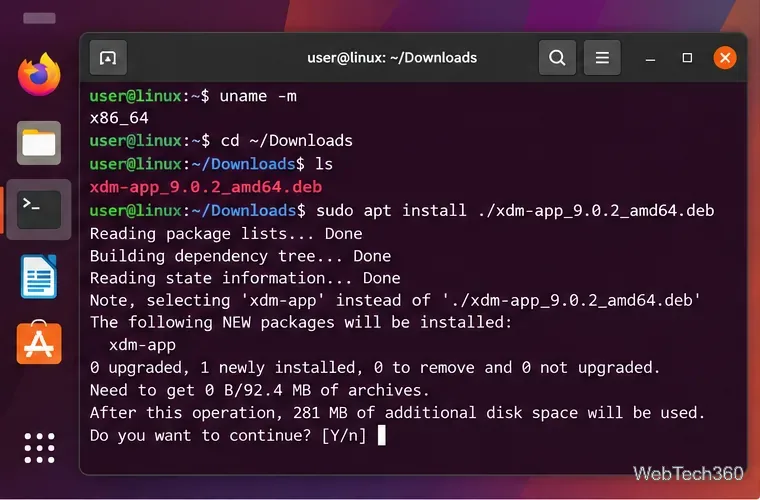
uname -m
x86_64 means x86-64/amd64. aarch64 means ARM64. Download the matching .deb, .rpm, Arch package, or portable .tar.gz from the official site.
2. Install Xtreme Download Manager
Open a terminal in your Downloads folder:
cd ~/Downloads
Then use the command that matches your distribution. XDM 9 package names begin with xdm-app; XDM 8 stable packages use xdman_gtk.
Fedora, RHEL, openSUSE:sudo dnf install ./xdm-app-*.rpm or the downloaded xdman_gtk-*.rpm
Arch, Manjaro, EndeavourOS:sudo pacman -U xdm-app-*.pkg.tar.zst or the downloaded xdman_gtk-*.pkg.tar.zst
The official install guide recommends apt install ./file.deb instead of dpkg -i because APT resolves dependencies automatically. For the XDM 9 portable build, extract the archive and run ./xdm-app/bin/xdm-app; note that the portable build does not create the normal menu entry or XDM URL handler. See the official Linux installation guide for the current package names.
Example of the XDM 9 pre-release package on Ubuntu. The stable XDM 8 package uses the xdman_gtk filename instead.
3. Connect XDM to your browser
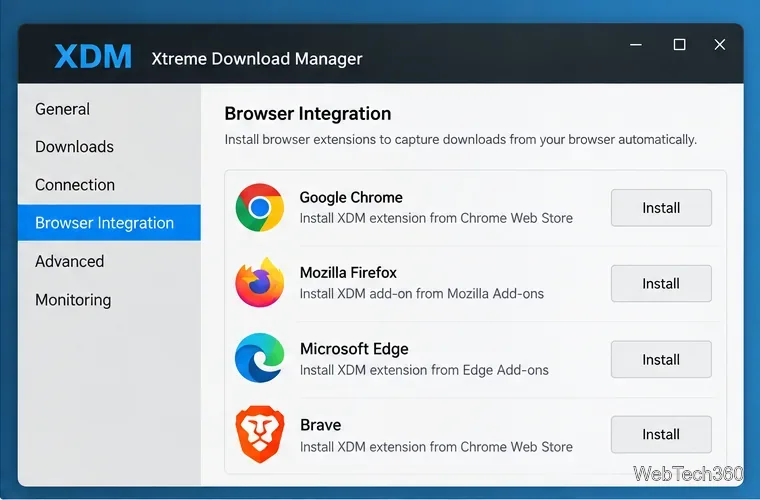
Start XDM from your application menu. On first launch, XDM offers browser integration. Install the XDM Integration Module for each browser you use, such as Chrome, Firefox, Edge, Brave, Opera, Vivaldi, or another compatible Chromium/Firefox-based browser.
The extension passes supported downloads to the XDM app running on your computer. The project says this connection is local-only, using 127.0.0.1. If you skipped the first-run prompt, open XDM's browser settings and install the extension from there. The current steps are documented in the official browser integration guide.
XDM browser integration lets supported download links open directly in the download manager.
4. Start a download and tune the speed
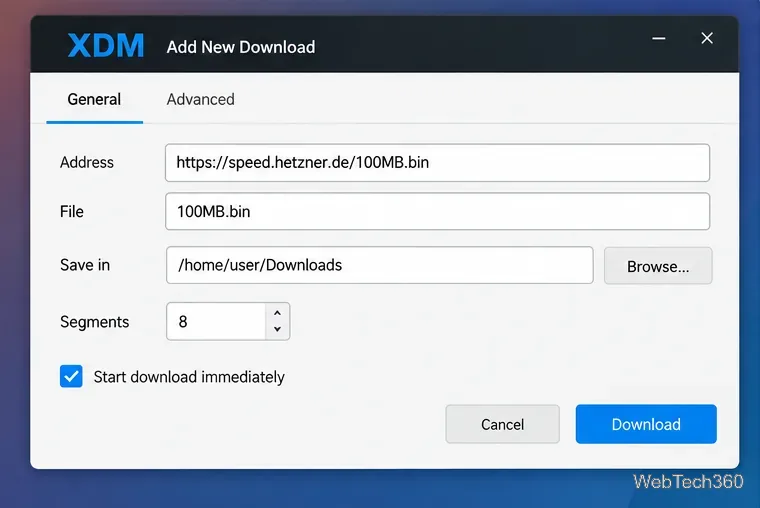
With the extension installed, click a normal download link in your browser. XDM can take over supported file types automatically. You can also right-click a link and choose Download with XDM, or open XDM and use New to paste a URL manually.
The New Download window lets you choose the destination and the number of segments for an individual download.
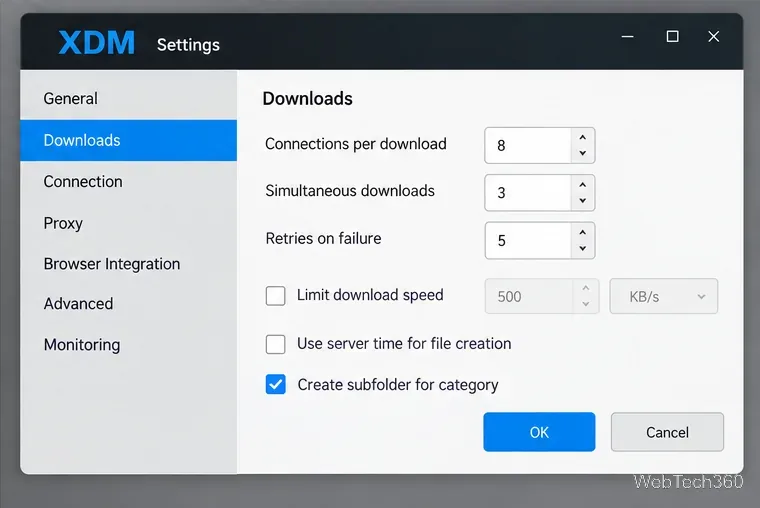
For most users, the important controls are under Settings > Downloads. XDM currently recommends 8 connections per download as a good default. On a fast connection, you can try 16. If a server starts refusing connections or producing errors, reduce the count to 2–4. Keep simultaneous downloads around 1–3 so several files do not simply divide the same bandwidth.
Start with eight connections per download, then adjust only if the server and your network benefit from a different value.
If XDM is still slow, check whether the global speed limiter is enabled, test your raw internet speed, try another download mirror, and compare performance without a VPN or proxy. Some servers do not support range requests, which prevents segmented downloading and resume support. XDM's official speed-tuning guide explains these limits and settings in more detail.
Bottom line: XDM can substantially improve Linux download throughput when the remote server limits single connections, but the “up to 5×” figure depends on the server, your network, and the number of usable segments. Use the current native packages, add the browser extension, and tune connection counts rather than relying on the obsolete Java and install-script instructions found in older guides.