How to Access a Windows BitLocker Partition in Linux

Use Dislocker to unlock a BitLocker volume in Linux, mount its virtual NTFS file read-only, and safely unmount it without exposing your password in a command.
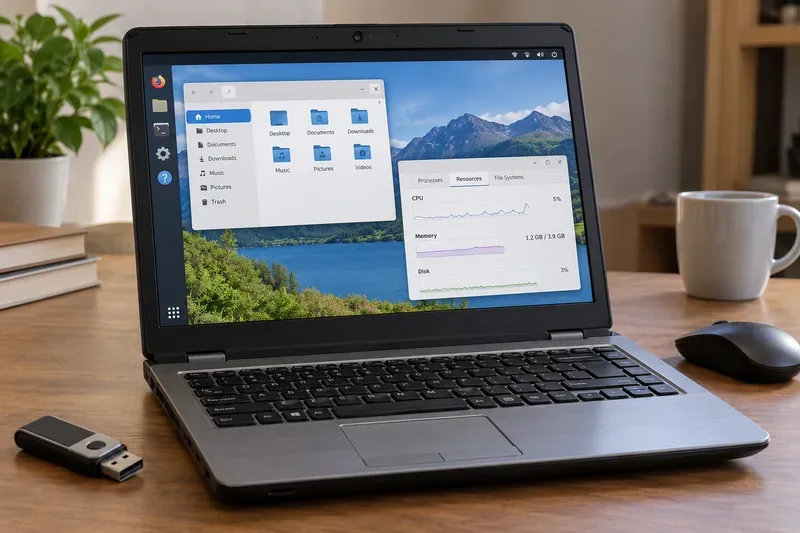
If you are considering Harmonica OS for an older laptop, the most useful current reference point is HamoniKR 8.0 “Paektu.” The official project says version 8.0 is based on Ubuntu 24.04 LTS, uses the Linux 6.8 kernel, and is supported through May 2034. That matters for older computers because the current release is not simply a lightweight distribution for aging hardware; it is a modern desktop operating system with a full edition and a lighter edition aimed at simpler tasks.
The official requirements also differ depending on which HamoniKR 8.0 edition you choose. The main 8.0 release lists a 2 GHz Intel or AMD dual-core CPU, 4 GB of DDR3 memory, 25 GB of storage, and at least 1024×768 resolution as minimum specifications. The separate installation documentation says the 8.0 Lite edition is intended for simple browser-focused PCs and starts at 2 GB of RAM and 20 GB of storage. For an older laptop, this distinction is more important than chasing a single “minimum requirements” number.
| Component | Main HamoniKR 8.0 minimum | Main HamoniKR 8.0 recommended | Older-laptop interpretation |
|---|---|---|---|
| CPU | Intel or AMD dual-core, 2 GHz or faster | Intel or AMD quad-core, 2 GHz or faster | A 64-bit dual-core machine can meet the stated floor, but a quad-core CPU gives more headroom for browsers and multitasking. |
| Memory | 4 GB DDR3 | 8 GB DDR4 at 2400 MHz or faster | 4 GB is the practical starting point for the full edition. The Lite documentation lists 2 GB for lighter use. |
| Storage | 25 GB | 50 GB SSD or HDD | An SSD is not required by the minimum specification, but replacing an old hard drive with an SSD can make a large real-world difference. |
| Display | 1024×768 | 1920×1080 | Older 1366×768 laptop panels are above the stated minimum resolution. |
These figures come from the official HamoniKR 8.0 download page and the HamoniKR 8.0 user guide. The project documentation should take priority over third-party requirement lists because edition details can change between releases.
Often, yes, but age alone is not a reliable compatibility test. A well-maintained laptop from the mid-2010s with a 64-bit Intel Core or AMD processor, 4 to 8 GB of RAM, and an SSD is much more promising than an equally old machine with 2 GB of RAM, a failing mechanical hard drive, and unsupported peripheral hardware.
For the full edition, treat 4 GB of RAM as a floor rather than a performance guarantee. Modern web pages, video calls, and multiple browser tabs can consume more memory than the desktop itself. If the laptop has 8 GB of RAM, it is much better positioned for ordinary office and web use. If it has only 2 GB, the official 8.0 Lite edition is the more appropriate candidate because HamoniKR describes Lite as suitable for simple internet PCs, kiosks, mini PCs, NAS systems, and similar lightweight roles.
Storage type is another major factor. The official minimum permits conventional storage, while the recommended specification accepts either SSD or HDD. On an older laptop, however, an SSD usually reduces application launch and boot delays dramatically compared with a worn 5400-RPM hard disk. That is a general hardware improvement rather than a HamoniKR-specific requirement, so it should be considered an upgrade recommendation, not an installation prerequisite.
The current 8.0 release moved to an Ubuntu 24.04 LTS base and Linux kernel 6.8. The project states that this release receives feature and security updates through May 2034. For older laptops, the newer kernel can be a benefit because it carries a broad set of current Linux drivers, but it does not mean every legacy Wi-Fi chip, discrete GPU, fingerprint reader, card reader, or special function key is guaranteed to work.
The safest approach is to separate “meets the CPU/RAM requirement” from “all hardware works.” A laptop may boot and run the desktop while still having one problematic device. Wireless networking, suspend and resume, sound, screen brightness keys, external video outputs, and touchpads are the items worth checking before replacing the existing operating system.
HamoniKR installation media for recent releases is 64-bit. Older HamoniKR documentation notes that nearly all PCs sold after 2007 use 64-bit processors, but very old netbooks and early low-cost laptops can be exceptions. If the machine has a 32-bit-only processor, current HamoniKR releases are not the right target.
If the laptop currently runs Windows, you can check the processor architecture in System Information or Settings before downloading an ISO. If it already runs Linux, the command lscpu can show the architecture. Look for x86_64 or AMD64-class support. Do not assume that a laptop is compatible merely because it has enough RAM.
Older laptops may use Legacy BIOS, UEFI firmware, or offer both through a Compatibility Support Module. HamoniKR’s official dual-boot instructions explicitly tell users to determine whether Windows was installed in Legacy/CSM or UEFI mode because the bootable USB should be prepared consistently with that mode. The project also distinguishes storage needs when planning a dual-boot setup.
This is good news for many older notebooks: UEFI is not the only path documented by the project. However, firmware implementations vary widely. Before installation, confirm that the USB stick actually appears in the laptop’s boot menu and that the live environment reaches the desktop without graphical corruption or repeated reboots. See the official HamoniKR 8.0 dual-boot guide for the project’s current Legacy/CSM and UEFI guidance.
Specifications can tell you whether installation is plausible, but a live USB is the better compatibility test. HamoniKR’s installation documentation directs users to download the ISO and verify its checksum before installation. Booting the ISO from USB lets you inspect hardware behavior without immediately overwriting the existing system.
During the live session, test Wi-Fi, Ethernet if available, speakers and headphone output, microphone input, screen brightness controls, touchpad tapping and scrolling, USB ports, webcam, sleep and wake behavior, and any external monitor connection you rely on. Open several browser tabs and the applications you expect to use. If the system becomes unresponsive under a realistic workload, meeting the written minimum specification may not be enough for your needs.
The official HamoniKR 8.0 installation guide also recommends checking the downloaded ISO with its checksum. That step is particularly useful when troubleshooting: a corrupted image can produce installation or boot problems that look like hardware incompatibility.
HamoniKR’s own 8.0 installation documentation lists 2 GB RAM and 20 GB storage for Lite and describes it as appropriate when a browser is the main requirement. That makes Lite the more defensible starting point for marginal hardware, rather than trying to force the full edition onto a system that only barely reaches its limits.
Older laptops often contain parts from several vendors, and model names alone do not reveal the exact Wi-Fi, graphics, audio, or touchpad controller inside. Two laptops sold under the same family name can have different wireless cards or displays. This is why a compatibility guide should not promise that a particular age or CPU generation will automatically work.
Be especially careful if your laptop depends on unusual hardware such as a proprietary docking station, discrete graphics switching, a fingerprint sensor, a cellular modem, or vendor-specific hotkeys. The HamoniKR system requirement page does not certify these components individually. If one of them is essential, test it in the live environment or search the HamoniKR community by the exact hardware ID rather than the laptop’s marketing name.
HamoniKR 8.0 can be a realistic option for many older laptops, but the best candidates are 64-bit systems with at least 4 GB of RAM and enough healthy storage to exceed the official minimum. A machine with 8 GB and an SSD is much more likely to feel comfortable for modern browsing and office work. For 2 GB systems, the officially documented Lite edition is the more appropriate test case.
The decisive step is not the age printed on the laptop’s receipt. It is whether the machine meets the current HamoniKR 8.0 requirements and whether its specific hardware works in a live USB session. Use the project’s official download and installation documentation as the baseline, test the laptop’s real devices before installation, and choose Lite when the hardware has limited memory or a narrowly defined workload.
Use Dislocker to unlock a BitLocker volume in Linux, mount its virtual NTFS file read-only, and safely unmount it without exposing your password in a command.
Learn how to reduce RAM usage on Linux by finding memory-hungry apps, trimming browser and startup load, and testing a lighter desktop safely.
Compare four WhatsApp alternatives for Linux by privacy defaults, desktop support, setup requirements, and the people each app suits.
Troubleshoot a VirtualBox VM that will not start on Linux by checking vboxdrv, kernel headers, Secure Boot, Extension Pack versions, and VM logs.
Transfer your Ubuntu user data with a tar archive and external drive, then restore personal files and selected settings without overwriting the new setup.
Install gThumb on Linux, browse and make simple photo edits, then set it as the default app for the image types you choose in GNOME.
Create an organized playlist in Rhythmbox or save a reusable XSPF playlist in VLC. Learn how to add tracks, name a list, and reopen it on Linux.
Install Dino on Linux with Flatpak or your distribution’s package manager. Get current Ubuntu, Debian, Fedora, and Arch commands, plus first-launch tips.
Install Arch Linux’s linux-lts kernel, add it to GRUB or systemd-boot, select it at startup, and verify it while keeping a fallback kernel.
Download the right Pi 4 image, write it to a microSD card, and complete LibreELEC’s first-run setup with Raspberry Pi Imager.








