Home
» LINUX
»
How to Access a Remote Linux Computer From an iPad
How to Access a Remote Linux Computer From an iPad
You can access a remote Linux computer from an iPad in three practical ways: SSH for command-line work, SFTP for file transfers, and a remote-desktop app when you need the full graphical interface. For most administration, SSH is the fastest and simplest option. If the Linux computer is outside your home or office network, use a private VPN such as Tailscale instead of exposing SSH directly to the public internet.
Prepare the Linux computer for SSH
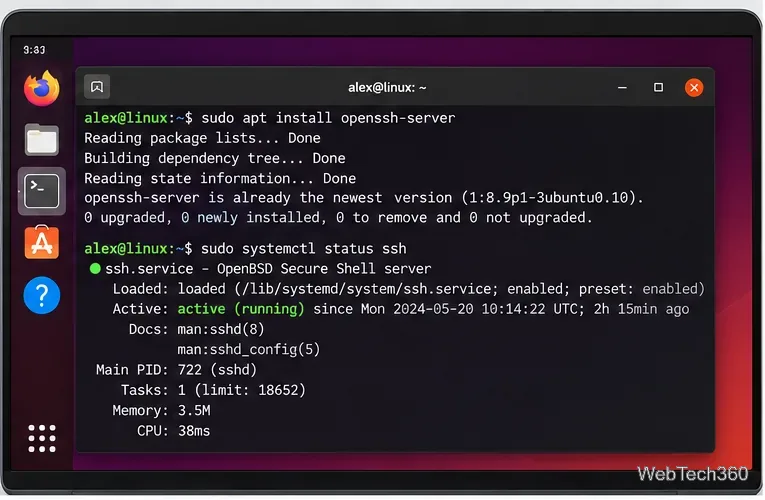
The Linux machine must be running an SSH server before the iPad can connect. On Ubuntu, the official OpenSSH server documentation uses the openssh-server package. Install it and start the service:
Check the service with systemctl status ssh. Other distributions may call the service sshd. You also need the Linux account name and the computer's IP address or hostname. On a local network, hostname -I can help you find the machine's addresses; choose the address that belongs to your trusted LAN.
OpenSSH provides the encrypted terminal and SFTP services used by the iPad connection.
Connect from the iPad with an SSH client
iPadOS does not include a general-purpose SSH terminal, so install a client. This guide uses Termius from the App Store; its iPad client supports SSH and SFTP. Other reputable SSH clients can work as well.
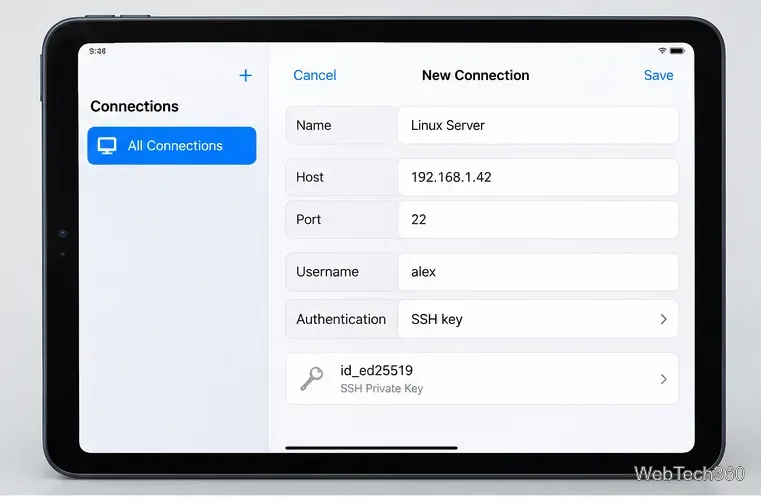
Create a new host in the app and enter the Linux machine's hostname or IP address, your Linux username, and the SSH port. OpenSSH uses port 22 by default, as documented in the OpenSSH sshd_config manual, unless you changed the server configuration.
Authenticate with either your Linux password or, preferably, an SSH key. Termius supports key management, and OpenSSH can authorize public keys through ~/.ssh/authorized_keys. On the first connection, verify the server's host-key fingerprint before accepting it. Do not disable password authentication on the Linux server until you have confirmed that key-based login works.
An SSH connection needs the Linux host address, port, username, and an authentication method.
Transfer files with SFTP
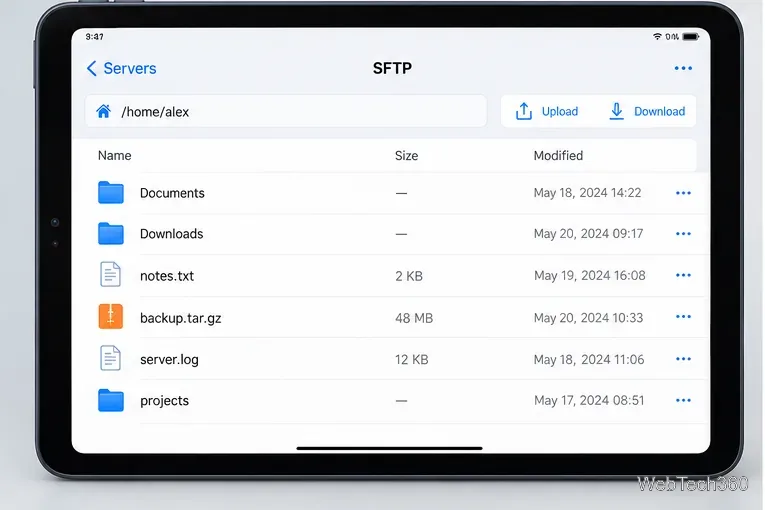
You do not need a separate FTP server for secure file transfers. SFTP is an SSH subsystem, so the same OpenSSH service, account, and authentication can be used. In Termius, open the SFTP browser for the saved host, then navigate the remote filesystem and upload or download the files you need.
Keep normal Linux permissions in mind: your remote account can only read or write locations that the account is allowed to access. Avoid logging in as root just to make file transfers easier; move files with appropriate permissions or use sudo from the terminal when administration is required.
SFTP lets the iPad browse and transfer files over the same encrypted SSH connection.
Access the full Linux desktop from the iPad
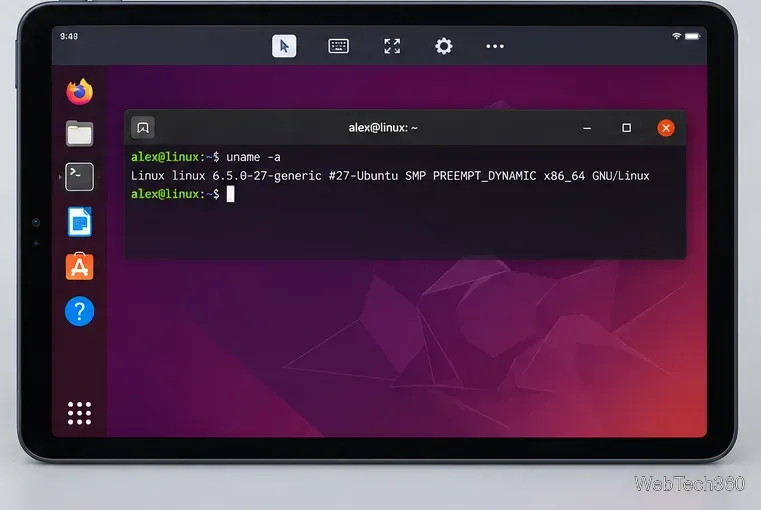
If you need graphical applications rather than a terminal, a remote-desktop tool is more suitable. One current option is AnyDesk. Install the Linux client from the official AnyDesk Linux download page and the AnyDesk iPad app. Then enter the Linux computer's AnyDesk ID or Alias on the iPad and approve the connection on Linux.
For unattended access, AnyDesk's current documentation says to set an Unattended Access password on the remote computer. Use a strong, unique password and enable two-factor authentication where available. Installing AnyDesk, rather than relying on its portable Linux build, is the better choice when you need the machine to remain reachable after a restart.
There is one important Linux limitation: AnyDesk currently requires an Xorg session for incoming connections. Its Linux support page says Wayland can initiate outgoing sessions but cannot receive them. Run echo $XDG_SESSION_TYPE on Linux to check your session type.
A remote-desktop session gives the iPad interactive access to the Linux graphical desktop.
Connect safely when you are away from the local network
A private mesh VPN is usually safer and easier than forwarding TCP port 22 through your router. With Tailscale, install the client on Linux and on the iPad, sign both devices into the same tailnet, then use the Linux computer's Tailscale IP address or MagicDNS hostname in your SSH client. Tailscale's iOS and iPadOS setup guide covers the mobile side. This lets you keep SSH off the public internet while still connecting from another network.
Quick troubleshooting
Problem
What to check
Connection refused
Confirm the SSH service is running, the port is correct, and the Linux firewall allows the connection.
Connection times out
Check the IP address, Wi-Fi or VPN path, router rules, and whether the remote machine is online.
Host-key warning
Do not ignore an unexpected fingerprint change. Verify the server's current host key before reconnecting.
AnyDesk cannot receive a Linux session
Check echo $XDG_SESSION_TYPE; incoming AnyDesk connections require Xorg rather than Wayland.
For routine Linux administration from an iPad, SSH plus SFTP is usually all you need. Use remote desktop only when the graphical interface is necessary, and use a VPN when the Linux machine is not on the same trusted network.