Home
» LINUX
»
How to Access Your Linux PC Remotely with NoMachine
How to Access Your Linux PC Remotely with NoMachine
NoMachine lets you control a Linux desktop from another computer. Install NoMachine Personal Edition on the Linux PC you want to reach, then use NoMachine Player on your client device. A LAN connection uses the host’s private IP; access from outside the network needs a VPN, NoMachine Network, or router port mapping.
Check licensing and requirements
New NoMachine version 10 host installations use Personal Edition, which must be activated with a subscription before it accepts remote connections. NoMachine offers a free 14-day evaluation. The separate client, now called NoMachine Player, is free. Existing free server installs on version 9 or earlier can keep running, but cannot be upgraded to version 10 without a Personal Edition subscription.
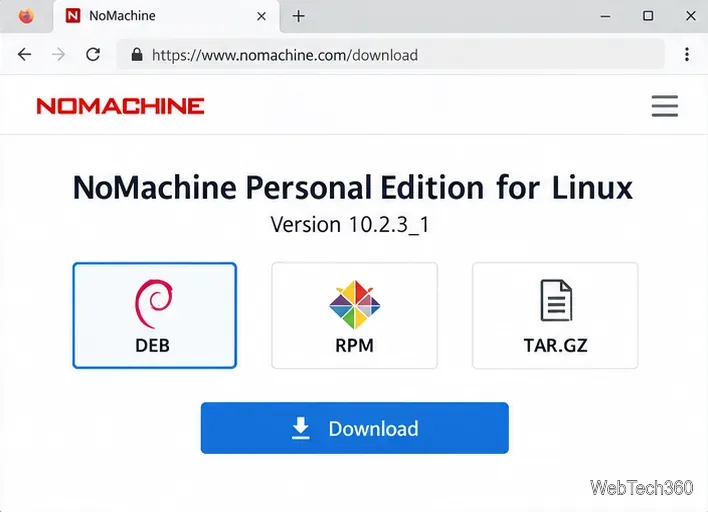
The host needs a Linux desktop environment and must be powered on and online. Download the current package for its distribution and processor from the official Linux download page: DEB for Debian or Ubuntu, RPM for Fedora or openSUSE, or TAR.GZ for other setups. Check the installation guide if you need distribution-specific instructions.
Set up remote access in five steps
1. Install and activate NoMachine on the host
Install Personal Edition on the Linux PC you want to access, using its graphical package installer or terminal. For example, Debian and Ubuntu use sudo apt install ./nomachine-personal-edition_<version>_amd64.deb; Fedora uses sudo dnf install ./nomachine-personal-edition_<version>_x86_64.rpm. Replace <version> with the downloaded file’s version. For TAR.GZ, follow NoMachine’s documented nxinstall --install procedure. Launch NoMachine and complete the activation prompt.
Choose the package format that matches the Linux host.
2. Install NoMachine Player on your client
Install NoMachine Player on the computer you will connect from. It runs on Linux, Windows, and macOS, so the client and host can use different operating systems. If the client already has a NoMachine package installed, it includes the Player component.
3. Find the host’s LAN address
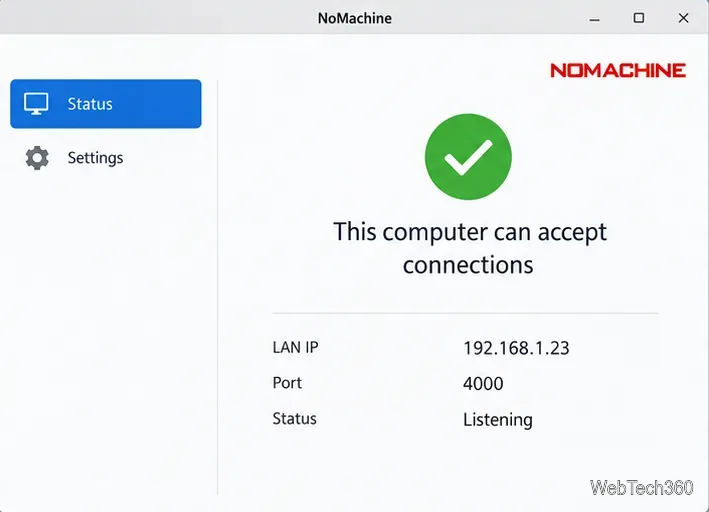
On the Linux host, open NoMachine’s Welcome panel or Server Status screen and note its private IP address. An address such as 192.168.1.23 is an example only. Keep both computers on the same LAN, or connect the client to that LAN through a VPN. The host must remain awake and connected for remote access.
Record the LAN address displayed on the host; this example is illustrative.
4. Add the connection and sign in
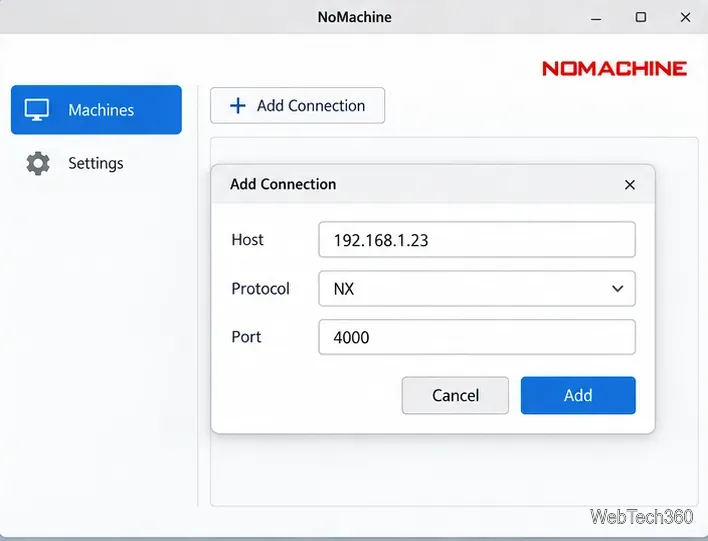
Open Player on the client. If the Linux computer appears in the Machines list, double-click it. Otherwise choose Add and enter the host’s reachable IP address. For a standard connection, use protocol NX and port 4000, then save the entry. These are NoMachine’s usual defaults; use a different port only if you changed the host configuration. See the official Getting Started guide for the connection flow.
Enter the host address and keep the default NX port unless you changed it.
Start the saved connection and enter the username and password for an account on the Linux host. These are the host’s system credentials, not your NoMachine website password. After authentication, the remote desktop opens in the Player window.
5. Work remotely and disconnect
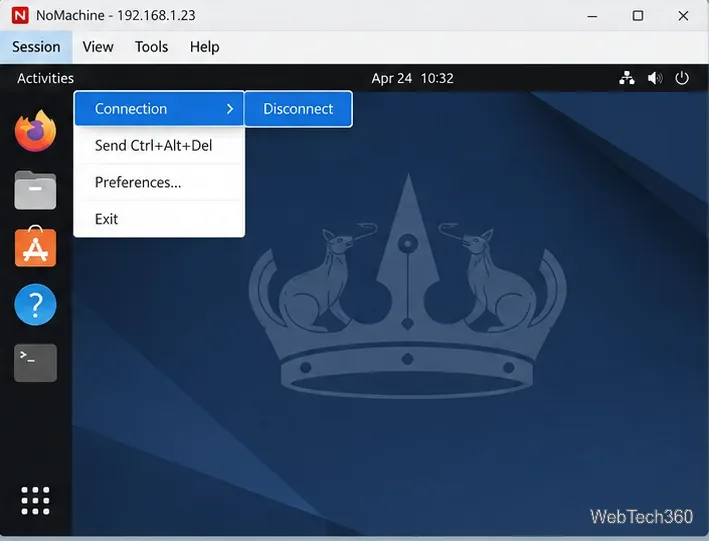
Use the remote Linux desktop from the Player window. To end the connection, close that window or open the NoMachine session menu with Ctrl+Alt+0, then choose Connection and Disconnect. Disconnecting ends the remote link; use Linux’s log-out command separately if you intend to sign out of the host account. The Player version 10 guide documents this menu.
Choose Disconnect to close the remote link; log out of Linux separately if needed.
Connect from outside your local network
A private address such as 192.168.1.23 cannot be reached directly over the public internet. The simplest option is to connect through a trusted VPN to your home or office network, then use the host’s LAN address. Alternatively, NoMachine Network provides a Machine ID for reaching a computer behind NAT or a firewall; it is a separate service with a 7-day trial.
For direct access, configure router port mapping to send an external port to the Linux host’s NX service. NoMachine’s networking guide lists TCP port 4000 as the default. Allow the configured port through the host firewall, then connect with the router’s public address and external port. Verify the address and port in NoMachine status rather than assuming automatic UPnP/NAT-PMP mapping succeeded. A VPN avoids exposing the remote desktop port directly to the internet.
Troubleshoot a failed connection
Host not listed: confirm both devices are on the same LAN or VPN and NoMachine is running on the host.
Connection times out: recheck the host’s current IP, firewall rule, and NX port. Guest Wi-Fi can block device-to-device traffic.
Login fails: enter a valid Linux username and password for the remote host.
It works only at home: connect through a VPN, NoMachine Network, or correctly configured router mapping. A private LAN address alone cannot reach the host over the internet.