Home
» LINUX
»
How to Add and Remove Custom Software Sources on openSUSE Linux
How to Add and Remove Custom Software Sources on openSUSE Linux
On openSUSE, custom software sources are package repositories. Add one through YaST’s Software Repositories tool or with zypper addrepo; remove it in YaST or with zypper removerepo. Removing a repository deletes its source configuration. It does not uninstall packages already installed from that source.
Before you add a third-party repository
Get the repository URL from the software maintainer’s official instructions, and confirm that it supports your exact openSUSE release. A repository for one Leap version may not be suitable for another, and Tumbleweed repositories should target Tumbleweed. openSUSE warns that incompatible third-party sources can affect future package updates; its software procurement guide explains the risks of mixing sources and distribution versions.
Prefer an HTTPS address and a publisher you trust. Repositories can provide signed metadata and packages, and YaST or zypper may ask whether to import a signing key. Verify the key through the maintainer’s own documentation or another trusted channel before accepting it. A prompt by itself is not proof that a key belongs to the publisher.
Add a repository with YaST
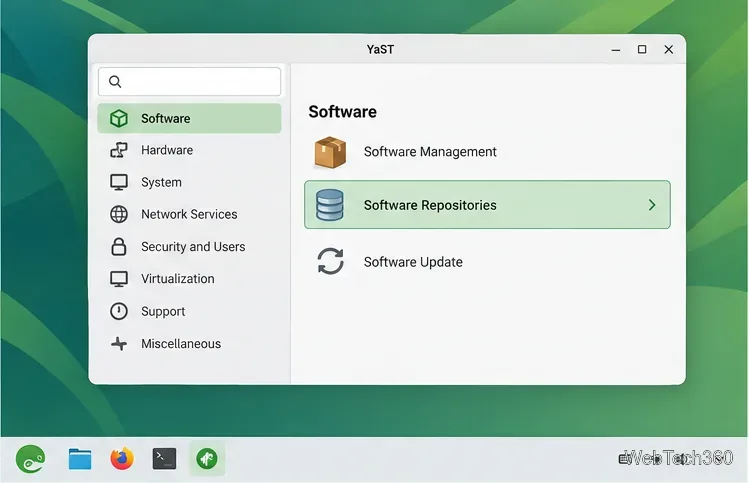
Open the Software Repositories tool from YaST’s Software section.
Open YaST from the application menu and select Software > Software Repositories. The wording may vary slightly by release or desktop, but the openSUSE Leap guide uses this path for the configured repository manager.
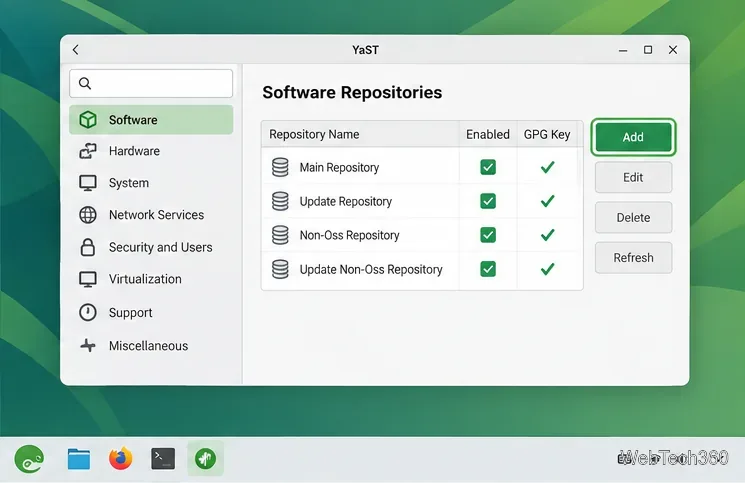
Choose Add, select the network or URL option (often labeled Specify URL), and continue.
The repository manager shows configured sources and the Add control.
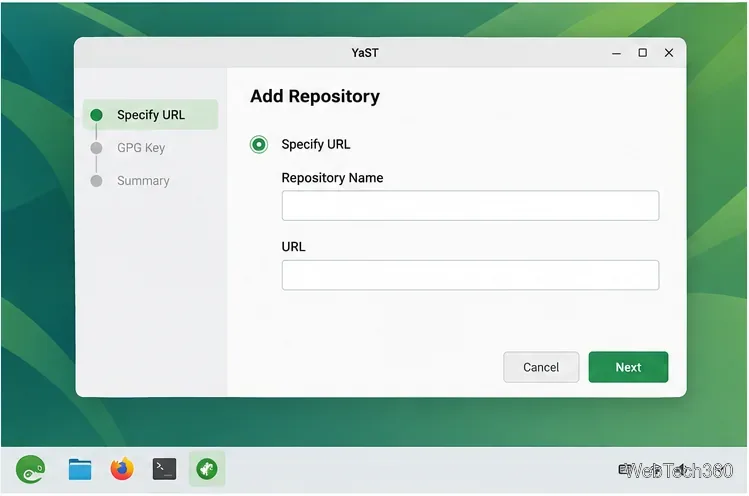
Enter a short, recognizable repository name and paste the exact repository URL. Use the URL provided for your distribution, not the project’s home page or a generic download page.
Enter the repository’s name and the exact URL supplied by its maintainer.
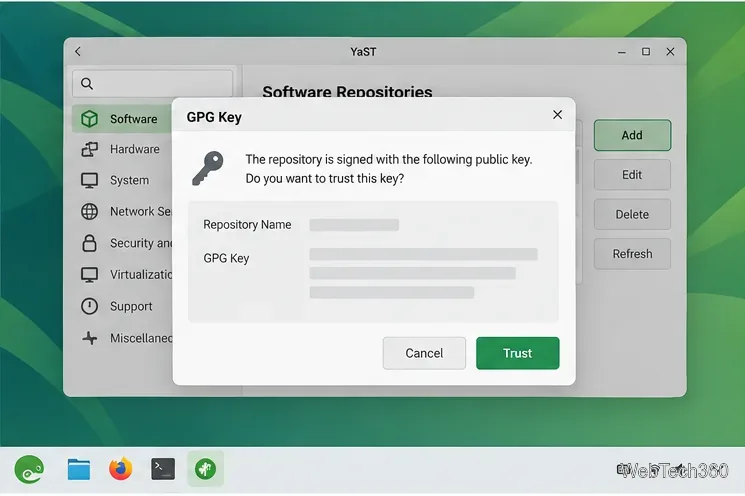
Continue through the review screen. If YaST displays a GPG key prompt, check the key details against the publisher’s instructions. Cancel if the key cannot be verified or does not match. If it checks out, accept the key and let YaST download the repository metadata.
Review the repository list, then choose OK or Accept to save the change. The official openSUSE Leap Start-Up guide documents YaST’s repository manager and its signing-key prompt.
Review a repository signing key before importing it.
Add a repository with zypper
The terminal method is useful on servers or when YaST is unavailable. First, check the repositories already configured so you can choose a unique alias:
zypper repos --details
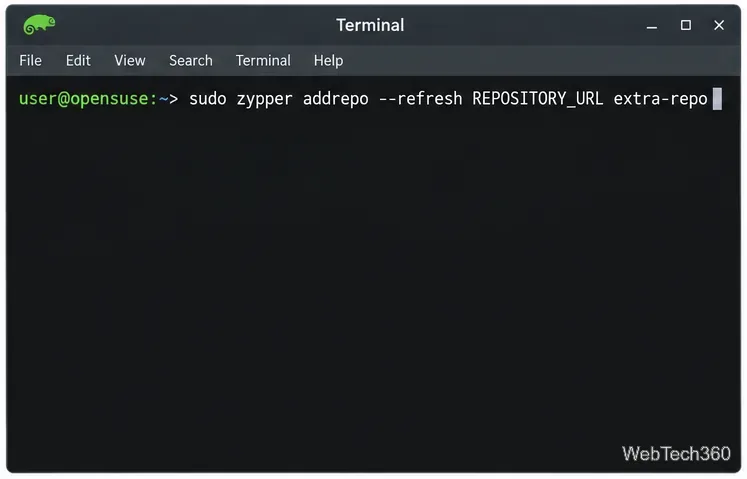
Then add the third-party source. Replace REPOSITORY_URL with the exact URL from the provider and choose an unused, simple ALIAS such as extra-repo:
sudo zypper addrepo --refresh REPOSITORY_URL ALIAS
sudo zypper refresh
The zypper command adds a repository and turns on automatic refresh.
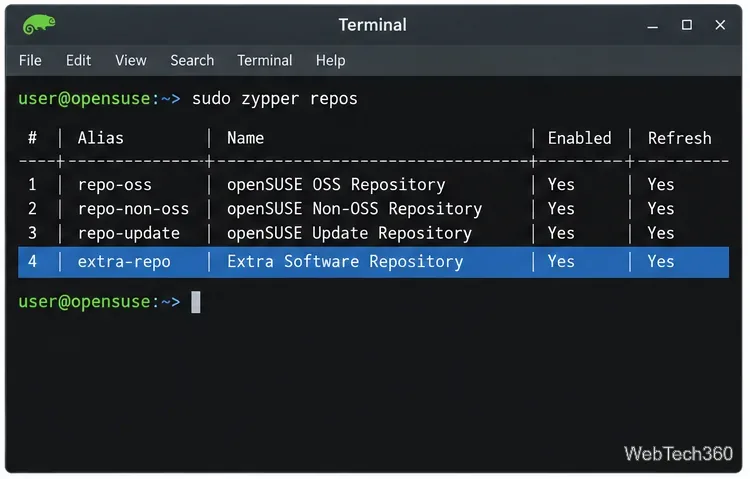
The --refresh option enables automatic metadata refresh for that source. This matters on Tumbleweed, where new repositories may not have automatic refresh enabled by default; the openSUSE post-installation recommendations call out this setting. After zypper finishes, verify the name, URL, enabled state, and refresh status with:
zypper repos --details
Use the Alias column to identify the source you plan to remove.
Remove a custom source
In YaST
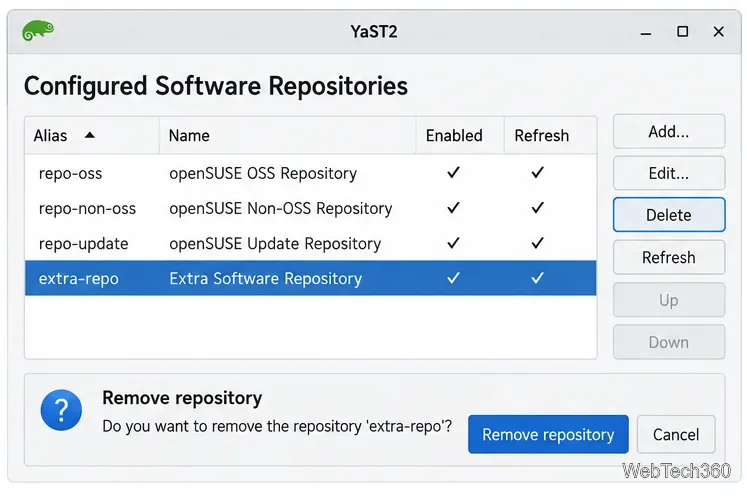
Open Software > Software Repositories again. Compare the selected row’s name and URL with the third-party source you intend to remove, choose Delete, and confirm. Apply the change with OK or Accept. Do not remove the core openSUSE product or update repositories unless you understand what depends on them.
Confirm the selected entry is the third-party repository before removing it.
In the terminal
List repositories and find the exact alias. The alias is safer to use than a row number, which can change when the list changes:
zypper repos --details
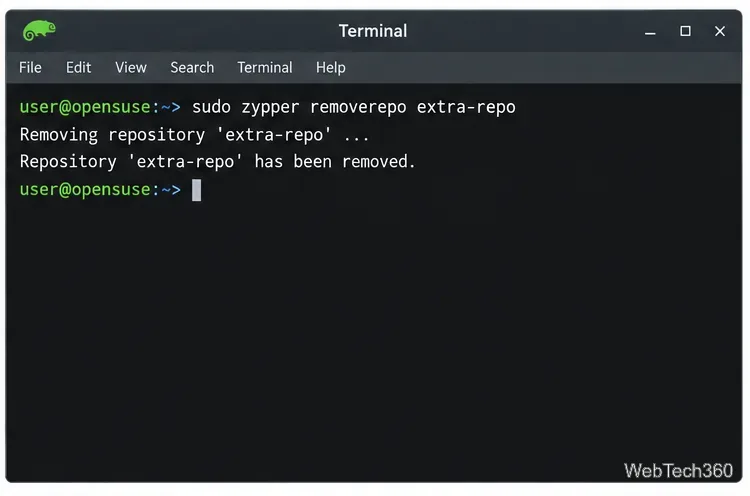
sudo zypper removerepo ALIAS
For example, if the unwanted source’s alias is extra-repo, run sudo zypper removerepo extra-repo. Confirm the removal in zypper’s output, then run zypper repos --details again to check that the alias is gone.
zypper confirms when the selected repository definition has been removed.
Removing a source stops zypper from looking there for package metadata and updates. Packages already installed remain on the system; remove a package separately through YaST Software Management or zypper remove PACKAGE if that is also your goal. If an installed app came from the source, plan where its future updates will come from before deleting the repository.
Quick checks if something goes wrong
Refresh returns an error: recheck the URL for typos and make sure it points to a repository for your exact Leap release or Tumbleweed.
The alias is already in use: choose a different unique alias, then rerun addrepo.
A signing-key warning appears: stop and verify the key with the publisher. Do not disable signature checks to force the repository to work.
You are unsure which entry is custom: inspect the repository URL and name in YaST or zypper repos --details before deleting anything.