Home
» LINUX
»
How to Add Controller Support to Minecraft on Linux
How to Add Controller Support to Minecraft on Linux
Minecraft: Java Edition on Linux does not currently include native controller support, but you can add it with a client-side controller mod. For a current, straightforward setup, this guide uses Fabric Loader with Controlify. Controlify supports Linux through SDL3, works with Fabric and NeoForge, and adds controller input for gameplay, menus, inventories, chat, remapping, vibration, and other features.
Start with a working Minecraft: Java Edition installation on Linux.
What you need
A working copy of Minecraft: Java Edition. The official launcher supports Linux; download it from Minecraft.net if necessary.
A controller that Linux can detect over USB or Bluetooth.
A mod loader. This guide uses Fabric, but Controlify also supports NeoForge.
A Controlify file that matches both your Minecraft version and your mod loader.
Before changing anything, back up important worlds. Also avoid mixing mod files made for different Minecraft versions; a version mismatch is one of the most common causes of launch failures.
1. Install Fabric Loader for your Minecraft version
Close Minecraft and the launcher first. Download the Universal JAR from the official Fabric installer page. If the JAR does not open by double-clicking, run it from a terminal with:
java -jar fabric-installer.jar
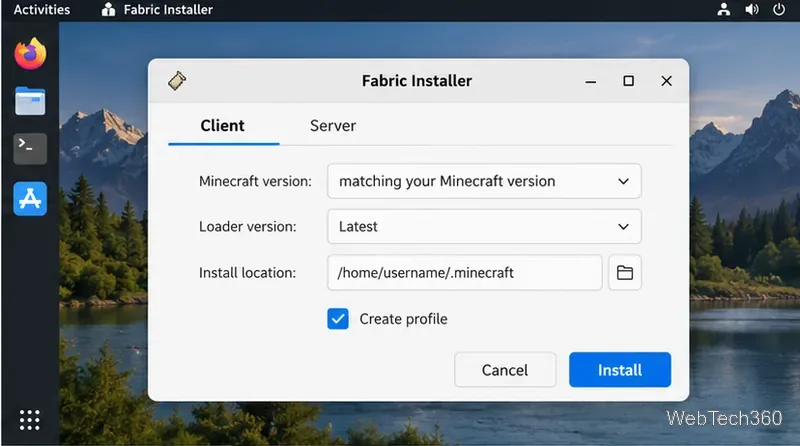
In the Fabric Installer, choose Client, select the exact Minecraft version you intend to play, leave Create profile enabled, and install. Fabric's current Linux documentation recommends using the installer this way and then selecting the Fabric profile in the Minecraft Launcher.
Install Fabric for the same Minecraft version you plan to use with Controlify.
2. Download the matching Controlify build
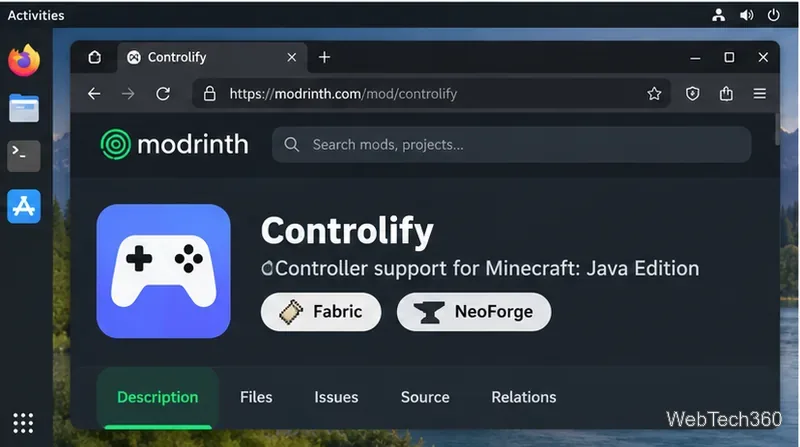
Open the Controlify page on Modrinth and choose a release that matches your Minecraft version and loader. Controlify's current project documentation lists both Fabric and NeoForge support, so do not download a NeoForge build for a Fabric profile or vice versa.
Choose Controlify for the same Minecraft version and loader installed on your system.
3. Put Controlify in the mods folder
For the standard Minecraft directory, create the mods folder if it does not already exist:
mkdir -p ~/.minecraft/mods
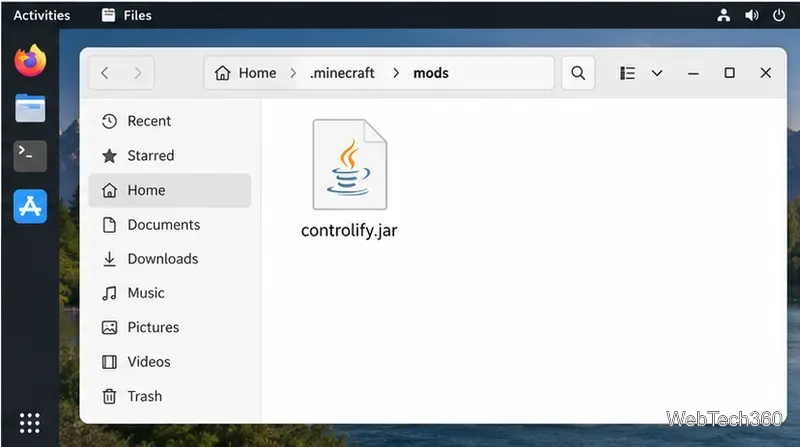
Then copy or move the downloaded Controlify JAR into ~/.minecraft/mods/. If your launcher installation uses a custom game directory, place the JAR in that installation's own mods folder instead.
The Controlify JAR belongs in the mods folder used by your Fabric installation.
4. Connect the controller in Linux
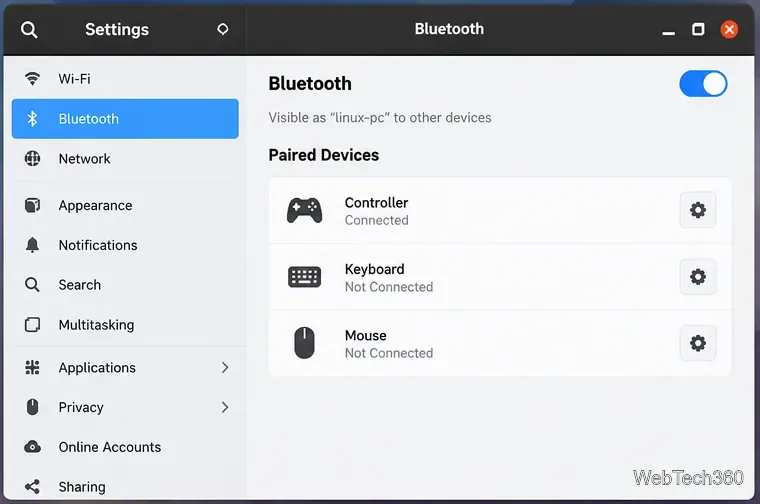
Connect the controller with USB or pair it in your desktop's Bluetooth settings. Confirm that Linux sees it before launching Minecraft. Controlify uses SDL3 for gamepad and joystick input; its controller support page notes that support can vary by controller model, connection type, operating system, and driver.
Make sure the controller is connected at the Linux desktop level before starting Minecraft.
5. Launch the Fabric profile
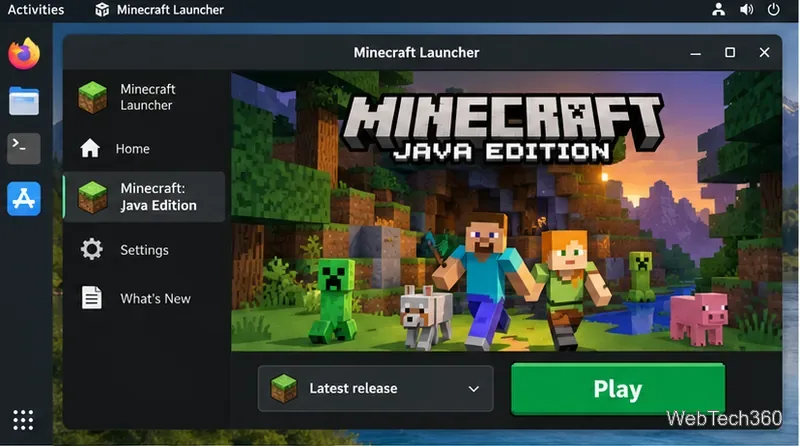
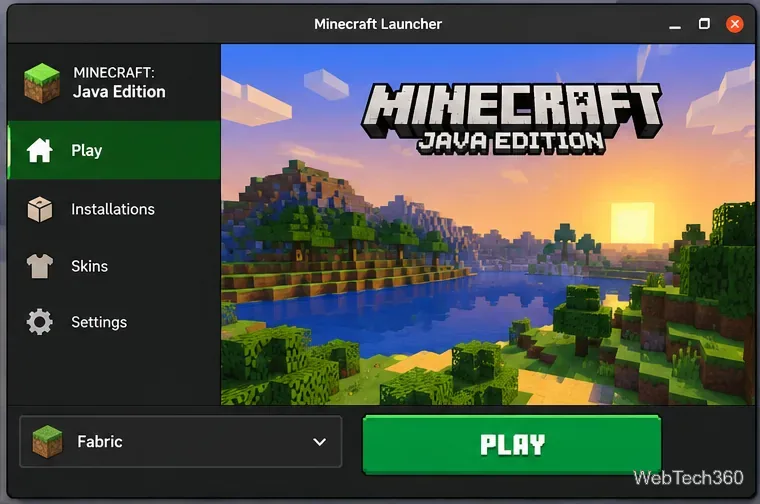
Open the Minecraft Launcher, select the Fabric profile that matches the version used in the previous steps, and click Play. If Minecraft starts without Controlify, recheck the game directory and confirm that the JAR is in the correct mods folder.
Start Minecraft with the Fabric profile, not the unmodified latest-release profile.
6. Configure controller input in Minecraft
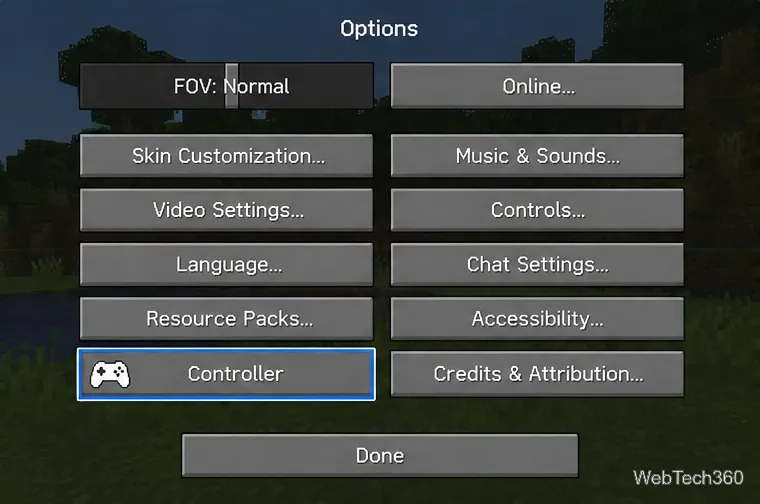
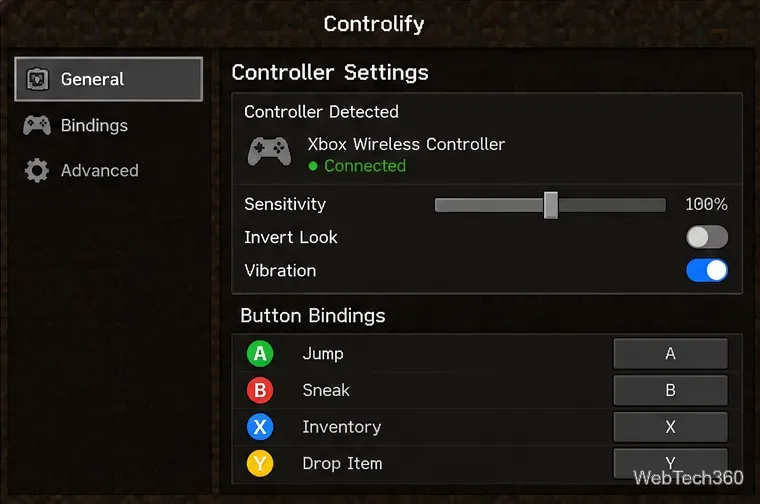
Once Controlify loads, open its controller settings or profile screen from Minecraft's options. The exact wording and layout can change between releases, but Controlify provides settings for bindings, sensitivity, deadzones, vibration, and supported advanced features. It can also show controller-specific button glyphs and lets you operate Minecraft menus with the gamepad.
After the mod loads, use its controller entry from the game options to adjust the gamepad.
Test movement, camera control, inventory navigation, attack/use actions, and pause/menu controls in a single-player world before joining a server. Controlify's documentation says normal servers do not need the mod installed server-side; on servers, stick movement may default to keyboard-like WASD behavior for anti-cheat compatibility.
Use Controlify's settings to tune sensitivity, vibration, and button mappings for the connected controller.
If the controller is not detected
Verify Linux detection first: disconnect and reconnect the controller, or remove and re-pair it over Bluetooth.
Match all versions: Minecraft, Fabric or NeoForge, and Controlify must be compatible with each other.
Check the game directory: third-party launchers and custom installations may use a different mods folder.
Try USB: if Bluetooth behaves inconsistently, a wired connection can help isolate a pairing or driver issue.
Check model-specific notes: features such as gyro, touchpad input, HD haptics, or adaptive triggers depend on the controller and Linux driver. The official Controlify compatibility table records tested combinations.
What about the Controllable mod?
The older version of this guide used Forge with Controllable. Controllable is still maintained and now publishes builds for current loaders, including Fabric and NeoForge. If an existing modpack already depends on Controllable, use the release that matches that pack. For a fresh Linux setup, Controlify is a strong choice because its current documentation explicitly covers Linux controller support, modern loaders, remapping, SDL3 input, and controller-specific capabilities.