Home
» LINUX
»
How to Add Folder Shortcuts to the Xfce Menu
How to Add Folder Shortcuts to the Xfce Menu
To add file folders to the Xfce menu, create application launchers that open each folder in Thunar. You can group them under a custom category such as Places, then choose a folder name and command for each entry. Clicking a menu item opens the folder; it does not display the folder contents inside the menu.
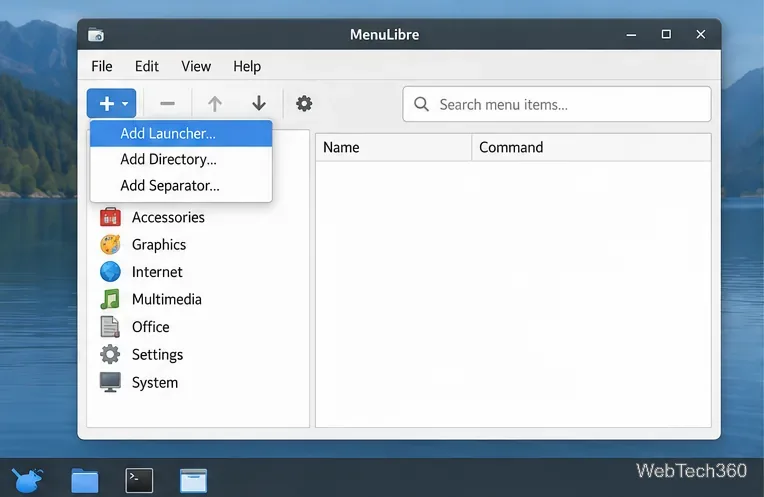
In MenuLibre, use the plus menu to add a launcher or a menu directory.
Before you start
This method uses MenuLibre, a graphical menu editor used with Xfce in Xubuntu. It can create launchers and categories, and lets you edit a launcher's name, command, and icon. If MenuLibre is not installed, look for MenuLibre or menulibre in your Linux distribution's software center or package repository. Package names and availability differ by distribution, so use its official software source.
Open the editor from Menu → Settings Manager → Menu Editor, or right-click the Applications Menu button and choose Edit Applications. Some distributions label these options differently. If you already have a menu editor, you can use it as long as it edits the Xfce Applications menu.
Xfce's menu is built from application launchers and a menu layout. The Xfce documentation describes adding desktop entries for menu items, while Xubuntu documents MenuLibre for creating launchers and categories. That makes a launcher a practical way to put a folder one click away.
Add a folder shortcut with MenuLibre
Create a category. In MenuLibre, click the plus button and choose Add Directory. Enter a category name, such as Places. This category acts like a submenu for the folder shortcuts you create.
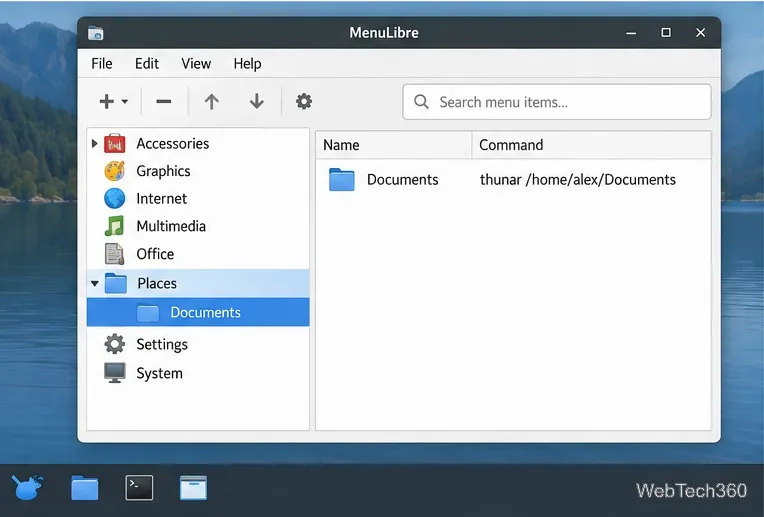
Select the category. Click Places in the menu tree so the new launcher is added in the right location.
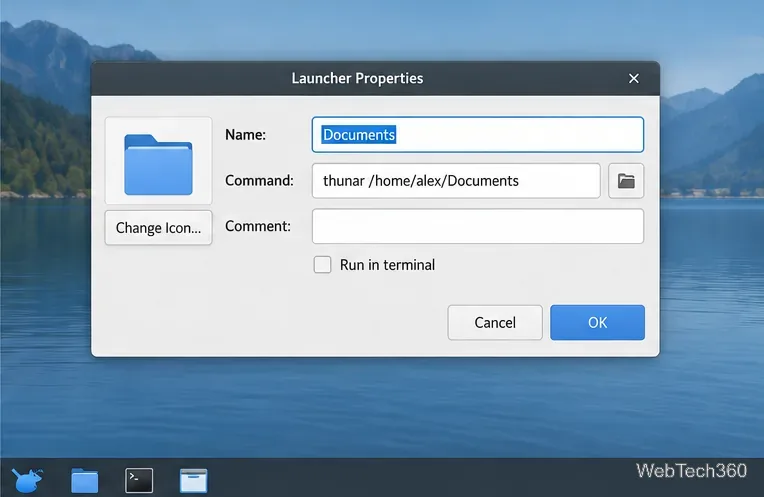
Add a launcher. Click the plus button, choose Add Launcher, and enter a clear name for the folder. For example, use Documents for your Documents directory.
Set the launcher name and point its command to the folder path you want Thunar to open.
In the launcher's Command field, enter thunar /home/alex/Documents, replacing /home/alex/Documents with the full path to your own folder. You can find the path in Thunar by opening the folder and checking the location bar. For a path containing spaces, put the path in quotation marks, for example thunar "/home/alex/Work Files". Use the actual folder path rather than the placeholder username in an example.
Thunar is Xfce's file manager. When you select this launcher, Xfce runs Thunar with the chosen directory. The folder must exist, and your account needs permission to open it. Leave Run in terminal unchecked because this command opens a graphical file manager.
Keep folder launchers together by placing them inside a Places category.
Choose an icon and save. Click the icon area if you want a folder-specific icon; this is optional. Then save the launcher in MenuLibre. Repeat the launcher step for each folder, keeping the entries together under Places.
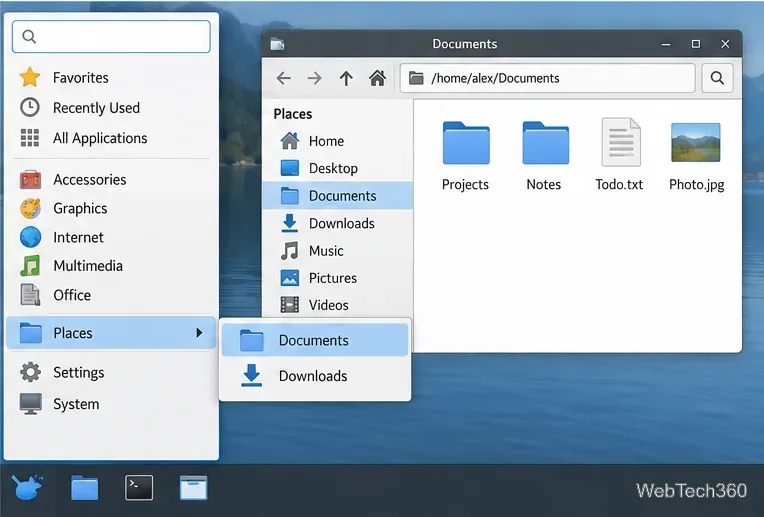
Test the menu entry. Open the Xfce Applications Menu, select Places, and click the folder name. Thunar should open at that location.
If the shortcut does not appear
Check the command. Confirm the path is correct and that the folder exists. If the path includes spaces, quote it. You can run the same command in a terminal to see whether Thunar can open the directory.
Check the menu editor target. Menu tools can edit different menu files. Alacarte, for example, follows the Freedesktop menu specification and edits the menu selected by the XDG_MENU_PREFIX environment variable. Make sure it is editing the Xfce menu before saving changes. MenuLibre is the editor documented by Xubuntu for this workflow.
Refresh the menu. Close and reopen the menu after saving. If your distribution caches menu data, log out and back in or restart the panel using your distribution's usual method.
Optional: search for folder launchers
If you use Whisker Menu, its search can find applications by their names and descriptions. Give each launcher a distinctive name, such as Projects Folder, to make it easier to find. The search finds the launcher entry; it does not search the files inside that folder or match the folder's full path. To add Whisker Menu, install the xfce4-whiskermenu-plugin package from your distribution's repository, then right-click the panel and use Panel → Add New Items. You can keep the regular Applications Menu if you prefer.
In Whisker Menu, the Places category can list folder launchers while Thunar opens the selected directory.