Home
» LINUX
»
How to Add Music Files to Lollypop on Linux
How to Add Music Files to Lollypop on Linux
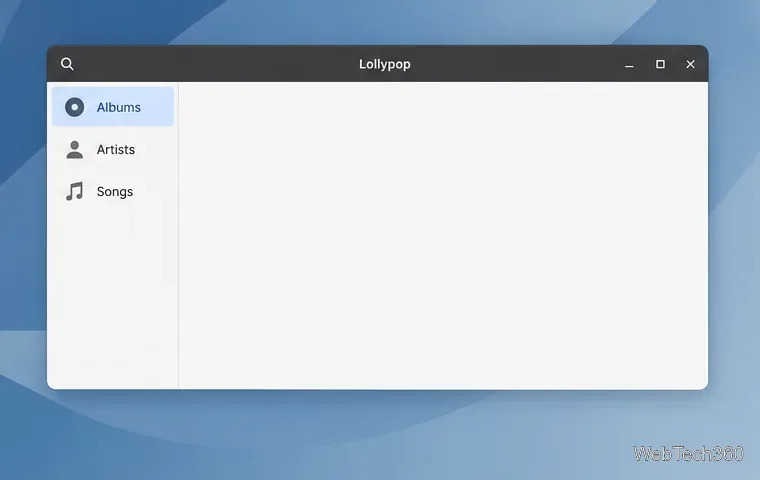
To add music files to Lollypop on Linux, open the app’s Preferences, select Music, and add the folder that contains your audio. Lollypop scans the folders listed in its music settings; it does not move or copy your tracks. After the scan, browse the collection from the app’s Albums, Artists, or Songs views.
The steps below follow the usual GNOME-style layout. A Linux theme or package can change where the app menu appears, but the setting to look for is the Music folder list in Preferences.
The library view is where you can check whether the collection appears.
Open Lollypop’s Music preferences
Launch Lollypop from your desktop’s applications menu.
Open the app menu in the header bar, usually the button with three horizontal lines, and choose Preferences. On some desktop layouts, the application menu may appear in a different place.
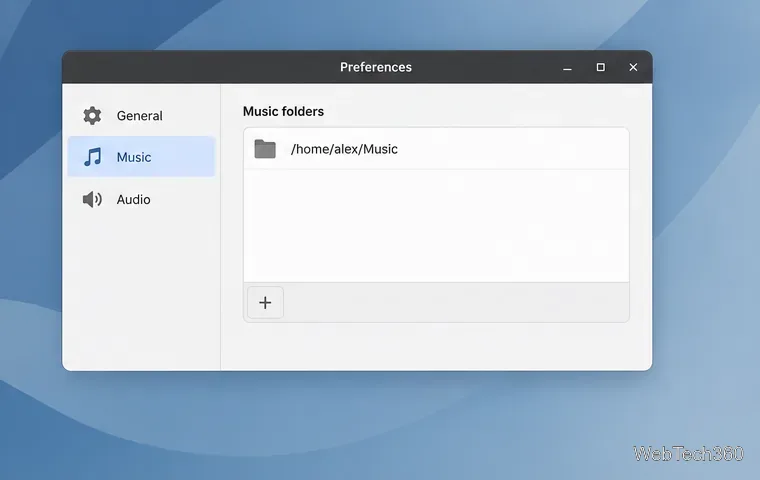
Select the Music tab in the settings window. Review the folders already listed there.
A typical setup includes your home folder’s Music directory. If your audio files are already stored there, you can leave the folder in place and close Preferences. Lollypop scans that location; there is no separate import command for each song.
The Music folder list shows the locations Lollypop scans.
Add the folder that contains your tracks
If your collection is stored somewhere else, add its directory to the Music folder list:
Click the + button beside the folder list.
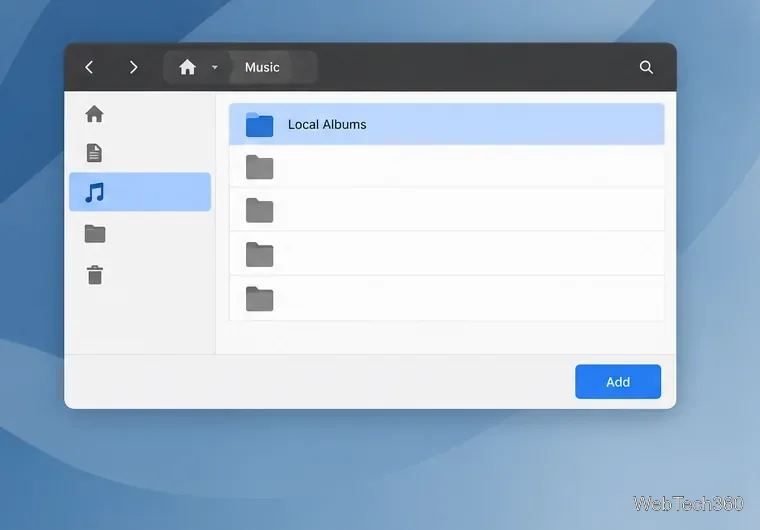
In the file chooser, navigate to the directory that contains your music. If your files are organized into artist and album subfolders, select their common parent folder.
Confirm the selection with the chooser’s Add or Open button. The exact button label depends on the file chooser.
Select the directory that contains your music, then confirm the choice.
Choose the folder itself rather than selecting tracks one at a time. If your collection is split across multiple top-level directories, repeat these steps for each location. Adding a folder registers it with Lollypop; the audio stays where it is on disk.
Wait for Lollypop to scan the library
Close Preferences after the folder appears in the list. Lollypop will read the directory and add recognized tracks to its library. A large collection, a slower disk, or a mounted external drive can take longer to scan, so give the app time before troubleshooting.
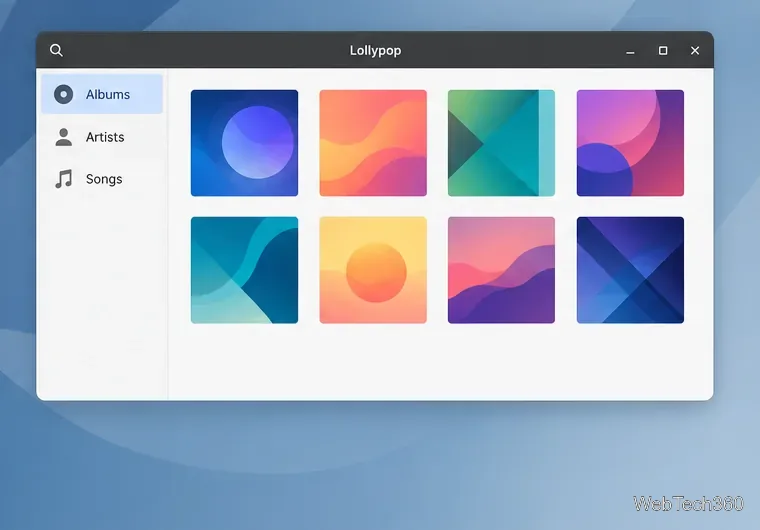
When the library is ready, open Albums or Songs in the sidebar. Albums with readable tags and artwork are easier to browse, but missing cover art does not mean the audio file was not added. The Lollypop project describes the app as a music collection organizer and lists MP3/4, Ogg, and FLAC among its supported formats in its GNOME project documentation.
An Albums grid is one way to confirm that tracks have appeared in the library.
Fix music that does not appear
Check the folder path
In Preferences > Music, confirm that the listed directory is the one where the files actually live. The default ~/Music path will not include a collection saved in Downloads, on another partition, or on an external disk. Mount the disk in Linux before opening the folder in Lollypop, and keep it mounted while listening.
Check Flatpak access
If you installed Lollypop as a Flatpak, its current Flathub manifest explicitly grants access to the standard Music directory. A folder elsewhere may require permission when you select it through the file chooser. Approve that access if prompted. If you changed Flatpak folder permissions and the old location still does not scan, open Preferences > Music and remove the affected entry, then add it again. Lollypop’s Flatpak authorization guidance documents refreshing folder entries after authorization changes; the Flathub manifest shows the package’s Music-directory permission.
Check the audio files
Make sure the selected folder contains audio files in a format Lollypop can read. The project documentation lists MP3/4, Ogg, and FLAC. If only some tracks are missing, check their file types and confirm they are inside the directory you added. The Flathub Lollypop page links to the current package and release information if you need to confirm which build is installed.
Quick checklist
The correct folder appears under Preferences > Music.
The directory is available and readable in Linux, including any external drive or share it depends on.
The folder contains audio files in a supported format.
You have allowed Flatpak access when prompted and given Lollypop time to scan.
Once those checks pass, the tracks should be available from Lollypop’s library views without moving the original files.