Home
» LINUX
»
How to Add System Information to the Linux Desktop With Conky
How to Add System Information to the Linux Desktop With Conky
If you want CPU, memory, disk, network, and uptime information visible without opening a separate monitor, Conky is still one of the simplest ways to add system information to the Linux desktop. It runs as a lightweight desktop monitor and is highly configurable through a local text file.
One important update to older advice: Conky is no longer limited to X11. Current Conky builds can use Wayland on compositors that support the wlr-layer-shell protocol. GNOME's Mutter compositor does not provide that protocol, so Conky cannot behave as a true background overlay in a GNOME Wayland session. The official Conky FAQ explains the current X11 and Wayland limitations.
1. Install Conky
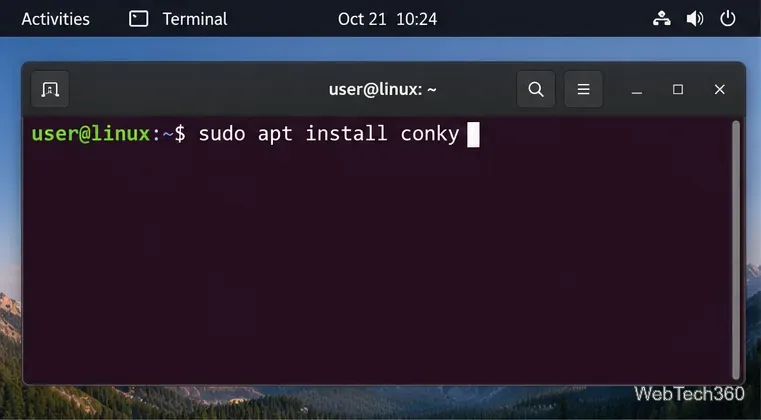
Conky is packaged by major Linux distributions. On current Ubuntu and Debian package indexes, conky is a virtual package provided by variants such as conky-all, conky-std, and conky-cli. For a graphical desktop setup, conky-all is a practical choice because it includes the broadest set of display and Lua features.
Install Conky from your distribution's package manager before creating a desktop configuration.
2. Create a user configuration
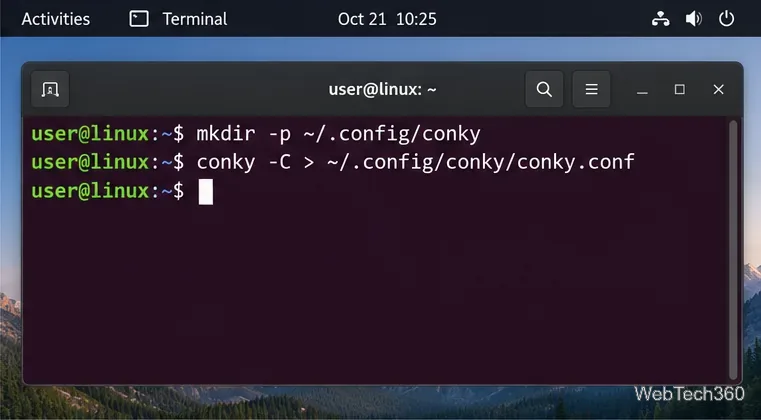
Conky's current default user configuration location is ~/.config/conky/conky.conf. The upstream documentation recommends generating a starter configuration with conky -C:
This gives you a local file you can edit without changing the system-wide example in /etc/conky/. See the official configuration guide for the current Lua-based syntax.
Generate a user-level conky.conf so your changes stay inside your home directory.
3. Choose what Conky displays
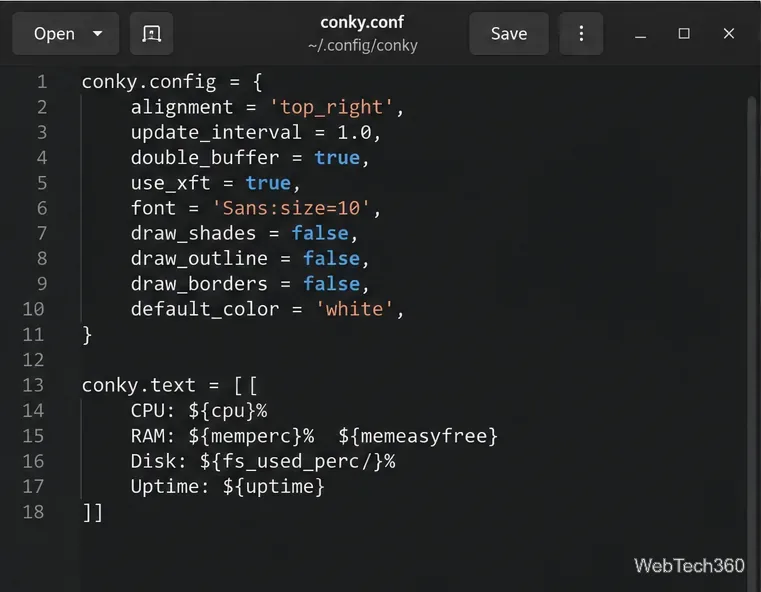
Open ~/.config/conky/conky.conf in your preferred editor. A compact configuration can show CPU load, memory use, root filesystem usage, and uptime:
Conky supports many more variables, including network throughput, temperatures, processes, battery status, and custom script output. Use conky -v to see which optional features were enabled when your package was built.
Edit conky.conf to control placement, refresh rate, colors, and the system values shown on the desktop.
4. Start, test, and stop Conky
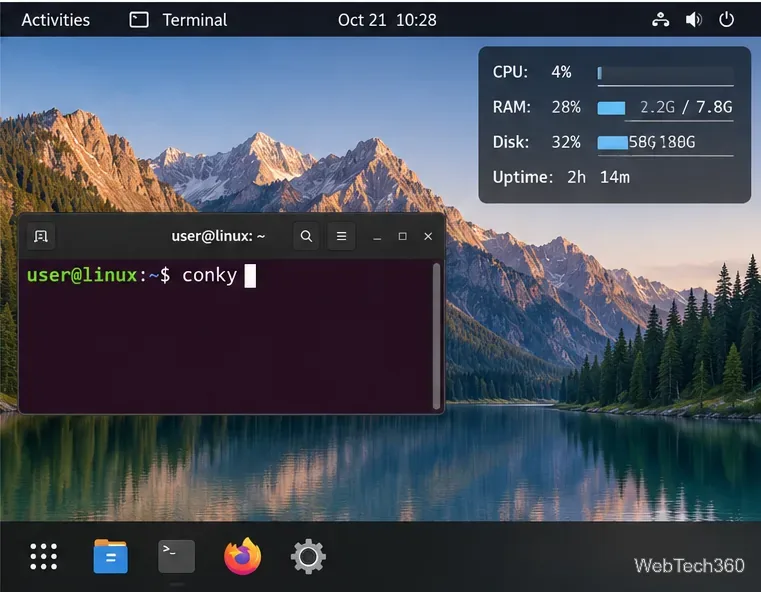
Run Conky from a terminal so any configuration errors are visible immediately:
conky -c ~/.config/conky/conky.conf
Because that path is the normal user configuration location, running conky by itself is usually enough after the file is in place. To stop all Conky processes for your user session, run pkill conky.
Launch Conky from a terminal first so you can see errors while testing the configuration.
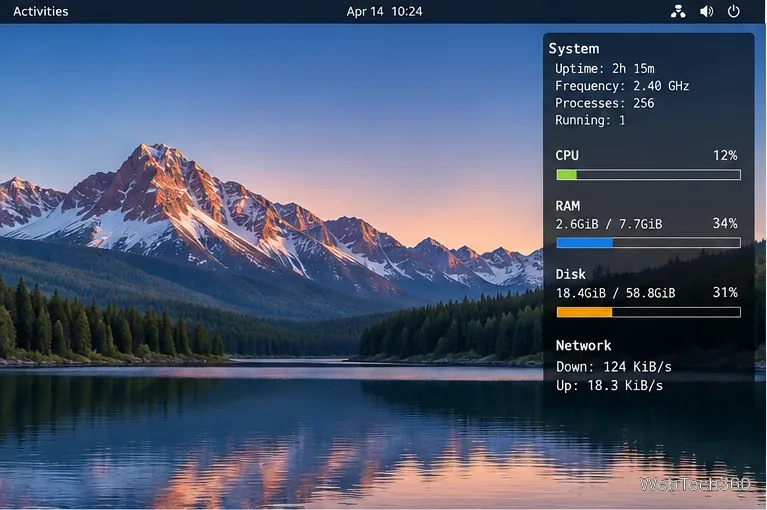
Once the configuration is working, you can remove or add lines in conky.text until the overlay contains only the information you actually want to watch.
A finished Conky layout can keep key system information visible without opening a full monitoring application.
5. Adjust placement and window behavior
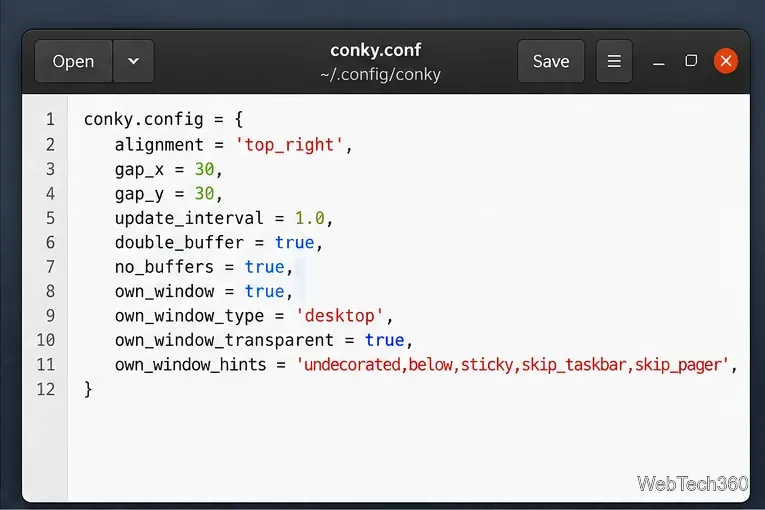
For X11 desktops, settings such as alignment, gap_x, gap_y, own_window, and window hints determine where Conky sits and whether it behaves like a desktop widget. Desktop environments handle layers and transparency differently, so start with a simple configuration and change one window option at a time.
Window settings control where Conky appears and how it interacts with the desktop on X11.
6. Use Conky on Wayland when your compositor supports it
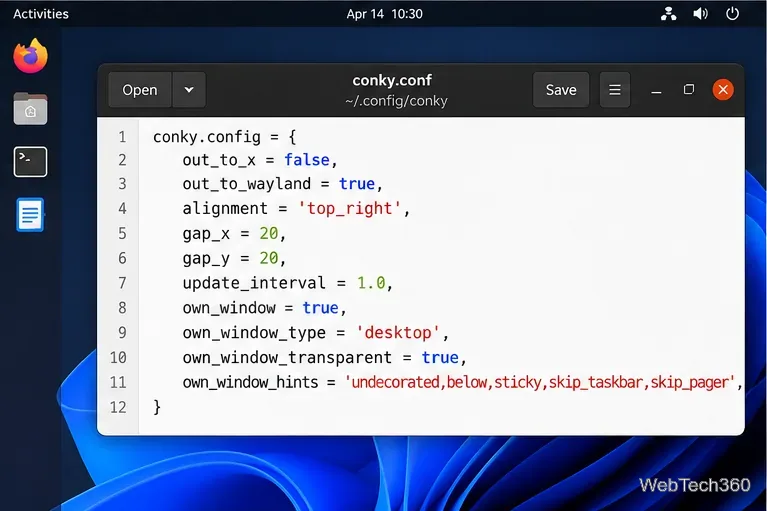
First check your session type with echo $XDG_SESSION_TYPE. On a Wayland compositor that supports wlr-layer-shell, enable Wayland output and disable X output in the conky.config block:
out_to_x = false,
out_to_wayland = true,
Compositors such as Sway, Hyprland, and Wayfire support the layer-shell model described by the Conky project. GNOME Wayland is the major exception: Mutter does not implement the protocol Conky needs for a desktop-layer widget. If your distribution still offers an Xorg session, that is an alternative; otherwise Conky may need to run as a normal window or under a different compositor.
On supported Wayland compositors, switch Conky output from X to Wayland in conky.conf.
7. Start Conky automatically when you sign in
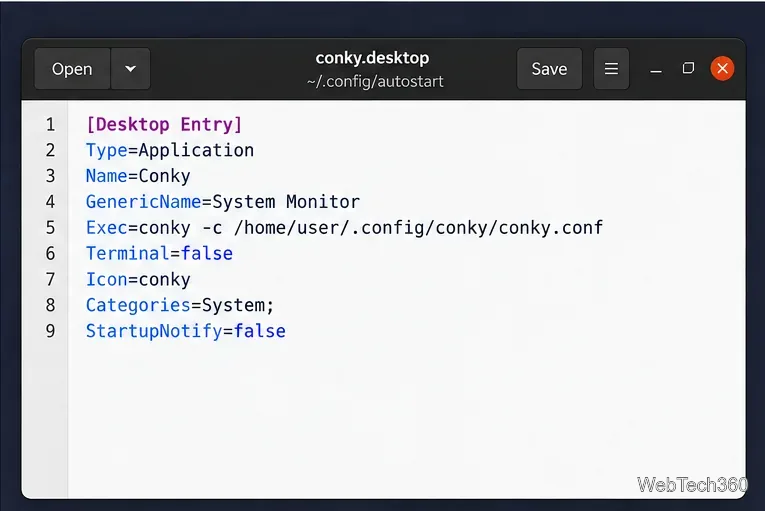
Create the standard per-user autostart directory, then save a desktop entry as ~/.config/autostart/conky.desktop:
Do not add & to the Exec line. A desktop entry launches the program directly, and Conky can find ~/.config/conky/conky.conf automatically. The upstream FAQ also notes that a .desktop autostart entry is often simpler than a user service on X11 because it inherits the graphical session environment.
A small desktop entry can launch Conky automatically at login.
Quick troubleshooting checklist
Nothing appears: run conky in a terminal and read the error output.
Configuration is missing: regenerate it with conky -C > ~/.config/conky/conky.conf.
Wayland overlay does not work: check echo $XDG_SESSION_TYPE and confirm that your compositor supports wlr-layer-shell.
A feature is unavailable: run conky -v and check the compiled-in options.
You want to reset: move your custom conky.conf aside and generate a fresh default configuration.
For the authoritative list of settings and supported variables, use Conky's built-in manual pages and the official Conky project.