Home
» LINUX
»
How to Automatically Change Wallpapers in XFCE
How to Automatically Change Wallpapers in XFCE
To automatically change wallpapers in Xfce, open Desktop Settings, go to Background, select a folder containing multiple image files, and check Change the background. Choose a time interval, then turn on Random Order if you want Xfce to shuffle the images. On a multi-monitor desktop, move the settings window to each display to configure its wallpaper rotation separately.
The steps below follow Xfce 4.20’s desktop manager documentation. A Linux distribution may use a different theme or package version, so a control’s position or wording can vary slightly.
Prepare a folder of wallpapers
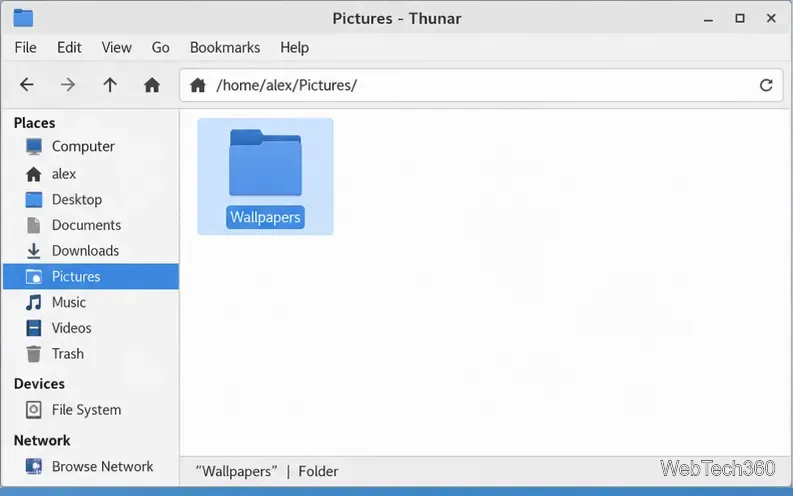
Open Thunar, Xfce’s file manager, and create a folder for the slideshow. A convenient location is ~/Pictures/Wallpapers. In Thunar, right-click an empty area of Pictures, choose Create Folder, and name the new folder Wallpapers.
The Wallpapers folder in Thunar’s Pictures directory.
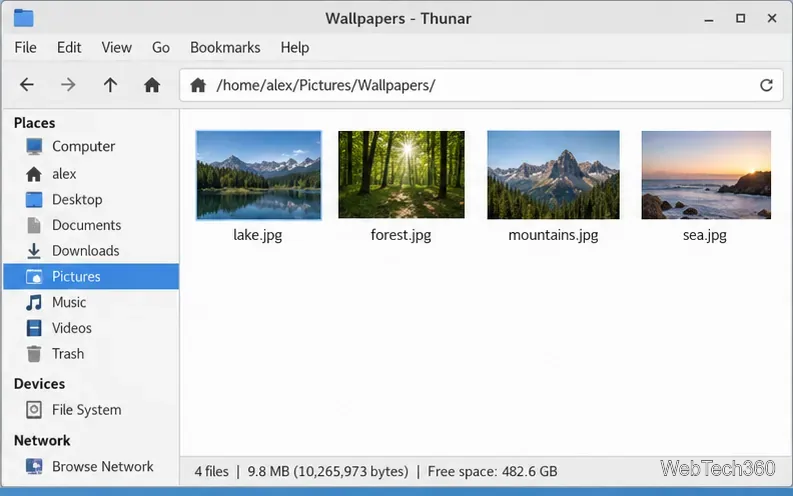
Copy several wallpaper images into that folder. Xfce uses the images in the selected folder as the rotation list, so keep the files together and leave the folder available on your computer. If you later move the images or rename the folder, select the new location in Desktop Settings.
Several wallpaper files in the folder selected for rotation.
Select the wallpaper folder in Xfce
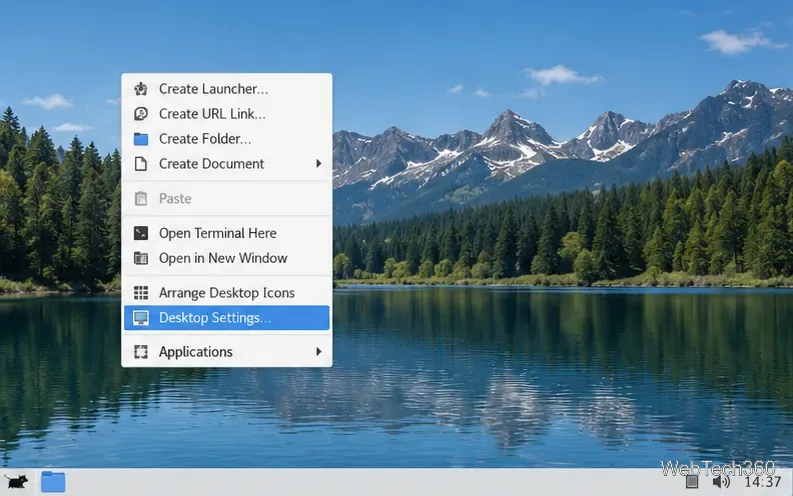
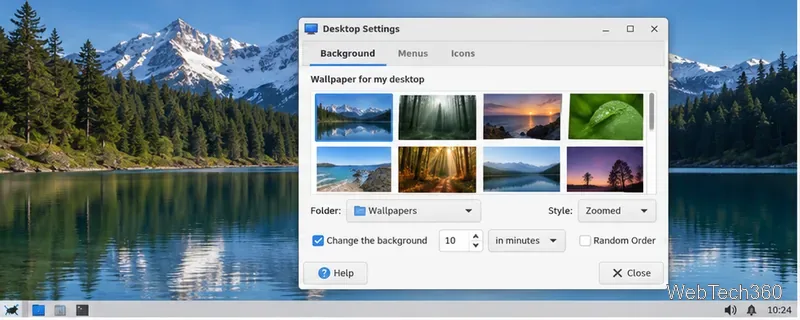
Open Desktop Settings. The quickest route is to right-click an empty area of the desktop and choose Desktop Settings…. You can also open the Xfce Settings Manager and select Desktop.
Choose Desktop Settings from the desktop context menu.
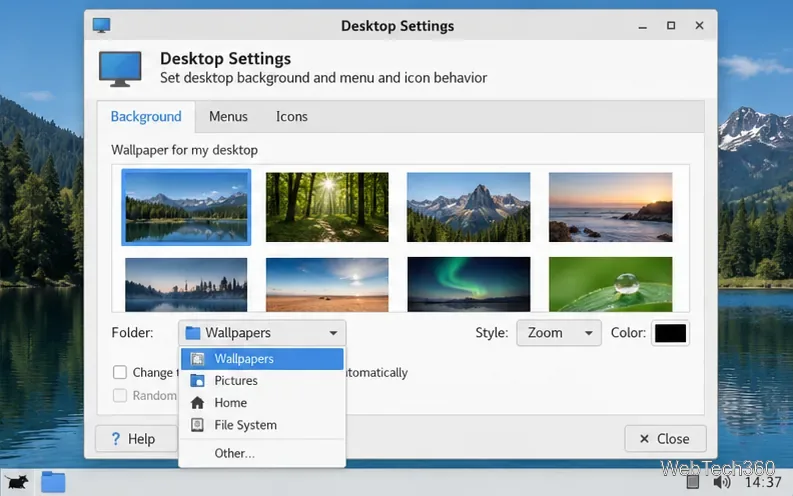
In the Background tab, open the Folder menu and choose Other…. In the directory chooser, browse to Pictures/Wallpapers and confirm the folder. Xfce should populate the wallpaper area with thumbnails from that location. Click a thumbnail if you want to choose which image appears first.
Choose Other in the Background tab to browse to a custom folder.
Turn on automatic wallpaper changes
Check Change the background. This enables the backdrop cycler. If the control is unavailable or the list is empty, first confirm that the selected folder contains more than one supported image.
The wallpaper cycler is enabled in the Background tab.
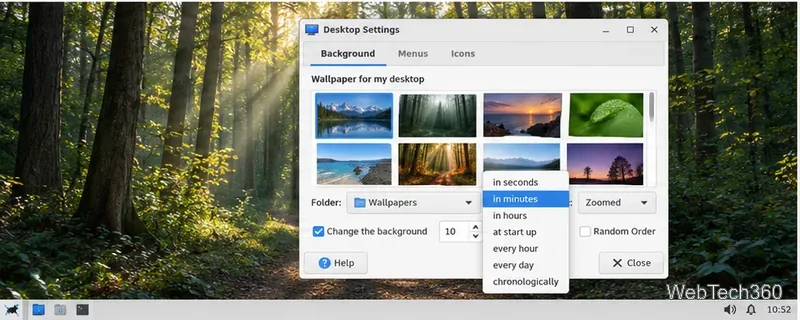
Choose how often the desktop should change. Select in seconds, in minutes, or in hours and enter the interval in the adjacent number control. The menu also includes at start up, every hour, every day, and chronologically. Chronological cycling sorts files by filename and spreads the changes across a day, so names such as 01-morning.jpg and 02-evening.jpg can create a predictable order.
The interval menu offers timed and chronological schedules.
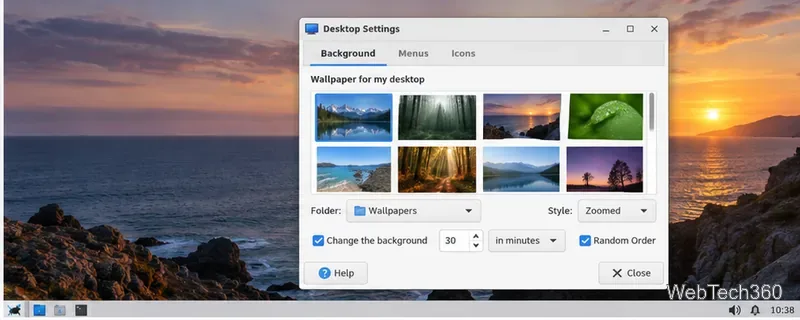
For a shuffled sequence, check Random Order. On Xfce 4.20, random cycling avoids showing an image again until the other wallpapers in the list have appeared. If you prefer a fixed sequence, leave this box unchecked and use chronological cycling or arrange the filenames in the order you want.
Random Order is selected for a shuffled wallpaper sequence.
The Style menu controls how each image fits the display; it does not affect the rotation schedule. Zoomed fills the screen while preserving the image’s proportions, which may crop the edges. Scaled preserves the whole image and can leave colored bands around it when the aspect ratios differ. Close Desktop Settings when you are done; there is no separate Save button.
Configure wallpaper changes on two monitors
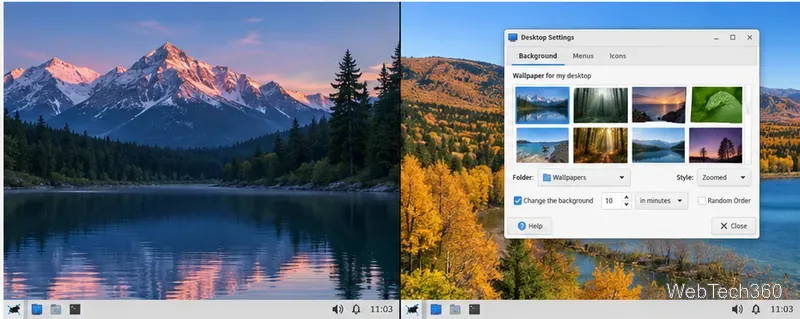
Xfce applies the Background settings to the monitor where the Desktop Settings window is displayed. On an extended desktop, move that window to the second monitor, then choose its wallpaper folder and repeat the rotation steps. Move the window back to the first monitor to edit that display’s settings. This lets each monitor use its own image folder, interval, and shuffle setting.
Move Desktop Settings to the second monitor to configure its background.
The Apply to all workspaces option controls whether the background is repeated across workspaces. Leave it selected for the same slideshow on every workspace; clear it if you want different backgrounds by workspace, then open Desktop Settings on the workspace you want to change.
If the wallpaper does not change
Check the folder: make sure the Folder menu points to the directory that actually contains the images, not its parent.
Check the rotation control:Change the background must be checked, and the list needs multiple supported images.
Check the timing choice: a long interval can make the feature appear inactive. For a quick confirmation, temporarily choose a short interval, then set your preferred schedule.
Check the monitor: if the wrong display changes, move the Desktop Settings window to the monitor you intend to configure.