How to Share Files Over Bluetooth on Linux with Blueman

Send and receive files over Bluetooth on Linux with Blueman. Install OBEX support, pair devices, choose a file, accept transfers, and fix common issues.
To automatically empty the Linux desktop Trash, install Autotrash and schedule it to remove items after a retention period you choose. For example, a daily timer with a 30-day rule keeps recently deleted files available for recovery and permanently removes older entries. Autotrash deletes files from the Trash; it does not clean ordinary folders such as Downloads.
Most Linux desktop environments use the freedesktop Trash layout. The home Trash is usually ~/.local/share/Trash, with deleted items in files and their deletion-date records in info. Autotrash reads those records to decide which items have passed the age limit. Anything it purges is permanently deleted, so choose the number of days deliberately.
Autotrash is a Python command-line utility. Its current project instructions recommend pipx, which installs command-line Python apps in isolated environments. Install pipx from your distribution’s repository, then install Autotrash as your regular desktop user.
sudo apt install pipxsudo dnf install pipx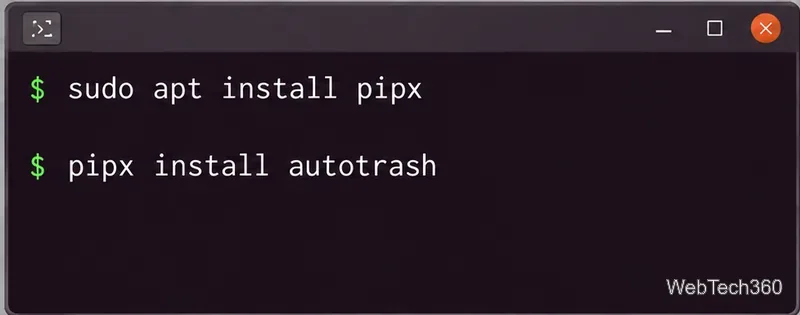
Install the application:
pipx install autotrashIf the shell cannot find autotrash, add pipx’s application directory to your path and open a new terminal:
pipx ensurepath
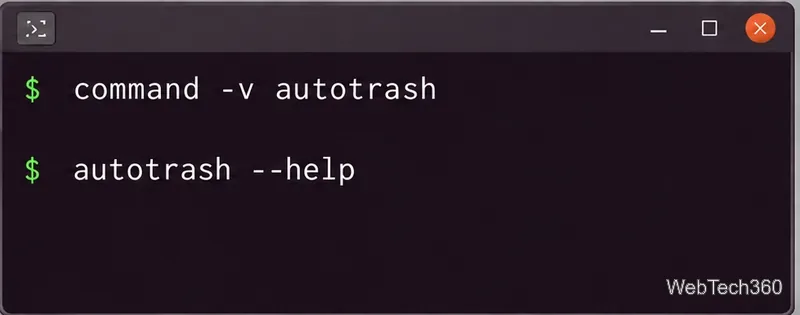
command -v autotrash
The second command prints the executable’s full path. Keep it handy if you use cron, which may not load the same shell path as an interactive terminal. You can also inspect the installed options with autotrash --help.
The -d option sets the minimum age in days. A 30-day policy is a reasonable example, but choose a longer period if you may need more time to recover files:
autotrash -d 30Running that command immediately purges entries older than 30 days; it is not a preview. The scheduled setup below uses the same rule once per day. Before running Autotrash manually, check the Trash in your file manager and make sure you are comfortable permanently deleting the eligible items. To use a different retention period, replace 30 in the commands below with your chosen number.
On a Linux distribution with systemd, Autotrash can create a per-user service and timer. Run these commands from the account whose Trash you want to maintain. Do not use sudo for this setup: a user timer is independent for each account and keeps the cleanup scoped to that user.
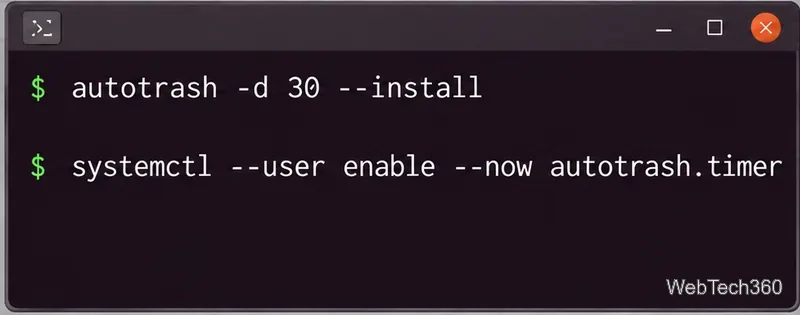
autotrash -d 30 --install
systemctl --user enable --now autotrash.timer
The first command creates the daily service configuration with the 30-day rule. The second enables the timer and starts it now. The Autotrash project documentation also describes how to start or disable this user timer.
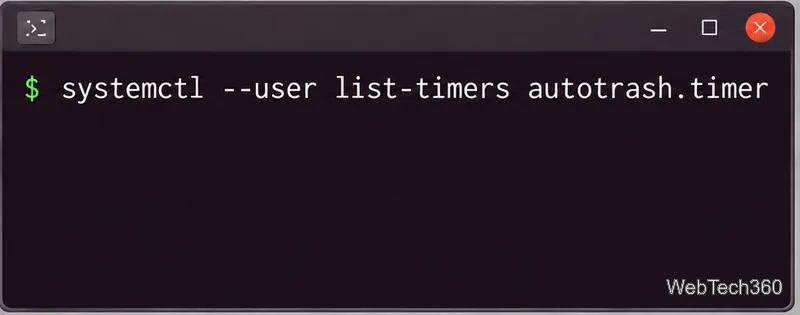
To see the next scheduled run, use:
systemctl --user list-timers autotrash.timerFor the service state and recent run details, use systemctl --user status autotrash.service. If the timer is missing, confirm that the --install command completed and that you ran it as the same account. A user timer depends on that account’s systemd user manager being available; if you need cleanup while logged out, check your distribution’s user-service policy or use its cron service instead.
To stop future automatic cleanup, disable the timer:
systemctl --user disable --now autotrash.timerIf you prefer cron or your system does not provide user systemd timers, edit your own crontab with crontab -e and add a daily entry. Replace the example path with the exact path printed by command -v autotrash:
@daily /home/your-user/.local/bin/autotrash -d 30Save the crontab and confirm the entry with crontab -l. Cron runs only while the machine and cron service are available; a powered-off computer may miss a run. Use either the systemd timer or cron for a given account, rather than scheduling both.
By default, the command targets the current user’s home Trash. If you intentionally want to include other Trash locations, Autotrash documents the -t option; its example combines it with a 30-day limit as autotrash -td 30. This can widen the cleanup scope. Check autotrash --help for the installed version and ensure the scheduled account has the access you intend before enabling it. On a multi-user computer, separate per-user timers are the clearest way to keep each person’s retention policy independent.
Linux does not have one universal desktop switch for automatically emptying every Trash implementation. Autotrash works with desktop environments that use the freedesktop Trash records. See the freedesktop Trash specification for the file and metadata layout, and the crontab manual for schedule syntax.
Send and receive files over Bluetooth on Linux with Blueman. Install OBEX support, pair devices, choose a file, accept transfers, and fix common issues.
Connect GNOME Files to SSH/SFTP, FTP, SMB, WebDAV, or NFS with the correct server URI, sign-in details, and fixes for common connection errors.
Open SFTP, SSH, SMB, FTP, NFS, and WebDAV locations in Dolphin, sign in safely, transfer files, and save network folders for later.
Connect a DualShock 4 to Linux by USB or Bluetooth, then check controller detection and configure Steam Input only when a game needs it.
Use DNF5 parallel downloads to reduce RPM install waits in GNOME Software, then tell when mirror or Flatpak delays need a different fix.
Access iCloud on Linux in a current browser. Learn how to sign in, use iCloud Drive and other web apps, and understand the limits of browser access.
Save GRUB settings, boot files, and UEFI entry details to removable storage, then use rescue media to repair the correct boot path safely.
Install Bitwarden on Linux with the right DEB, RPM, Snap, Flatpak, or AppImage package, then sign in and set a secure vault timeout.
Pick a screensaver theme in Xfce, preview it, choose when it starts, and configure automatic locking in the separate Lock Screen tab.
Stop GNOME Shell from blanking or locking your display automatically. Change Power and Screen Lock settings, or use Caffeine for a temporary keep-awake toggle.








