How to Share Files Over Bluetooth on Linux with Blueman

Send and receive files over Bluetooth on Linux with Blueman. Install OBEX support, pair devices, choose a file, accept transfers, and fix common issues.
GNOME Files, also known as Nautilus, can browse folders on remote computers and network storage. Open Other Locations, enter the server’s URI, select Connect, and provide credentials if requested. The protocol prefix matters: GNOME documents ssh:// for SSH access and ftp:// for FTP. They are different protocols; ftp:// does not mean SFTP. See the GNOME Files server connection guide for its supported address formats.

The interface images below show common connection controls. Exact layout, labels, and available protocols can vary by GNOME release and by the GVfs components installed with a Linux distribution.
scheme://server/path. Use the hostname or IP address your administrator provided. Add a share or directory path when the server requires one. For a nonstandard port, place :port after the hostname. Do not put your password in the URI.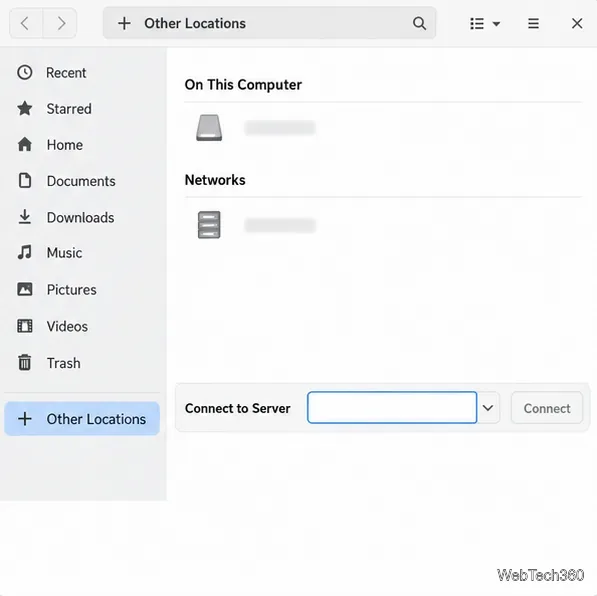
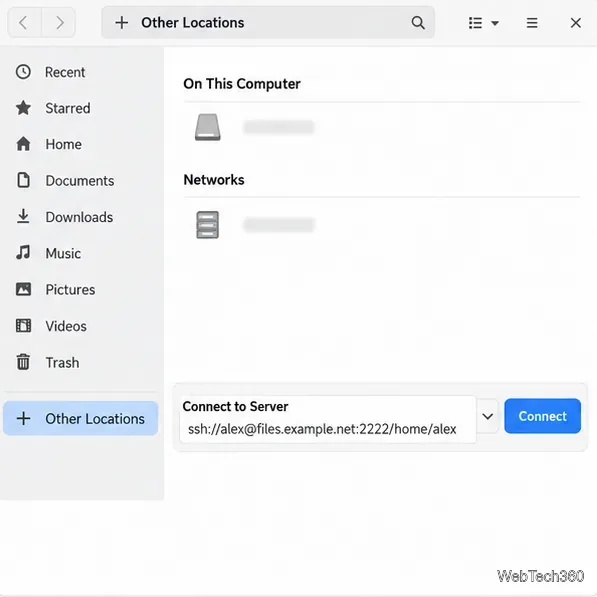
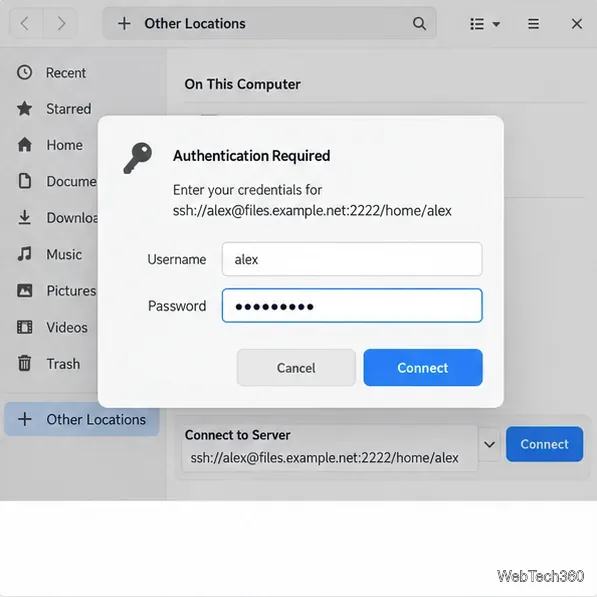
When the connection succeeds, the remote folder opens like a location in Files and is added to the sidebar for quick access. Use the eject or disconnect control beside it when you are finished. A Files connection is convenient for browsing and transferring files; it is not necessarily a permanent system mount for every application.
For encrypted file access through an SSH account, use the SSH address format GNOME documents. A custom port and starting folder can be included:
ssh://alex@files.example.net:2222/home/alexSSH encrypts the connection, including authentication and file data. Use the port supplied by your administrator. If your setup specifically documents an sftp:// URI, follow that server’s instructions; never replace the scheme with ftp:// to try to make an SFTP connection.
Use FTP only when the server explicitly provides it. For example:
ftp://ftp.example.net/public/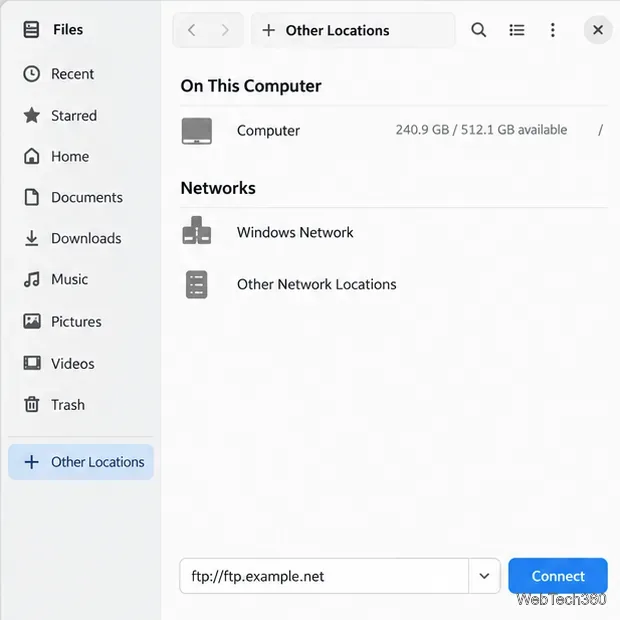
Plain FTP does not encrypt login details or file transfers. Prefer SSH-based file access or a secure protocol when available. Anonymous FTP may allow downloads while blocking uploads or deletion, depending on the server’s permissions.
For a Windows, Samba, or NAS share, include the share name after the host:
smb://nas.example.net/Shared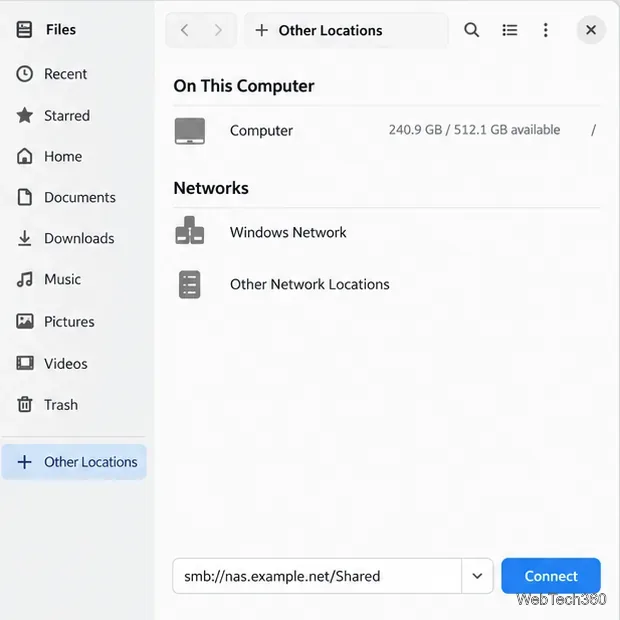
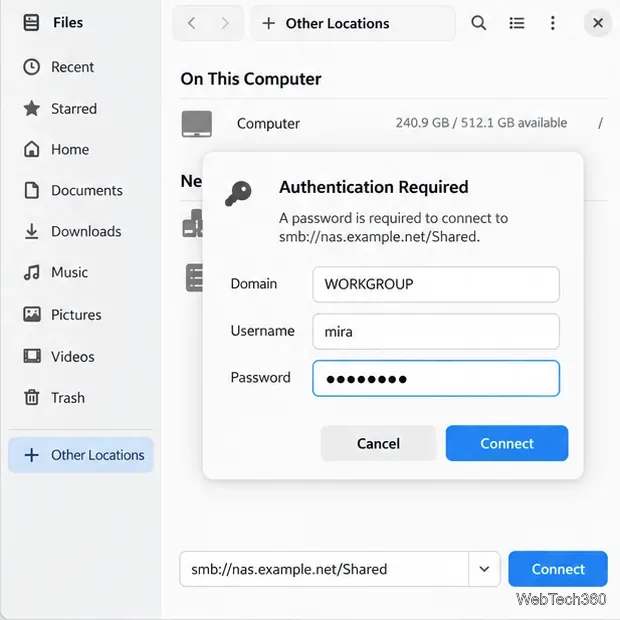
Enter the account and, if requested, the Windows workgroup or domain. Confirm the share name’s spelling and capitalization with the server owner; connecting to the server is not the same as having permission to open every share.
Use the full WebDAV path supplied by the service. The GVfs scheme list uses davs:// for WebDAV protected by TLS and dav:// for a non-TLS connection. Choose the secure address when the service supports it:
davs://cloud.example.net/remote.php/dav/files/alex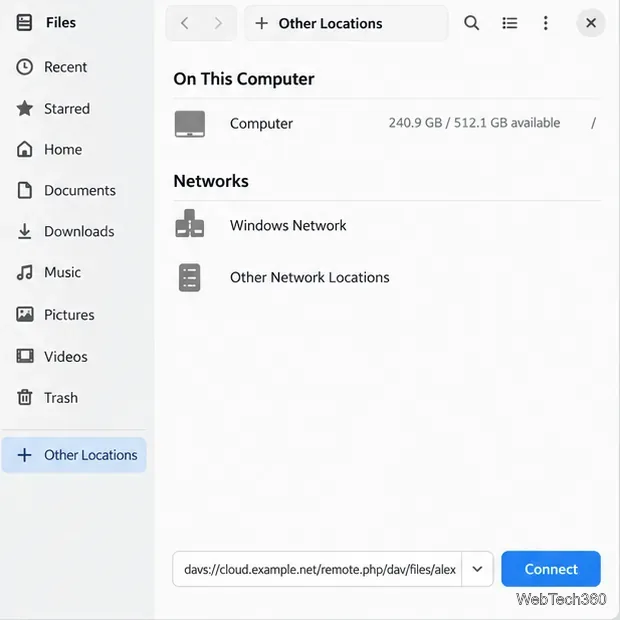
GNOME’s server guide also lists NFS addresses, for example nfs://nas.example.net/export. NFS access typically relies on server-side exports, user IDs, and file permissions instead of a password prompt. It is most commonly used on a trusted local network. If your distribution does not provide the needed GVfs backend, use its documented NFS mount method instead.
For a quick check, compare the URI’s scheme and path with the server’s connection instructions, then try again from Other Locations.
Send and receive files over Bluetooth on Linux with Blueman. Install OBEX support, pair devices, choose a file, accept transfers, and fix common issues.
Connect GNOME Files to SSH/SFTP, FTP, SMB, WebDAV, or NFS with the correct server URI, sign-in details, and fixes for common connection errors.
Open SFTP, SSH, SMB, FTP, NFS, and WebDAV locations in Dolphin, sign in safely, transfer files, and save network folders for later.
Connect a DualShock 4 to Linux by USB or Bluetooth, then check controller detection and configure Steam Input only when a game needs it.
Use DNF5 parallel downloads to reduce RPM install waits in GNOME Software, then tell when mirror or Flatpak delays need a different fix.
Access iCloud on Linux in a current browser. Learn how to sign in, use iCloud Drive and other web apps, and understand the limits of browser access.
Save GRUB settings, boot files, and UEFI entry details to removable storage, then use rescue media to repair the correct boot path safely.
Install Bitwarden on Linux with the right DEB, RPM, Snap, Flatpak, or AppImage package, then sign in and set a secure vault timeout.
Pick a screensaver theme in Xfce, preview it, choose when it starts, and configure automatic locking in the separate Lock Screen tab.
Stop GNOME Shell from blanking or locking your display automatically. Change Power and Screen Lock settings, or use Caffeine for a temporary keep-awake toggle.







