How to Share Files Over Bluetooth on Linux with Blueman

Send and receive files over Bluetooth on Linux with Blueman. Install OBEX support, pair devices, choose a file, accept transfers, and fix common issues.
To share a file over Bluetooth on Linux, pair the computer with a compatible device, then use Blueman’s Send a File action. The receiving device must accept the transfer. For the reverse direction, enable Blueman’s file-receiving service and choose where incoming files should be saved. The Bluetooth connection alone is not enough: both devices need to support the Bluetooth Object Push (OBEX) profile.
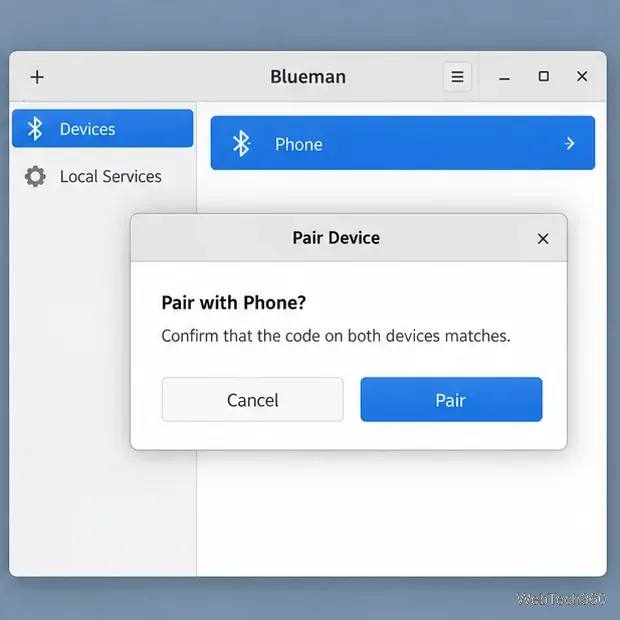
The interface illustrations below are visual guides; menu names and layout may differ by desktop and Blueman release. If your desktop already offers a working Send File action, use it. The steps below use Blueman’s graphical interface.
Install the graphical manager and the OBEX component from your distribution’s official repositories. Package names vary slightly:
sudo apt install blueman bluez-obexd. See the Ubuntu Blueman package and Ubuntu BlueZ OBEX package.sudo dnf install blueman bluez-obexd. Both packages are listed by Fedora Packages and the BlueZ OBEX package page.sudo pacman -S blueman bluez-obex. The Arch Blueman package and BlueZ OBEX package are in the official repositories.Launch Blueman Manager from your applications menu. For other distributions, find Blueman and the BlueZ OBEX component in the official software catalog.
Open Bluetooth settings on both devices and switch Bluetooth on. On the device that will receive a file, enable discoverability or open its Bluetooth pairing screen. Some phones stop advertising after a short time, so keep that screen open while pairing. Leave the devices close together until the transfer finishes.
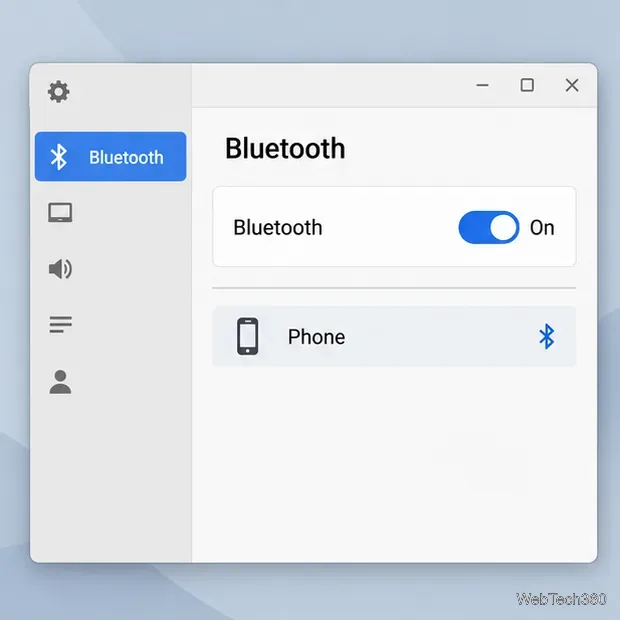
In Blueman Manager, choose the search or add-device control to scan for nearby devices. Select the correct device, choose Pair, and confirm that any pairing code shown on the Linux computer matches the code on the other device. Approve the pairing on both screens. If the device is already paired, continue to the transfer step.
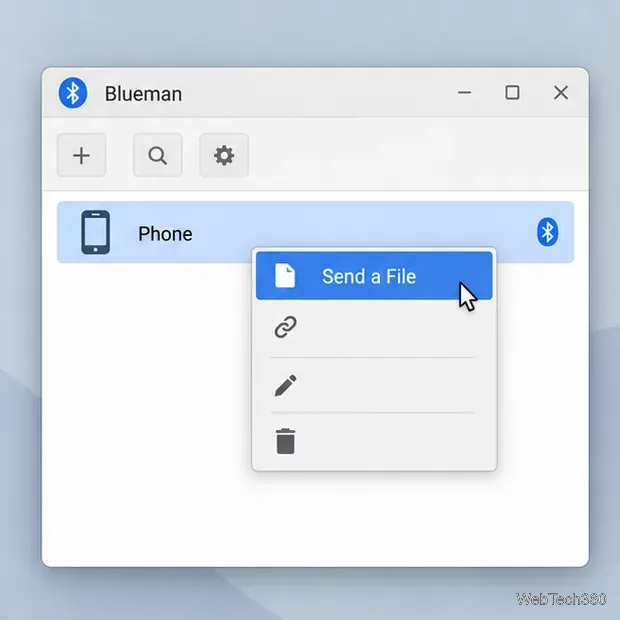
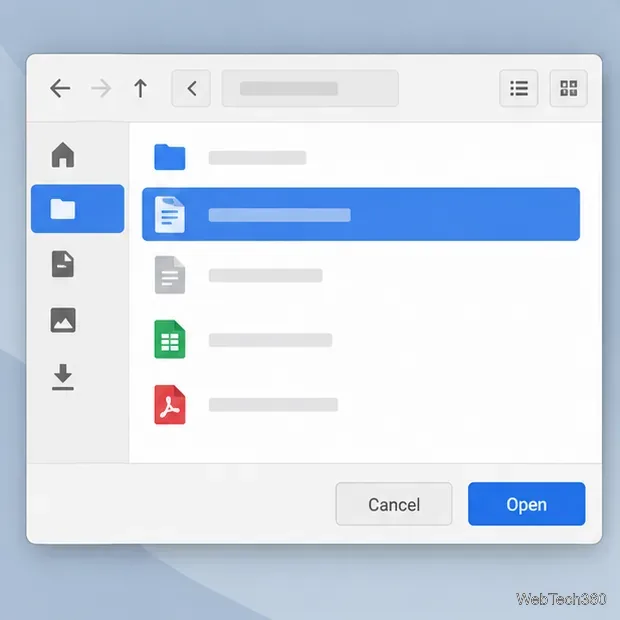
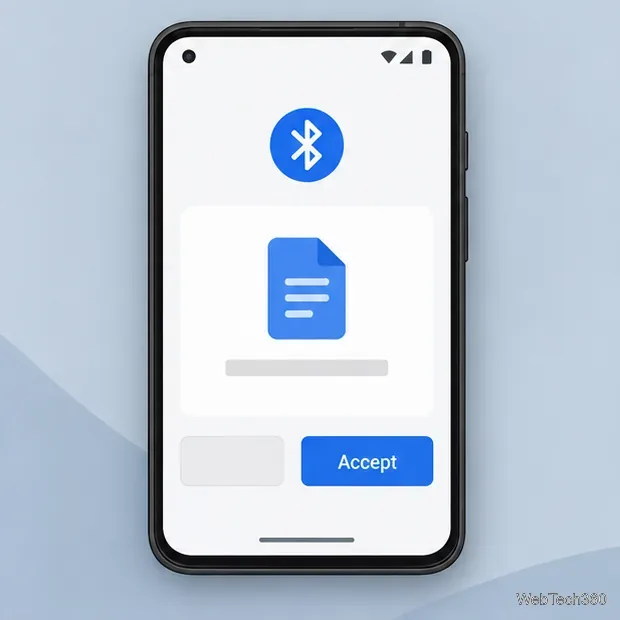
Watch the transfer indicator in Blueman. On the receiving device, accept the incoming file when prompted. The file may not start moving until the recipient confirms it, and the receiving device may save it to a default folder or ask where to put it.
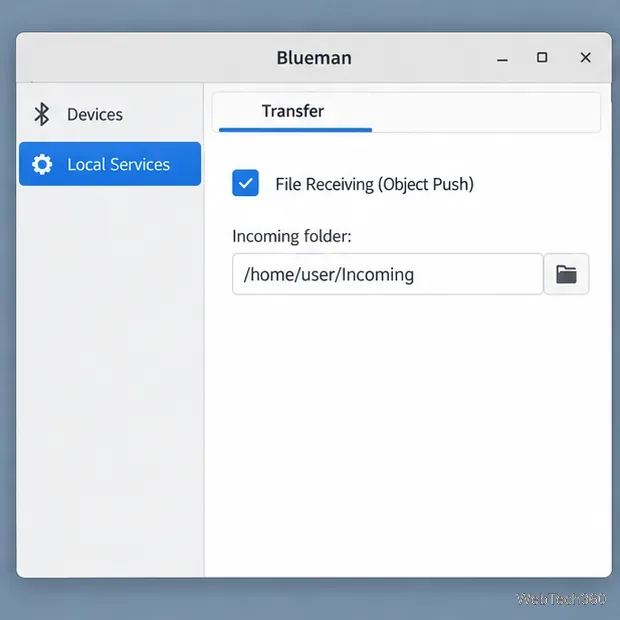
To send from a phone or another computer to Linux, open the Blueman tray applet menu, choose Local Services, then open Transfer. Enable File Receiving (Object Push) and note the incoming-folder path.
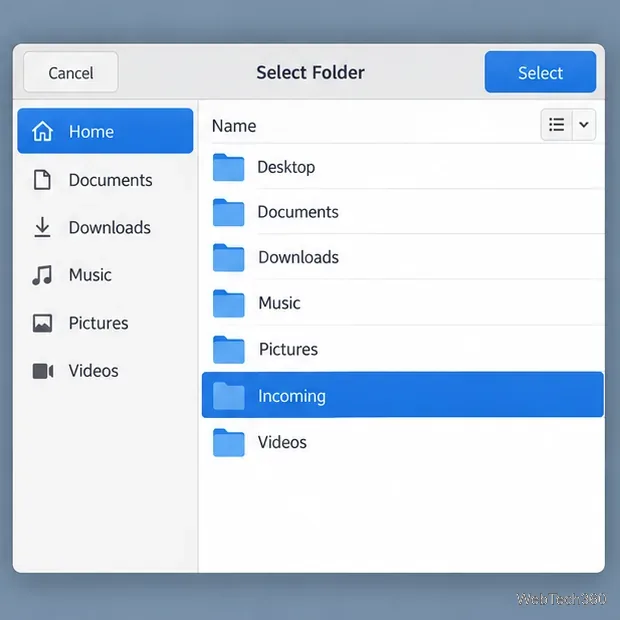
Use the folder button to choose a destination you can access, then apply the change. Blueman also offers automatic acceptance from trusted devices. For safer everyday use, leave that option off and approve transfers manually.
Start the transfer from the other device and approve it on Linux if prompted. If no prompt appears, check the receive toggle, OBEX package, and sender’s Object Push support.
Not every phone exposes generic Bluetooth file transfer. Apple describes AirDrop as sharing with nearby Apple devices, so an iPhone or iPad is not a standard Blueman OBEX target. For transfers over the same network, KDE Connect shares files between computers and phones without using Bluetooth.
Send and receive files over Bluetooth on Linux with Blueman. Install OBEX support, pair devices, choose a file, accept transfers, and fix common issues.
Connect GNOME Files to SSH/SFTP, FTP, SMB, WebDAV, or NFS with the correct server URI, sign-in details, and fixes for common connection errors.
Open SFTP, SSH, SMB, FTP, NFS, and WebDAV locations in Dolphin, sign in safely, transfer files, and save network folders for later.
Connect a DualShock 4 to Linux by USB or Bluetooth, then check controller detection and configure Steam Input only when a game needs it.
Use DNF5 parallel downloads to reduce RPM install waits in GNOME Software, then tell when mirror or Flatpak delays need a different fix.
Access iCloud on Linux in a current browser. Learn how to sign in, use iCloud Drive and other web apps, and understand the limits of browser access.
Save GRUB settings, boot files, and UEFI entry details to removable storage, then use rescue media to repair the correct boot path safely.
Install Bitwarden on Linux with the right DEB, RPM, Snap, Flatpak, or AppImage package, then sign in and set a secure vault timeout.
Pick a screensaver theme in Xfce, preview it, choose when it starts, and configure automatic locking in the separate Lock Screen tab.
Stop GNOME Shell from blanking or locking your display automatically. Change Power and Screen Lock settings, or use Caffeine for a temporary keep-awake toggle.








