How to Share Files Over Bluetooth on Linux with Blueman

Send and receive files over Bluetooth on Linux with Blueman. Install OBEX support, pair devices, choose a file, accept transfers, and fix common issues.
The practical way to use iCloud on Linux is through iCloud.com in a current web browser. Apple does not list a Linux desktop sync client in its current iCloud requirements, so Linux users should expect browser access rather than a Finder-style iCloud Drive folder or automatic background sync.

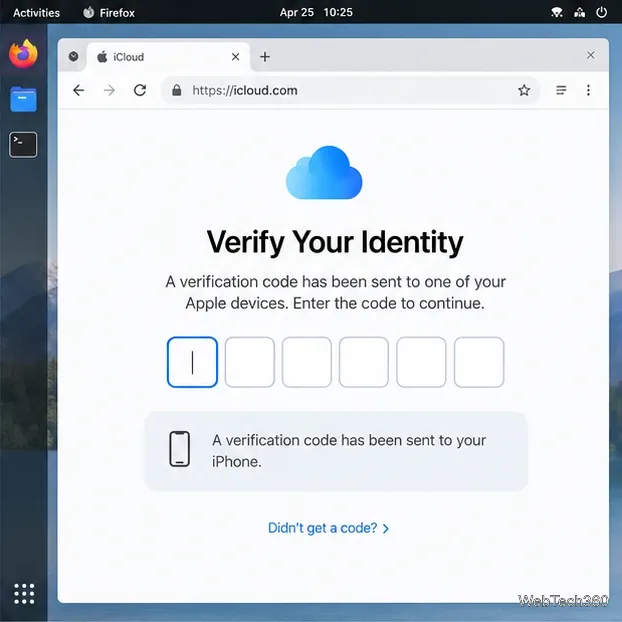
On a computer, Apple lists web access to Photos, iCloud Drive, Notes, Mail, Calendar, Contacts, Reminders, Pages, Numbers, Keynote, Find My, and account details. iCloud+ features such as Hide My Email and Custom Email Domain may also appear. Not every feature is available in every country or region. Apple’s overview of iCloud.com features by device is the best place to check what your account should show.
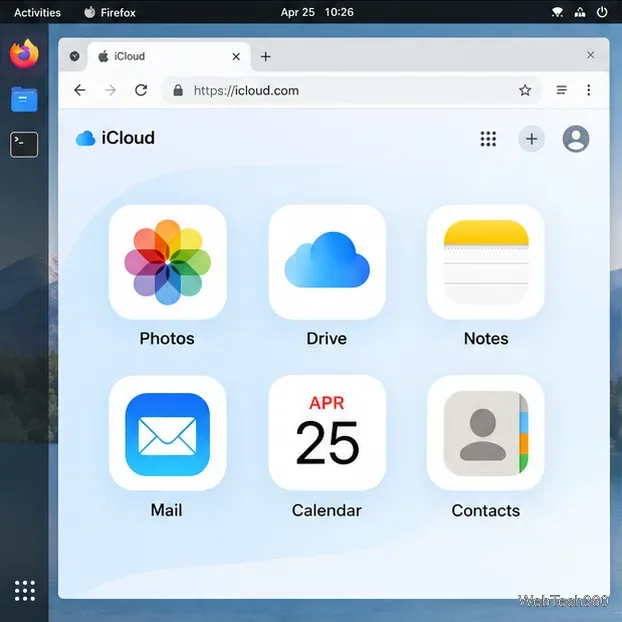
For example, open Notes to view or edit notes, or choose Mail to use your iCloud email in the browser. For files, open iCloud Drive. On a computer, use its upload control or drag files into the Drive window; select a file and choose Download to save a copy to Linux. Apple’s iCloud Drive upload and download instructions cover the current controls. A downloaded file is a local copy: if you edit it outside a web app, upload the updated copy to iCloud Drive when you want it available on your other devices.
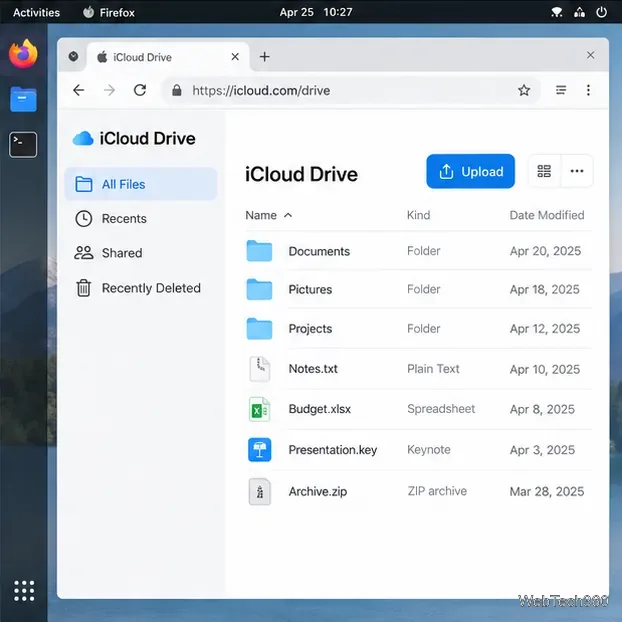
Using iCloud.com is not the same as installing iCloud for Windows or enabling iCloud in macOS. The browser does not add an iCloud Drive mount to your Linux file manager, continuously sync a local folder, or automatically upload every photo from your computer. Use the web apps for supported tasks and move files through the browser when needed. Pages, Numbers, and Keynote can be edited on the web, while other file types may need to be downloaded and opened with a Linux application.
Apple also lets account owners restrict web access to iCloud data. If iCloud.com says data access is off, use a trusted iPhone, iPad, or Mac and review the iCloud web-access setting. The wording varies by operating-system version; it may appear as Allow Data Access or Access iCloud Data on the Web. With Advanced Data Protection enabled, web access turns off by default. You can allow temporary access and approve it from a trusted device, or keep access limited to trusted devices. See Apple’s guide to managing web access to iCloud data before changing this security setting.
If you do not have an iPhone, iPad, Mac, or Apple Vision Pro, Apple offers web-only iCloud access; Apple lists a 1 GB storage limit for those accounts, and some features differ. If sign-in loops or a page fails to load on Linux, update the browser, try a regular (non-private) window, and check Apple’s system status page and account prompts. A third-party Snap package or a Nativefier wrapper is not an Apple-supported Linux client and cannot provide operating-system-level syncing.
Send and receive files over Bluetooth on Linux with Blueman. Install OBEX support, pair devices, choose a file, accept transfers, and fix common issues.
Connect GNOME Files to SSH/SFTP, FTP, SMB, WebDAV, or NFS with the correct server URI, sign-in details, and fixes for common connection errors.
Open SFTP, SSH, SMB, FTP, NFS, and WebDAV locations in Dolphin, sign in safely, transfer files, and save network folders for later.
Connect a DualShock 4 to Linux by USB or Bluetooth, then check controller detection and configure Steam Input only when a game needs it.
Use DNF5 parallel downloads to reduce RPM install waits in GNOME Software, then tell when mirror or Flatpak delays need a different fix.
Access iCloud on Linux in a current browser. Learn how to sign in, use iCloud Drive and other web apps, and understand the limits of browser access.
Save GRUB settings, boot files, and UEFI entry details to removable storage, then use rescue media to repair the correct boot path safely.
Install Bitwarden on Linux with the right DEB, RPM, Snap, Flatpak, or AppImage package, then sign in and set a secure vault timeout.
Pick a screensaver theme in Xfce, preview it, choose when it starts, and configure automatic locking in the separate Lock Screen tab.
Stop GNOME Shell from blanking or locking your display automatically. Change Power and Screen Lock settings, or use Caffeine for a temporary keep-awake toggle.







