How to Share Files Over Bluetooth on Linux with Blueman

Send and receive files over Bluetooth on Linux with Blueman. Install OBEX support, pair devices, choose a file, accept transfers, and fix common issues.
Save GRUB settings and boot files to USB; on UEFI systems, also save EFI files and a firmware-entry list. These are recovery references, not a full disk image. If startup code is missing, use Linux rescue media to reinstall GRUB for the actual boot layout.
Distributions commonly generate the menu from /etc/default/grub and /etc/grub.d/, with supporting files under /boot/grub or /boot/grub2. Debian documents grub.cfg as generated, so restore settings and regenerate it. BIOS GRUB may use MBR plus embedded sectors; UEFI uses files on a FAT EFI System Partition (ESP) and boot entries in firmware variables.
Connect a USB drive, open it in the file manager, and note its mount location. Then list disks and check how the current system was booted:
lsblk -o NAME,SIZE,FSTYPE,LABEL,UUID,MOUNTPOINTS
findmnt /
if [ -d /sys/firmware/efi ]; then echo UEFI; else echo BIOS; fi
Use size, filesystem, label, and mount point to distinguish USB from internal disks. Names like /dev/sda can change, and the root partition is not always the BIOS bootloader’s target disk.
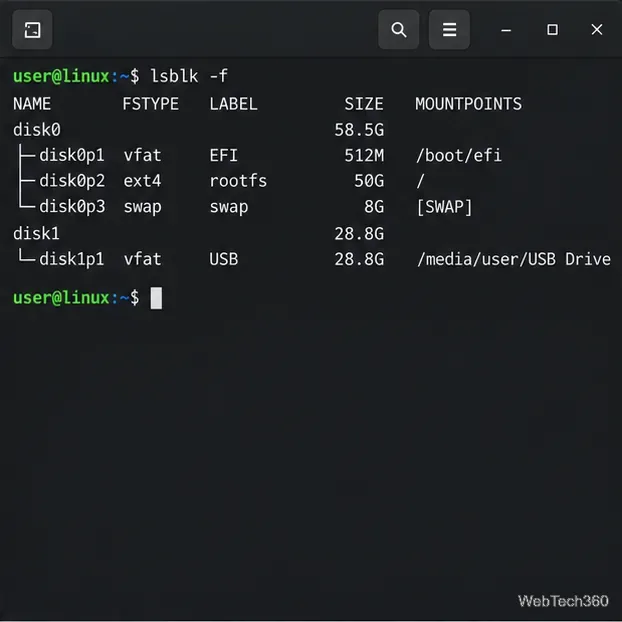
On UEFI systems, identify the EFI System Partition (ESP) in the output. It is often FAT32, with a mount point such as /boot/efi, /efi, or /boot. It usually contains an EFI directory.
Replace the example USB path with the mount point you found. Keep quotation marks around paths that contain spaces.
USB="/media/$USER/USB_LABEL"
BACKUP="$USB/grub-backup"
sudo mkdir -p "$BACKUP"

paths=(etc/default/grub etc/grub.d)
for p in etc/default/grub.d boot/grub boot/grub2; do
  [ ! -e "/$p" ] || paths+=("$p")
done
sudo tar -C / -czf "$BACKUP/grub-files.tar.gz" "${paths[@]}"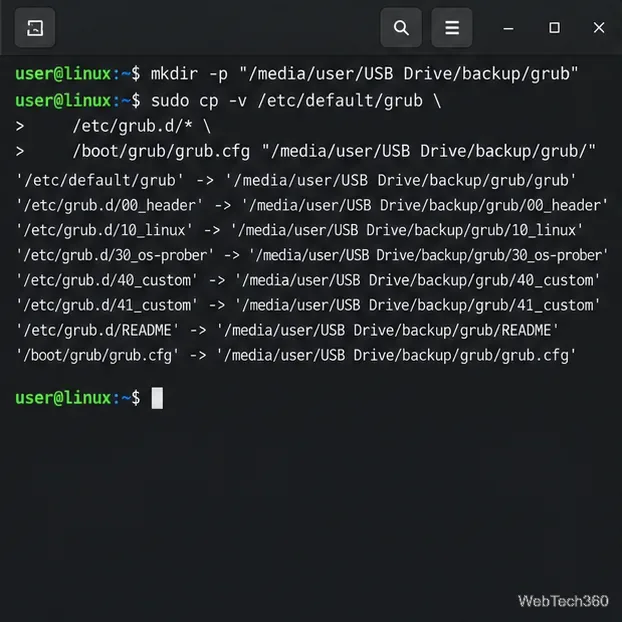
The archive preserves Linux permissions even on USB filesystems that do not. It includes the optional GRUB directories found on this installation.
Set ESP to the mount point you identified; this example uses /boot/efi. The archive includes other vendors’ files if they share the EFI directory.
ESP="/boot/efi"
sudo tar -C "$ESP" -czf "$BACKUP/esp-files.tar.gz" EFI
sudo efibootmgr -v | sudo tee "$BACKUP/uefi-boot-entries.txt" >/dev/null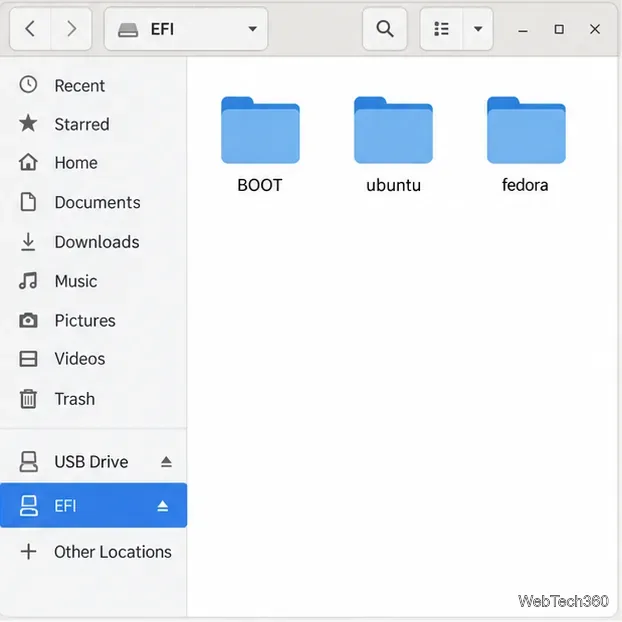
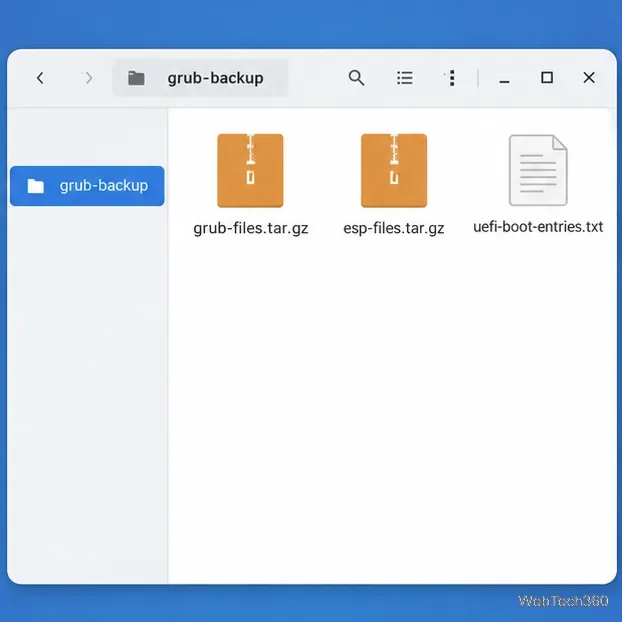
efibootmgr -v prints boot-entry details, not every firmware setting. Skip these commands on BIOS-only systems.
tar -tzf "$BACKUP/grub-files.tar.gz" | head
[ ! -f "$BACKUP/esp-files.tar.gz" ] || tar -tzf "$BACKUP/esp-files.tar.gz" | head
ls -lh "$BACKUP"
sync
Check that the archive names and sizes look plausible, then eject the USB before unplugging it. Keep the backup separate from a live-installer USB that may be erased while creating boot media.
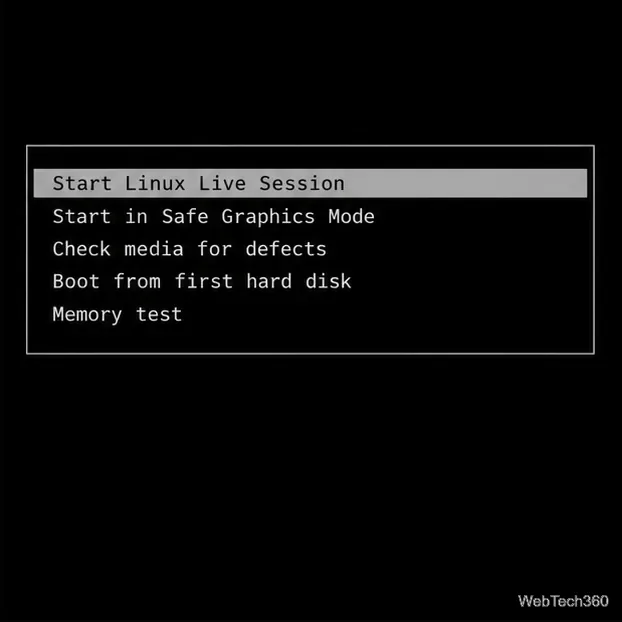
Boot a Linux live or rescue USB in the same UEFI or legacy BIOS mode, if possible. Identify the root, any separate /boot partition, and the ESP again; device names may differ.
Mount the installed system at a temporary location such as /mnt/target, with separate boot partitions mounted at their matching paths. Follow your distribution’s instructions for the exact partition and chroot commands.
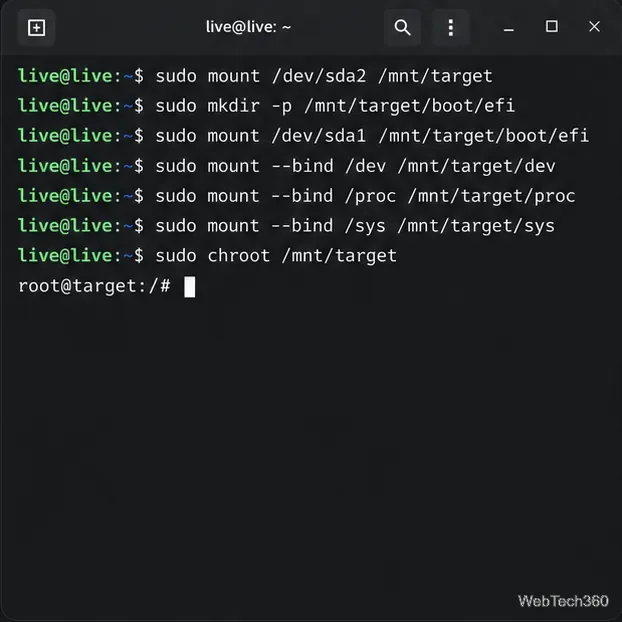
After mounting the installed root and any separate /boot partition, restore the archive only if it came from this installation and release:
sudo tar -xzf "/path/to/grub-backup/grub-files.tar.gz" -C /mnt/targetReplace the example path with the USB’s actual location. Do not extract the EFI archive over a shared ESP; use the distribution’s reinstall steps to recreate boot files and the firmware entry. Secure Boot may require signed shim and GRUB packages.
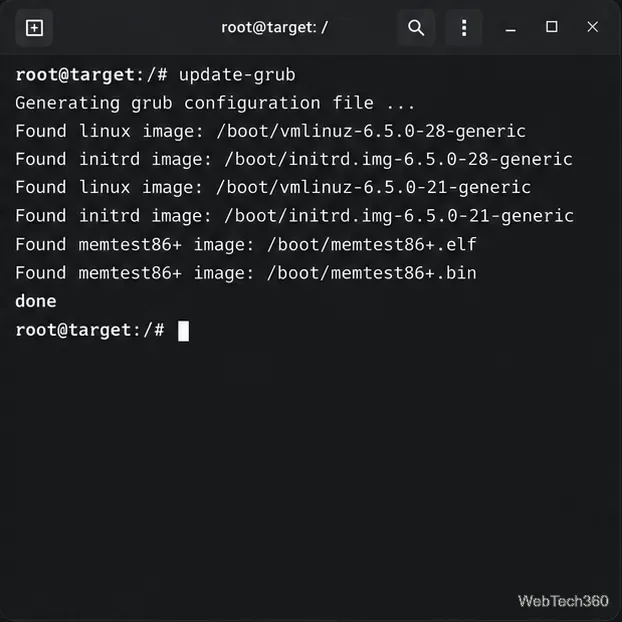
In the chroot, regenerate the menu using your distribution’s command and output path. Debian and Ubuntu commonly use update-grub; others document grub-mkconfig or grub2-mkconfig. If startup code is missing, reinstall GRUB for the correct BIOS disk or UEFI partition. Verify the target before grub-install.
A one-sector copy misses BIOS GRUB’s embedded image or BIOS Boot partition when used. The first sector also contains partition-table data, so restoring an old copy can damage a changed disk. UEFI files and firmware entries are separate. Use this archive as recovery information; keep a tested whole-disk image for full rollback.
Send and receive files over Bluetooth on Linux with Blueman. Install OBEX support, pair devices, choose a file, accept transfers, and fix common issues.
Connect GNOME Files to SSH/SFTP, FTP, SMB, WebDAV, or NFS with the correct server URI, sign-in details, and fixes for common connection errors.
Open SFTP, SSH, SMB, FTP, NFS, and WebDAV locations in Dolphin, sign in safely, transfer files, and save network folders for later.
Connect a DualShock 4 to Linux by USB or Bluetooth, then check controller detection and configure Steam Input only when a game needs it.
Use DNF5 parallel downloads to reduce RPM install waits in GNOME Software, then tell when mirror or Flatpak delays need a different fix.
Access iCloud on Linux in a current browser. Learn how to sign in, use iCloud Drive and other web apps, and understand the limits of browser access.
Save GRUB settings, boot files, and UEFI entry details to removable storage, then use rescue media to repair the correct boot path safely.
Install Bitwarden on Linux with the right DEB, RPM, Snap, Flatpak, or AppImage package, then sign in and set a secure vault timeout.
Pick a screensaver theme in Xfce, preview it, choose when it starts, and configure automatic locking in the separate Lock Screen tab.
Stop GNOME Shell from blanking or locking your display automatically. Change Power and Screen Lock settings, or use Caffeine for a temporary keep-awake toggle.







