How to Share Files Over Bluetooth on Linux with Blueman

Send and receive files over Bluetooth on Linux with Blueman. Install OBEX support, pair devices, choose a file, accept transfers, and fix common issues.
To speed up the Fedora Linux app installer, first identify what is taking time. On Fedora systems that use PackageKit with DNF5, including the Fedora 44 backend change, GNOME Software can use DNF5 settings for RPM downloads. Raising the simultaneous download limit can shorten an install that needs several RPM packages. It will not make every part of Software faster: app catalog searches, metadata waits, and Flatpak downloads follow different paths.
Start with max_parallel_downloads=5. The DNF5 default is three simultaneous downloads, and the documented maximum is 20. A higher value is not automatically faster; your connection, mirror, and package server still set the limit. The optional fastestmirror setting chooses based on TCP latency, not measured download bandwidth, so treat it as an experiment.

GNOME Software can install Fedora RPM packages and Flatpak applications. Open the app’s details page and look for its source or packaging format. If the delay happens while RPM packages are downloading, the DNF settings below may help. If the app list is slow to load or search, or the app comes from a Flatpak remote, changing dnf.conf is unlikely to fix that delay.
On Fedora 44 and later, GNOME Software’s PackageKit backend uses DNF5 and its configuration; older releases may differ. Check with dnf --version. The Fedora project explains the integration in its PackageKit-DNF5 notes.
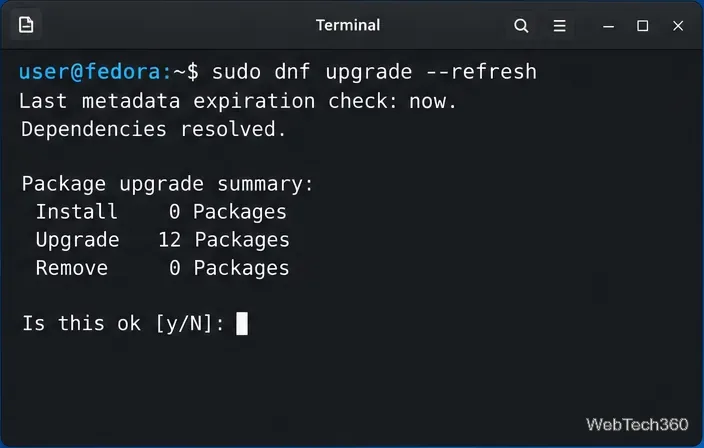
Install available updates before tuning DNF. This updates the release you already run; you do not need to upgrade to a newer Fedora release just to try the settings in this guide. Open Software and install the updates it offers, or use a terminal:
sudo dnf upgrade --refreshReview the proposed transaction and confirm it when you are ready. The --refresh option asks DNF to check repository metadata before upgrading packages. Restart the computer if the update process asks you to do so. Fedora documents the release-upgrade process separately; that is a larger maintenance task, not a routine speed tweak.
Open the system-wide DNF configuration file as an administrator:
sudoedit /etc/dnf/dnf.confFind the existing [main] section. Add the setting beneath it, or change its current value if it is already present. Do not create a second copy of the same option. Begin with five simultaneous downloads:
[main]
max_parallel_downloads=5
If the file already has a [main] heading, keep it and add only the setting. Save and close the editor. If your connection remains stable, you can test 10; reduce the value if downloads stall or slow other devices. DNF5’s maximum of 20 is not a recommended setting for every connection.
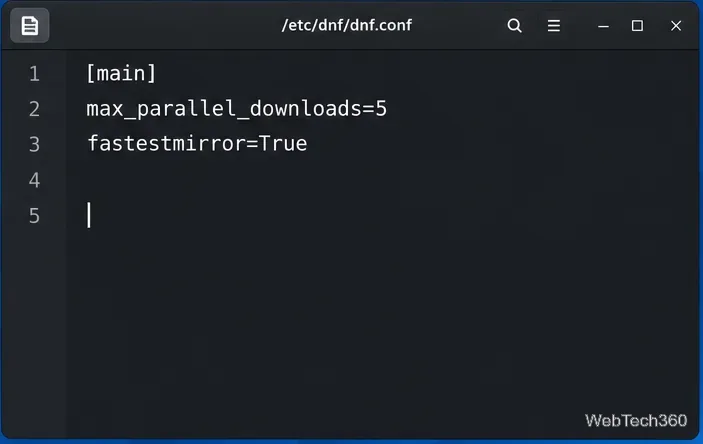
To let DNF5 select mirrors using TCP socket latency, add this line under [main] as well:
fastestmirror=TrueThe DNF5 reference says this overrides mirror-list order and selects among mirrors with latency near the lowest observed value. It does not measure throughput, so a low-latency mirror can still download slowly. Test installs with and without this line; remove it if performance gets worse. See the official DNF5 configuration reference for the current option definitions and defaults.
Before restarting PackageKit, close GNOME Software and make sure no install or update is running. Then reload the service so it starts with the updated configuration:
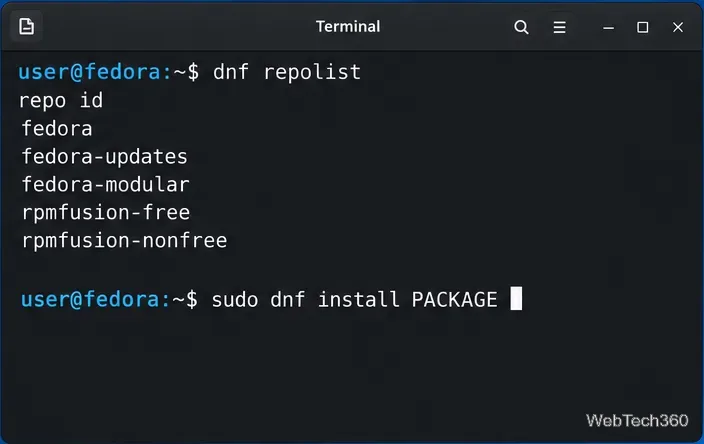
sudo systemctl restart packagekit.serviceReopen GNOME Software and try a small RPM application. If you want to compare the package manager outside the graphical interface, run dnf repolist to see the enabled repositories, then install a package you recognize with sudo dnf install PACKAGE_NAME, replacing the placeholder with its actual package name. Do not compare unrelated downloads: package size, repository load, and cache state affect the time.
To undo the change, remove the max_parallel_downloads and fastestmirror lines you added, then restart packagekit.service when no package operation is active. For how Fedora separates RPM and Flatpak sources, see its guide to finding and installing Linux applications.
Send and receive files over Bluetooth on Linux with Blueman. Install OBEX support, pair devices, choose a file, accept transfers, and fix common issues.
Connect GNOME Files to SSH/SFTP, FTP, SMB, WebDAV, or NFS with the correct server URI, sign-in details, and fixes for common connection errors.
Open SFTP, SSH, SMB, FTP, NFS, and WebDAV locations in Dolphin, sign in safely, transfer files, and save network folders for later.
Connect a DualShock 4 to Linux by USB or Bluetooth, then check controller detection and configure Steam Input only when a game needs it.
Use DNF5 parallel downloads to reduce RPM install waits in GNOME Software, then tell when mirror or Flatpak delays need a different fix.
Access iCloud on Linux in a current browser. Learn how to sign in, use iCloud Drive and other web apps, and understand the limits of browser access.
Save GRUB settings, boot files, and UEFI entry details to removable storage, then use rescue media to repair the correct boot path safely.
Install Bitwarden on Linux with the right DEB, RPM, Snap, Flatpak, or AppImage package, then sign in and set a secure vault timeout.
Pick a screensaver theme in Xfce, preview it, choose when it starts, and configure automatic locking in the separate Lock Screen tab.
Stop GNOME Shell from blanking or locking your display automatically. Change Power and Screen Lock settings, or use Caffeine for a temporary keep-awake toggle.







