How to Share Files Over Bluetooth on Linux with Blueman

Send and receive files over Bluetooth on Linux with Blueman. Install OBEX support, pair devices, choose a file, accept transfers, and fix common issues.
Dolphin, KDE Plasma’s file manager, connects to remote folders through KDE’s KIO workers. Enter the server URL in Dolphin’s editable location bar using the right protocol, then sign in if asked. You can browse and transfer files through SFTP, SSH, SMB/CIFS, FTP, NFS, and WebDAV. Availability depends on installed KIO components and server configuration; KDE’s Dolphin location-bar guide lists the supported network protocols.

Ask the server administrator for the protocol, hostname or IP address, exact share or folder path, username, and any nonstandard port. SMB may also require a domain or workgroup. The server must allow your client to access an NFS export; an address for one share may not open another.
Do not put your password in the address. Dolphin can request credentials in a separate sign-in dialog. Standard FTP sends passwords and file data without encryption, so use it only on a trusted network; choose SFTP or an encrypted WebDAV connection when the server offers one. The IETF’s FTP security considerations explain the risk of unencrypted FTP.
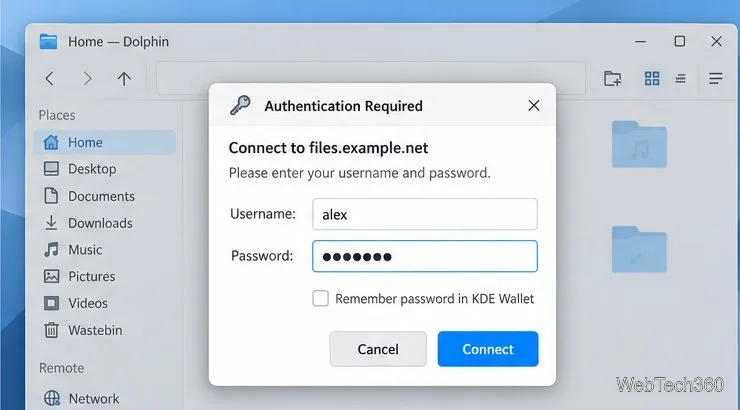
Replace the example host, account, port, and path with the values supplied for your server. Keep the two slashes after each protocol name.
| Connection | Example address | What to check |
|---|---|---|
| SFTP | sftp://alex@files.example.net/home/alex | Uses SSH File Transfer Protocol; confirm the server allows SFTP and the account can access that path. |
| SSH through FISH | fish://alex@files.example.net/home/alex | Requires an SSH service and a compatible command-line environment on the remote host. See KDE’s FISH worker documentation. |
| SMB/CIFS | smb://nas.example.net/Shared | Use the exact Samba share name, not just the device name, if you already know the share. |
| NFS | nfs://nas.example.net/export | Use the export path and client access allowed by the NFS administrator. |
| FTP | ftp://files.example.net/path | Use only where unencrypted FTP is appropriate; do not send sensitive credentials over an untrusted network. |
| WebDAV | Use the WebDAV address supplied by the service | The Network Folder Wizard supports WebDAV and offers an encryption option. |
If a connection fails, first check the scheme and path. For example, an SMB server can be reachable while the share name is wrong. For SFTP or FISH, confirm that SSH is enabled and that the port is correct. For NFS, check the exported path and the server’s client-access rules.
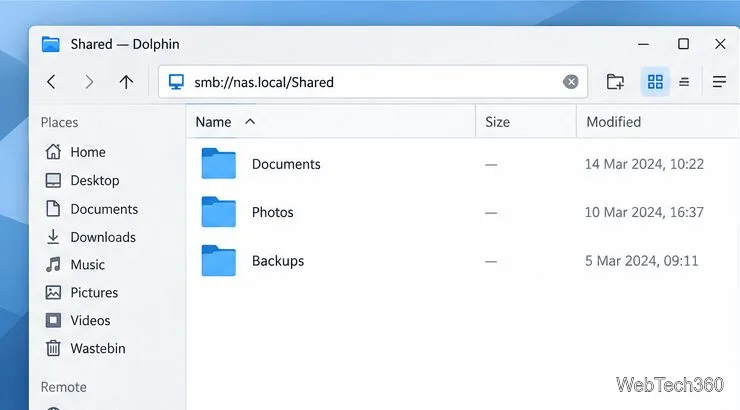
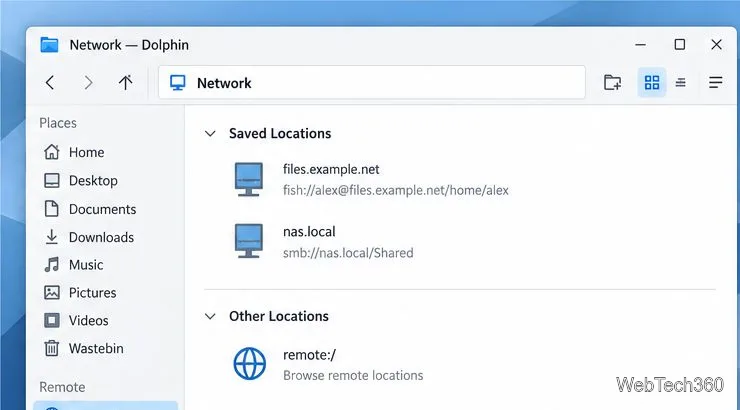
For a connection you use often, type remote:/ in the editable location bar or select Network in Dolphin’s Places panel. This opens KDE’s network-folder area, where previously added locations appear. If the Network Folder Wizard is available, use it to save an FTP, Samba/SMB, SSH, or WebDAV folder by entering its name, server, folder, and account details. The KDE KNetAttach guide describes the wizard and the remote:/ location. This area is for saved network folders; it does not guarantee automatic discovery of every device on your LAN.
Send and receive files over Bluetooth on Linux with Blueman. Install OBEX support, pair devices, choose a file, accept transfers, and fix common issues.
Connect GNOME Files to SSH/SFTP, FTP, SMB, WebDAV, or NFS with the correct server URI, sign-in details, and fixes for common connection errors.
Open SFTP, SSH, SMB, FTP, NFS, and WebDAV locations in Dolphin, sign in safely, transfer files, and save network folders for later.
Connect a DualShock 4 to Linux by USB or Bluetooth, then check controller detection and configure Steam Input only when a game needs it.
Use DNF5 parallel downloads to reduce RPM install waits in GNOME Software, then tell when mirror or Flatpak delays need a different fix.
Access iCloud on Linux in a current browser. Learn how to sign in, use iCloud Drive and other web apps, and understand the limits of browser access.
Save GRUB settings, boot files, and UEFI entry details to removable storage, then use rescue media to repair the correct boot path safely.
Install Bitwarden on Linux with the right DEB, RPM, Snap, Flatpak, or AppImage package, then sign in and set a secure vault timeout.
Pick a screensaver theme in Xfce, preview it, choose when it starts, and configure automatic locking in the separate Lock Screen tab.
Stop GNOME Shell from blanking or locking your display automatically. Change Power and Screen Lock settings, or use Caffeine for a temporary keep-awake toggle.







