How to Share Files Over Bluetooth on Linux with Blueman

Send and receive files over Bluetooth on Linux with Blueman. Install OBEX support, pair devices, choose a file, accept transfers, and fix common issues.
Install Bitwarden on Linux by choosing a DEB, RPM, Snap, Flatpak, or AppImage package, then launch the desktop app and sign in. Use the installer that fits your distribution, select the correct server for your account, and set a vault timeout before relying on the app day to day.
Package formats differ in update behavior and system integration. Choose one method and keep Bitwarden updated through that method.
| Format | Best fit | Notes |
|---|---|---|
| DEB | Ubuntu, Debian, Linux Mint | Update through APT; no automatic in-app updates. |
| RPM | Fedora, openSUSE | Update through DNF or Zypper. |
| Snap | Systems with Snap | Automatic updates; connect secure storage after installing. |
| Flatpak | Systems with Flathub | Automatic updates; some integrations need extra setup. |
| AppImage | A portable app file | Make it executable; update manually. |
Bitwarden’s feature support chart compares updates, secure storage, biometrics, and integration across Linux packages. Secure storage uses libsecret; Flatpak biometric unlock may require a Polkit policy.

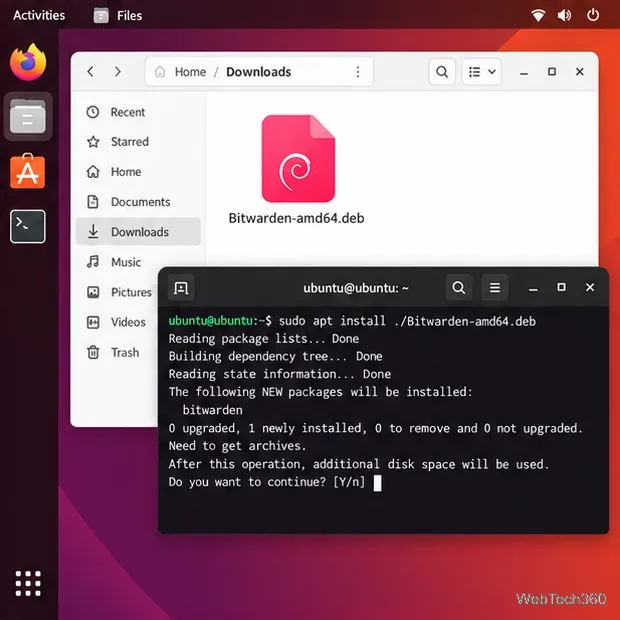
Download the DEB from Bitwarden’s official downloads page. In a terminal, install the local package with APT:
cd ~/Downloads
sudo apt install ./Bitwarden-amd64.deb
If your download has a different filename, use that exact name. APT resolves dependencies during the install. When it finishes, open Bitwarden from your applications menu.
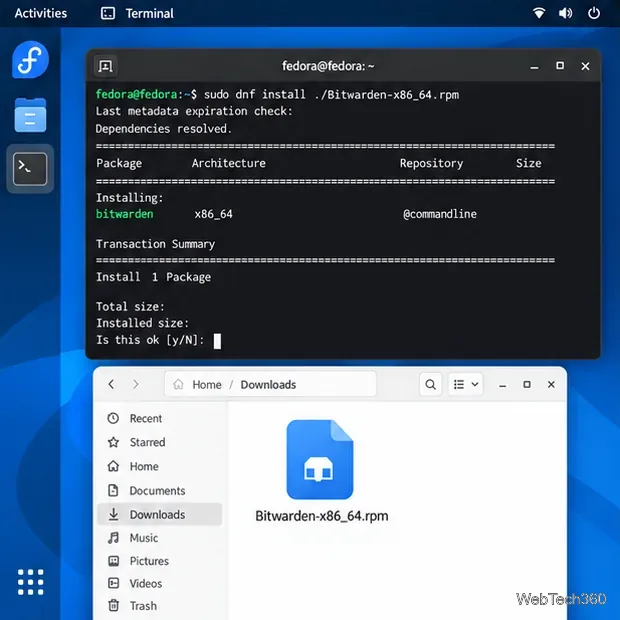
Download the RPM, open a terminal in Downloads, and run the command for your distribution:
# Fedora
sudo dnf install ./Bitwarden-x86_64.rpm

# openSUSE
sudo zypper install ./Bitwarden-x86_64.rpm
Use only one command. If the downloaded package has a versioned name, replace the example filename with the exact one.
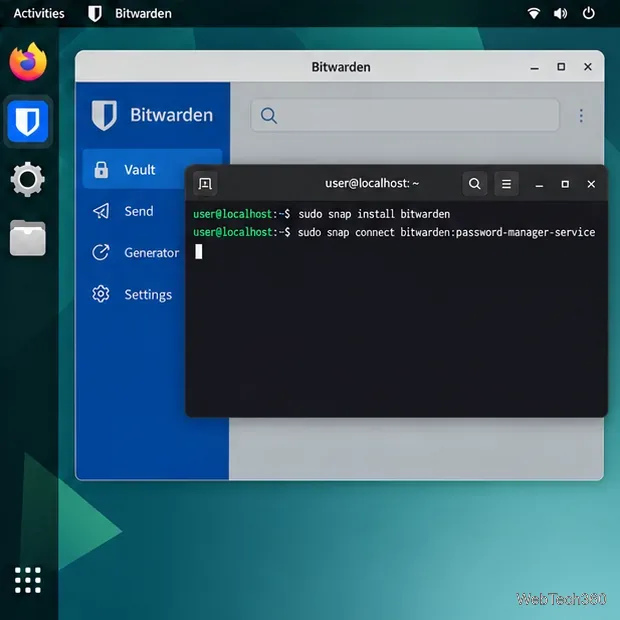
On a system with Snap support, install Bitwarden and connect its password-manager service:
sudo snap install bitwarden
sudo snap connect bitwarden:password-manager-service
If you signed in before connecting the service, sign out and back in. Bitwarden documents this step in its desktop app setup guide.
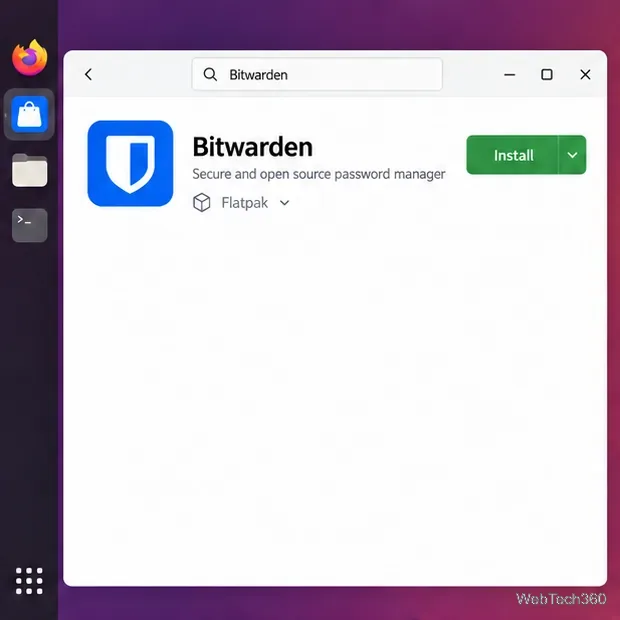
With Flatpak and Flathub configured, install the app with:
flatpak install flathub com.bitwarden.desktopConfirm the prompt, then launch Bitwarden from your application menu. Snap and Flatpak receive automatic app updates; DEB, RPM, and AppImage users should check for updates through their chosen source.
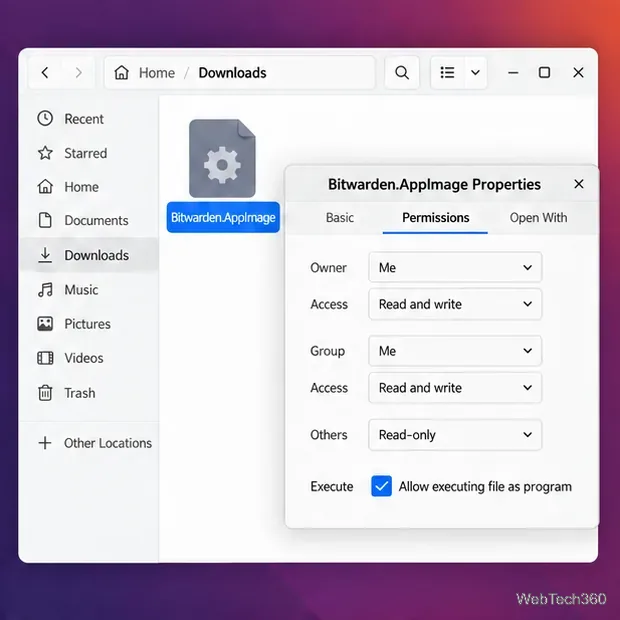
Download the AppImage from Bitwarden’s official page. In Files, open its properties, select Permissions, enable Allow executing file as program, and double-click it. Or use a terminal:
cd ~/Downloads
chmod +x Bitwarden*.AppImage
./Bitwarden*.AppImage
The wildcard assumes one matching file in Downloads; use the exact filename if you keep multiple versions. AppImage does not update itself. The official download page does not list a native Arch package, so Arch users can use Flatpak or choose a community AUR package after reviewing its build instructions.
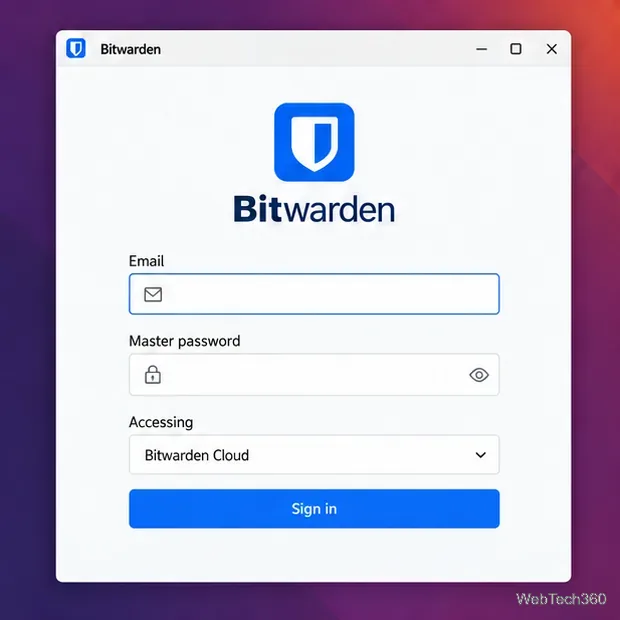
Launch Bitwarden and enter your account email and master password. If you do not have an account, use the sign-up option. Before signing in, check the Accessing selector and choose the cloud region where your account is registered.
For a self-hosted account, select Self-hosted, enter your server’s full URL beginning with https://, and save it. Choosing the wrong server can make a valid account appear unavailable. See Bitwarden’s client environment instructions for details.
After login, the desktop app downloads your current vault. Browser autofill needs the Bitwarden extension for your browser; the desktop app alone does not fill browser forms.
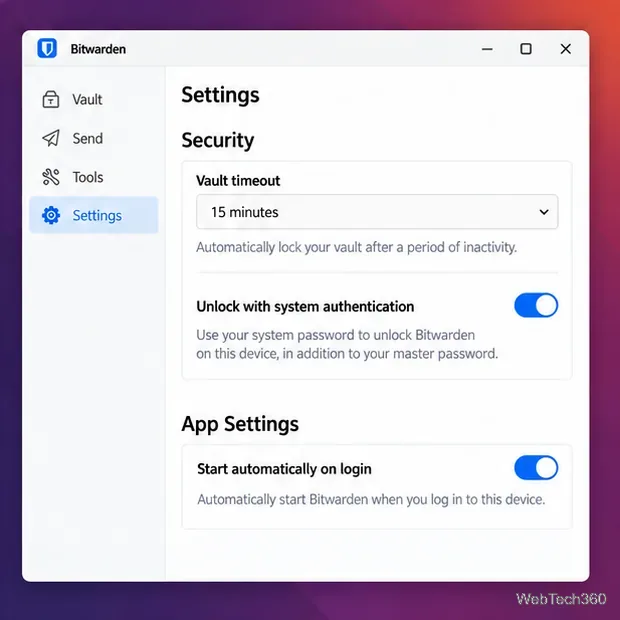
Open File > Settings and choose a vault timeout under Security. Set the timeout action to lock the vault. Avoid Never on shared or unattended computers: Bitwarden warns that this can leave the encryption key stored unencrypted on the device. Timeout preferences are set per account.
If Linux system authentication is configured, you can enable Unlock with system authentication when available. It is an unlock convenience after initial login, not a replacement for your master password. Biometrics require a Polkit agent; Flatpak may also need Bitwarden’s Polkit policy. Linux secure storage depends on libsecret. Follow Bitwarden’s biometric setup instructions for package-specific details.
In App Settings, turn on Start automatically on login if you want Bitwarden to open with your Linux session. For timeout choices, see the vault timeout guide.
Confirm that your vault entries appear. If recent changes are missing, select File > Sync vault. Bitwarden also syncs desktop apps at login and regularly while unlocked; see its vault sync guide.
If installation fails, check that the command uses the exact downloaded filename and the right package type. If Snap cannot use secure storage, run the snap connect command above and sign in again. If biometric unlock is missing, check for a Polkit agent and the required package policy.
Send and receive files over Bluetooth on Linux with Blueman. Install OBEX support, pair devices, choose a file, accept transfers, and fix common issues.
Connect GNOME Files to SSH/SFTP, FTP, SMB, WebDAV, or NFS with the correct server URI, sign-in details, and fixes for common connection errors.
Open SFTP, SSH, SMB, FTP, NFS, and WebDAV locations in Dolphin, sign in safely, transfer files, and save network folders for later.
Connect a DualShock 4 to Linux by USB or Bluetooth, then check controller detection and configure Steam Input only when a game needs it.
Use DNF5 parallel downloads to reduce RPM install waits in GNOME Software, then tell when mirror or Flatpak delays need a different fix.
Access iCloud on Linux in a current browser. Learn how to sign in, use iCloud Drive and other web apps, and understand the limits of browser access.
Save GRUB settings, boot files, and UEFI entry details to removable storage, then use rescue media to repair the correct boot path safely.
Install Bitwarden on Linux with the right DEB, RPM, Snap, Flatpak, or AppImage package, then sign in and set a secure vault timeout.
Pick a screensaver theme in Xfce, preview it, choose when it starts, and configure automatic locking in the separate Lock Screen tab.
Stop GNOME Shell from blanking or locking your display automatically. Change Power and Screen Lock settings, or use Caffeine for a temporary keep-awake toggle.







