How to Share Files Over Bluetooth on Linux with Blueman

Send and receive files over Bluetooth on Linux with Blueman. Install OBEX support, pair devices, choose a file, accept transfers, and fix common issues.
To change the screensaver on Xfce, open Applications > Settings > Screensaver, choose a theme on the Screensaver tab, and set how long the computer must be idle before it starts. Use the separate Lock Screen tab to control automatic locking. Xfce’s current screensaver preferences are different from the older XScreensaver “Mode” and “Cycle After” menus; the exact app and available themes can vary by Linux distribution. See the official Xfce Screensaver documentation for the controls described here.

Open the applications menu and choose Settings, then Screensaver. On some desktops, Screensaver appears as an icon in the Settings Manager; you can also search for “Screensaver” in the application menu. The current Xfce utility is called Xfce Screensaver and has separate Screensaver and Lock Screen tabs.
If there is no Screensaver entry, your distribution may not have installed Xfce Screensaver or may use another screen locker. Check the software center or package manager for the xfce4-screensaver package before following commands or menus written for a different screensaver. Package names and integration choices are distribution-specific.
On the Screensaver tab, select a row in the theme list. The preview pane shows the selected saver. To view it full-screen, use the Preview button at the bottom of the tab. If the selected theme has extra settings, use the small configuration control beneath the list.
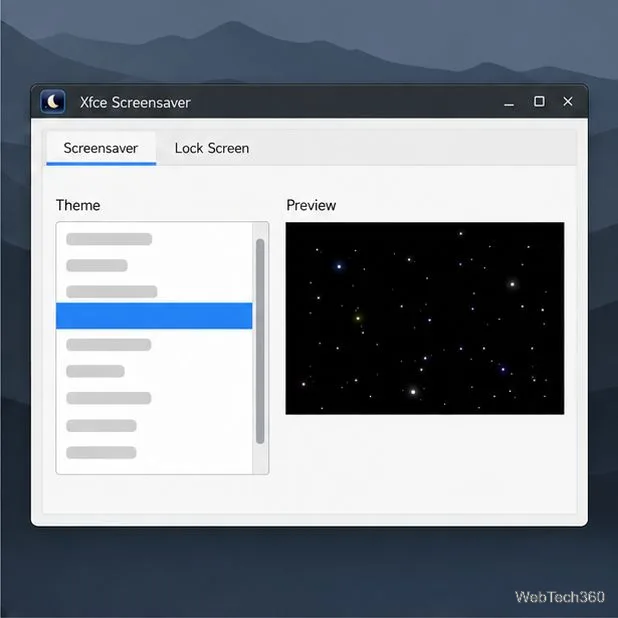
A fresh installation may include only a small set of themes. Xfce Screensaver can run compatible XScreensaver themes, and its documentation notes that collections such as xscreensaver-data or xscreensaver-gl may be packaged separately. If you want more choices, look for compatible theme collections in your distribution’s package manager. Installing a theme collection does not mean you need to replace Xfce Screensaver with the separate XScreensaver application.
Keep Enable Screensaver on, then enable activation when the computer is idle. Set the counter below the activation control to the delay you want after the last keyboard or mouse activity. This value measures inactivity; it is not a timer that starts when you open Settings. The example value in the image is not a guaranteed default for every distribution or version.
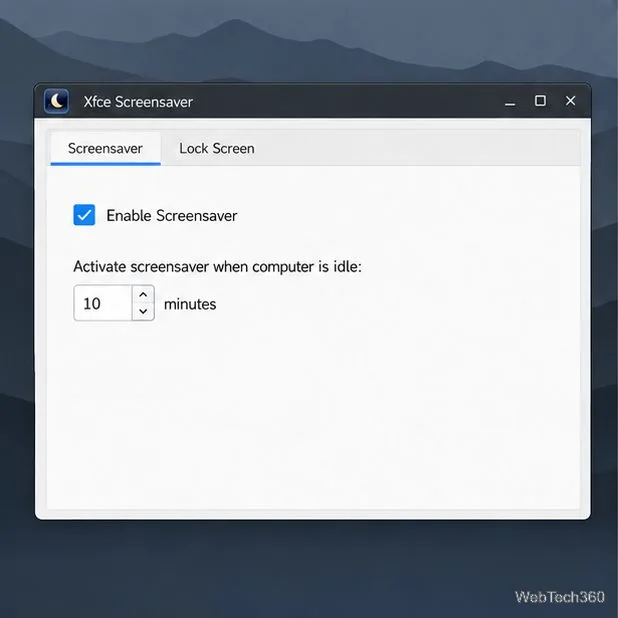
The two controls matter: the master switch enables the screensaver feature, while the idle activation control determines whether and when it runs automatically. If you want the display to go blank without animation, choose a blank theme if one is available in your list, and leave activation enabled.
Open the Lock Screen tab and turn on Enable Lock Screen if you want Xfce Screensaver to provide the lock screen. The controls here are separate from the visual theme. Enable the Lock Screen with Screensaver trigger and choose how long the saver should run before the lock screen appears. Xfce also lists a separate option related to system sleep.
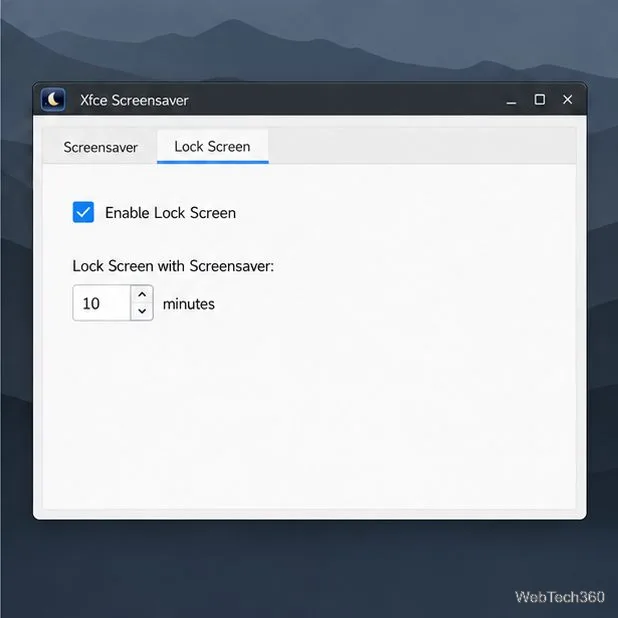
Do not treat an animated screensaver as a security lock. If you want the session to lock automatically, check both the lock screen master switch and at least one automatic trigger. Xfce’s documentation says manual locking remains available even when no automatic lock trigger is enabled. If you turn off the screensaver entirely, a lock-after-screensaver rule cannot run; use an enabled trigger or your distribution’s preferred locking method instead.
To stop the saver from starting, turn off Enable Screensaver on the Screensaver tab. To keep an automatic lock, verify the separate Lock Screen settings and choose a trigger that remains active. The screensaver and locker work together, but their switches do not mean the same thing.
If a theme is missing, install a compatible theme collection through your distribution’s package manager. If the screensaver does not start even though both its master switch and idle activation are enabled, another application may be inhibiting the idle timer or the screensaver service may not be running. The Xfce Screensaver FAQ covers these cases, including checks for the daemon and X11 screensaver state. Monitor power-off timing is a separate display power-management setting, so adjust it in Xfce Power Manager if the monitor itself is going dark too soon.
Send and receive files over Bluetooth on Linux with Blueman. Install OBEX support, pair devices, choose a file, accept transfers, and fix common issues.
Connect GNOME Files to SSH/SFTP, FTP, SMB, WebDAV, or NFS with the correct server URI, sign-in details, and fixes for common connection errors.
Open SFTP, SSH, SMB, FTP, NFS, and WebDAV locations in Dolphin, sign in safely, transfer files, and save network folders for later.
Connect a DualShock 4 to Linux by USB or Bluetooth, then check controller detection and configure Steam Input only when a game needs it.
Use DNF5 parallel downloads to reduce RPM install waits in GNOME Software, then tell when mirror or Flatpak delays need a different fix.
Access iCloud on Linux in a current browser. Learn how to sign in, use iCloud Drive and other web apps, and understand the limits of browser access.
Save GRUB settings, boot files, and UEFI entry details to removable storage, then use rescue media to repair the correct boot path safely.
Install Bitwarden on Linux with the right DEB, RPM, Snap, Flatpak, or AppImage package, then sign in and set a secure vault timeout.
Pick a screensaver theme in Xfce, preview it, choose when it starts, and configure automatic locking in the separate Lock Screen tab.
Stop GNOME Shell from blanking or locking your display automatically. Change Power and Screen Lock settings, or use Caffeine for a temporary keep-awake toggle.







