How to Share Files Over Bluetooth on Linux with Blueman

Send and receive files over Bluetooth on Linux with Blueman. Install OBEX support, pair devices, choose a file, accept transfers, and fix common issues.
GNOME Shell does not use a traditional animated screensaver by default. If the display goes dark or a lock screen appears while you are away, change the idle behavior you actually want to stop: screen blanking, automatic screen locking, or automatic suspend. To keep the display awake all the time, set Settings > Power > Screen Blank to Never. If GNOME still shows a password prompt, turn off Automatic Screen Lock separately. For occasional presentations or long-running tasks, the Caffeine extension provides a temporary keep-awake toggle.
These settings are related, but one does not replace the others. GNOME’s help documentation treats display blanking and the lock screen as separate controls:
If your goal is only to stop the lock prompt, leave screen blanking on and change the lock setting. If you want the monitor to remain lit, change Screen Blank. Adjust suspend only if the whole computer sleeps.

This keeps the display from blanking due to GNOME’s idle timer. It does not automatically disable screen locking or suspend. Keeping a display on uses more electricity, so choose a delay instead if you only need a longer interval. Menu wording and available options can vary slightly by the GNOME version or Linux distribution.
If the computer itself goes to sleep, return to the Power panel and review Automatic Suspend. Disable suspend only for the power source that matters to you; a laptop may use different behavior on battery and while plugged in.
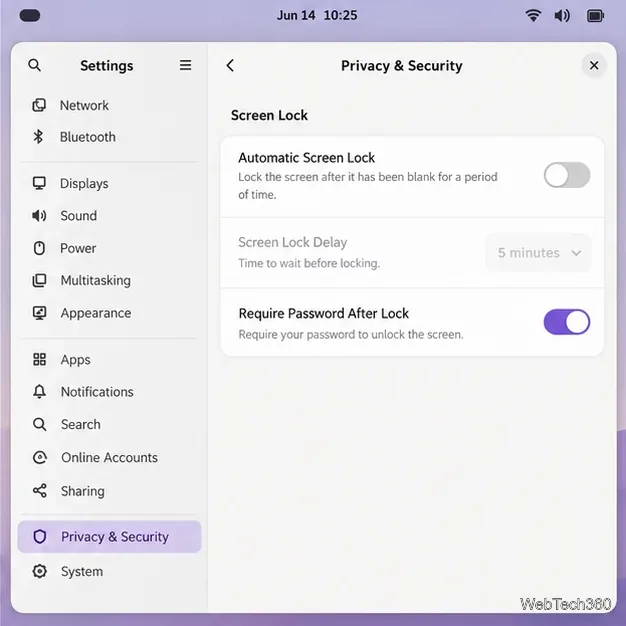
Turning off automatic locking leaves your desktop open when you walk away. Anyone with physical access to the computer may be able to see or use the active session. Keep automatic locking enabled on shared, public, or work devices; increasing the delay is a safer compromise when the default interval is too short.
The third-party Caffeine GNOME Shell extension can inhibit the idle screensaver behavior and automatic suspend while it is active. This is useful for a presentation, a long download, or a task that should keep running without you touching the keyboard. Unlike changing the built-in settings, you can switch it off when the task is over.
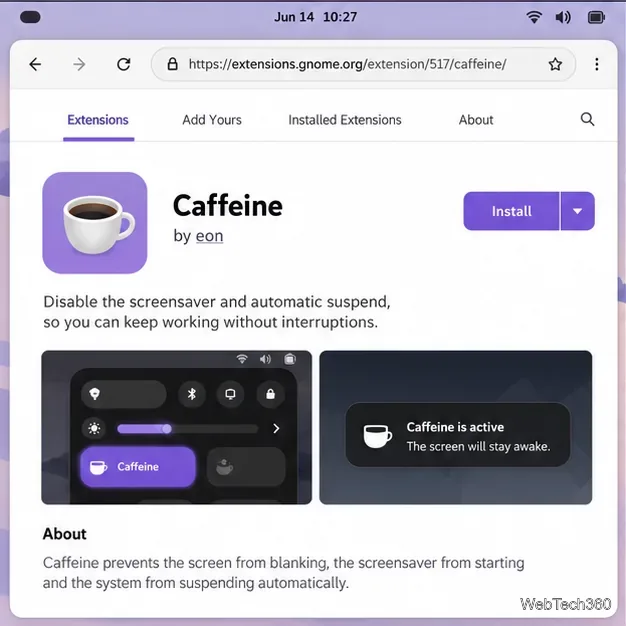
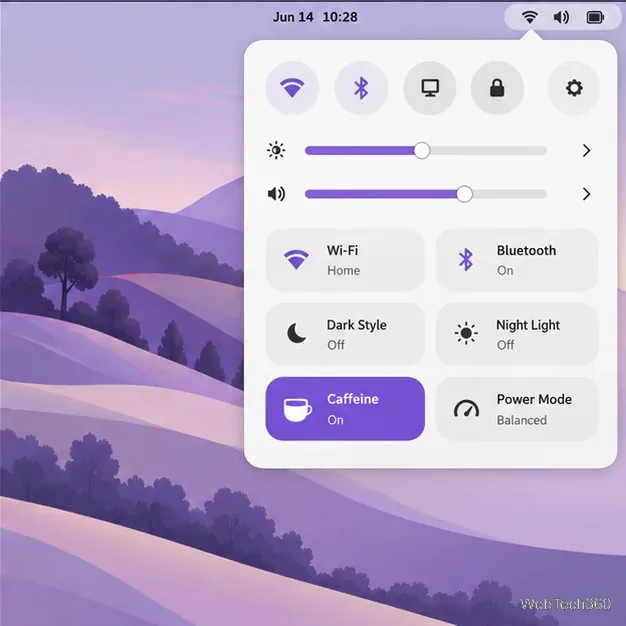
Extensions are maintained separately from GNOME itself and may not support every Shell release immediately. If Caffeine is unavailable or refuses to enable, do not force an incompatible version; use the built-in Power and Screen Lock controls instead. The extension’s current compatibility list and notes are on its GNOME Extensions page and its upstream project page.
For GNOME’s built-in controls, see the official guides to setting screen blanking time and automatic screen locking. Those settings are the simplest way to disable GNOME Shell’s idle blanking or lock behavior without installing an extension.
Send and receive files over Bluetooth on Linux with Blueman. Install OBEX support, pair devices, choose a file, accept transfers, and fix common issues.
Connect GNOME Files to SSH/SFTP, FTP, SMB, WebDAV, or NFS with the correct server URI, sign-in details, and fixes for common connection errors.
Open SFTP, SSH, SMB, FTP, NFS, and WebDAV locations in Dolphin, sign in safely, transfer files, and save network folders for later.
Connect a DualShock 4 to Linux by USB or Bluetooth, then check controller detection and configure Steam Input only when a game needs it.
Use DNF5 parallel downloads to reduce RPM install waits in GNOME Software, then tell when mirror or Flatpak delays need a different fix.
Access iCloud on Linux in a current browser. Learn how to sign in, use iCloud Drive and other web apps, and understand the limits of browser access.
Save GRUB settings, boot files, and UEFI entry details to removable storage, then use rescue media to repair the correct boot path safely.
Install Bitwarden on Linux with the right DEB, RPM, Snap, Flatpak, or AppImage package, then sign in and set a secure vault timeout.
Pick a screensaver theme in Xfce, preview it, choose when it starts, and configure automatic locking in the separate Lock Screen tab.
Stop GNOME Shell from blanking or locking your display automatically. Change Power and Screen Lock settings, or use Caffeine for a temporary keep-awake toggle.







