Home
» LINUX
»
How to Back Up a Brave Browser Profile on Linux
How to Back Up a Brave Browser Profile on Linux
To back up a Brave browser profile on Linux, close Brave, archive the complete user-data folder, and encrypt the archive before moving it to another drive or cloud account. The default folder is usually ~/.config/Brave-browser, but check Brave’s active profile path first because custom launch settings and alternate builds can use another location.
This guide covers desktop Brave on Linux. The Windows and macOS profile paths are different.
Find the correct Brave data folder
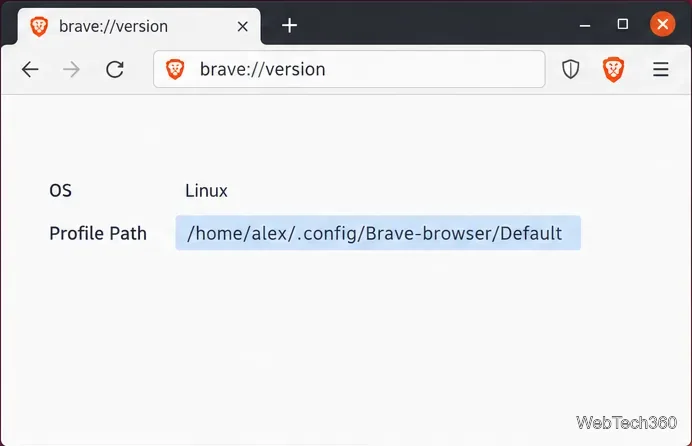
Open brave://version in Brave and look for Profile Path. If it ends in /Default or another profile name, the full data folder is the parent directory one level above it. For example, /home/alex/.config/Brave-browser/Default belongs to the data folder /home/alex/.config/Brave-browser. Brave’s current help page lists ~/.config/Brave-browser as the Linux user-data folder; use the path shown in your own browser if it differs. Brave’s data-folder guidance lists the platform paths.
Open brave://version and note the Profile Path before selecting the Brave data folder.
Back up and encrypt the profile
Quit Brave completely. Close every browser window and wait for Brave to finish writing its profile files. Do not archive a profile while the browser is running.
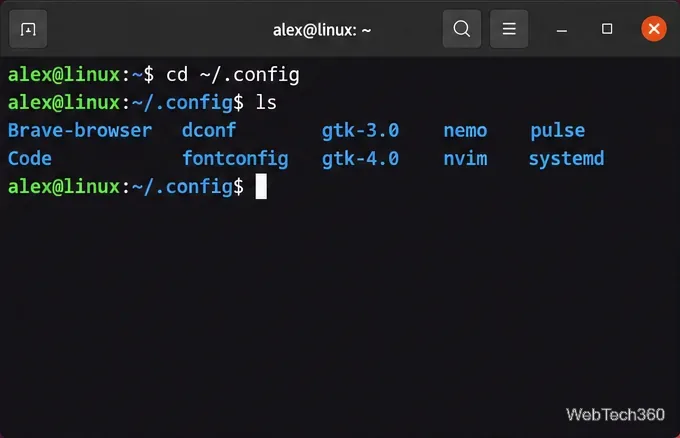
Confirm the folder in a terminal. Open Terminal and run: cd ~/.config ls For the default installation, the listing should include Brave-browser. If it does not, go back to brave://version and use the actual data folder in the commands below.Confirm that Brave-browser appears in ~/.config before creating the archive.
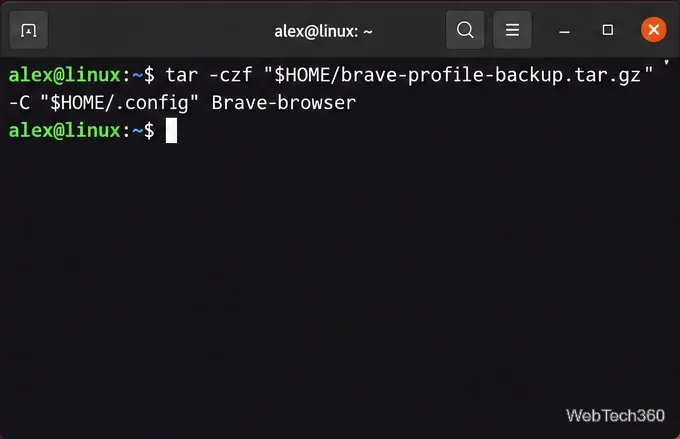
Create a compressed archive. For the default folder, run: tar -czf "$HOME/brave-profile-backup.tar.gz" -C "$HOME/.config" Brave-browser This stores the whole Brave-browser directory, including profile folders and the adjacent browser state file. If your data folder has a different name or parent, replace ~/.config and Brave-browser with its parent and folder name. The -C option changes the directory tar reads from; the final argument is the folder to archive. See the GNU tar documentation for -C.Create a compressed archive of the complete Brave data folder.
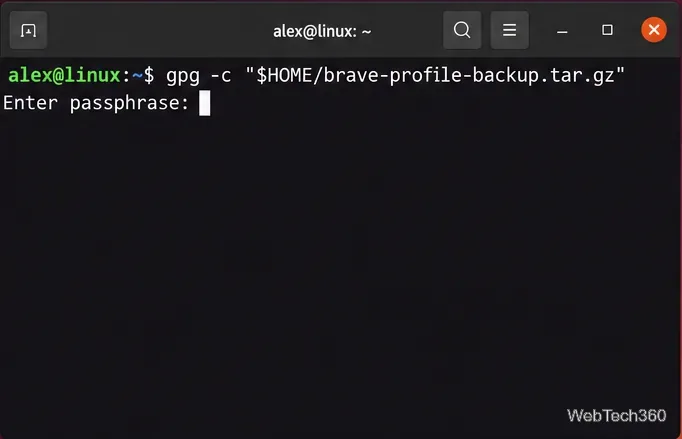
Encrypt the archive with GPG. Run: gpg -c "$HOME/brave-profile-backup.tar.gz" Enter a strong, unique passphrase and keep it somewhere separate from the backup. GPG creates brave-profile-backup.tar.gz.gpg. The GnuPG manual documents -c as symmetric encryption with a passphrase.Encrypt the archive with a strong passphrase before sending it elsewhere.
Before removing the unencrypted .tar.gz, verify the encrypted file exists and can be decrypted. You can test the passphrase without saving another plaintext copy with gpg --output /dev/null --decrypt "$HOME/brave-profile-backup.tar.gz.gpg". After a successful check, store the .gpg file on an external drive or in cloud storage. Do not upload the unencrypted archive. Deleting a plaintext file with rm removes its directory entry but is not a guaranteed secure erase on SSDs.
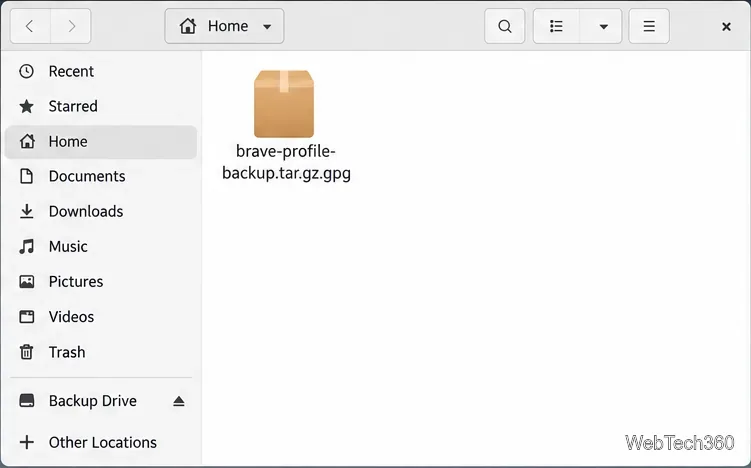
Keep the encrypted .gpg file on a separate drive or in secure cloud storage.
Restore the Brave profile
Place the encrypted backup in your home folder. Copy brave-profile-backup.tar.gz.gpg from the external drive or cloud download into $HOME.
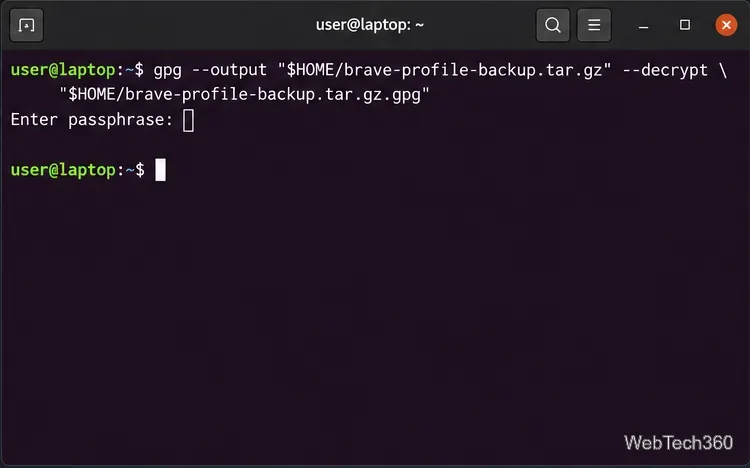
Decrypt it. Run: gpg --output "$HOME/brave-profile-backup.tar.gz" --decrypt "$HOME/brave-profile-backup.tar.gz.gpg" Enter the same passphrase. Keep the decrypted archive private while you restore it.Decrypt the saved backup with the passphrase used when it was encrypted.
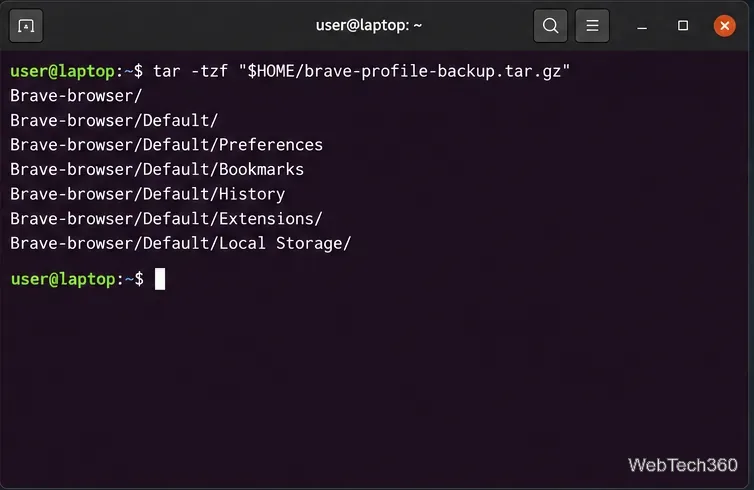
Check the archive listing. Before extracting, run: tar -tzf "$HOME/brave-profile-backup.tar.gz" | head -20 For the default backup, entries should begin with Brave-browser/. Stop if the listing is unexpected or the archive cannot be read.Check that the archive contains the expected Brave-browser folder before extraction.
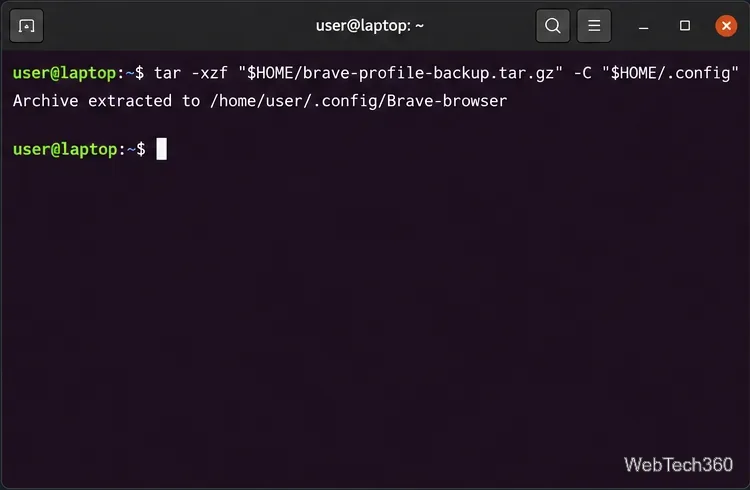
Extract to the data folder’s parent. Make sure Brave is closed. On a fresh system, install Brave and open it once, then quit. Move any existing Brave-browser folder aside before extraction to avoid mixing files. Then run: tar -xzf "$HOME/brave-profile-backup.tar.gz" -C "$HOME/.config" If you used a custom data path, extract into its parent directory instead. Start Brave and confirm the expected profile, bookmarks, and settings appear. Remove the temporary decrypted archive when you are satisfied with the restore.Extract the archive to the parent directory of the Brave data folder.
What a profile copy may not restore
A file archive is useful for a rollback or recovery in the same Linux environment, but it is not a reliable way to move every protected item to another computer. Brave says Linux uses the desktop’s password-store backend to protect sensitive data, and copying a profile to another machine can make encrypted data unreadable. Keep the original machine’s access and recovery information until you have checked the restored profile. For moving selected data between devices, use Brave Sync; it syncs only the data types you enable and is not a full profile-folder backup. Keep the Sync code private.
If you only need bookmarks, Brave can export them as an HTML file from Bookmarks → Bookmarks Manager → More options → Export, as described in its import and export guide. Also keep any wallet recovery phrase separately; Brave warns that deleting the user-data folder can affect access to Rewards or Crypto wallet data. See its guidance on sensitive data storage before relying on a profile copy for a device migration.