How to Recover Lost Partitions and Hard Disk Data Safely

Learn how to recover lost partitions and files with TestDisk and PhotoRec. Protect the source drive, scan safely, and save recovered data to another disk.
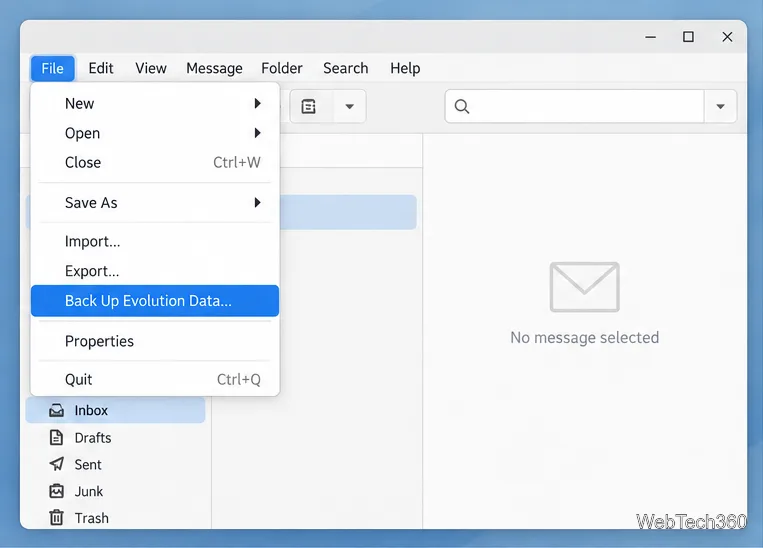
Evolution includes a built-in backup tool that saves your mail and the rest of your Evolution profile to a compressed archive. To create one, choose File > Back Up Evolution Data, pick a destination, then let Evolution close and finish the export. Restoring is also built in, but it replaces the Evolution data and settings currently on the computer, so make a separate backup before you begin.
Evolution’s menus and file dialogs can look slightly different across Linux distributions and app versions. The illustrations below focus on the controls and file names to look for.
GNOME’s Evolution backup guide says the archive includes settings, mail, contacts, tasks, memos, and calendars. Evolution saves it as a gzip-compressed tar archive, typically ending in .tar.gz. It is a whole-profile backup, not just a copy of the messages currently visible in your inbox.
There are two useful caveats before you start:
~/.bogofilter/ or ~/.spamassassin/.Open Evolution and save any drafts or changes you want to keep. From the menu bar, choose File > Back Up Evolution Data….
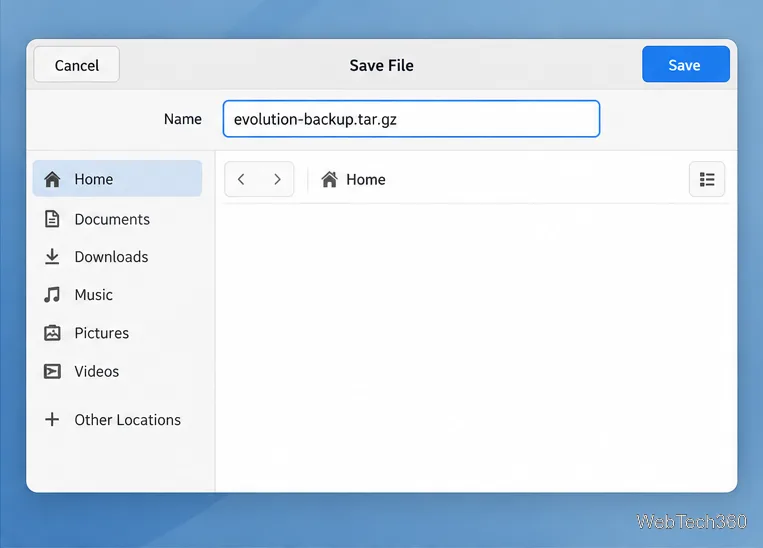
In the save dialog, choose a folder and a descriptive filename, such as evolution-backup.tar.gz. Save the archive somewhere easy to find. Keep the default archive format and filename extension unless your Evolution version offers a specific alternative you need.
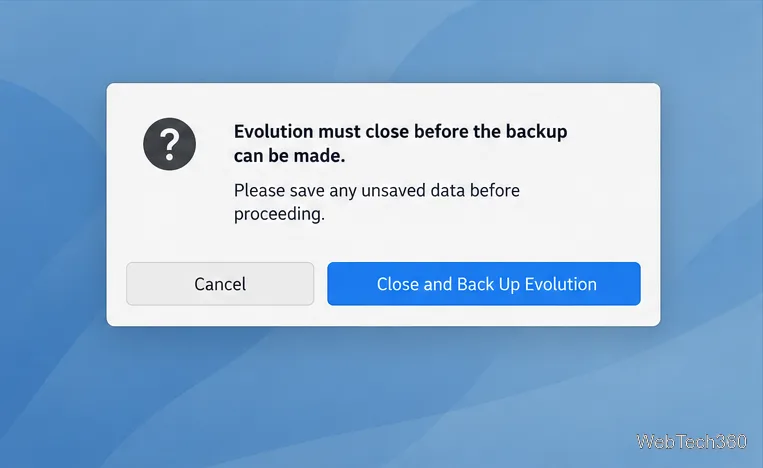
Evolution will ask to close before it creates the backup. Save unsaved work first, then choose Close and Back Up Evolution. Leave the process alone while Evolution closes and writes the archive.
When the operation finishes, use your file manager to confirm that the .tar.gz archive exists in the selected folder. If Evolution does not reopen automatically, start it again. Copy the archive to a separate disk or trusted cloud storage so a computer failure cannot take out both the original and the backup.
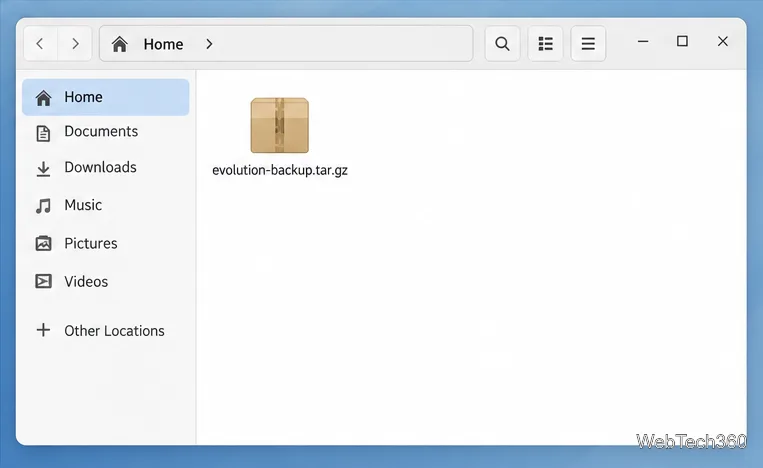
The archive contains private email and account information. If you plan to upload it to cloud storage, encrypt it first or use a storage service that encrypts files in a way you trust. With GnuPG installed, open a terminal in the folder containing the archive and run:
gpg --output evolution-backup.tar.gz.gpg --symmetric evolution-backup.tar.gzEnter a strong passphrase when prompted and store it somewhere separate from the archive. GnuPG’s official manual documents symmetric encryption with a passphrase. Encryption creates a new .gpg file; it does not remove the original unencrypted archive. Keep the plaintext copy only where you intend to, and do not delete it until you have confirmed the encrypted copy can be decrypted. A forgotten passphrase cannot be used to recover the encrypted archive.
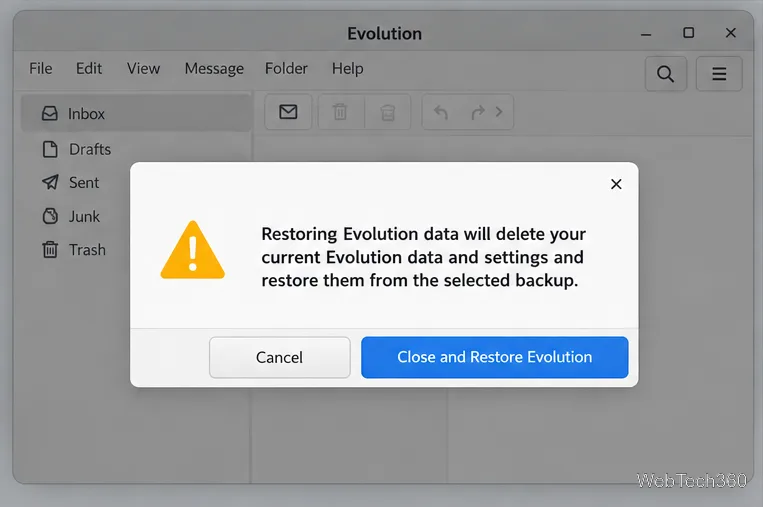
Important: restoring replaces the Evolution data and settings currently on the computer. If you have newer mail or local folders there, back up that current profile first. Keep the archive you are restoring from unchanged until you have checked the result.
Place the backup where you can find it. If it ends in .gpg, decrypt it first in a terminal. For the example above, use:
gpg --output evolution-backup.tar.gz --decrypt evolution-backup.tar.gz.gpgEnter the passphrase and confirm that the resulting .tar.gz file is available. If this is a fresh Evolution setup, the first-run assistant can also offer a restore option.
Open Evolution and choose File > Restore Evolution Data….
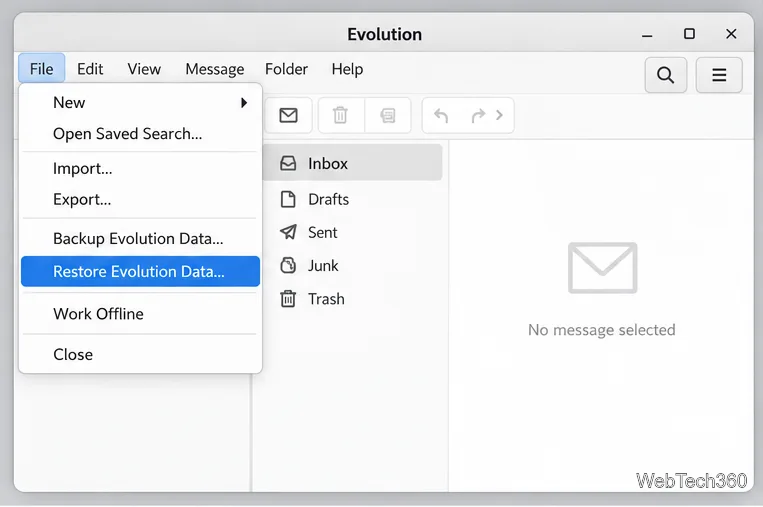
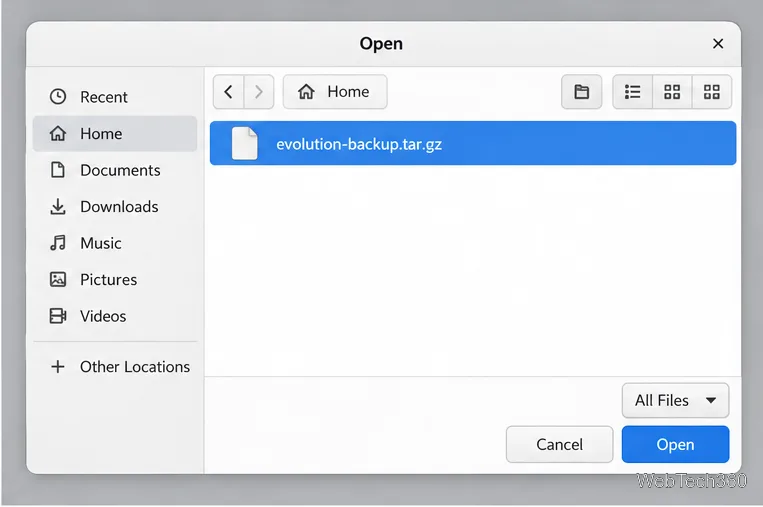
Browse to the backup archive, select it, and click Open. If it is not listed, check the folder you selected during backup and make sure you decrypted any .gpg copy first.
Read Evolution’s warning carefully. It tells you the current data and settings will be replaced. Continue only if you are sure this is the correct archive and have protected anything you still need; then choose Close and Restore Evolution.
Wait for the restore to finish, then open Evolution if it does not restart by itself. Check your mail folders and local archives, along with contacts, calendars, tasks, and memos you rely on. Some accounts may ask you to sign in again. Keep the backup until you have confirmed that the restored data is usable.
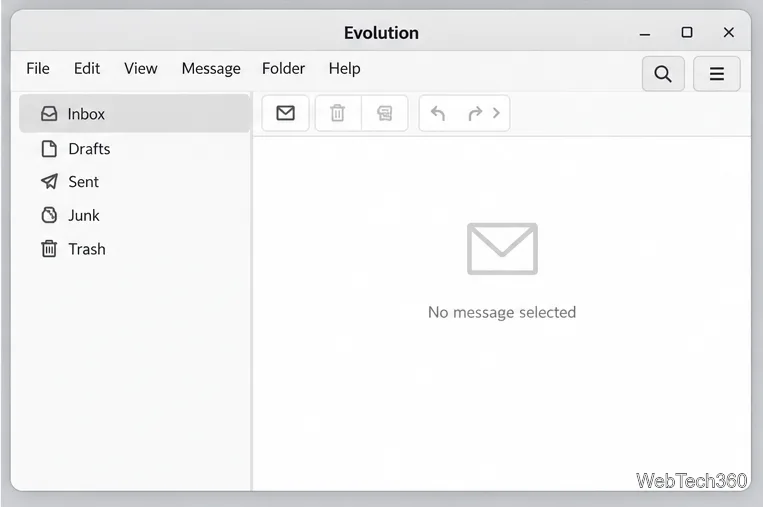
Make sure you selected the actual Evolution archive rather than the encrypted .gpg file, and confirm the file is complete and readable. Return to the folder where you saved it if the file chooser opens in a different location. Do not manually unpack the archive over Evolution’s hidden data folders: use the built-in restore command so Evolution can close and replace its profile in the expected way.
Learn how to recover lost partitions and files with TestDisk and PhotoRec. Protect the source drive, scan safely, and save recovered data to another disk.
Scan QR codes on Linux with CoBang using a webcam or image file. See installation options, setup steps, and fixes for Flatpak camera access.
Change webcam settings on Linux with Cameractrls: tune exposure, color, flicker reduction, and other supported controls, then check compatible video modes.
Install PhpStorm on Linux with JetBrains Toolbox or the standalone tar.gz archive, plus Snap and Arch AUR options. Java is already bundled.
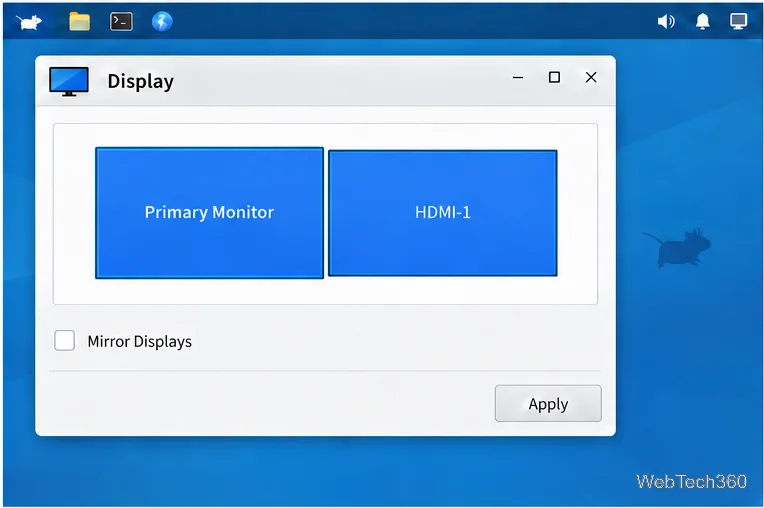
Create a separate XFCE 4 panel for each display, assign the second panel to the right output, position and size it, and add the launchers and status items you need.
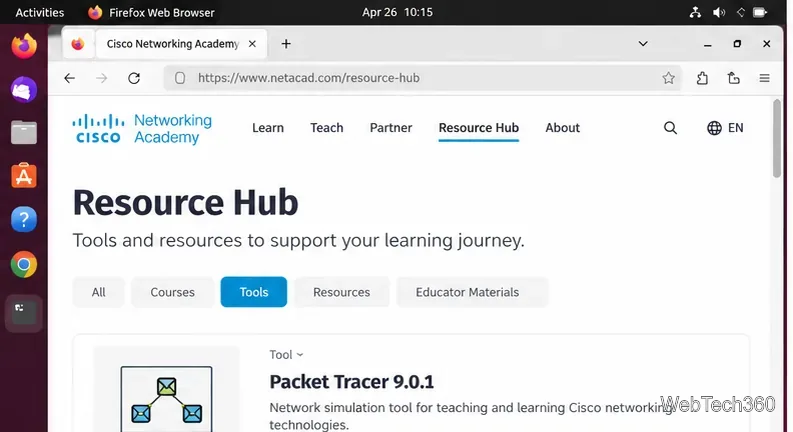
Download Cisco Packet Tracer 9.0.1 for Ubuntu 64-bit, install the DEB package with APT, accept the license in Terminal, and sign in to start a lab.
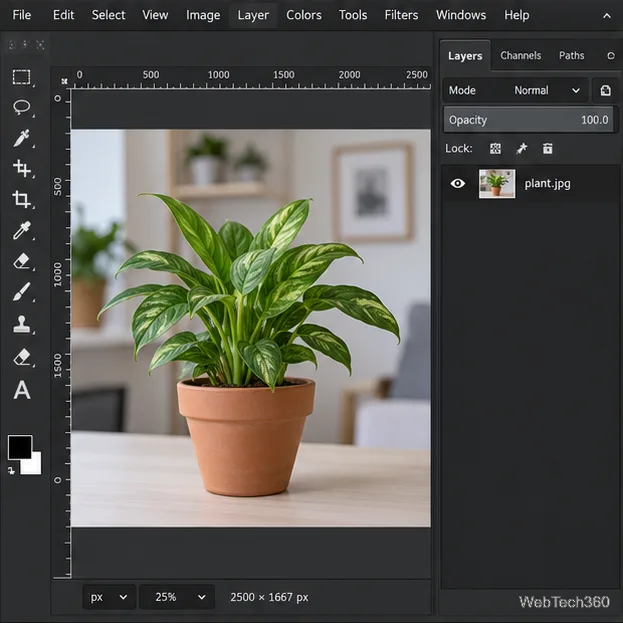
Remove a photo background on Linux with GIMP: trace a subject, delete the selected background, keep transparency, and export a reusable PNG.
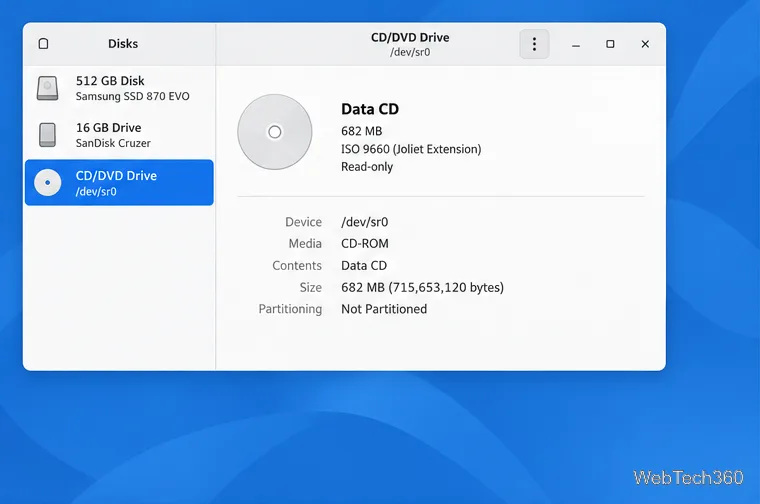
Create a CD-ROM ISO on Linux with GNOME Disks or dd. Identify the optical drive, monitor the copy, verify the image, and know when a damaged or audio disc needs another tool.
Download FlightGear for free from the official site. Compare Windows, macOS, and Linux packages, install the data files, and start your first flight.
Open Google Tasks in a browser, add a Chrome shortcut or app-style launch, and manage dated to-dos through Calendar and Gmail.