Pika Backup gives Linux users a graphical way to create BorgBackup repositories without working directly at the command line. It is designed for personal files rather than full-system imaging, and it can store backups on local disks, removable drives, network shares, and compatible remote services. The current release listed by GNOME is Pika Backup 0.8.4, released August 4, 2026. This guide follows the current official workflow and replaces older package-specific instructions that are no longer the best default.
Install Pika Backup on Linux
For most distributions, the simplest supported route is the Flatpak build from Flathub. If Flatpak and the Flathub remote are already configured, install Pika Backup with:
flatpak install flathub org.gnome.World.PikaBackup
If Flathub is not configured yet, add it once and then run the install command:
flatpak remote-add --if-not-exists flathub https://flathub.org/repo/flathub.flatpakrepo
flatpak install flathub org.gnome.World.PikaBackup
You can also open the app's official GNOME page and follow its install link. Distribution repositories may package Pika Backup too, but their versions can lag behind Flathub.
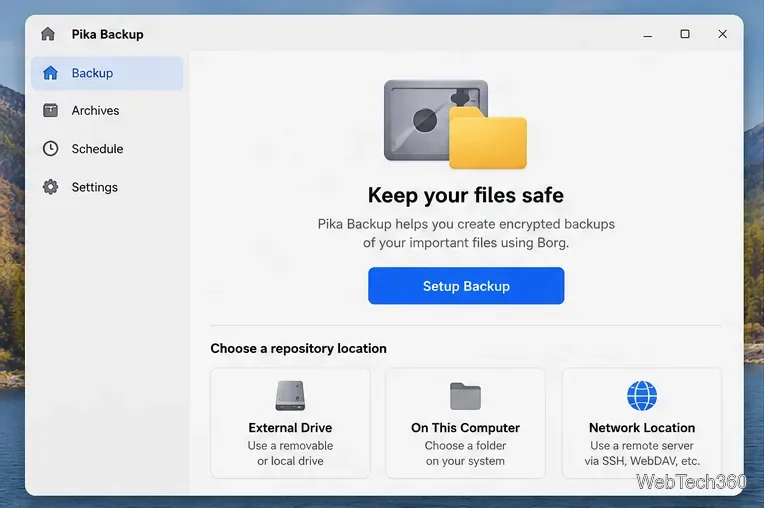
How to back up files with Pika Backup
1. Choose where the repository will live
Open Pika Backup and start a new backup configuration. For a removable drive, plug it in first and make sure it is visible and writable in GNOME Files. Then choose the drive or Location on Disk, select the repository base folder, give the repository a name, and continue. Pika's official removable-drive guide notes that missing file-system permissions are a common reason a drive cannot be used.
For a network share, connect to it in GNOME Files before selecting it in Pika. For a server or online backup service that supports BorgBackup, SSH, or SFTP, use Remote Location and enter the repository URL supplied by the service. Borg-aware services are generally the better-performing remote option according to Pika's remote-backup documentation.
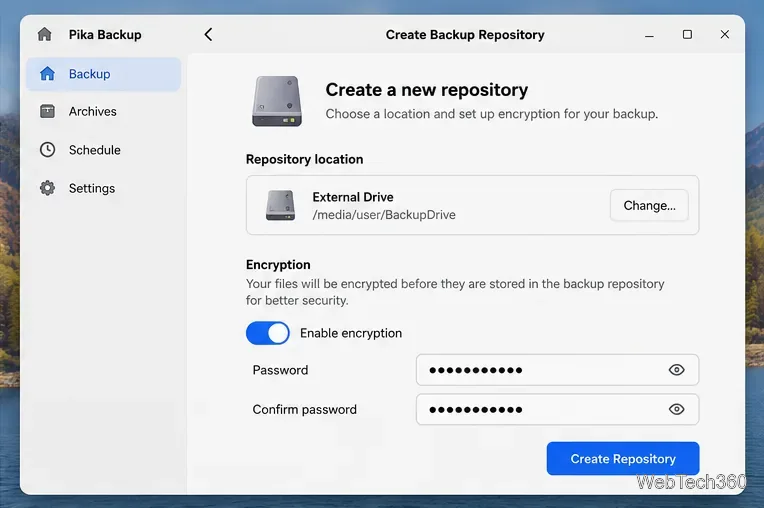
2. Enable encryption and protect the password
After choosing the destination, select the encryption option you want and create the repository. Encryption is a good choice for external or remote backups because the stored data cannot be read without the repository password. Keep that password somewhere safe: if it is lost, encrypted backup data cannot simply be recovered by resetting the password.
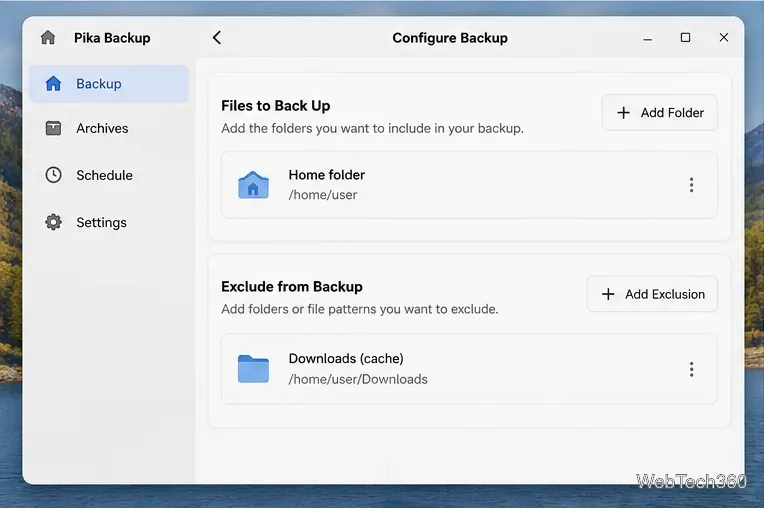
3. Pick folders to include and exclude
In Files to Back Up, keep the folders that contain data you actually want to protect and add any additional folders you need. Use Exclude from Backup for data that is large, temporary, reproducible, or unnecessary to restore, such as caches or selected download folders.
Do not treat Pika as a full operating-system recovery tool. The project explicitly describes it as a personal-data backup application powered by BorgBackup. For a complete bare-metal recovery plan, you would need a separate system-image or snapshot strategy in addition to Pika.
4. Run the first backup
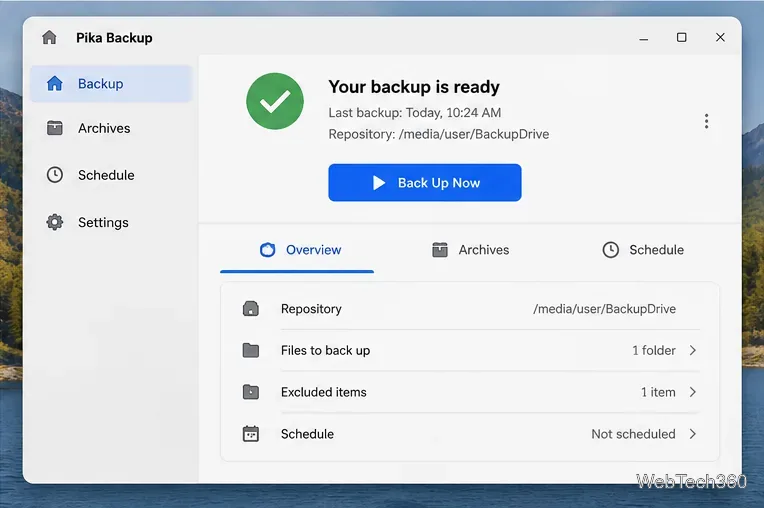
Review the destination and selected folders, then click Back Up Now. The first run has to read and store all selected data, so it can take noticeably longer than later runs. Borg's deduplication means subsequent archives only need extra space for new or changed data instead of copying every unchanged file again.
When the operation completes, use the Archives area to inspect previous snapshots. Every backup creates an archive representing the files at that point in time.
Set up automatic backups
If you do not want to remember to run backups manually, open the Schedule tab and enable scheduled backups. Pika currently supports hourly, daily, weekly, and monthly schedules. With a removable drive, Pika can prompt you to connect it when a scheduled run is due; the backup starts when the required drive becomes available. The app can also clean up older archives according to retention settings. See the official scheduling guide for the current options.
Restore files from a Pika Backup archive
To recover data, select the relevant backup, open Archives, choose the archive by date and time, and select Browse Saved Files. Pika opens the archive through your file manager so you can locate and copy the files you need. The official recovery instructions warn that copying with GNOME Files does not preserve Unix permissions; if permissions matter, use cp -a from a terminal for the restore copy.
Quick backup checklist
- Keep the backup repository on a different drive or remote location from the source data.
- Use encryption for sensitive backups and store the password securely.
- Exclude disposable data so backups stay smaller and faster.
- Enable a schedule that matches how often your important files change.
- Occasionally browse an archive and restore a test file so you know the backup is usable.
With those basics in place, Pika Backup provides a straightforward graphical front end to BorgBackup for everyday Linux file protection without requiring you to learn Borg's command-line workflow first.









