How to Block Specific Ports on Linux with UFW or firewalld

To block a specific port on Linux, add a firewall rule for the port and protocol you want to stop. On an Ubuntu system using UFW, for example, sudo ufw deny 8080/tcp blocks new incoming TCP connections to port 8080. On systems using firewalld, you can remove an existing port allowance or add an explicit reject rule. The important part is to change the firewall that your system actually uses rather than mixing UFW, firewalld, and low-level nftables rules.

Before you block a port

First, confirm the port number and whether the application uses TCP, UDP, or both. A TCP rule does not automatically block UDP on the same number. You can also check listening sockets with:

sudo ss -lntup

A firewall rule controls network traffic; it does not stop the application from listening locally. If you do not need the service at all, stopping or disabling that service is usually better than relying only on a firewall rule.

If you are connected to the machine over SSH, protect your remote-access rule before enabling or tightening the firewall. The current UFW manual specifically warns that enabling UFW can disrupt existing SSH connections and recommends adding the required SSH allowance first.

Block a port with UFW

Ubuntu documents UFW as its default firewall configuration tool. UFW is normally disabled initially, so check its status before adding or enabling rules.

1. Check UFW and enable it safely

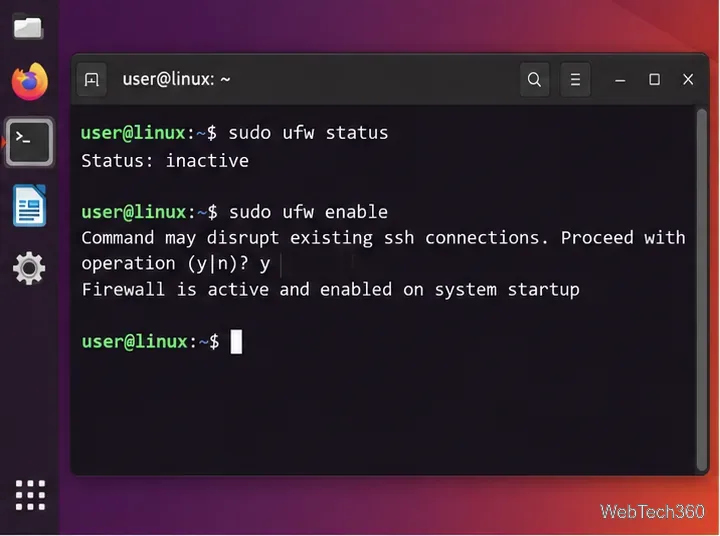
sudo ufw status

If the result is Status: inactive and you want to enable UFW, first allow the remote-management service you rely on. For a standard OpenSSH profile:

sudo ufw allow OpenSSH
sudo ufw enable
Linux terminal showing UFW status as inactive and then enabling the UFW firewall
Check whether UFW is active before changing its rules, especially on a remotely managed machine.

2. Add a deny rule for the port

Replace 8080 with the port you want to block. Specify the protocol so the rule is unambiguous:

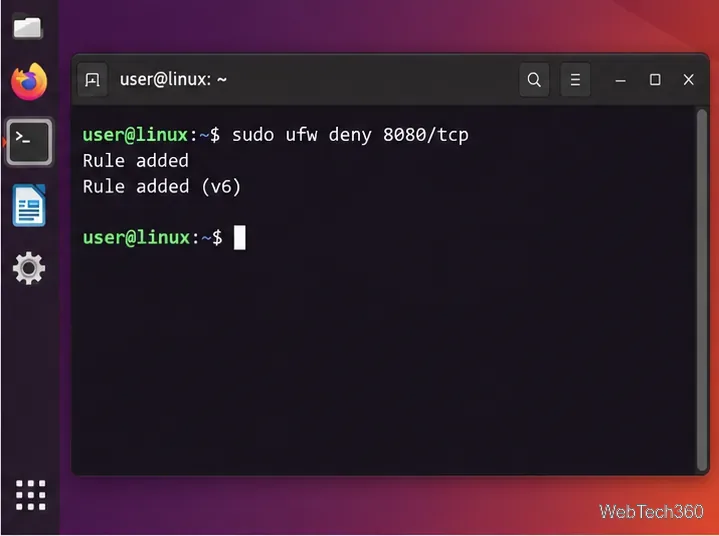
sudo ufw deny 8080/tcp

For UDP, use:

sudo ufw deny 8080/udp

If an application uses both protocols, add both rules. UFW also supports reject; unlike a silent deny, a reject tells the sender that the connection was refused.

Linux terminal showing the command sudo ufw deny 8080/tcp and confirmation that the firewall rule was added
A UFW deny rule blocks incoming TCP traffic to the chosen port.

3. Verify or remove the UFW rule

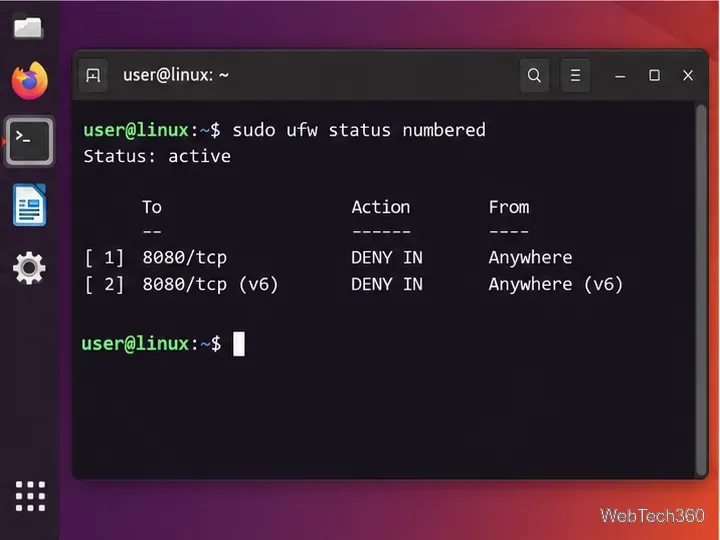
sudo ufw status numbered

The output should show a DENY IN entry for the blocked port. The official UFW syntax also supports deleting the rule by repeating it with delete:

sudo ufw delete deny 8080/tcp
Linux terminal showing UFW numbered status with TCP port 8080 denied for IPv4 and IPv6
Use numbered status output to confirm that the intended UFW rule is active.

Block a port with firewalld

If your Linux installation uses firewalld, start by finding the active zone:

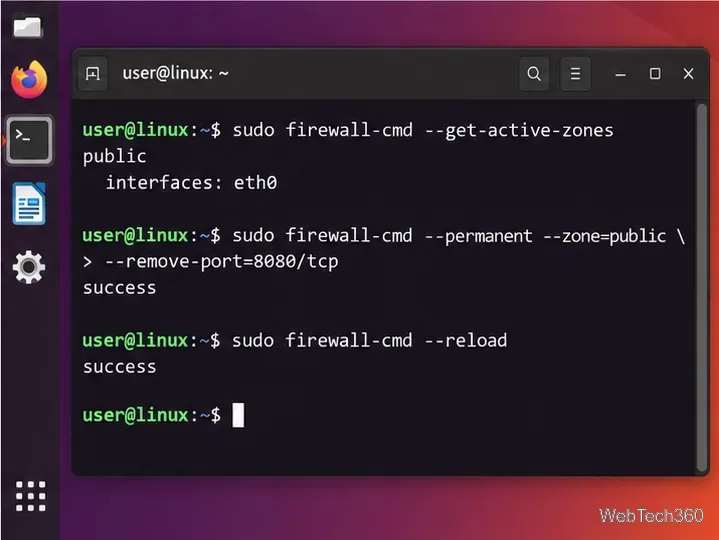
sudo firewall-cmd --get-active-zones
sudo firewall-cmd --zone=public --list-all

Replace public below if your interface belongs to a different zone. If port 8080 was explicitly opened, remove that allowance and reload the permanent configuration:

sudo firewall-cmd --permanent --zone=public --remove-port=8080/tcp
sudo firewall-cmd --reload
Linux terminal showing the active firewalld zone, removal of TCP port 8080, and a firewall reload
With firewalld, make the change in the correct active zone and reload permanent rules.

If the port is still allowed indirectly by a service definition, or you specifically want an explicit block, add a rich reject rule:

sudo firewall-cmd --permanent --zone=public --add-rich-rule='rule port port="8080" protocol="tcp" reject'
sudo firewall-cmd --reload
sudo firewall-cmd --zone=public --list-rich-rules

The firewalld rich-rule documentation supports port matches with reject or drop actions. Its firewall-cmd manual also explains the separate runtime and permanent configurations.

To remove that explicit firewalld block later, remove the same rich rule and reload:

sudo firewall-cmd --permanent --zone=public --remove-rich-rule='rule port port="8080" protocol="tcp" reject'
sudo firewall-cmd --reload

Confirm the port is no longer reachable

Run sudo ss -lntup again if you want to see whether an application is still listening. Then test from another machine on the relevant network. If Netcat is installed, a TCP check can look like nc -vz SERVER_IP 8080. Test from the same network path your real clients use; a localhost test does not prove that external traffic is blocked.

If the service should never be exposed, also disable or reconfigure the service itself. A firewall is an access-control layer, not a substitute for removing unnecessary listeners.
Leave a Comment

How to Record Speaker Output on Linux with Audacity

How to Record Speaker Output on Linux with Audacity

Capture Linux desktop audio in Audacity by routing its recording stream to your output device’s monitor source. Follow PulseAudio and PipeWire steps, export tips, and fixes for silent tracks.

How to Use Dropbox on Linux: Install and Sync Your Files

How to Use Dropbox on Linux: Install and Sync Your Files

Install Dropbox on Linux from the official package, sign in, sync a local folder, manage selective sync, and check status from the command line.

How to Install Inkscape on Linux: Ubuntu, Fedora, Arch, and More

How to Install Inkscape on Linux: Ubuntu, Fedora, Arch, and More

Install Inkscape from your Linux distribution’s repositories, the Ubuntu stable PPA, Snap, or Flathub, with current commands and notes for choosing a package source.

How to Find and Remove Duplicate Files on Linux With FSlint

How to Find and Remove Duplicate Files on Linux With FSlint

Use FSlint to scan selected Linux folders, review duplicate groups, and safely delete redundant files or learn when hard-link merging is appropriate.

How to Install SABnzbd on Linux and Configure It

How to Install SABnzbd on Linux and Configure It

Install SABnzbd on Ubuntu or Debian, or run it in Docker on another Linux host. Then open the web interface and configure your provider and download folders.

How to Install the Paper GTK Theme on Linux

How to Install the Paper GTK Theme on Linux

Install the Paper GTK theme from supported Linux repositories, enable it for GTK apps in GNOME Tweaks, and see what the legacy theme can and cannot change.

How to Install and Set Up Plex on OpenMediaVault with Compose

How to Install and Set Up Plex on OpenMediaVault with Compose

The old OpenMediaVault Plex plugin is archived. Set up Plex on OMV 8 with OMV-Extras, the Compose plugin, persistent storage, and Plex’s official container.

How to Clean and Speed Up Ubuntu Safely

How to Clean and Speed Up Ubuntu Safely

Clean and speed up Ubuntu with safe APT cleanup, storage checks, and startup controls that help free space and troubleshoot a sluggish desktop.

How to Install the Hiri Email Client on Linux

How to Install the Hiri Email Client on Linux

Install Hiri on Linux with its Snap package or official tarball, add a desktop launcher, and check supported accounts plus a warning about Hiri’s old Snap release.

How to Get System Specifications for a Linux PC

How to Get System Specifications for a Linux PC

Use Fastfetch and built-in Linux commands to check your distro, kernel, CPU, memory, graphics, storage, and connected devices, then save a clear report.